Desktop Designer Test Options
The following options are available for desktop testing in the Desktop Designer.
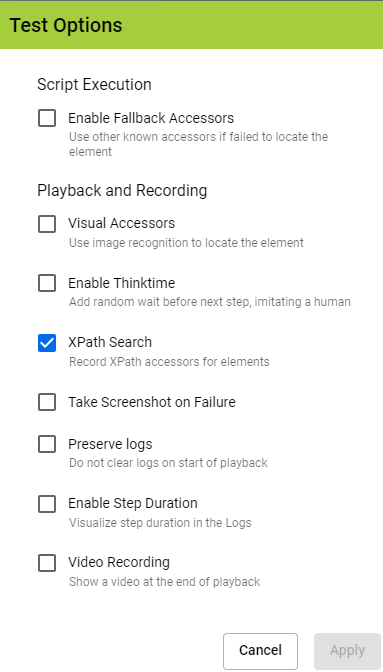
Script Execution Options
The following options pertain to execution of scripts.
Enable Fallback Accessors
You can enable the Fallback Accessors option so that AIQ keeps test running if an accessor fails or has changed, by automatically choosing other available accessors.
-
If Fallback Accessors are enabled, AIQ will try one time for each accessor. If an accessor fails then it will scroll down and again try again each accessor one time and scroll until it reaches the end of the page or reaches maximum number scrolls.
-
The scrolling logic will scroll up to ten times, depending on what it locates. If it is not locating elements, it will stop before it reaches ten. If it is locating elements, it will continue until ten.
-
If Fallback Accessors are disabled, playback will function as it currently does. Tests may fail if an accessor fails or has changed.
Playback and Recording Options
The following options pertain to playback and recording of scripts.
Visual Accessors
Visual Accessors are image based accessors which can be used to enhance your test scripts in situations where traditional code-based accessors will fail. AIQ will capture an image of the website and then crop the surrounding boundaries of the element that you are working on. During playback it takes the image and applies a feature based matching algorithm which creates a pattern from the image and uses that to locate the image on the webpage.
Using a Visual Accessors means that AIQ is not only looking at just the code elements in a page, the AI is also looking at the visual elements on the page.
See Visual Accessors for Web Testing for more detailed usage information.
Enable Thinktime
Think time options can be enabled or disabled depending on the requirements. Enabling think times will add wait for statements in between every action performed from the designer script.
XPath Search
There are several ways to identify an element on the webpage, XPath search is one among them. When you record a use case with this option enabled, under the Accessor list you will notice the XPath accessors of that particular element as well. Disabling this option will not add any Xpath references to that element being identified.
Take Screenshot on Failure
Determines if a screenshot is taken even if the script fails before we reach that step where a snapshot was to be captured..
Enable Step Time Duration
Visualize step durations in the log files.
Preserve Logs
Determines if the logs should be cleared every time a script is played. This option is disabled by default.
Video Recording
If enabled, it will show a video at the end of the playback.