Removing Temporary AIQ Files
Issue: The AIQ temp folder occupies too much space in the AIQ Distribution Folder
Solution: Create a scheduled automatic ask that runs every day and deletes the folder and its contents.
Creating the Task
The following procedure is for Windows.
-
Open the Task Scheduler app.
-
Open the Task Scheduler app from the Windows Start menu.
-
From the Windows Run dialog (
Win + Rto open) type intaskschd.msc, and press Enter.
-
-
From the Action menu select Create a Basic Task.
-
Name the task and enter a description (optional).
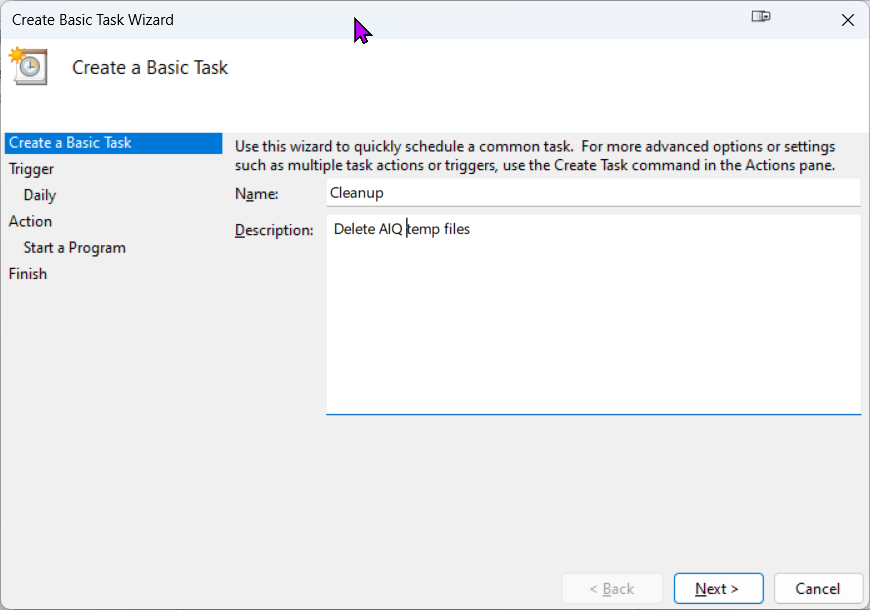
Click Next.
-
In the Trigger options select Daily.
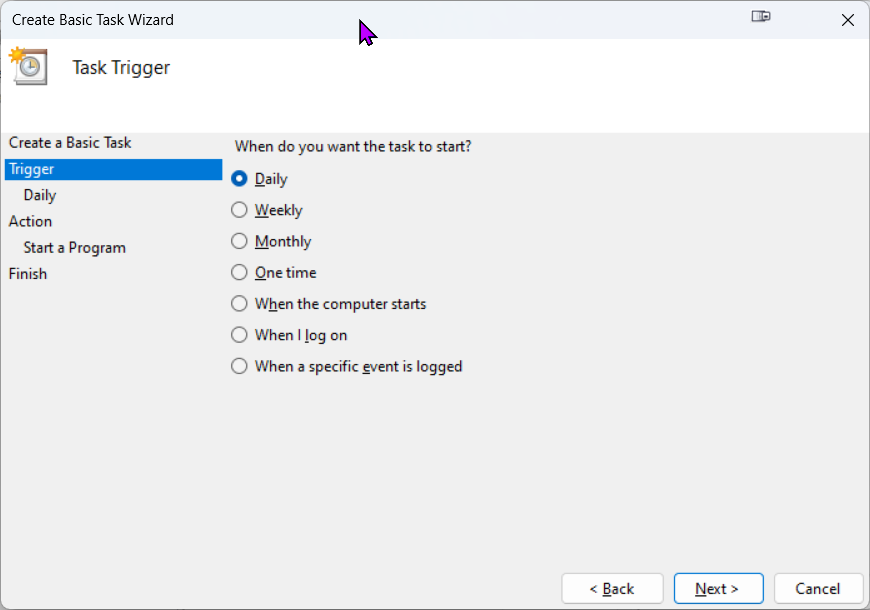
-
Click Next.
-
In the Daily options set the starting date and time for your task.
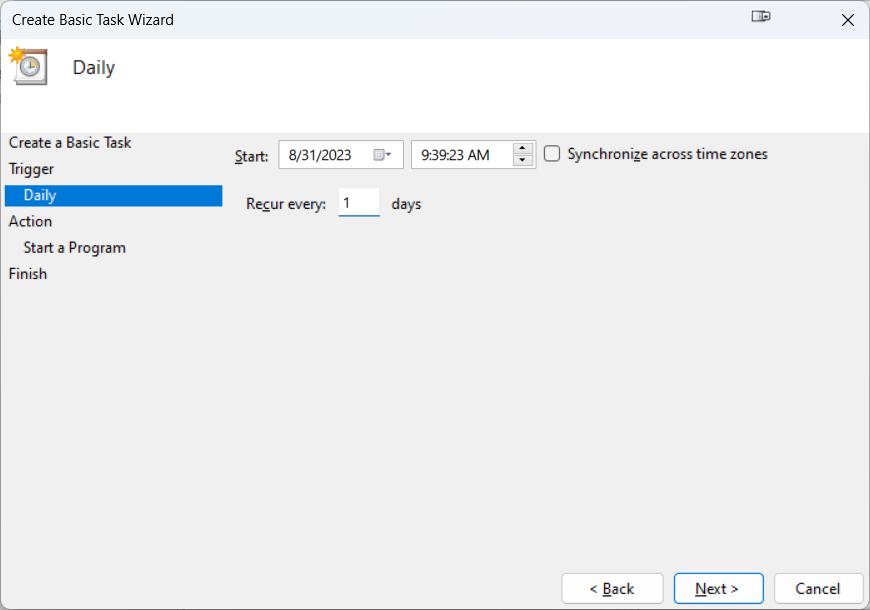
-
Click Next.
-
In the Action options select Start a program.
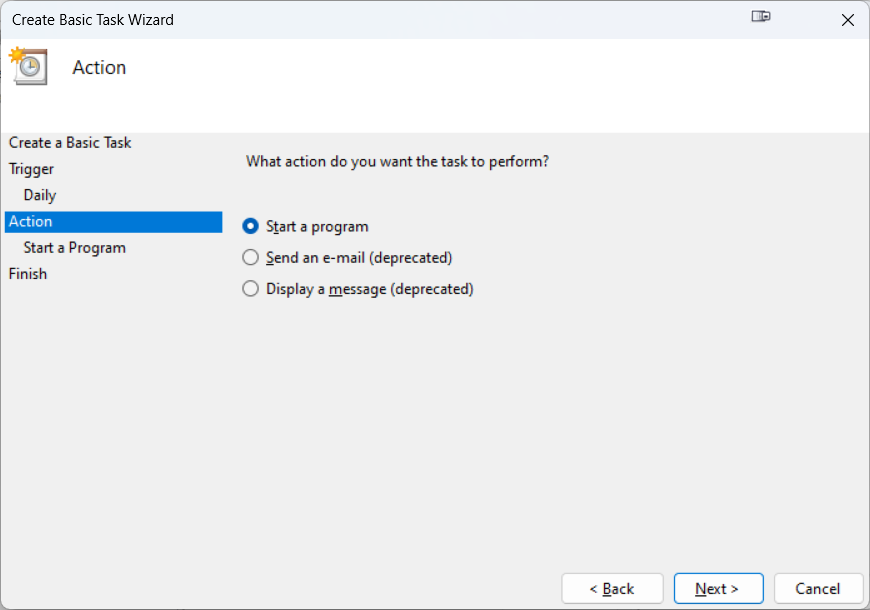
-
Click Next.
-
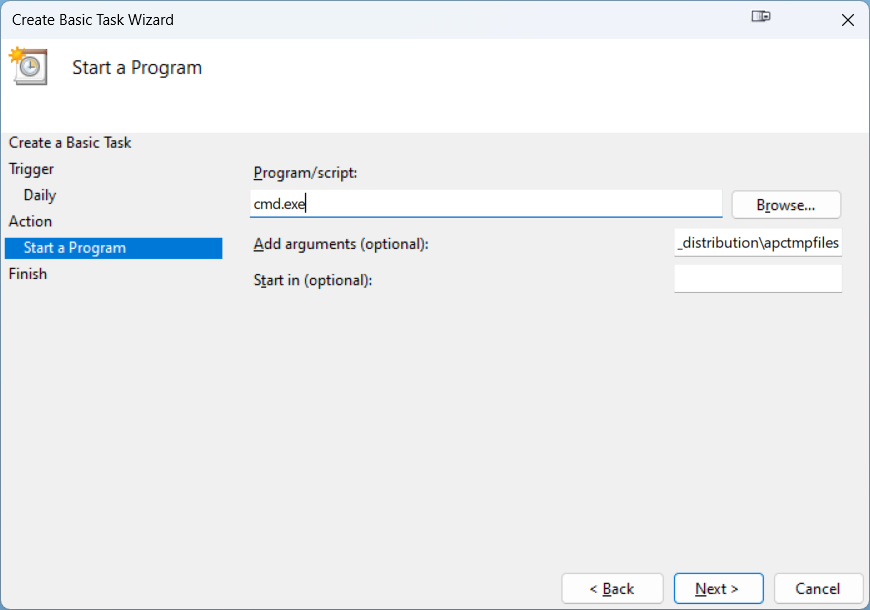
Configure the following properties:
-
Program/script: Enter
cmd.exe -
Add arguments: Enter the following command which includes path with the folder that you want to delete. For example:
/c rmdir /s /q "C:\AIQ\AIQ-4.9.3-76925\aiq_distribution\apctmpfiles".
-
-
Click Next.
-
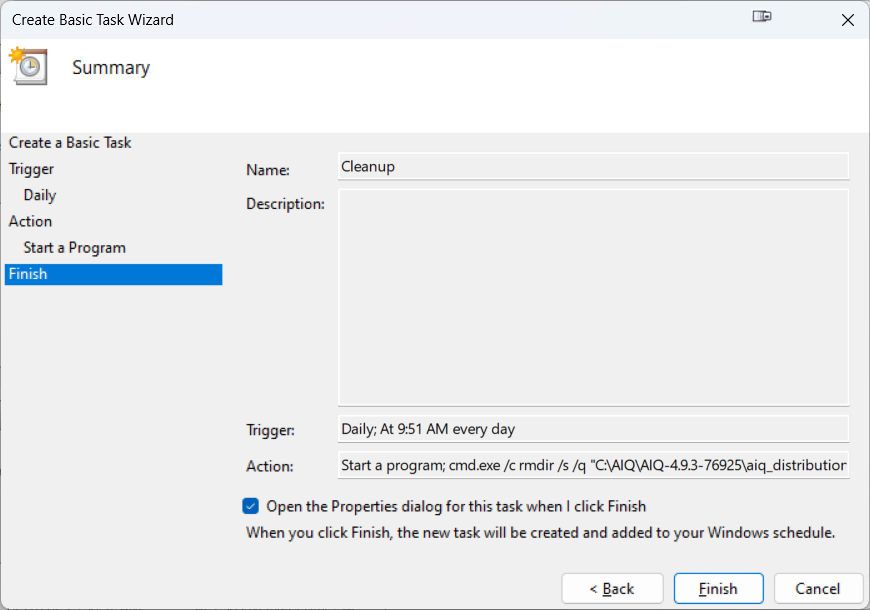
Review your task settings and select. Open the Properties dialog for this task when I click Finish.
-
Click Finish.
-
In the Task Properties window confirm the following settings:
-
In the General tab, make sure the task is set to run with the highest privileges if needed.
-
In the Triggers tab, you can edit the trigger to repeat daily and set the time as per your preference.
-
In the Actions tab, you can see the command that will be executed. It should be something like:
cmd.exe /c rmdir /s /q "C:\AIQ\AIQ-4.9.3-76925\aiq_distribution\apctmpfiles"
-
-
Click Save and Exit.
-
Click OK to save the task.
This task will now run daily at the specified time and delete the folder you specified using the rmdir command with the /s (delete all subdirectories and files) and /q (quiet, no confirmation) options.