How to upgrade Appvance IQ Controller & TestNodes
Describes how to use Lab Management to upgrade an Appvance IQ Controller and its TestNodes.
If upgrading from 4.0.x to 4.1+, do not use Lab Management as described below. Instead please see Manual Upgrade Steps
Please complete all sections:
- Create a Grid Configuration File
- Configure Lab Management
- Upgrade using Lab Management.
- IMPORTANT: Mac OS X Servers
Linux Controllers
DO NOT use the Lab Management upgrade method to upgrade a Linux AIQ Controller which uses the /etc/systemd/system service to start AIQ at startup.
Lab Management only supports Linux upgrades where the /etc/rc.local startup script is used.
The following steps assume you have your upgraded Appvance IQ zip URL and all machines to upgrade have http access to the link.
Create a Grid Configuration File
First time using Lab Management? Follow these steps to create a Grid Config file for your Controller, and a separate Grid Config file with a list of TestNodes
A configuration file for your AIQ Controller, as well as a separate configuration file for your list of TestNodes is required
-
Browse to Appvance IQ and login using an admin-level account
-
Click Global Options and select Cloud Config
-
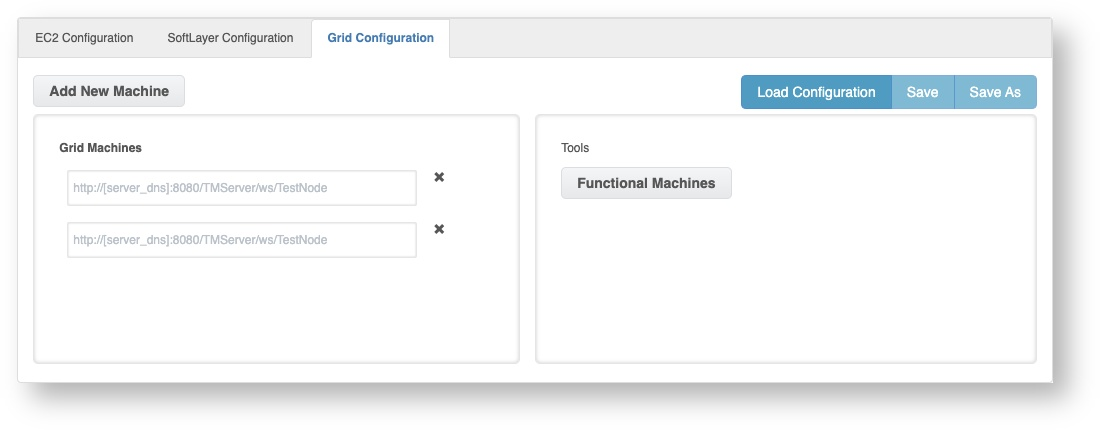
Select the Grid Configuration tab
-
Controller
-
Enter http://localhost:8080/TMServer/ws/Testnode in the Grid Machines box and press Enter
-
Click Save, and save the Controller Grid Configuration file
-
-
TestNode
-
Assuming you just created the Controller configuration file, click the Refresh button on your browser to clear the form, and select Grid Configuration again
-
Enter a new or existing TestNode machine URL in the Grid Machines box using the following format
http://< test-node-dns>:8080/TMServer/ws/Testnode
-
Press Enter
-
To add additional machines, click Add Machine and enter subsequent TestNodes in the Grid Machines list using the format described above
-
Click Save, and save the TestNode Grid Configuration file
-
Configure Lab Management
Use the Grid Configuration files (created above to upgrade a Controller or a list of TestNodes
-
Click Global Options, Admin Options
The Lab Management tab appears -
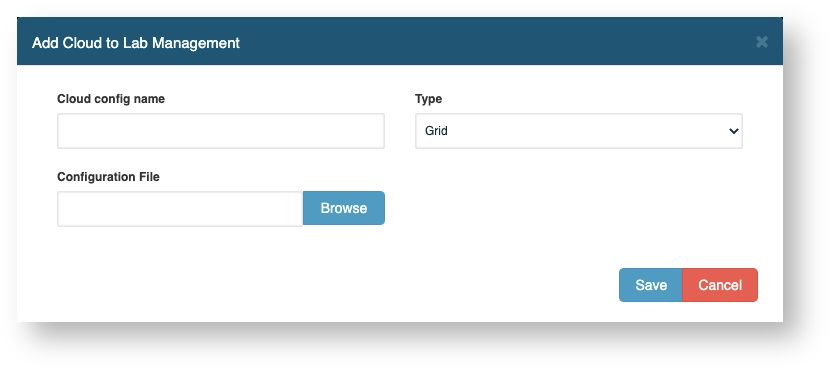
Click Add Cloud
-
Enter a name in the Cloud config name box
-
Select Grid in the Type box
-
For each configuration file created (above):
-
Click Browse, select the previously created grid configuration file
-
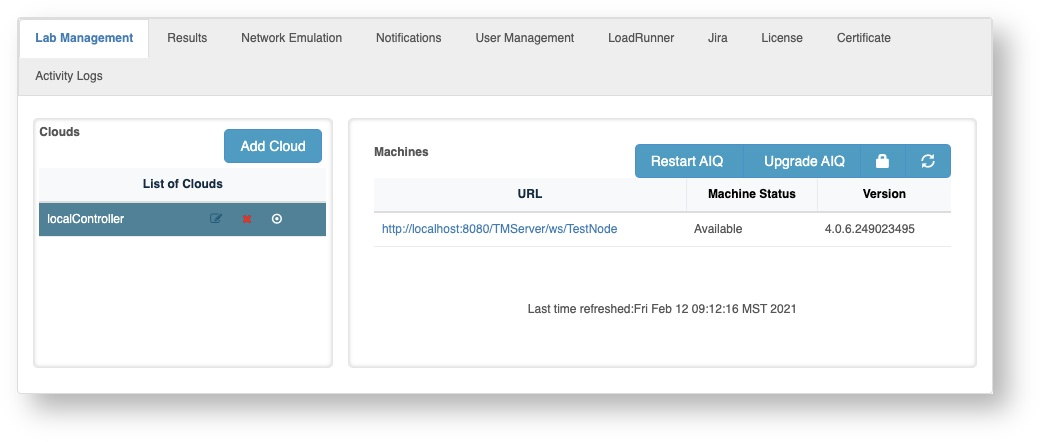
Click Save. The entry appears in the Clouds list
-
-
When you select a Cloud (left), all systems in the cloud file and their availability appear in the Machines list (right)
Upgrade using Lab Management
Use a Grid Configuration file to upgrade a Controller list of TestNodes
-
Click Global Options, Admin Options
The Lab Management tab appears -
Select a cloud location to upgrade in List of Clouds
-
Tip It's often recommended to upgrade your Controller before upgrading TestNodes
-
-
Confirm Machine Status displays Available and a valid Version displays for each listed URL
-
If your Machine Status displays Invalid Login, click the lock icon and enter your Appvance credentials when prompted.
-
If your Machine Status displays Unreachable, confirm Appvance is running on the designation system and that the destination system is reachable from the Appvance controller you are currently using to perform the update.
-
If your Machine Status displays Available, however the version is Unreachable or Unknown, please contact support@appvance.ai
-
-
Click Upgrade AIQ
-
Click Browse and enter in the new Appvance IQ build zip file URL
-
Note Each of the above machines must have access to the internet to download the distribution zip file
-
-
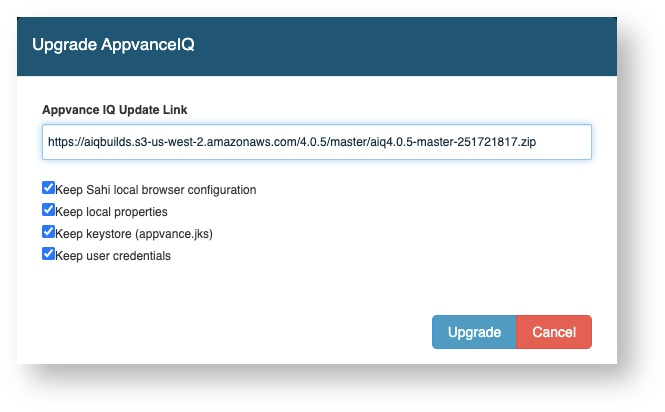
Click Upgrade, and when the confirmation window appears, click OK
Controller Upgrade
If upgrading your Controller, you will lose connectivity as the Appvance IQ upgrade completes. Try refreshing your browser after 3 - 5 minutes, and repeat until Appvance IQ once again becomes available.
About Upgrade
The upgrade lasts several minutes and varies based on how long each TestNode requires to download and unzip the Appvance .zip file (~2.8GB), as well as a few additional minutes for the actual installation.
Click the refresh button occasionally and watch for the updated version number. During the installation process, the Appvance IQ services on each machine become unavailable, as the services are down when applying the upgrade.
IMPORTANT: Mac OS X Servers
Mac OSX Servers
After completing an upgrade where a Controller or a TestNode uses Mac OS X, folder permission updates are required, as well as restarting Appvance IQ
The following code block assumes Appvance IQ (AIQ) is installed in $HOME/AIQ/aiq_distribution
Update AIQ Permission Post Lab Management Upgrade
cd $HOME/AIQ/
killall java
chmod -R 777 aiq_distribution
cd aiq_distribution/
./Appvance.sh