Encrypting EC2 Cloud Configuration Files using API Calls
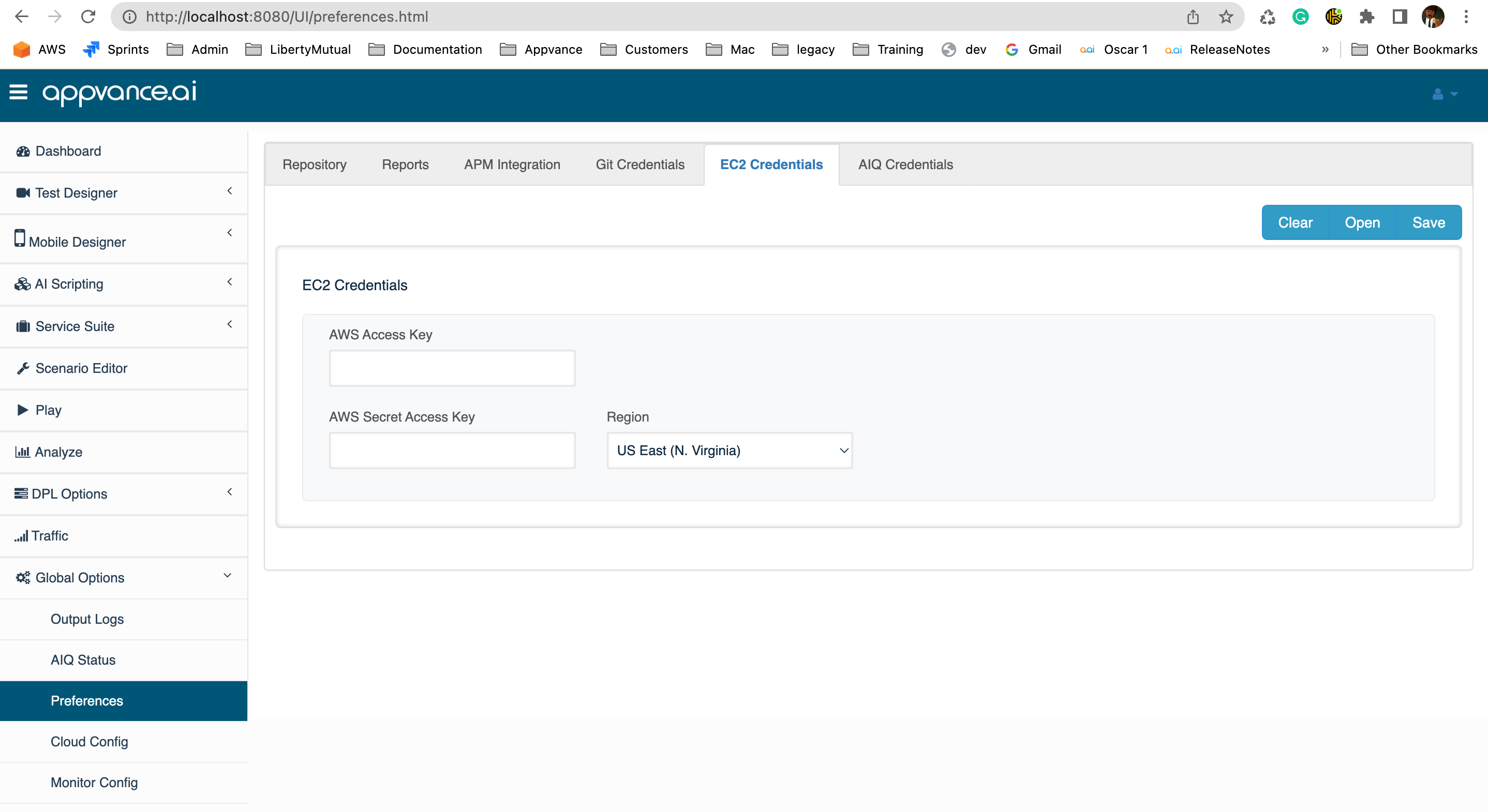
There are now options in AIQ UX to encrypt the files needed for CICD pipeline jobs as seen in the screenshot below, but sometimes you need to automate the process of encrypting the AWS credentials file as those credentials often have rotation intervals. So below the screenshot shows there is a process for creating this encryption using RESTful API calls.
Sometimes you need to be able to encrypt files in an automated way using CURL or service suite files to rotate the AWS credentials. Here we list two ways of achiving the same using AIQ Rest API calls.
EC2 Cloud Configuration Sample
This is a sample of the unencrypted structure.
<?xml version="1.0" encoding="UTF-8"?>
<cloud type="EC2" version="1"> <config-param key="AIQProtocol" value="http"/>
    <config-param key="AIQPort" value="8080"/>
    <config-param key="Ec2Timeout" value="25"/>
    <config-param key="AccountName" value="appvance"/>
    <config-param key="AWSKey" value="DUMMYDUMMYDUMMYDUMMY"/>
    <config-param key="AWSSecretAcessKey" value="dummDUMMYDUMMYDUMMYDUMMYDUMMYDUMMY/>
    <config-param key="AMI" value="ami-0dfc3da39bb6f571c"/>
    <config-param key="InstanceType" value="t3a.xlarge"/>
    <config-param key="KeyPair" value="AppvanceOps"/>
    <config-param key="Security" value="sg-00d4ef05804c7a117"/>
    <config-param key="AWSRegion" value="us-west-1.ec2.amazonaws.com"/>
    <config-param key="vpcId" value=""/>
    <config-param key="subnetId" value=""/>
</cloud>
Using CURL
By issuing the following sequence of CURL commands in a Mac/ubuntu terminal you can grab the resulting encrypted from the resulting JSON response.
Please replace the AIQ controller DNS and the AIQ user credentials, as well as the actual XML text that you want to encrypt.
curl -c cookies.txt -X POST -d "username=appvance&password=appvance" http://localhost:8080/AppvanceServer/rest/admin/logginForServices -H "ContentType: application/x-www-form-urlencoded"

curl -b cookies.txt -X POST -d "content=Replace here the xml of the ec2 cloud file" http://localhost:8080/AppvanceServer/rest/file/encryptFileContent - H "Content-Type:  application/x-www-form-urlencoded"
For Windows OS, you must to modify curl to curl.exe in the above code.
The response for the second curl (encryptFileContent) will be similar to
{
"data": "pma9QDLKQn1OMlkce6L4AHwwW8d/xS3yZuvdeUTPrnCv4s3kNSGzTGicu4tu
CTvusxiUfNSVL7A6Z5Br3/lW248GS3j8WA05EF7w9sWogHyC5L2JLo/rHAJqb6qI/NGq
4ZE9hy3sobAKkVq7sadFUH3Fg/Pz+OCD94J/PR5X9CbZ9mJbcctEh73+kqZLf8v2lrgC
YibSs957WJUub0sPC3E9XDdgjT53y0GafA8xiIbHbDxaEL4WikoFqglzjLAvkY3h4u/
Pcb412XjVNwOUCkx51ML294jJRJs7ZQgFYbunLOxOPhJ2R9xzbaLjqiBXaiic9VvNmb
gJX5RBdcWnw4js6/+wDFkTSHgHrht6KxmwUG7ASghNz8pujjf4IOZX2JGPerxqAfD+
+M5ilKf5f2buwYZiBQBFyNCW9F7H9Rwu+y2q2M73NZ6WIxzCmQfMeL+ZHHWSFTxV1O
eSPdeaXCtSDwWrY7eKWS0EvQYtPmKRDwiAnkInTDZSBDHnl2WNnZTAY1x/izUdSlL7Bld
jV0m9X3jP41zIEiUuo6wXUqx5BhLT7a22lVQiSfIK4DZqENvjMDrnY0dHBLi2mX40k
bALfsxrYjj3cm1PI3cVkdUs1skM0qOL8ZsOZnzmqkUTshoPoxjKvmN32KaN9Py6Uda
oEOHBIekmR7K2cottKvbyBuPQlWSbU8/W2/bMWxO3UDPtHDvYiVHLQax+XhuNeOOp5
Lfai9jWED3WAdFXXy7KpXJXh6dyx0dKTf1SI+F8IR4w4OPJcG2kSSuE0yzbH0bjxXD
KiFiozwMYSJrWQobqBHkdX/4V1nw2vUHjI6FASt3c3aWId417LLkZzEFQxiv3bfEAn
SwkCTp0raw2jW/O4aHpgpDwv0YqCtnHPZHN0tvkOI8Jd0Prf2fMnRIdzjj+8lWGOd
1UtXPgIZPRdxXhippZA8Nejom0cjOsQt+NrW8YE4c6o/39JRW56e9M3Un6Kf/MWq1k
4a62HQBChGHAF81+6OWc7HGzN+HSVPWPoRQv8Rgk+ULAcX+2U2mO4w==",
"success": true
}
Just grab the data contents in the above JSON and save it as a .cloud file name.
Using ServiceSuite
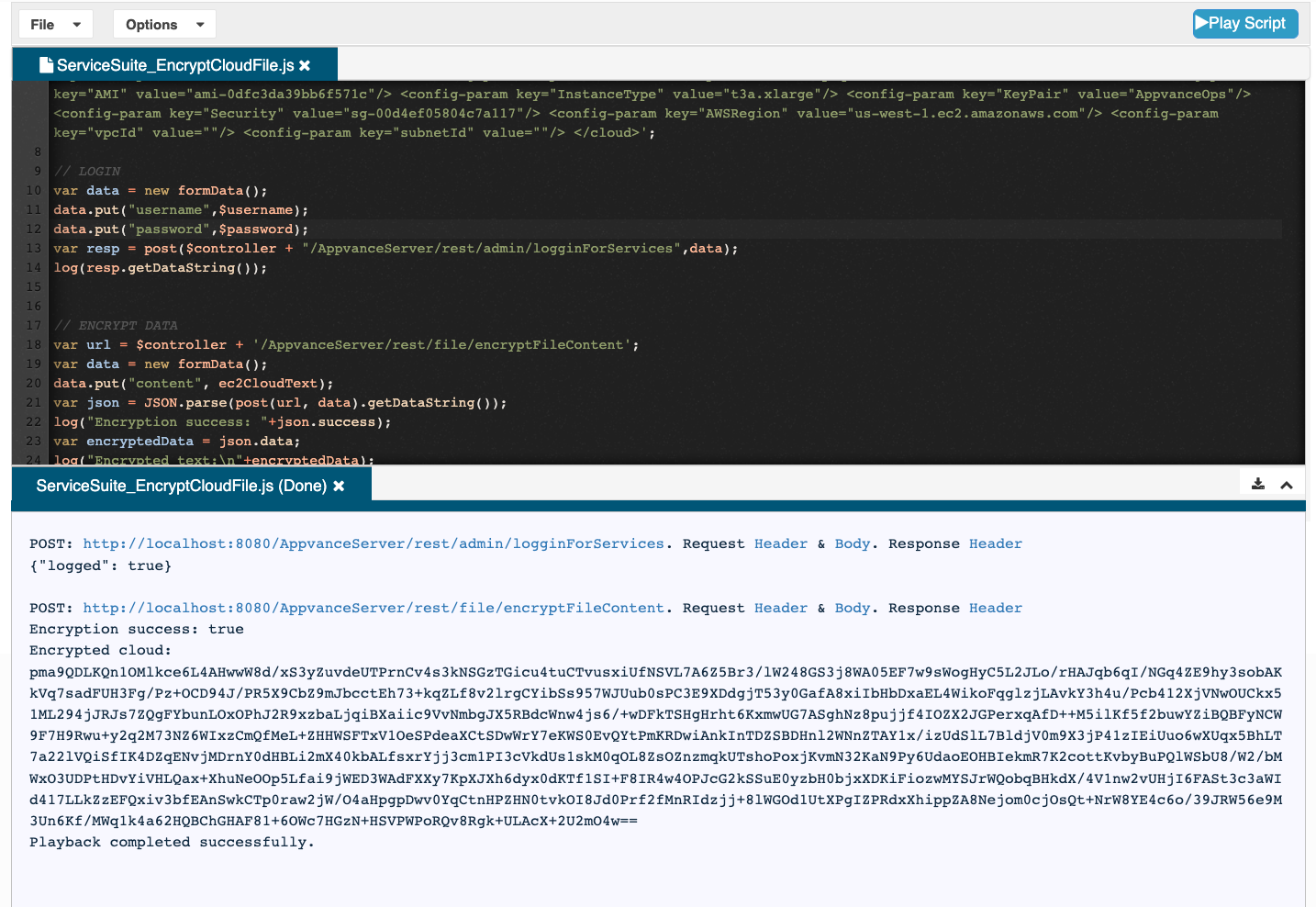
Here is a service suite script that will make the same calls seen above in the CURL example:
// MODIFY THIS TO POINT TO YOUR CONTROLLER
var $controller = "http://localhost:8080"
var $username ="appvance";
var $password ="appvance";

// THIS VARIABLE CAN BE USED TO CONSTRUCT THE EC2 CLOUD XML AS A STRING. PROVIDED BELOW SAMPLE DATA:
var ec2CloudText = '<?xml version="1.0" encoding="UTF-8"?> <cloud type="EC2" version="1"> <config-param key="AIQProtocol" value="http"/> <config-param key="AIQPort" value="8080"/> <config-param key="Ec2Timeout" value="25"/> <config-param key="AccountName" value="appvance"/> <config-param key="AWSKey" value="DUMMYOWGVPHYCUXYASDF"/> <config-param key="AWSSecretAcessKey" value="dummyxqmHB6IFeJ3KAar7zh3l7Id4AeQR8Uasdf"/> <config-param key="AMI" value="ami-0dfc3da39bb6f571c"/> <config-param key="InstanceType" value="t3a.xlarge"/> <config-param key="KeyPair" value="AppvanceOps"/> <config-param key="Security" value="sg-00d4ef05804c7a117"/> <config-param key="AWSRegion" value="us-west-1.ec2.amazonaws.com"/> <config-param key="vpcId" value=""/> <config-param key="subnetId" value=""/> </cloud>';

// LOGIN
var data = new formData();
data.put("username",$username);
data.put("password",$password);
var resp = post($controller + "/AppvanceServer/rest/admin/logginForServices",data);
log(resp.getDataString());


// ENCRYPT DATA
var url = $controller + '/AppvanceServer/rest/file/encryptFileContent';
var data = new formData();
data.put("content", ec2CloudText);
var json = JSON.parse(post(url, data).getDataString());
log("Encryption success: "+json.success);
var encryptedData = json.data;
log("Encrypted text:\n"+encryptedData);
After executing this script the encrypted contents are in the encryptedData variable. Then you can use writeText service suite command to write it to a file in your repository.