Screen Capture
Screen Capture is a feature where Appvance IQ captures the video of the scenario playback, Available only for functional scenario types.
This feature can be used for Appvance Designer, Sahi, and Selenium script types.
Select Functional Test in the Scenario Test Type of the Info tab and create a test case with Appvance Designer/Sahi/Selenium script types using the test case panel.
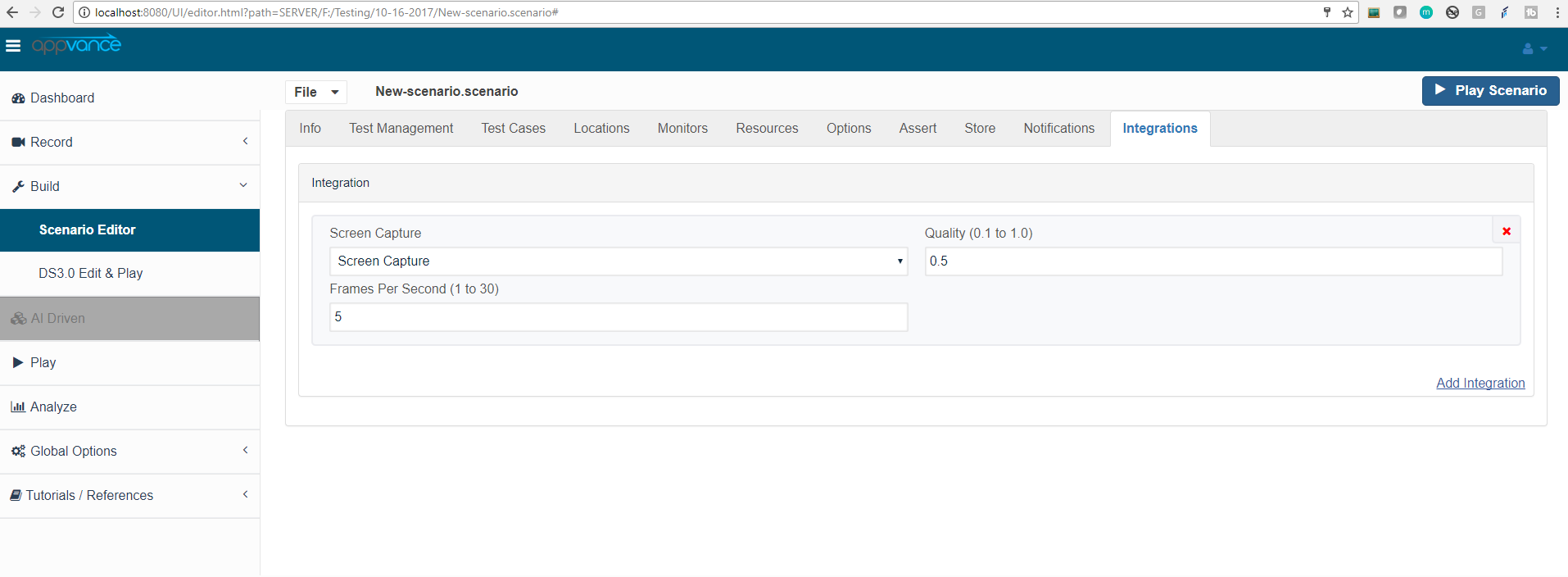
Once the above scenario is created and saved successfully, go to the Integrations panel and click Add Entry.
There shall be 2 entries in the drop-down:
a) Screen Capture
b) Penetration
Select Screen Capture from the drop-down.
Quality and Frames per second text fields will be displayed which defaults to '0.5' and '5' respectively.
Users can change the quality of the video from 0.1 to 1.0 and the frames per second can be from 1 to 30 frames.
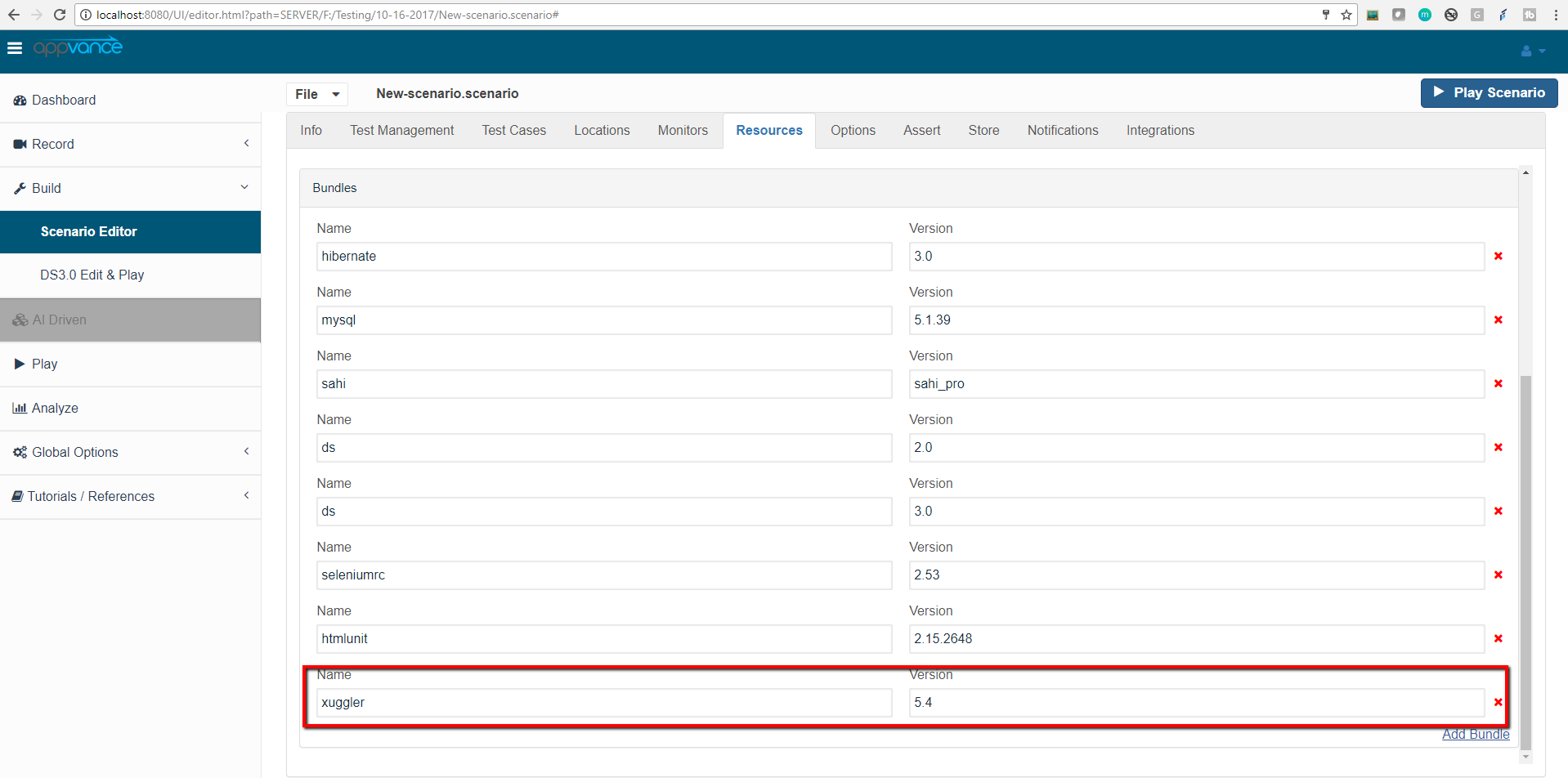
Users shall also notice that there shall be new resources that will be added to this scenario as well, use the 'Resources' panel from the Scenario builder and check the bundles as shown in the below screenshot.
Save the Test Scenario, Click Play Scenario.
From the controller window, click 'click here to go to the Report analysis page, in the functional Report scroll down to see the video.

Click the play button to playback the video which runs the test scenario. This is one good feature where users can come back and see why the tests failed visually using the Screen Capture video feature of Appvance IQ.