2.1 - AI Script Generation (Autonomous Testing)
AI Script Generation (Autonomous Testing) — Appvance IQ documentation.
- AISG - Autonomous Testing
- AISG 3.0 for AIQ 5.x
- Getting Started with AI Script Generation
- The Blueprint Dashboard
- The Coverage Map
- Resource Considerations & Performance
AISG - Autonomous Testing
AISG - Autonomous Testing
AISG helps generate and refine AI-assisted test assets for AIQ. Use this content for current AI Script Generation guidance and avoid older “Blueprint” terminology unless it is part of a historical reference.
Recommended guidance
- Use AISG with clear test objectives, target application context, and expected validation points.
- Review generated steps before execution and confirm they align with the customer-approved test scope.
- Keep generated assets maintainable by using stable locators, variables, and reusable data sources.
- Validate output in Scenario Editor or the appropriate AIQ workflow before adding it to a suite.
- Do not include secrets, personal data, or sensitive customer records in AISG prompts or examples.
Validation workflow
- Generate or refine the test asset with a scoped prompt.
- Review the generated logic and remove unsafe or irrelevant steps.
- Run a smoke execution and inspect evidence.
- Document assumptions, required data, and follow-up edits.
Last updated: October 9, 2026
AISG 3.0 for AIQ 5.x
AISG 3.0 for AIQ 5.x
Use this page for AISG 3.0 behavior and guidance in AIQ 5.x. Update references from older AI Script Generation or Blueprint wording to AISG unless the article is preserving a historical release reference.
Recommended guidance
- Use AISG 3.0 with clear objectives, scoped application context, and expected validation outcomes.
- Review generated tests before execution and remove irrelevant, unsafe, or duplicate steps.
- Prefer stable selectors, explicit validations, reusable data, and Scenario Editor-compatible flows.
- Keep prompts and examples free of credentials, personal data, and customer-sensitive records.
- Document any assumptions AISG made during generation or refinement.
Validation workflow
- Generate or update the test asset with a focused AISG prompt.
- Review the generated steps and expected assertions.
- Run a smoke execution and verify evidence.
- Promote the asset only after it is stable and maintainable.
Last updated: October 9, 2026
Getting Started with AI Script Generation
This page walks through the prerequisites and the different ways to launch and create an AI Script Generation in Appvance IQ.
Prerequisite: before you can work with AI Script Generation, you must have a repository configured to store your AISG files. Storing files locally is not supported.
Launching AISG
You can access AI Script Generation in two ways from the AIQ home screen:
- From the top-line menu, click AI Driven.
- From the left menu, expand Autonomous Testing and select AI Script Generation.

The AI Driven option on the top-line menu.
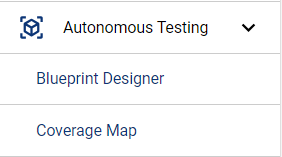
Autonomous Testing > AI Script Generation in the left menu.
Ways to begin
- Upgrade an existing pre-AIQ 5.0 Blueprint file to the AI Script Generation format.
- Create a New Web AI Script Generation — for web applications.
- Create a New Mobile Digital Twin — for mobile apps.
- Use an AI Script Generation Template — export an existing AISG as a reusable
.abpttemplate.
Upgrading pre-5.0 Blueprints
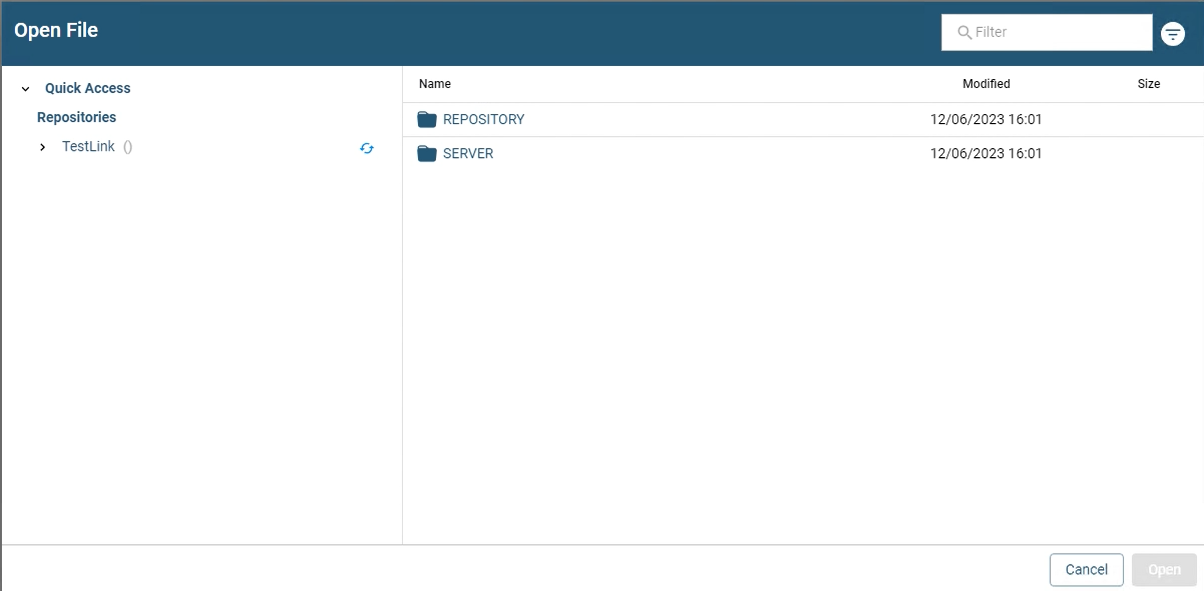
Opening the repository that holds your blueprint files.
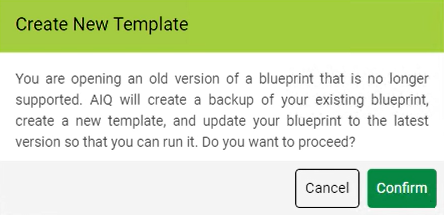
The Create New Template confirmation dialog.
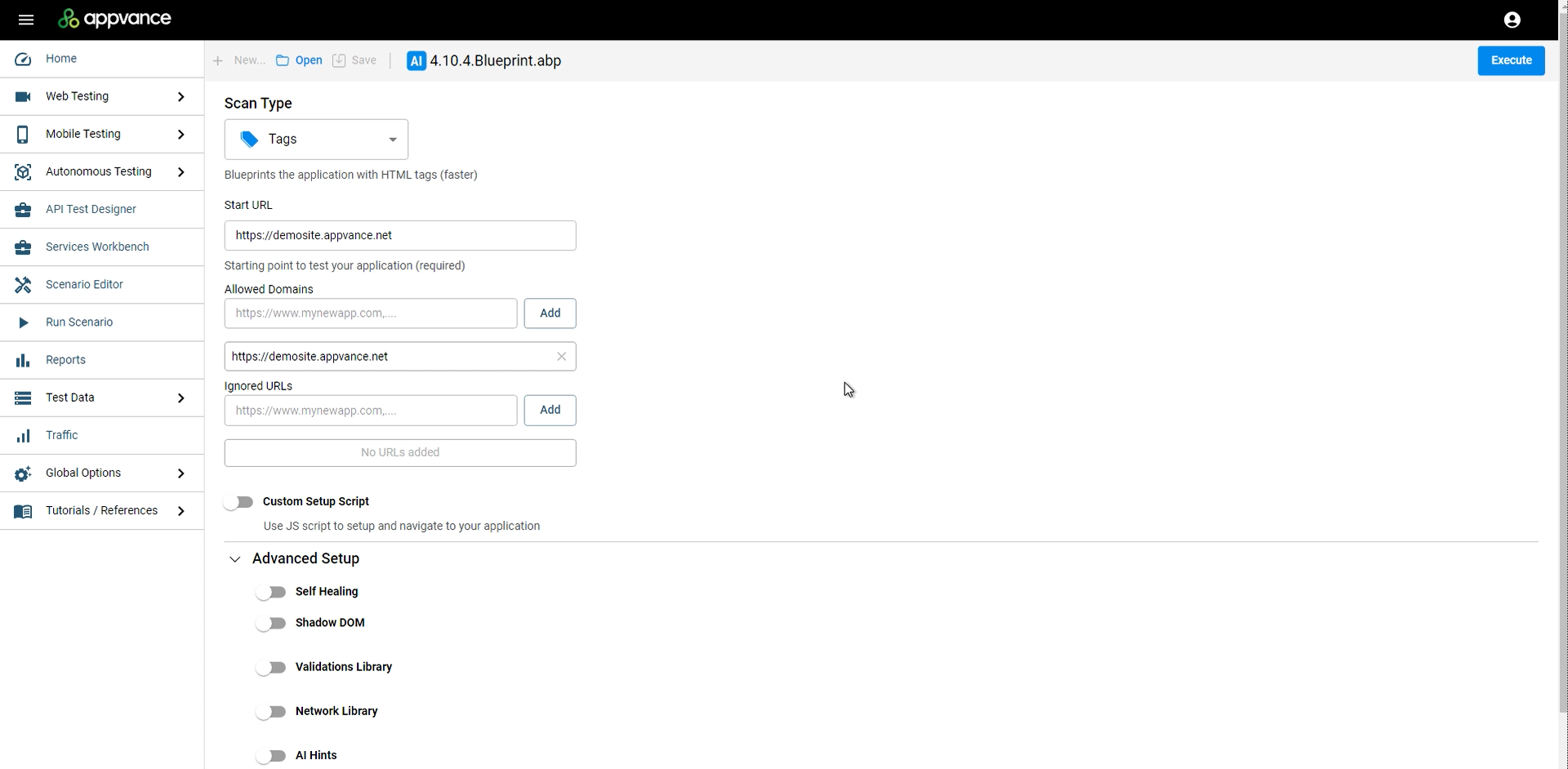
The upgraded AI Script Generation file, ready to execute.
What happens behind the scenes on upgrade
- A backup of the old blueprint is created as
<blueprint_name>-backup.abp. - A blueprint template file (
<blueprint_name>.abpt) is created. - A new folder named after the blueprint is created, and all linked files (SmartTags, validations) are copied into it.
- A new blueprint file with the same name is created from the template.
Source: Launching AI Script Generation (docs.appvance.net)
The Blueprint Dashboard
The Blueprint Overview (or Blueprint Dashboard) shows what the AI found while the Blueprint is running or after it has run. From here you interpret the results of an AISG execution.
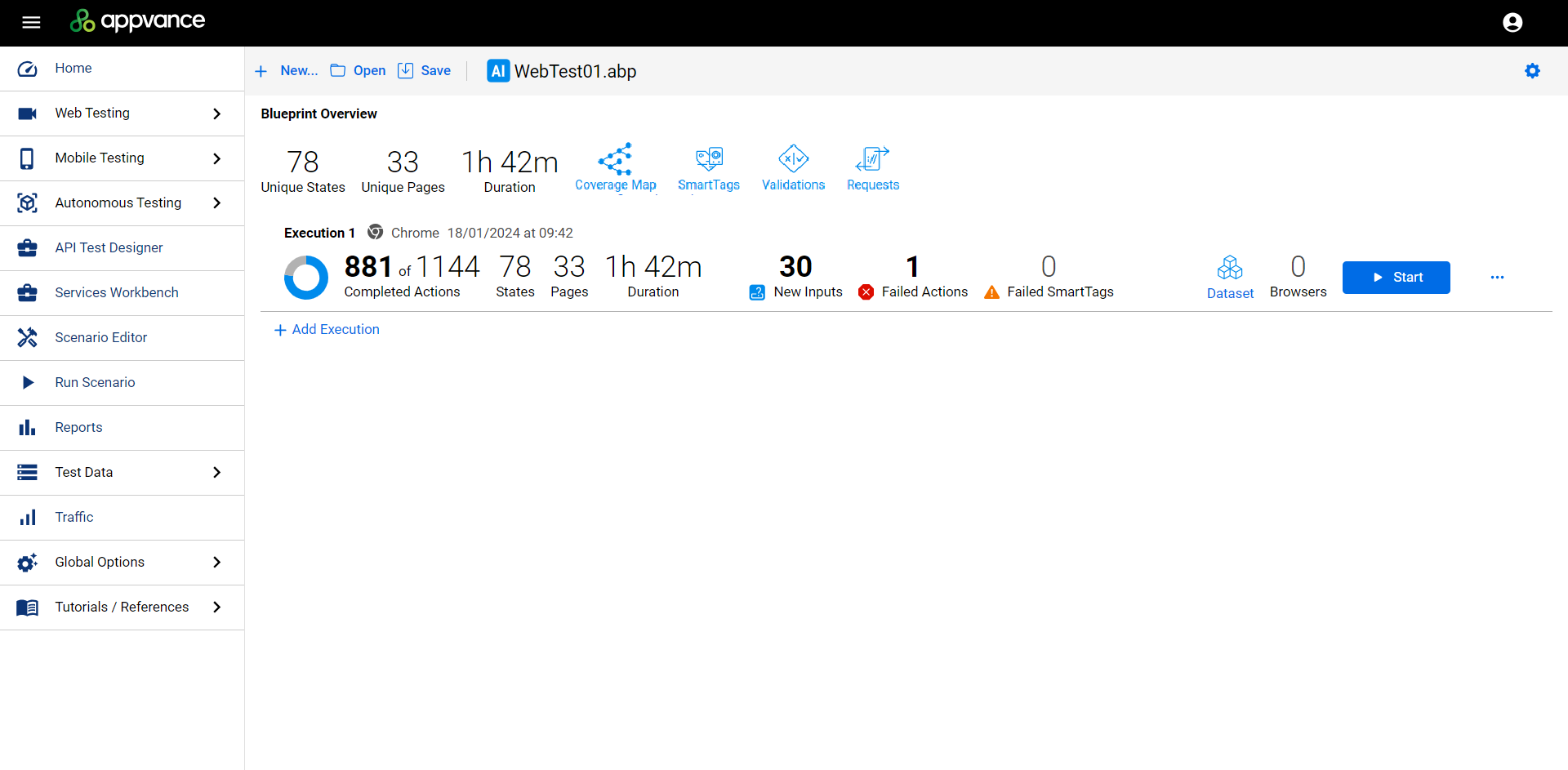
The Blueprint Dashboard in AIQ 5.x.
Note: because AISG runs in headless mode, you no longer watch browsers navigate the application in real time (as you could before AIQ 5.0). Results are reviewed on this dashboard instead.
Blueprint Overview
A summary of all executions of the blueprint:
- Unique States — number of unique page states discovered across all executions (total application coverage).
- Unique Pages — number of unique pages discovered across all executions.
- Duration — total runtime of all blueprint executions.
Execution Details
A summary of a particular execution:
- Completed Actions — actions performed by the blueprint.
- States / Pages — page states and pages discovered in this execution.
- Duration — runtime of this execution.
Dashboard controls
| Control | Function |
|---|---|
| >Coverage Map | >Launches the Coverage Map — visualizes the paths the AI can take through the application. |
| >SmartTags / Validations | >Visible only if your blueprint uses SmartTags or Validations. |
| >Requests | >All requests made by the blueprint. |
| >Failed Actions / Failed SmartTags | >Details of failures per execution — including the pages where they occurred. |
| >New Inputs | >Opens the Pages information of the execution (replaces “Inputs Found”). |
| >Dataset | >Add execution data (CSV data sets) from the dashboard — even after the run. |
| >Browsers | >Number of browsers running the blueprint (set in Add Execution). |
| >Add Execution | >Adds a blueprint execution — at least one is required per blueprint. |
| >Configuration | >View configuration settings. Information only — configurations cannot be modified after execution. |
Additional options
- Rerun failed actions — retest failed actions (useful if you forgot to add a data set).
- Export Template — export the blueprint as a reusable Blueprint Template (
.abpt). - Download failed actions / all actions as DS or JS — export scripts for further analysis or reuse.
Source: Exploring Blueprint Results (docs.appvance.net)
The Coverage Map
The AISG Coverage Map shows the multiple paths the AI can take while interacting with the application being tested. It lets you visualize the health of the application and understand all potential user flows — including areas plagued by errors that may need rework.
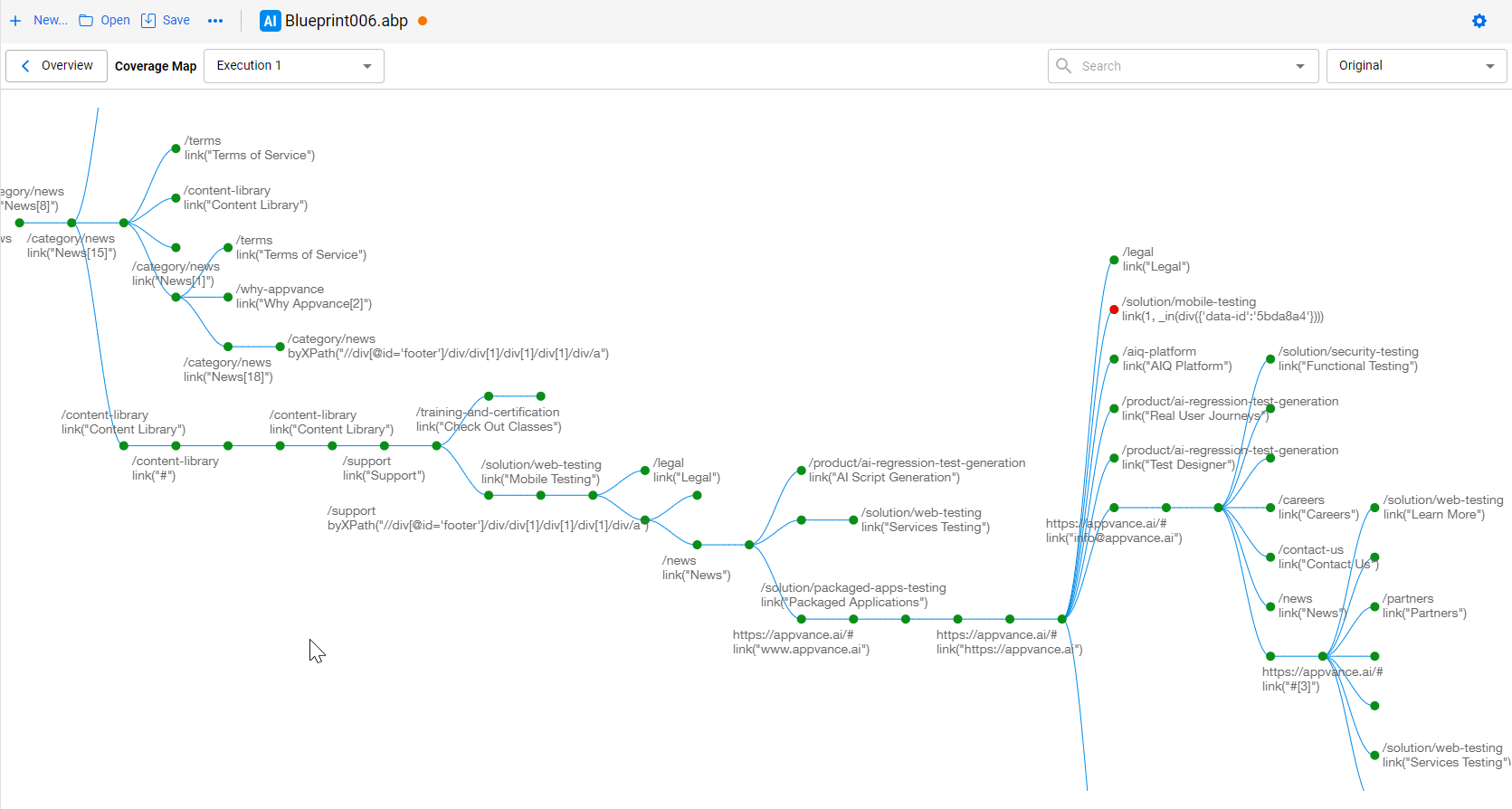
The AISG Coverage Map in AIQ 5.2+.
Three coverage map types (AIQ 5.2.0+)
| Type | What it shows |
|---|---|
| >Original | >The default visualization — the view used in previous versions of AIQ. |
| >Extended Potential | >Enhanced view with more page states and relationships the AI learned about — even paths it did not actually navigate. |
| >Actual Path | >The exact path the AI followed through the application — great for tracking AI training and generating precise DS scripts. |
Note: to take advantage of the new Coverage Map types, you must rerun any existing 5.0.x executions on 5.2.0. Opening a 5.0.x .abpt file alone is not enough.
Node colors and their meaning
| Color | Meaning |
|---|---|
| White | >Not executed |
| Green | >Executed with no errors |
| Yellow | >Executed with a non-critical error (e.g. a 500 error) |
| Red | >Executed with a critical error (e.g. a 404 error) |
| Blue | >The execution path from the start point |
Interacting with the map
- Zoom in / out to see more detail, including the actions and accessors associated with a node.
- Explore the map in real time while the blueprint is still running.
- Click a node to see its actions and accessors, plus their exact location in the application.
- Generate DS Script — creates a script with the steps the AI took to reach a specific page.
- Use the Request tab to see the associated requests.
- Search URLs in the map; click a result to see the page state details.
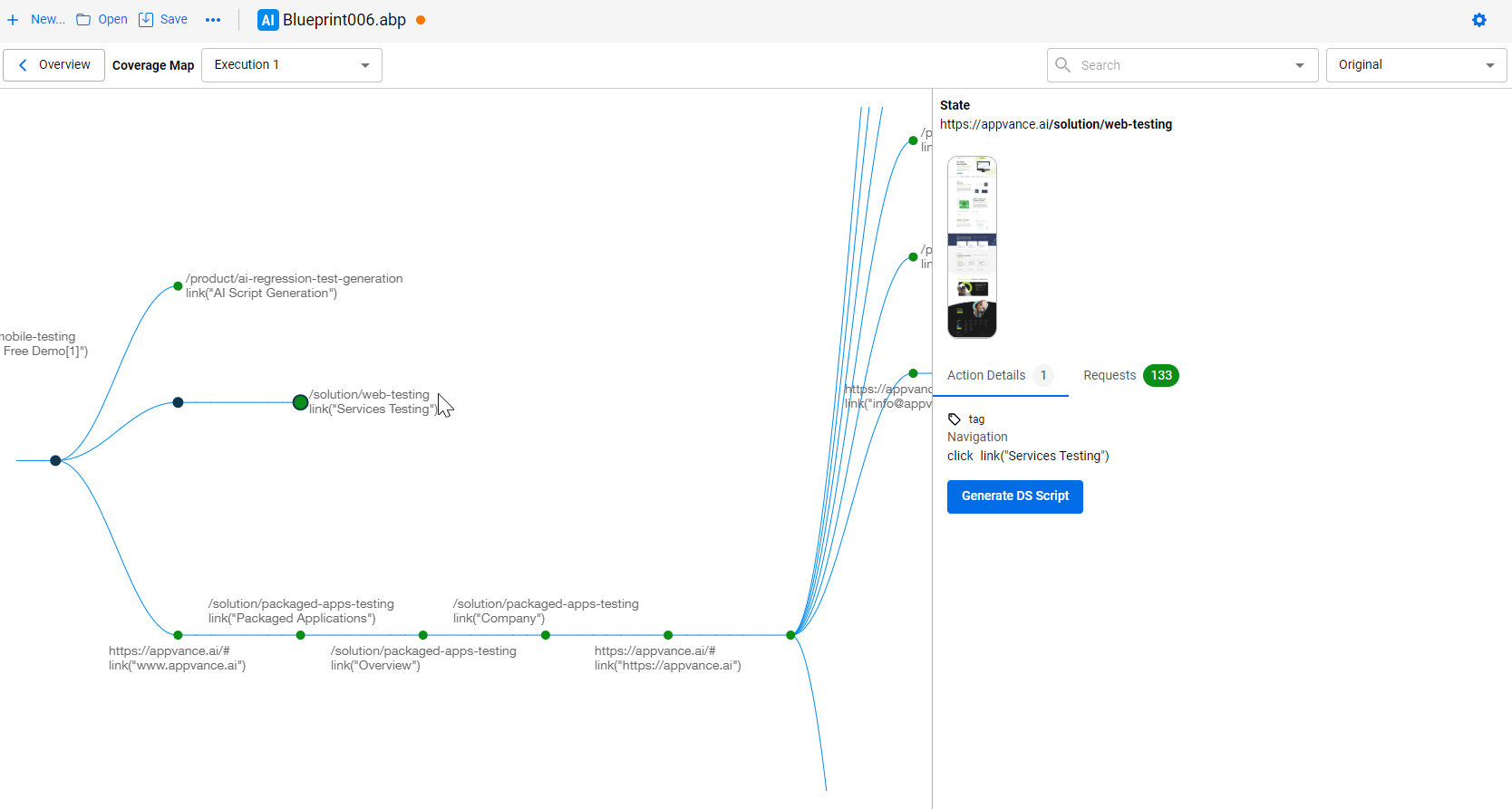
Node details with actions, accessors, and Generate DS Script.
Filtering requests
You can filter out specific requests or errors (e.g. 404s) from the Coverage Map. The filter is saved to the Blueprint
(.abpt) file so the requests won’t display on future executions. To hide a request, right-click it and select
Hide URL — it moves to the Hidden Requests list, visible per node or per execution.
Source: Exploring the Coverage Map (docs.appvance.net)
Resource Considerations & Performance
Performance of the AI Script Generation process depends heavily on the resources available to your test node and the configuration choices you make. Here are the general guidelines from Appvance.
Headless vs non-headless browsers
You can run the AI browsers in headless or non-headless mode. Headless mode is recommended for increased performance and lower resource usage. As a rule of scale: if you can run 5 non-headless browsers, you can likely run 10–15 headless browsers with the same performance.
| Mode | Limiting factor | Typical scale |
|---|---|---|
| >Non-headless | >Memory (RAM) on the test node | >16 GB → 5 browsers · 32 GB → 10 · 64 GB → 20 |
| >Headless | >CPU speed and thread count | >10–15 browsers at 2.4–2.6 GHz base |
Tip: if performance is slow, try reducing the number of browsers. Running more browsers than the machine can handle makes the whole AISG process slower — not faster.
Delay between requests
Delay Between Requests (ms) is an execution option that determines how long AIQ waits for the application to load before reporting a failure while navigating. A longer delay gives the application more time to respond. As a side effect, higher delays can let you run more browsers (some go to sleep while waiting). For example: 10 browsers work best at 0 ms delay, but at 20 ms you may run 15. This is not a direct correlation — benchmark your own environment.
Types of applications
- Static — very static apps with few elements: up to 20 headless browsers on a standard 8-core / 32 GB node.
- Dynamic — highly dynamic apps (moving elements, Shadow DOM, iframes): do some basic benchmarking.
Basic benchmarking
- Run a quick AISG execution — e.g. compare 10 headless vs 5 non-headless browsers.
- Monitor memory and processor utilization.
- Use the results to decide on the browser count for your real AISG run.
AIQ limits
Also note (AIQ 5.0): AI blueprinting is supported only on Windows test nodes. Mobile blueprinting, Compare Blueprints, and the Generate Scripts option are disabled in 5.0 — use the Coverage Map DS generation instead.