# Getting Started with AI Script Generation
This page walks through the prerequisites and the different ways to launch and create an AI Script Generation in Appvance IQ.
**Prerequisite:** before you can work with AI Script Generation, you must have a **repository configured** to store your AISG files. *Storing files locally is not supported.*
### Launching AISG
You can access AI Script Generation in two ways from the AIQ home screen:
- From the top-line menu, click **AI Driven**.
- From the left menu, expand **Autonomous Testing** and select **AI Script Generation**.
*The AI Driven option on the top-line menu.*
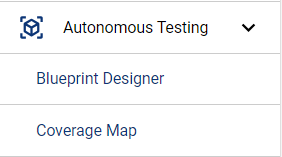*Autonomous Testing > AI Script Generation in the left menu.*
### Ways to begin
- **Upgrade** an existing pre-AIQ 5.0 Blueprint file to the AI Script Generation format.
- **Create a New Web AI Script Generation** — for web applications.
- **Create a New Mobile Digital Twin** — for mobile apps.
- **Use an AI Script Generation Template** — export an existing AISG as a reusable `.abpt` template.
### Upgrading pre-5.0 Blueprints
1. Navigate to **Autonomous Testing > AI Script Generation** (or click **AI Driven**).
2. Click **Open** and navigate to the repository containing your AISG files.
3. Open a blueprint. The **Create New Template** dialog informs you that the blueprint must be updated.
4. Click **Confirm**. Once the AISG file loads, the upgrade is complete — SmartTags and validations carry over automatically.
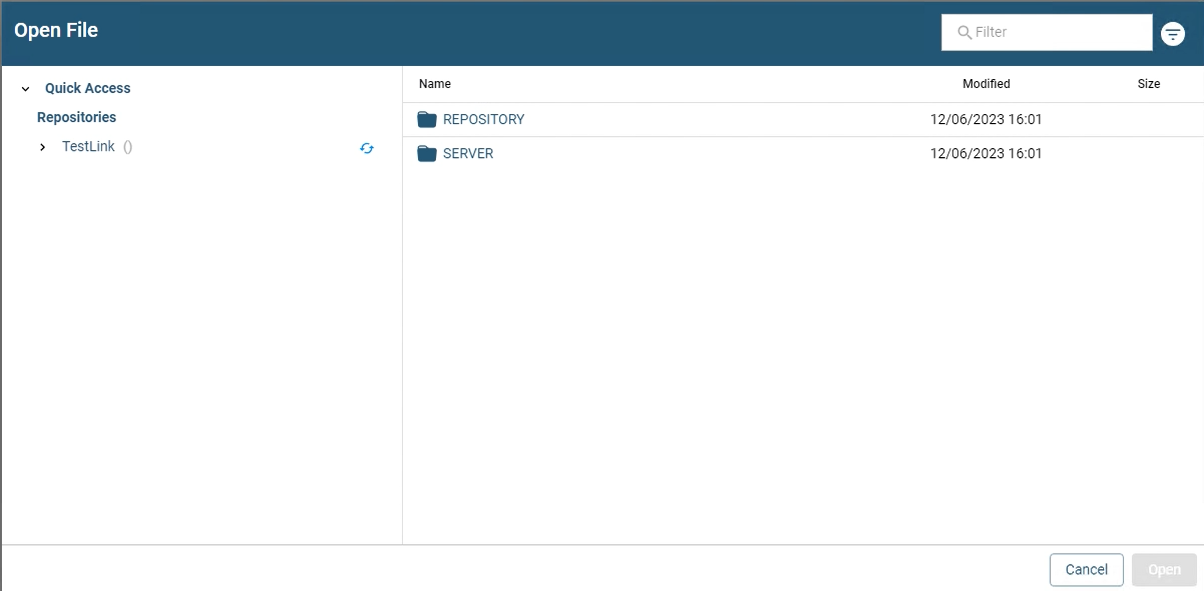*Opening the repository that holds your blueprint files.*
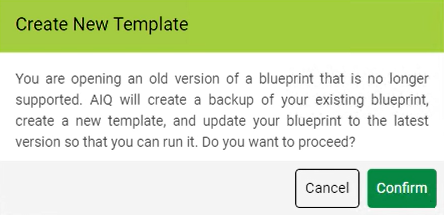*The Create New Template confirmation dialog.*
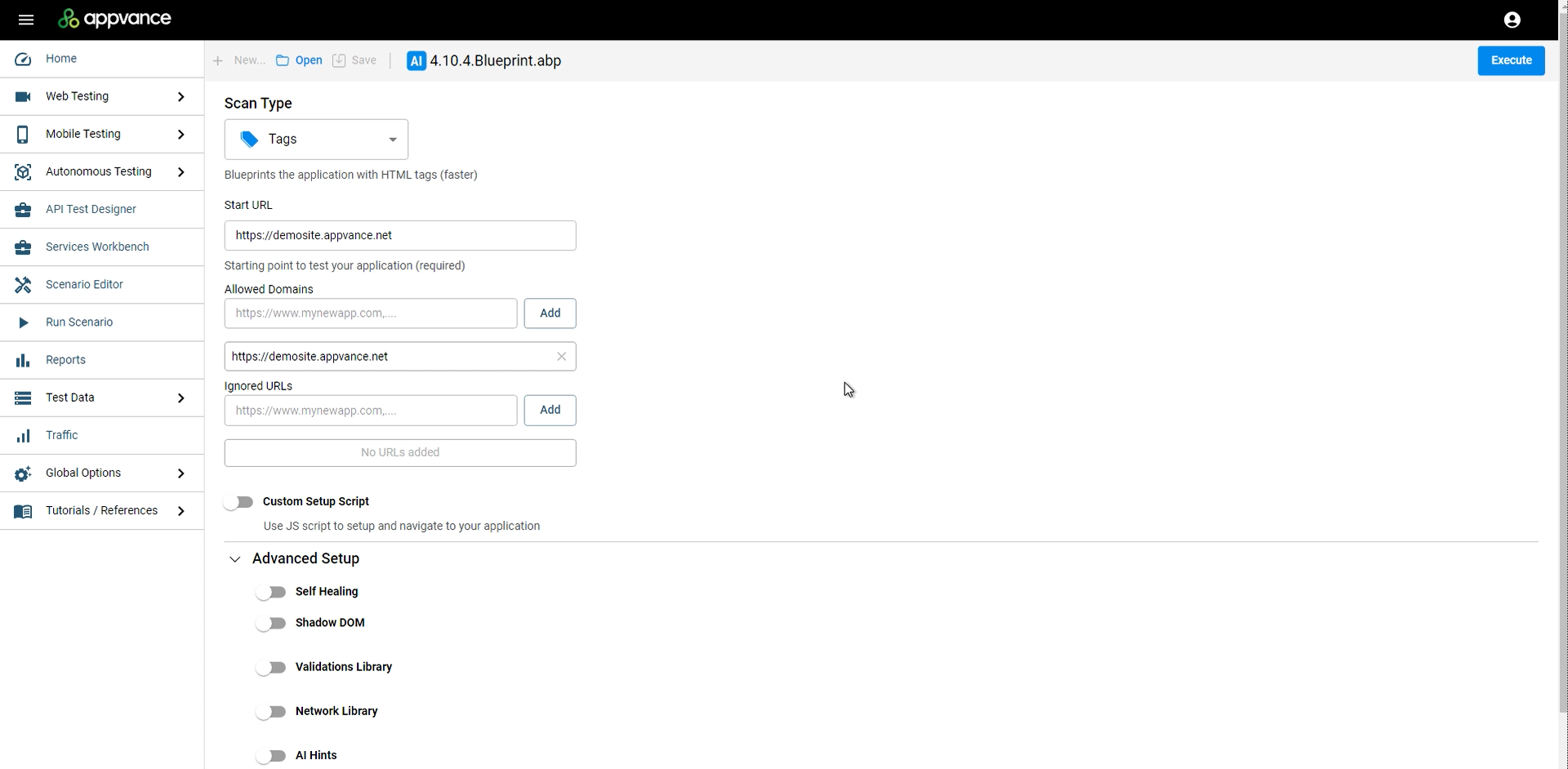*The upgraded AI Script Generation file, ready to execute.*
### What happens behind the scenes on upgrade
- A backup of the old blueprint is created as `-backup.abp`.
- A blueprint template file (`.abpt`) is created.
- A new folder named after the blueprint is created, and all linked files (SmartTags, validations) are copied into it.
- A new blueprint file with the same name is created from the template.
Source: [Launching AI Script Generation (docs.appvance.net)](https://docs.appvance.net/Content/AIQ/AI3/AISG_LaunchBPDesigner.htm)