# Creating a New Database Scenario
Once you have created a valid SQL script, you can create an AppVance Scenario to execute it using the Scenario Editor.
This article assumes basic knowledge of AppVance Scenario Editor and focuses only on the configuration required to create a Database Scenario and execute a SQL script.
## Configure the Scenario
### 1. Select the Database Scenario Type
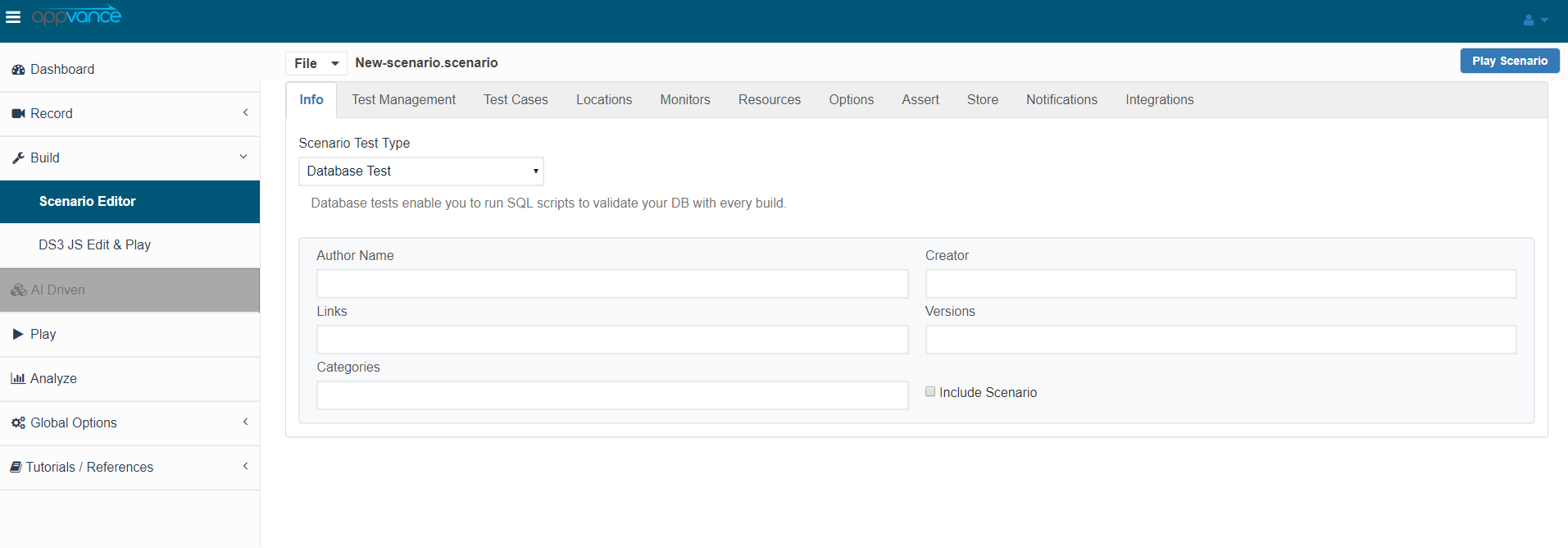
In the **Info** section of the Scenario Editor, select **Database** as the **Scenario Test Type**.
### 2. Configure the SQL Test Case
In the **Test Case** section:
1. Select **SQL** from the **Test Type** drop-down menu.
2. In the **SQL File** field, click **Browse**.
3. Select and upload the `.sql` script you created previously.
Selecting **SQL** as the Test Type tells AppVance to use the **ASE** database execution mechanism.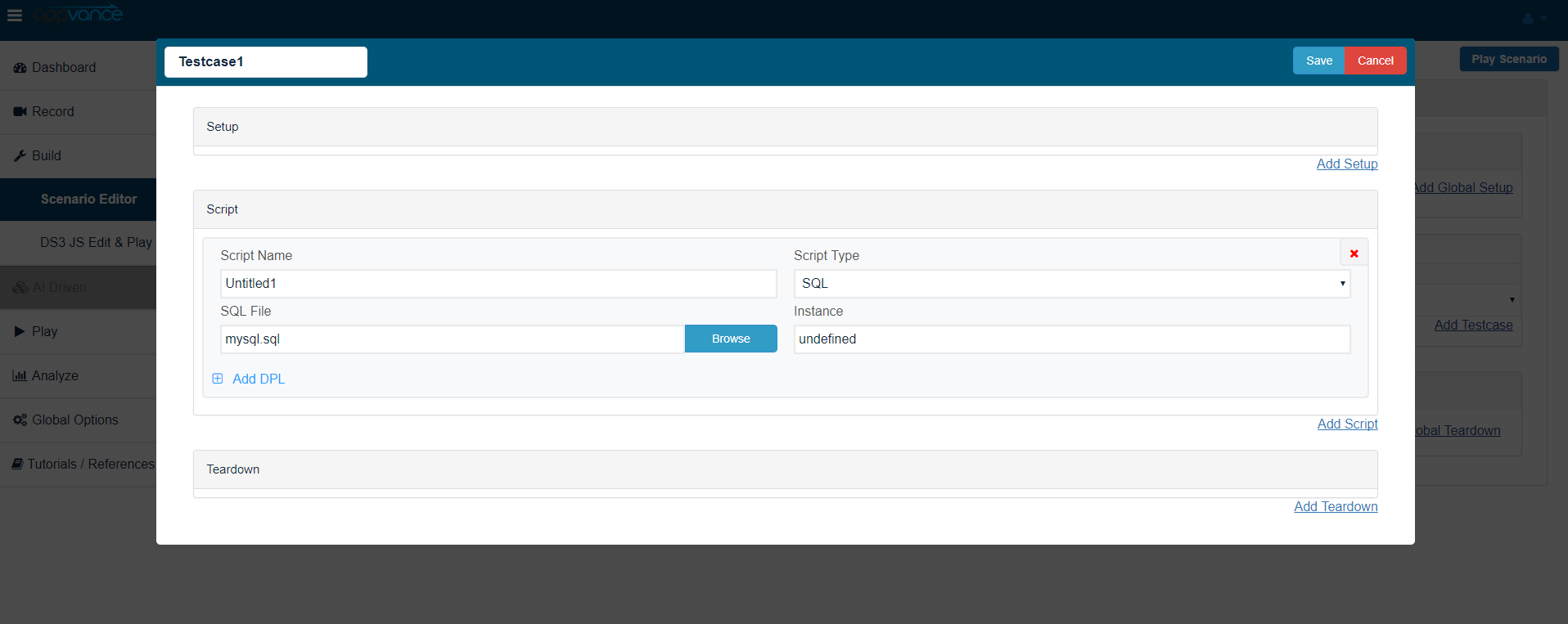
## After configuring the Scenario and uploading the SQL file, save the Scenario.
Click **Play** to execute the Scenario and run the SQL script.
Before executing the Scenario, make sure that the database connection settings defined in the SQL script are valid and that the target database is accessible from the environment where the Scenario is running.
---
**Last updated:** September 2, 2026
If you have any feedback on this topic, please contact us at