# Reviewing SQL Test Execution Results
This section explains how to review the results of a SQL test execution and how to customize the step names displayed in the execution results.
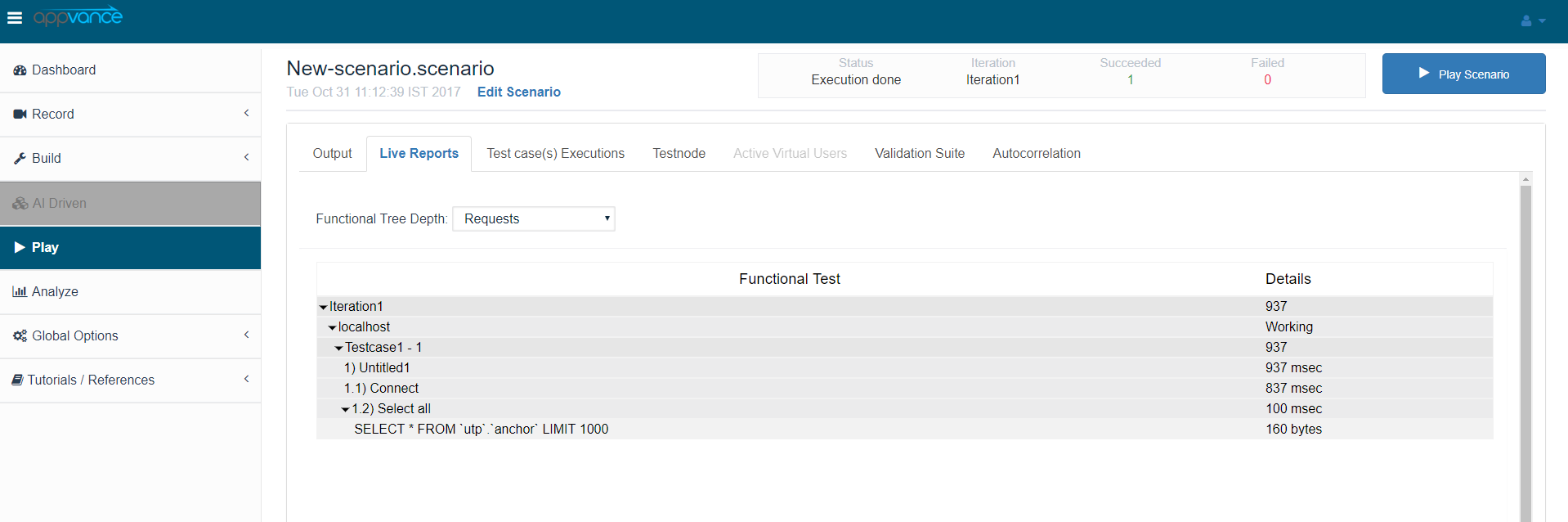
In this example, the SQL test inserts a new record into the database and then retrieves the records using a `SELECT` statement. The execution results can then be reviewed to validate the data returned by the database.
The following example shows the results of a SQL test executed against a MySQL database:
## Customizing SQL Step Names
By default, the step name displayed in the execution results corresponds to the SQL action or request defined in the script.
You can assign a custom name to a SQL step by adding a `-- step` instruction immediately before the corresponding SQL statement.
Use the following syntax:
```
-- step=Custom Step Name
```
For example:
```
-- step=Select All
SELECT * FROM users;
```
The SQL action is displayed in the execution results using **Select All** as the step name.
This can make execution results easier to understand, especially when a SQL script contains multiple SQL statements.
The `.sql` script settings used for this execution are shown below:
## Reviewing 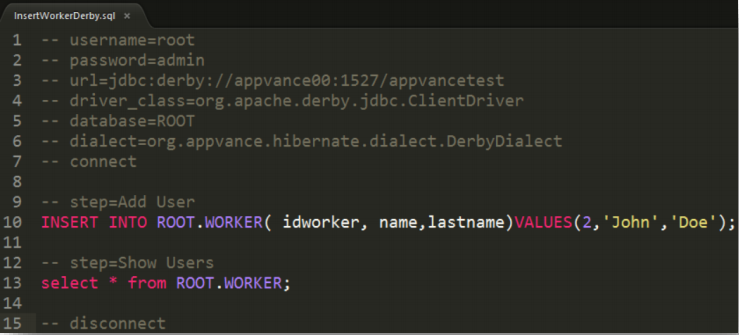SELECT Results
You can review the data returned by a `SELECT` statement from the **Request & Response** section of the execution results.
To review the response:
1. Open the SQL test execution results.
2. In the panel on the right side of the results screen, select **Test-case Executions**.
3. Select the test case execution you want to review.
4. Open the **Request & Response** tab.
5. Select the step associated with the `SELECT` statement.
The **Request & Response** tab displays the requests and responses associated with the individual execution steps. The custom step names assigned with the `-- step` instruction can be used to identify the corresponding SQL statements.
Selecting the request associated with the `SELECT` statement downloads the corresponding request data as a plain-text file.
The downloaded file does not have a file extension, so it can be opened with a text editor such as Notepad or Sublime Text.
The file contains the records returned by the `SELECT` statement during the test execution. You can use this information to verify that the database returned the expected data and validate the results of the SQL operation.
---
Last updated: September 3, 2026
If you have any feedback on this topic, please contact us at .