2.2 - Web Testing
Web Testing — Appvance IQ documentation.
- Web Testing with AIQ
- Web Designer
- Web Designer
- Use Instant Replay to Review Web Test Failures
- Edit and Play JavaScript Steps for Web Testing
- SmartTag Workbench Reference
- Network Workbench Reference
- Validation Workbench Overview
- Use Visual Accessors for Web Testing
- Global JSON File for Scenario Editor Tests
- Compare PDF Files in AIQ Web Tests
Web Testing with AIQ
Recommended guidance
Use AIQ web testing to validate browser-based user journeys, application behavior, and regression coverage through Scenario Editor. Current documentation should use Scenario Editor terminology instead of older Designer wording unless describing legacy assets.
Core practices
- Design scenarios around stable business flows and clear assertions.
- Use reliable accessors, waits, test data, and environment controls.
- Validate browser versions, Test Node configuration, downloads, certificates, and permissions.
- Capture useful evidence through screenshots, Output Logs, and reports.
Maintenance workflow
- Run smoke tests after application, browser, AIQ, or Test Node changes.
- Review locator failures for real UI changes versus unstable selectors.
- Keep duplicate legacy web-testing pages consolidated when possible.
- Document known browser policies or environment dependencies.
Last updated: October 6, 2026
Web Designer
There are major changes and enhancements to the user interface for creating, maintaining and executing web tests in the 5.0.0 release of AIQ.
This document is meant as a quick start guide to help acquaint you with the new Web Designer and explain the basic components in the interface.
You can watch a video introducing you to the features and benefits of the new Web Designer.
Here is a comparison between the Web Testing menu options in AIQ 5.0 and previous AIQ releases.
AIQ 5.0.0 | AIQ 4.10.x (and older) |
|---|---|
|
|


- Web Designer is the new user interface.
- Web Designer (Classic) is Deprecated.
For your convenience, the information about the new Web Designer interface is included in the AIQ 5.0.0 Release Summary. This document also contains the AIQ 5.0.0 Release Notes, which includes information about the AIQ 5.0.0 release.
Last updated: September 17, 2024
If you have any feedback on this topic, please contact us at documentation@appvance.ai
Web Designer
This is the AIQ Web Designer.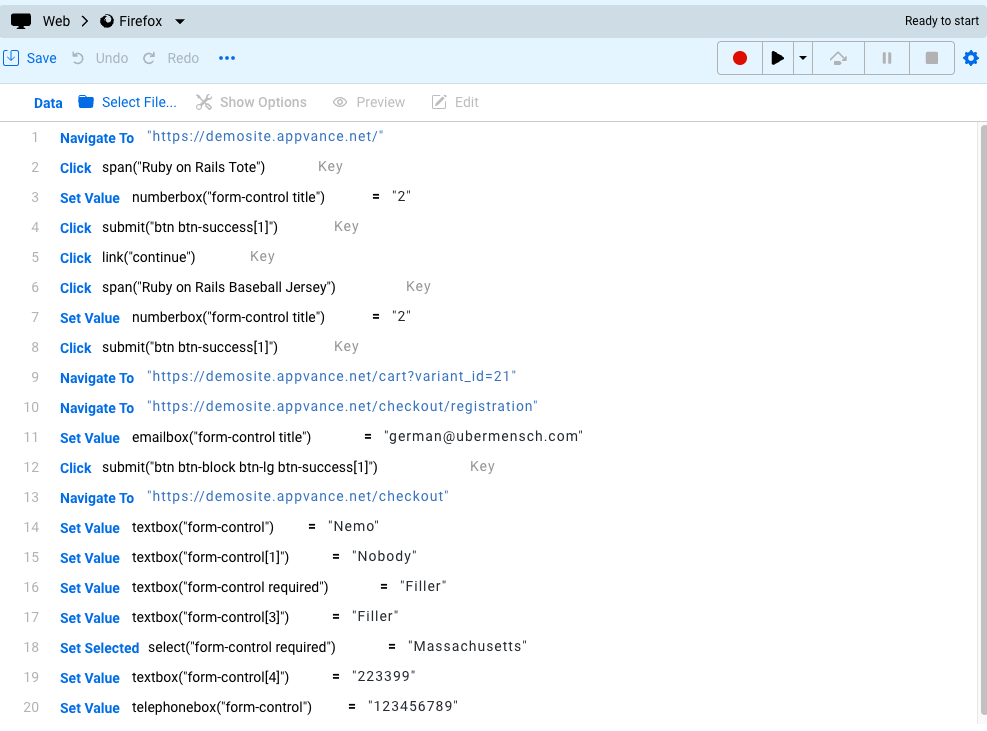
Web Designer allows the user to:
- Record a script by interacting with the AUT
- Edit existing text created by AISG or GENI
- Run and edit existing scripts (for example, using the "Record From Here" option to add missing steps, or modify the script to accept new modules added to the AUT)
There are three main sections in the Web Designer:
- Top Section — set options and interact with your scripts.
- Web Designer Grid — create and edit test scripts.
- Bottom Section — access logs and data.
Last updated: March 17, 2024
If you have any feedback on this topic, please contact us at documentation@appvance.ai
Use Instant Replay to Review Web Test Failures
Last reviewed: September 30, 2026
Use this article when reviewing an AIQ web test execution and you need replay evidence to understand where a scenario failed.
What changed in this article
- Clarified Instant Replay as a results-review and failure-analysis tool rather than a broad web-testing feature page.
- Added checks for step timing, screenshots, network/output logs, captured evidence, and differences between replay and live execution.
- Connected the workflow to Scenario Editor maintenance decisions after a failure is confirmed.
Validation workflow
- Open the failed execution and review the failing step, screenshot, output, and timing evidence.
- Use Instant Replay to compare expected behavior with the recorded execution path.
- Update waits, locators, data, or validations only after the replay evidence points to a concrete cause.
Review note: This article now helps reviewers diagnose failures without treating replay as proof by itself.
Last updated: September 30, 2026
If you have feedback on this topic, contact documentation@appvance.ai.
Edit and Play JavaScript Steps for Web Testing
Last reviewed: September 24, 2026
Use Edit and Play when a web testing step needs targeted JavaScript adjustment and immediate playback validation.
What changed in this article
- Use small, reviewable JavaScript changes rather than replacing large scenario sections with custom code.
- Replay the edited step in the same browser profile and test node that will run the scenario.
- Keep Scenario Editor terminology in the article and avoid older Designer-only phrasing.
Validation workflow
- Open the affected web test step and make the smallest JavaScript change needed.
- Use Play to validate the step immediately against the application state.
- Save the scenario and run a short playback to confirm the edited step works in context.
Review note: Modernized the title, changed wording to Scenario Editor/Web Testing, and emphasized step-level validation after JavaScript edits.
Last updated: September 24, 2026
If you have feedback on this topic, contact documentation@appvance.ai.
SmartTag Workbench Reference
Recommended guidance
Use SmartTag Workbench as a locator and object-identification reference when maintaining web tests. SmartTags should improve Scenario Editor stability by helping teams choose selectors that remain reliable across normal UI changes.
What to review
- Element identity, labels, attributes, accessibility names, and stable DOM structure.
- Duplicate or dynamic selectors that may break during playback.
- Fallback locator options for controls that render differently by browser or state.
- Self-healing behavior and whether it selected the intended element.
Maintenance workflow
- Reproduce the failing step and identify the element expected by the scenario.
- Compare the current page structure with the saved locator or SmartTag evidence.
- Prefer stable application attributes over visual position or generated IDs.
- Update the scenario and rerun with representative data and browser versions.
- Document locator changes when they fix recurring failures.
Last updated: October 5, 2026
Network Workbench Reference
Recommended guidance
Use Network Workbench to understand network behavior that affects AIQ web testing, API validation, and troubleshooting. Network evidence should be reviewed alongside Scenario Editor steps, Output Logs, browser behavior, and application server logs.
Useful review points
- Request URLs, methods, status codes, redirects, and timing.
- Authentication, authorization, session, cookie, and CSRF behavior.
- API responses that drive UI state or test assertions.
- Proxy, certificate, CORS, mixed-content, and blocked-resource issues.
- Slow endpoints or repeated calls that affect performance and stability.
Best practices
- Capture the smallest time window that reproduces the issue.
- Remove or mask secrets before sharing network evidence.
- Compare failing and passing runs to identify changed requests or responses.
- Use findings to improve waits, assertions, service checks, or environment setup.
Last updated: October 5, 2026
Validation Workbench Overview
Last reviewed: September 30, 2026
Use this article to understand how Validation Workbench supports reusable validations for AIQ web testing workflows.
What changed in this article
- Converted the page into a current overview of Validation Workbench purpose and validation reuse.
- Added guidance for selecting what to validate, keeping validations deterministic, and reviewing evidence in results.
- Connected the page to Scenario Editor usage without overloading it with unrelated web-testing setup details.
Validation workflow
- Define the validation goal and the evidence needed to prove it passed or failed.
- Build the validation with stable inputs and expected values that can be reviewed later.
- Run the validation from the related scenario and confirm the result appears clearly in output and reports.
Review note: This page now positions Validation Workbench as reusable validation support rather than a standalone vague feature page.
Last updated: September 30, 2026
If you have feedback on this topic, contact documentation@appvance.ai.
Use Visual Accessors for Web Testing
Last reviewed: October 2, 2026
Use this article when web tests need visual matching because a stable DOM locator, accessibility locator, or text locator is not available.
What changed in this article
- Clarified visual accessors as a targeted fallback for web testing rather than the default locator strategy.
- Updated guidance around image boundaries, visual matching, UI drift, and maintenance review in current AIQ terminology.
- Added checks for viewport size, browser scaling, theme changes, crop quality, waits, and false-positive matches.
Validation workflow
- Try stable DOM, accessibility, text, or attribute-based locators before adding a visual accessor.
- Capture a tightly scoped image of the element or region and avoid broad screenshots that can match unrelated UI.
- Replay on the target browser and viewport and review results after UI or theme changes.
Review note: This page now aligns web visual accessor guidance with the mobile visual accessor cleanup already completed.
Last updated: October 2, 2026
If you have feedback on this topic, contact documentation@appvance.ai.
Global JSON File for Scenario Editor Tests
Recommended guidance
Use a Global JSON file when Scenario Editor tests need reusable configuration, environment values, or controlled data that should not be duplicated across many scenarios. Keep the file structured, reviewed, and version controlled.
Good candidates for Global JSON
- Environment-specific base URLs, feature flags, or labels.
- Reusable test values that are safe to store with the project.
- Shared configuration used by multiple scenarios or suites.
- Non-secret identifiers that help tests remain portable across environments.
Do not store
- Passwords, tokens, API keys, or production customer data.
- Large datasets that should live in DPLs, CSV files, or controlled test-data systems.
- Values that change every run and make results difficult to reproduce.
Maintenance checklist
- Validate JSON syntax before committing or uploading the file.
- Use clear property names and avoid duplicate keys.
- Document which scenarios depend on the file.
- Review changes with the same care as scenario or service code changes.
Last updated: October 5, 2026
Compare PDF Files in AIQ Web Tests
Last reviewed: October 2, 2026
Use this article when a web test needs to compare generated or downloaded PDF output against an expected PDF or expected text content.
What changed in this article
- Reframed PDF comparison around validation intent instead of generic file comparison.
- Added guidance for choosing text extraction, metadata checks, page count checks, or binary comparison based on expected variability.
- Added checks for dynamic timestamps, generated IDs, rendering differences, download location, and evidence in results.
Validation workflow
- Decide whether the test should validate exact file match, extracted text, metadata, page count, or selected fields.
- Normalize or exclude dynamic content such as dates, IDs, user names, or environment-specific paths.
- Attach or log comparison evidence so reviewers can tell which PDF section failed.
Review note: This page now distinguishes stable PDF validation from brittle byte-for-byte comparisons.
Last updated: October 2, 2026
If you have feedback on this topic, contact documentation@appvance.ai.