# Preferences
# Preferences
Contents:
- [Repositories](/books/global-options/page/repositories)
- [Report Templates](/books/global-options/page/report-templates)
- [Application Performance Monitoring Integration](/books/global-options/page/application-performance-monitoring-integration)
- [GIT Credentials](/books/global-options/page/git-credentials)
- [EC2 Credentials](/books/global-options/page/ec2-credentials)
# Report Templates
The Reports preferences page is used to create report templates.
1. Navigate to AIQ > **Global Options** > **Preferences** > **Reports** tab.
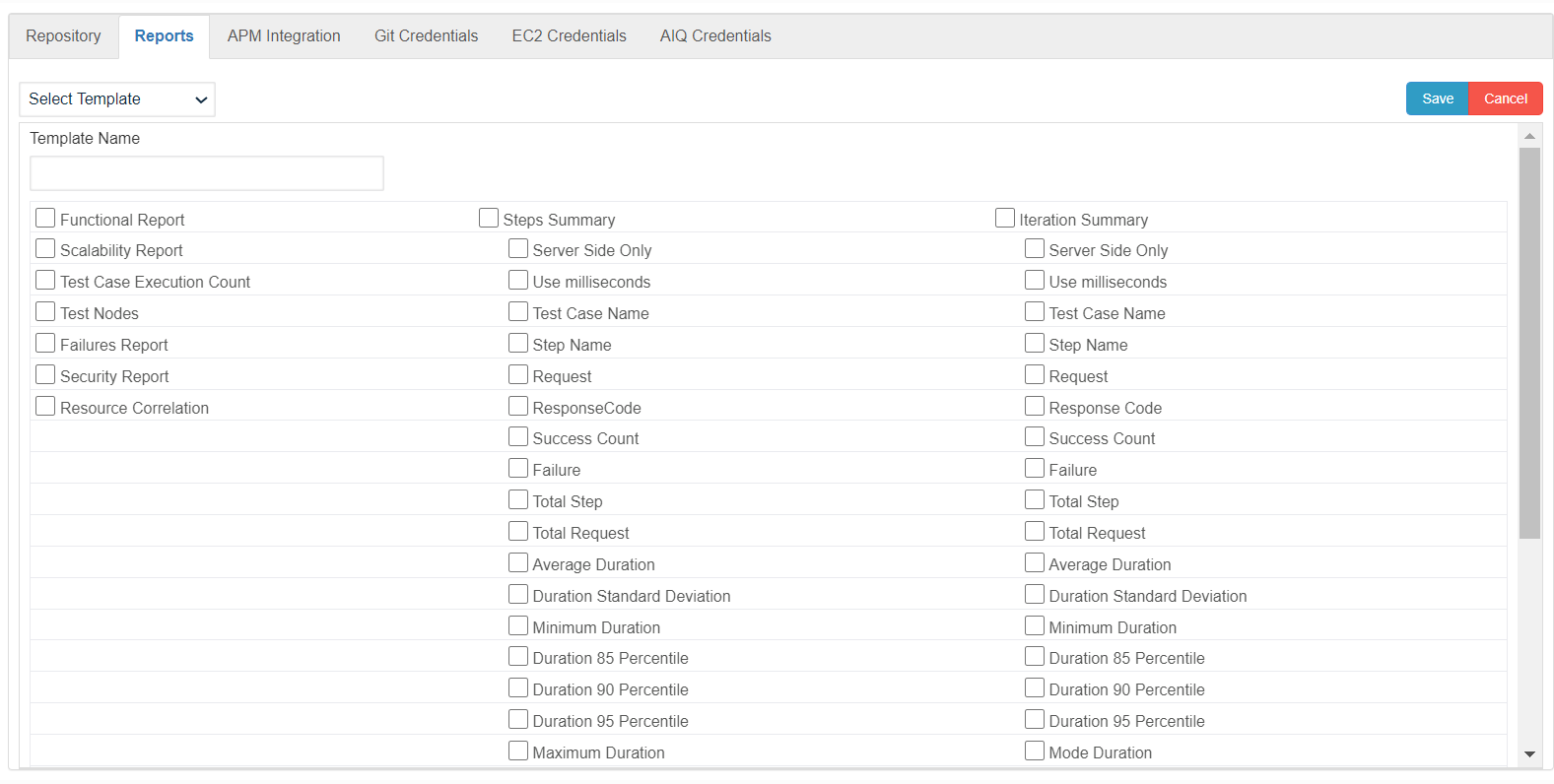
2. Enter a valid name for the new **Report Template**.
3. Select the required report options.
4. Click **Save**.
5. The newly created Report Template can be seen in the All Reports drop down on the Report Analysis page. Navigate to AIQ > Reports.
6. To view the report, select the newly created report template from the drop-down.
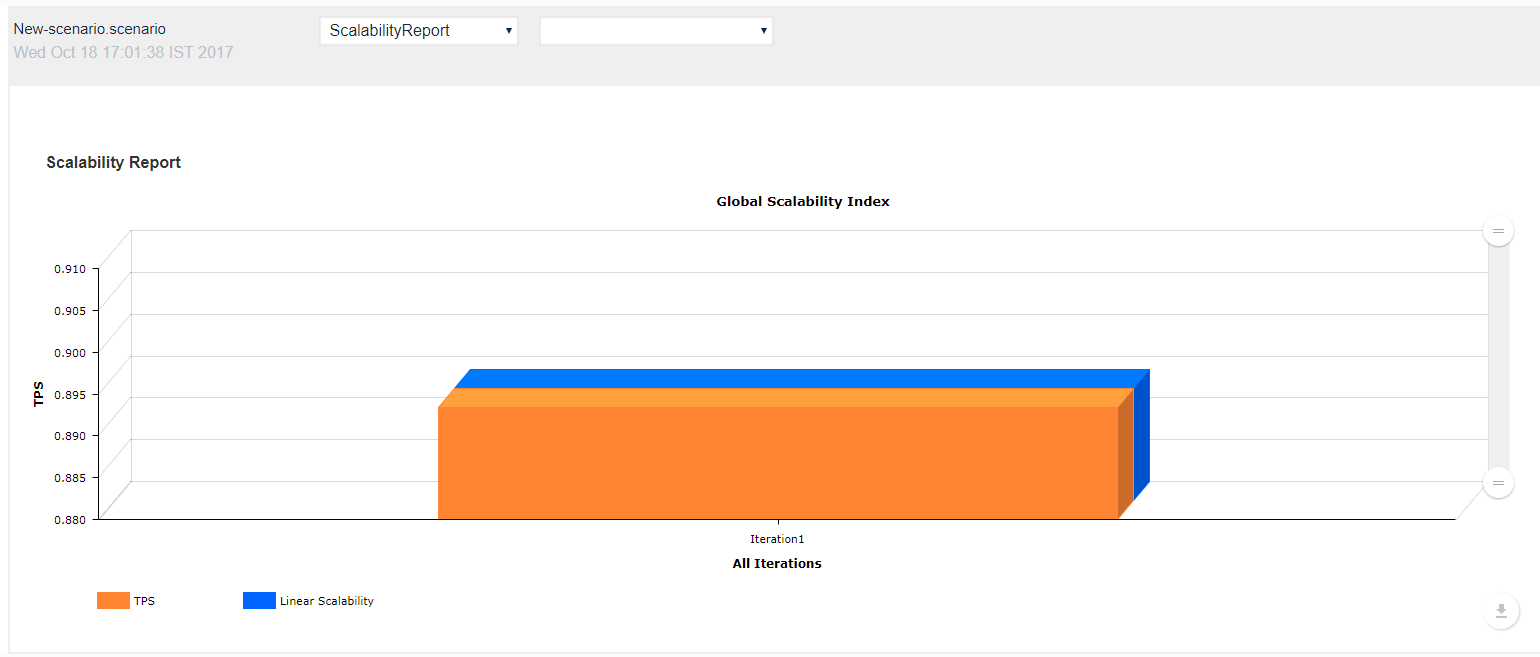
See the [About Reports section for more detailed information on reporting in AIQ.](https://docs.appvance.net/Content/AIQ/Reporting/ResultsAnalysis/About_Reports.htm)
---
Last updated: October 16, 2026
# Git Credentials in AIQ
Use this screen to specify your GIT credentials.
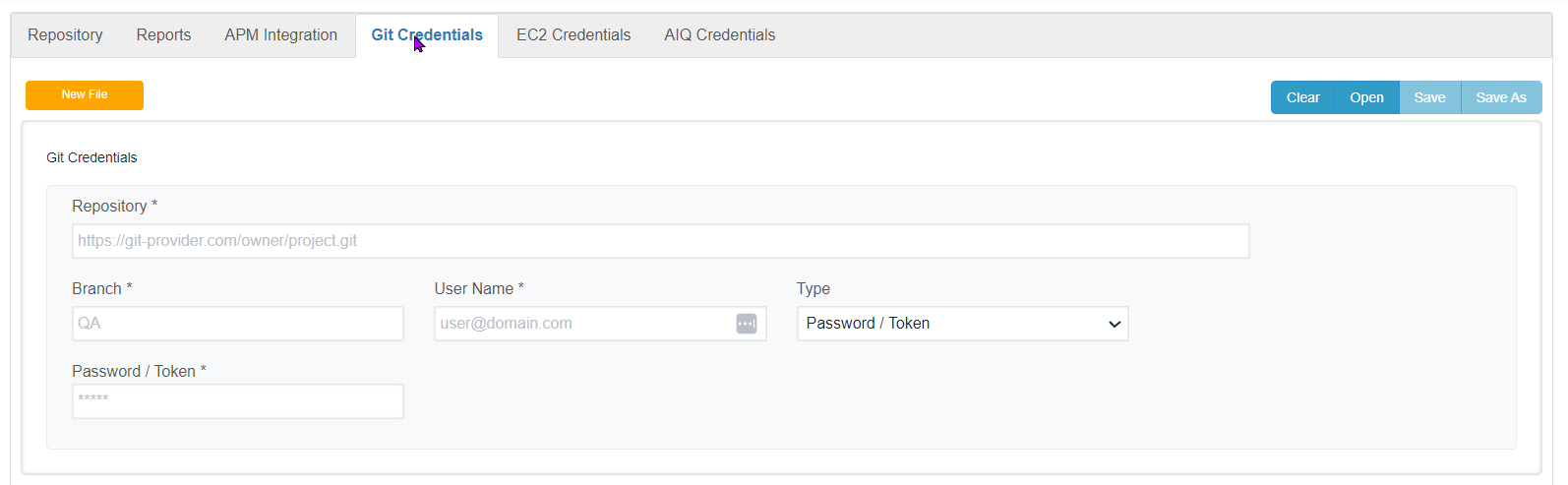
See [Configuring a GIT Repository for instructions on configuring a GIT repository.
If you will be using the new Web Designer interface in AIQ release 5.0.0, you must have a repository configured before you can begin. Storing files locally is not supported. ](https://docs.appvance.net/Content/AIQ/Global_Options/Preferences/Repository/RepoConfig_GIT.htm)
Credentials:
- **Repository** : Enter the URL to your repository, for example: `https://gitlab.com/CompanyABC/myRepository.git`
- **Branch** : Specify the branch that you will be working with in your repositiory.
- **User Name** : The user name for your GIT account. This is not your AIQ login.
- **Type** : Select your authentication type.
- Password / Token
- SSH Key (If your account uses two-factor authentication to provide the access token instead of a password)
- **Password / Token** : Enter your password, token, or SSH key.
---
Last updated: March 21, 2024
If you have any feedback on this topic, please contact us at
# EC2 Credentials for AIQ Integrations
AIQ can connect to an EC2 instance to run tests in a Cloud Testing environment.
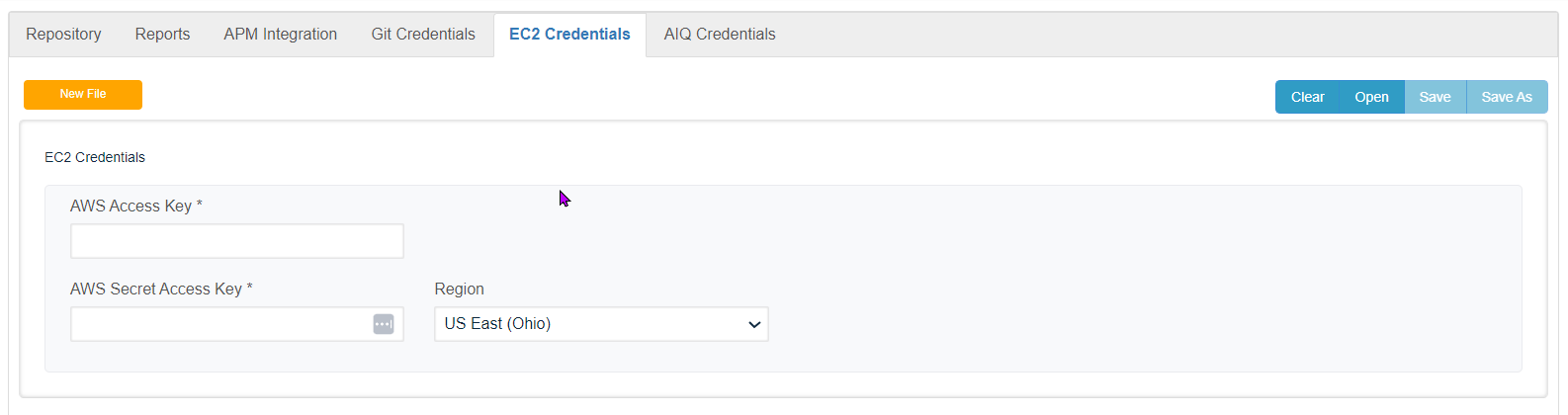
See [onnEC2 Configuration for information on test deployment in the Amazon Cloud.](https://docs.appvance.net/Content/AIQ/Global_Options/CloudConfig/Amazon_EC2_Configurator.htm)
The following configuration parameters must be defined:
- **Account Name** is the account name by which AIQ securely communicates with the Amazon EC2 service.
- **AWS Access Key** is a special security key to access the EC2 service. Managing Access Keys for Your AWS Account. You can create, rotate, disable, or delete access keys (access key IDs and secret access keys) for your AWS account root user. Anyone who has an access key for your AWS account has unrestricted access to all the resources in your account, including billing information
- **AWS Secret Key** Secret access keys are—as the name implies—secrets, like your password. For your security, AWS doesn’t reveal your password to you if you forgot it (you’d have to set a new password). Similarly, AWS does not allow the retrieval of a secret access key after its initial creation. This applies to both root secret access keys and AWS Identity and Access Management (IAM) user secret access keys.
- **Region** - Lists all the available regions that AWS supports. Those include:
- US East (N. Virginia)
- US East (Ohio)
- US West (N. California)
- US West (Oregon)
- EU (Ireland)
- EU (Frankfurt)
- Asia Pacific (Tokyo)
- Asia Pacific (Seoul)
- Asia Pacific (Singapore)
- Asia Pacific (Sydney)
- Asia Pacific (Mumbai)
- South America (Sao Paulo)
---
Last updated: January 29, 2025
If you have any feedback on this topic, please contact us at