
Data-Enable HAR Scripts in AIQ
Data Enabing HAR scripts for Web:
Appvance IQ implements a Data Production Library (DPL) as an extensible framework to provide operational test data to test script runners at test runtime. The DPL framework is general in that data may be input from a variety of sources, including a relational database, comma-separated-value file, and data generating objects. A DPL also provides a safe way to store data between test steps. Appvance IQ comes with pre-built DPLs and makes it easy for software developers to add their own custom DPLs.
In our case we will be using "CSV" data sheet to data enable in HAR script.
The steps that needs to be followed while data enabling HAR scripts are as below:
1) Record the script with username and password on chrome browser and save the script
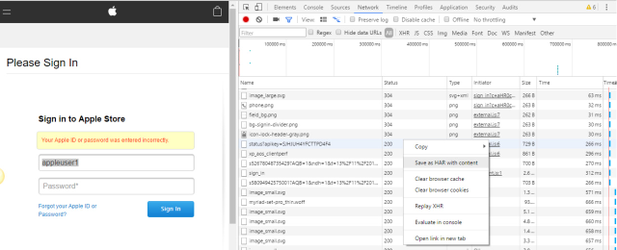
2) Open the saved script and search for the username/password you have entered in the url and create a .CSV sheet with the entered username and password as header in CSV sheet and give desired number of usernames and password below the headers.
For Ex:
If I have used appleuser1 as the Username and appleuser@123 as the password. Then we need to replace the appleuser1 and appleuser%40123(please see below instruction for any special character used in the password) in the HAR script which will be used as Header in the CSV sheet.
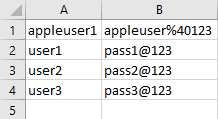
Also make sure if there are any special characters in the password we need to replace it with corresponding value with respect to HAR script
For ex:
1) ! = %21
2) @= %40
NOTE:If the Password is appleuser@123 the entry in the csv sheet should be appleuser%40123
For more information on the special characters and the corresponding value to be used in the script, see Special Character value to be replaced in HAR script.
3) We can upload the .HAR script and .csv sheet in Appvance Scenario Builder.
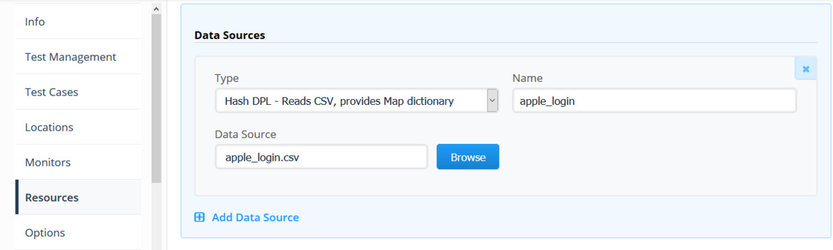
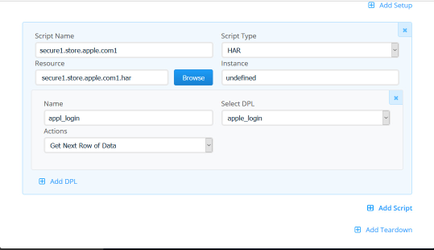
Choose the Script type as HAR and name the test
Choose the HAR script and select
Upload the CSV sheet in Resources Tab and choose the Action as "Next row of Data" by clicking Add DPL in Test Cases tab
Save and play the scenario
4) Check the script execution in IQ controller
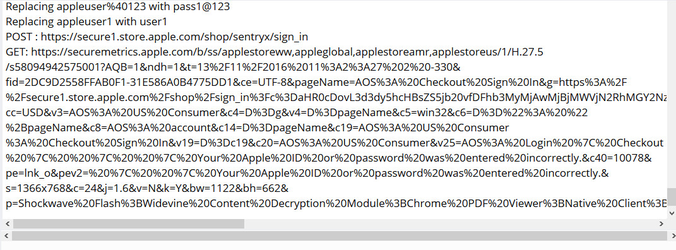
you can also monitor if the script is replacing the appropriate values through the Appvance IQ controller by Clicking on Test case(s) Executions and select the result and click Output.
If you have any feedback on this topic, please contact us at documentation@appvance.ai
Last updated: October 16, 2026