Desktop Designer Configuration
All desktop tests must have a desktop configuration file associated with them. This file contains all the necessary settings in order for the test to run. Configuration files are assigned to desktop tests in the Desktop Designer. A desktop configuration file can be associated with multiple desktop test files.
Create or edit a desktop testing configuration file
-
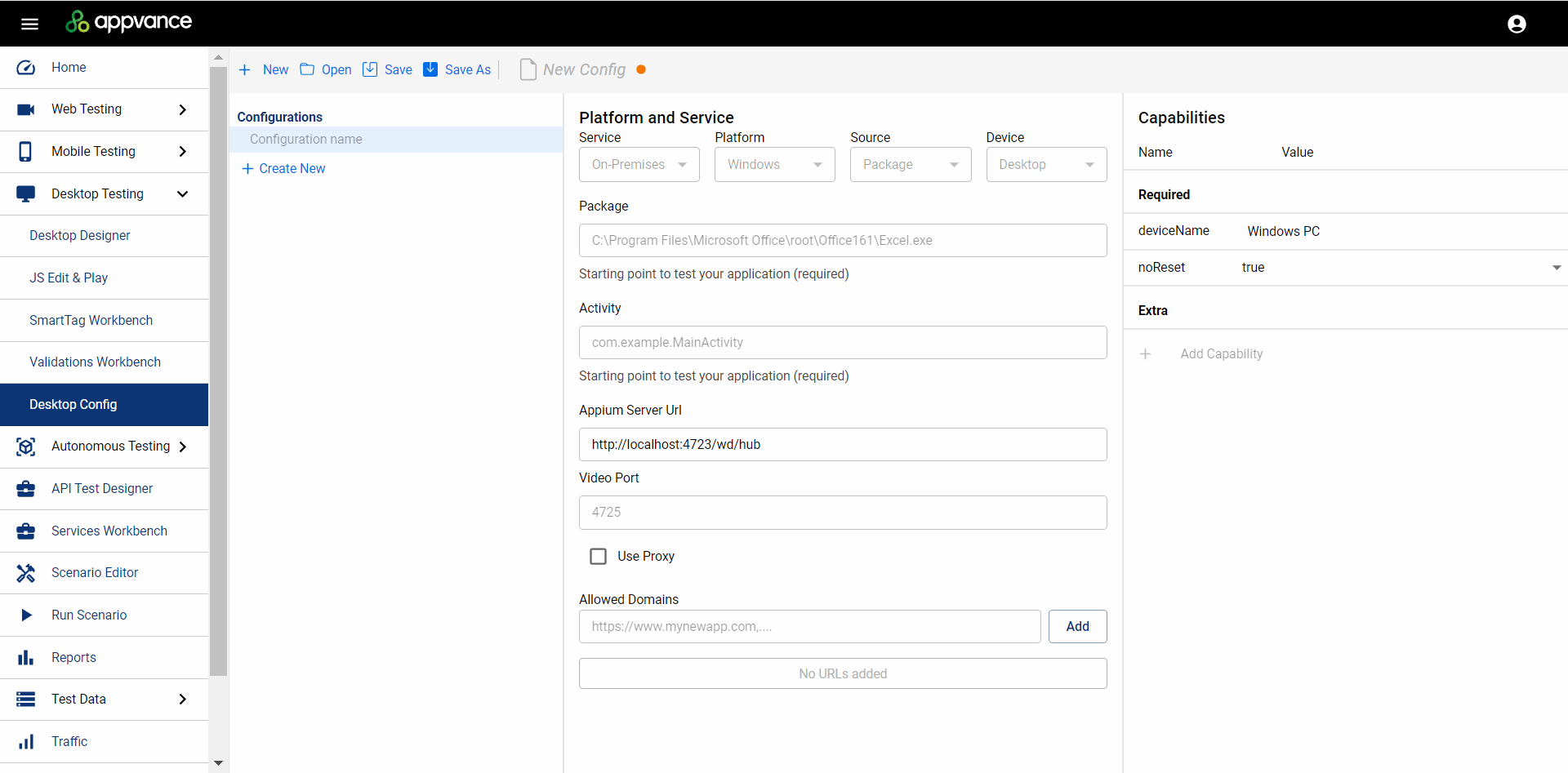
From AIQ navigate to Desktop Testing > Desktop Config.
-
Click Create New and name the file.
-
The parameters for Service, Platform, Source and Device are set by default.

-
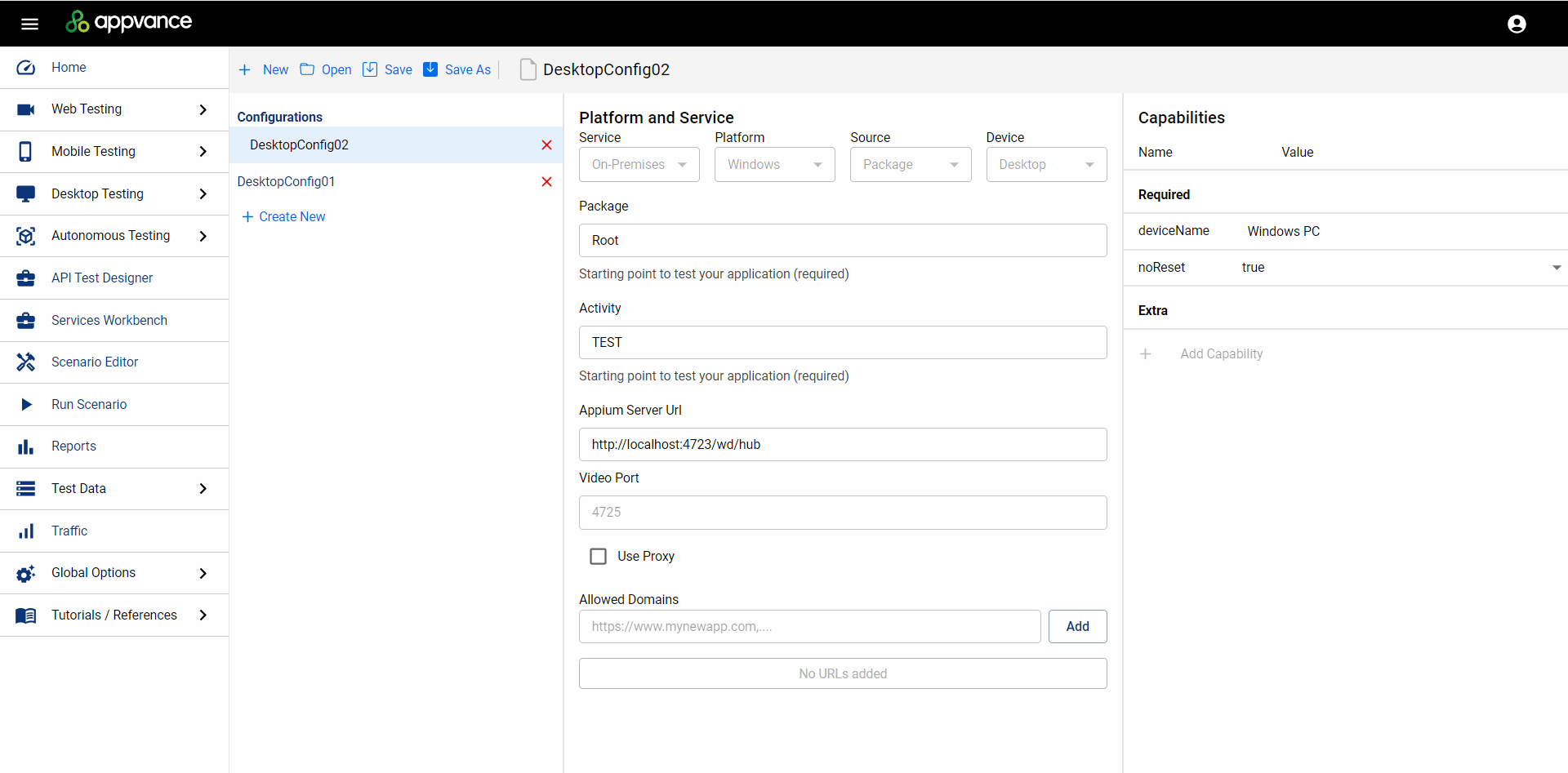
Specify the required parameters.
- Package specify Root
- Activity specify TEST
- Appium Server URL specify the IP address of the desktop machine you will be testing
-
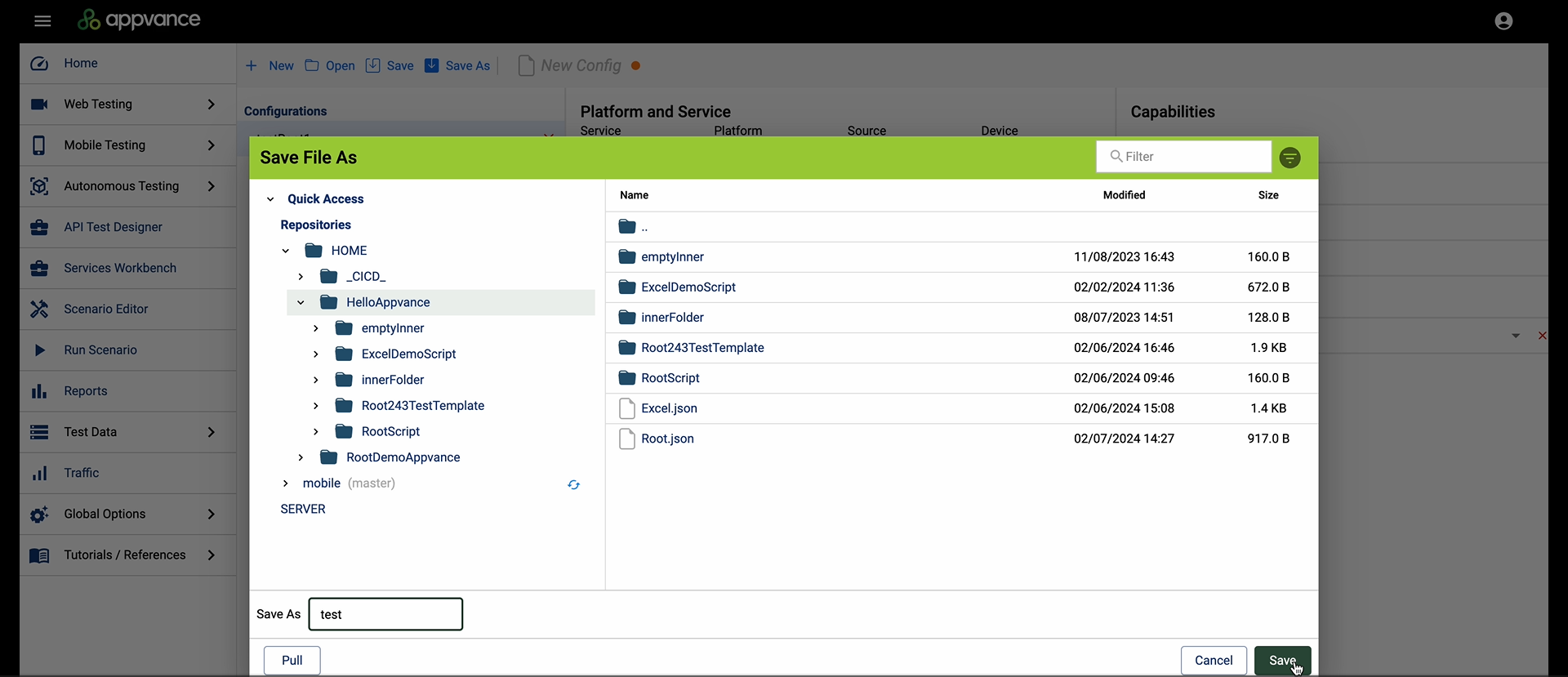
Click Save to save your desktop configuration file to your repsoitory.
Example Desktop Configuration File
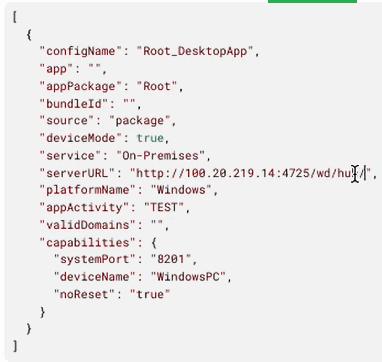
This is the preview of the configuration file that you can view in the Desktop Designer user interface.