
Install Appvance IQ Database Schema
- Open MySQLWorkbench
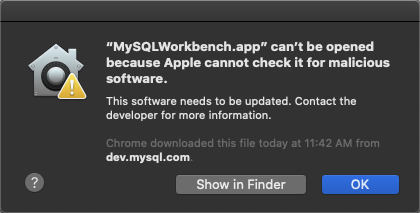
- If warning appears, click OK
- Select Apple Menu and click System Preferences
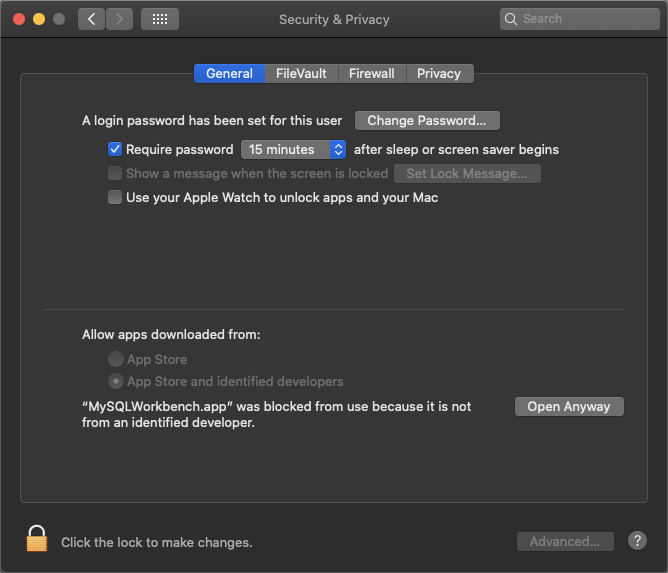
- Click Privacy & Security
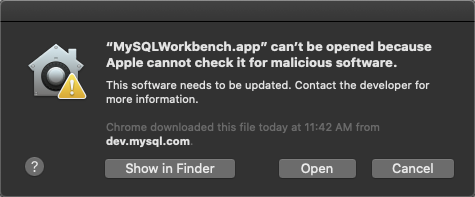
- Click the General tab and select Open Anyway, and then Open
- If version compatibility issues occur, please try alternate download from https://downloads.mysql.com/archives/workbench/
- When MySQL Workbench appears, assuming a database connection does not already exist, click MySQL Connections + (add) button

- Enter a name for the connection in the Connection Name box
Enter the hostname, port and credentials (if needed) and click OK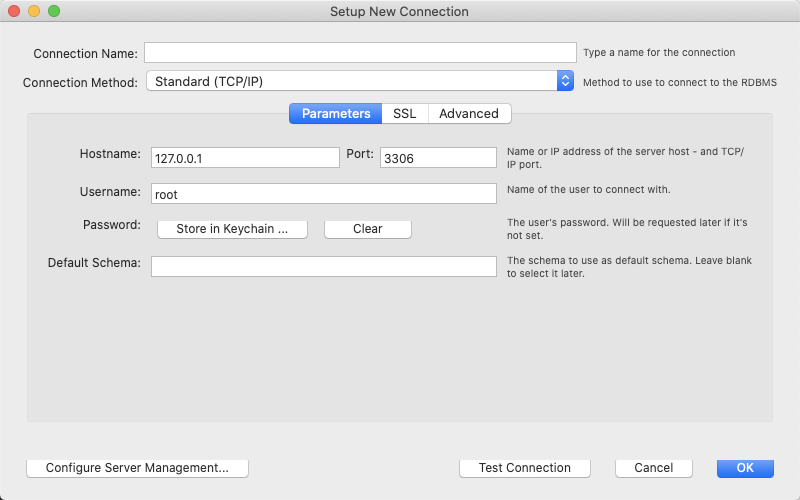
- Follow any prompts for updating the password
- Click the newly created connection, for example AIQ as illustrated below
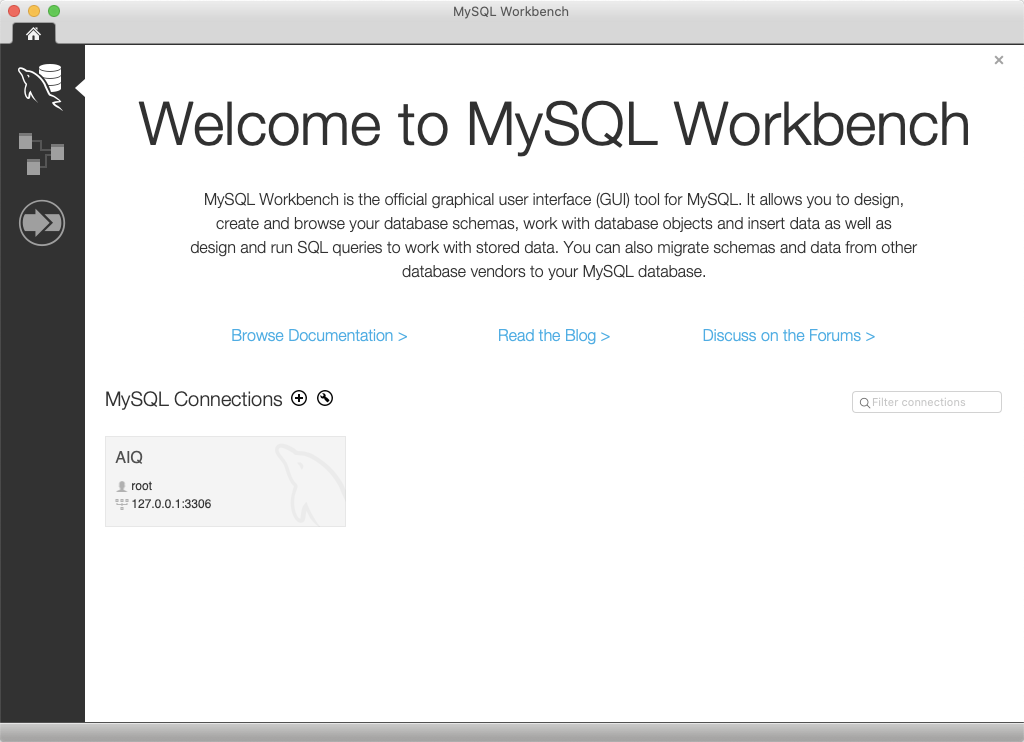
- Select File and click Open SQL Query Script...
- Browse to <AIQ>\TestNode\webapps\AppvanceServer\WEB-INF\classes\database
- Select MySQLInitial.sql and click Open
- Select Query and click Execute (All or Selection)
- Select File and click Open SQL Script...
- From the same location, select MySQLAppvance.sql and click Open
- Select Query and click Execute (All or Selection)
Troubleshooting
Error Code: 1419. You do not have the SUPER privilege and binary logging is enabled
If you get the above error while running the MySQLAppvance.sql script on AWS RDS, make sure that the RDS parameter group has the value 1 (ON) for the log_bin_trust_function_creators parameter. The RDS database MUST be rebooted for parameter changes to take effect.
Next step: Update MySQL Max Packet and Case Settings
Last updated: September 18, 2024
If you have any feedback on this topic, please contact us at documentation@appvance.ai