
MySQL Install & Setup
Install MySQL Server
- Go to https://downloads.mysql.com/archives/community/
- Click Product Version and select 5.7.31
- Click Operating System and select Mac OS X
- Locate macOS 10.14 (x86, 64-bit), DMG Archive and click Download
- Open the downloaded package
- A warning may appear, with a legend similar to “can’t be opened because Apple cannot check it…” click OK
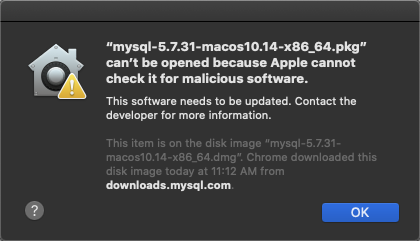
- Select Apple Menu and click System Preferences
- Click Privacy & Security
- Click the General tab and select Open Anyway
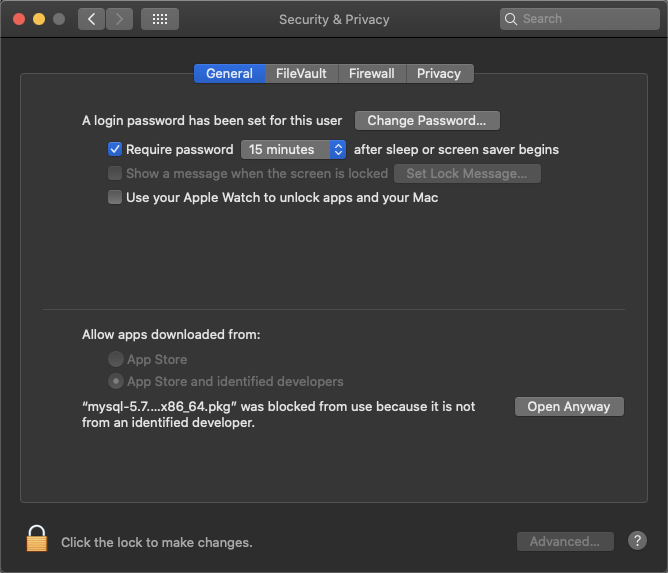
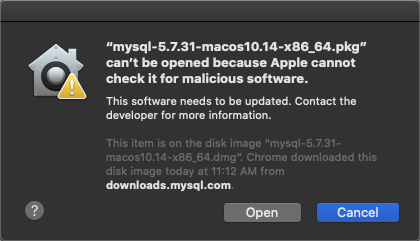
- Another warning may appear, click Open
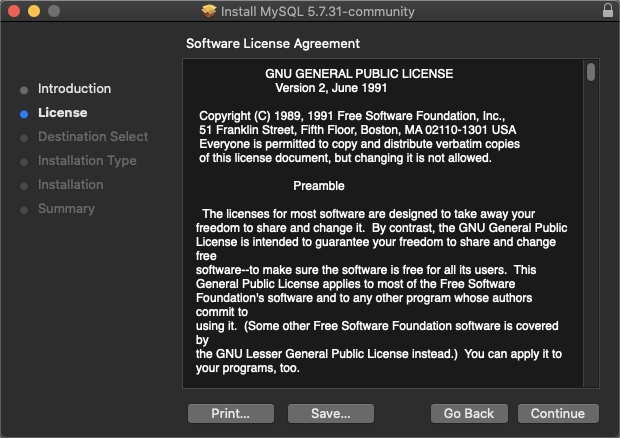
- When the Install MySQL installer appears, click Continue
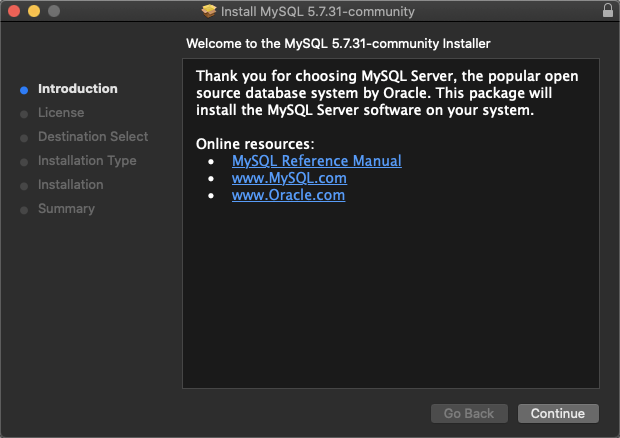
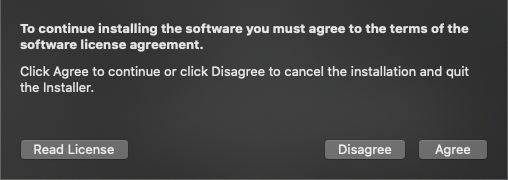
- Review the Software License Agreement, click Continue, then click Agree
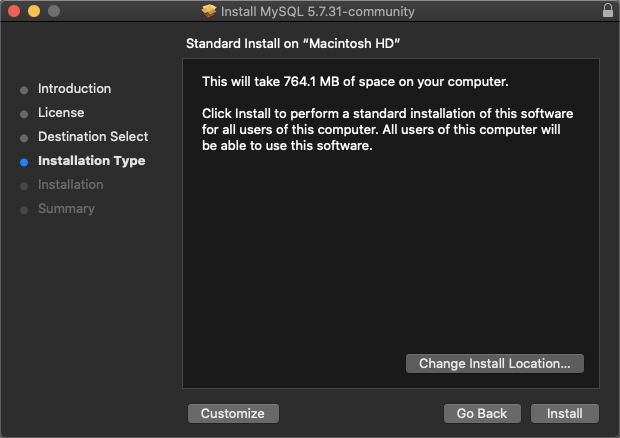
- When the Installation Type window appears, click Customize
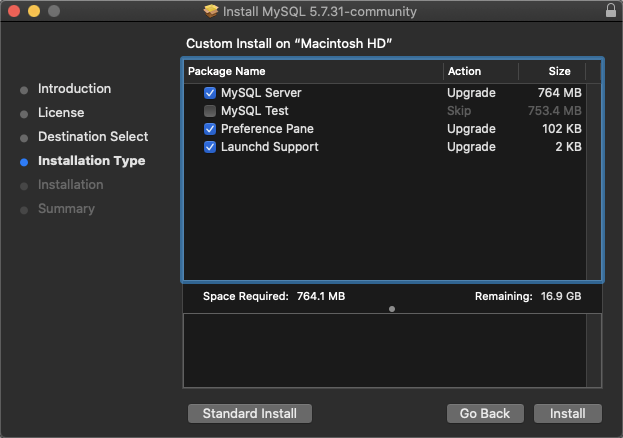
- Ensure MySQL Server, Preference Pane and Launchd Support are selected, and click Install
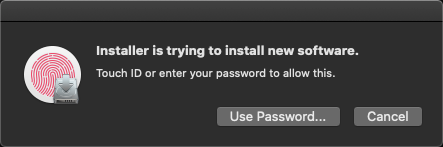
- Enter password when prompted
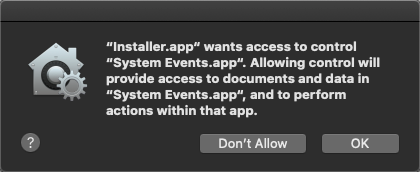
- If the System Events.app warning appears, click OK
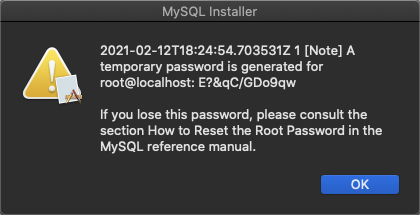
- IMPORTANT When MySQL Installer provides the temporary password, note this password, it cannot be recovered!
- When the Summary window appears, click Close
If prompted you may move the installer to trash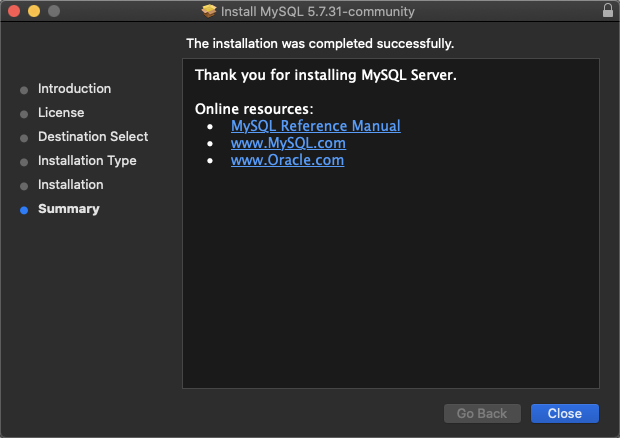
- Select Apple Menu and click System Preferences
- Click MySQL
- If MySQL is running, click Stop MySQL Server
- Click Start MySQL Server
Install MySQL Workbench
- Go to https://dev.mysql.com/downloads/workbench/ and download MySQL Workbench
- Open the installer
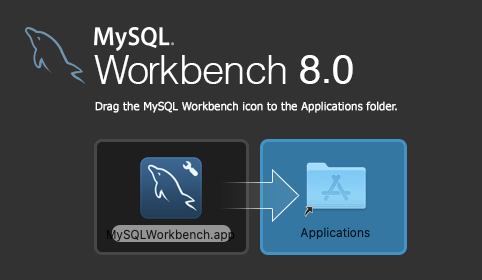
- When prompted, drag and drop MySQLWorkbench.app to Applications
Next step: Install Appvance IQ Database Schema
Last updated: July 31, 2024
If you have any feedback on this topic, please contact us at documentation@appvance.ai