
Configuring Open Broadcaster Software
The following is the AIQ specific configuration in OBS.
-
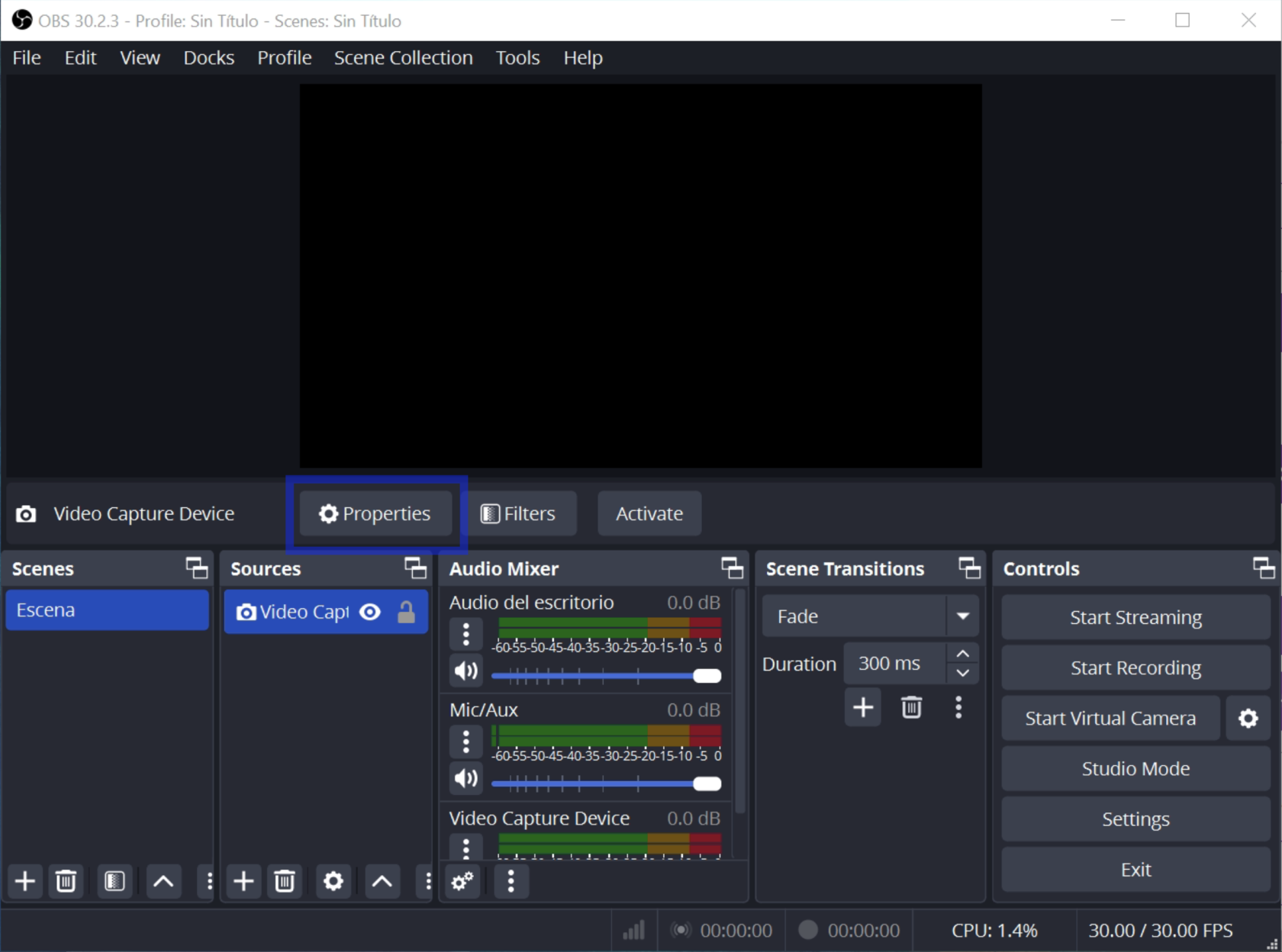
Open the OBS application. You will see a window like the following.
-
Click the Properties button on the Sources bar.
-
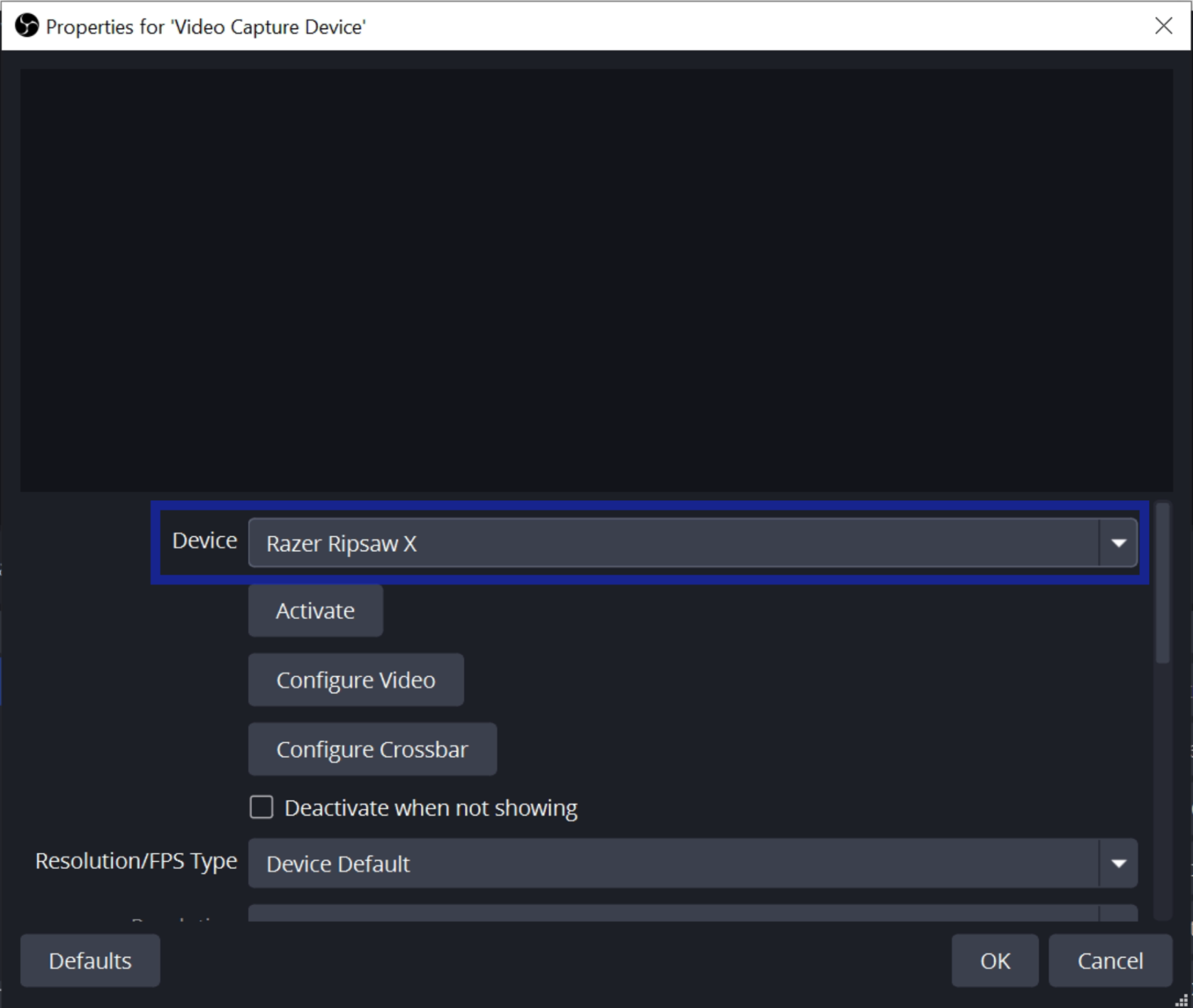
Open the Device drop down and select the HDMI video capture device. The name is going to change depending on the one you are using. Click the Activate button if needed.
-
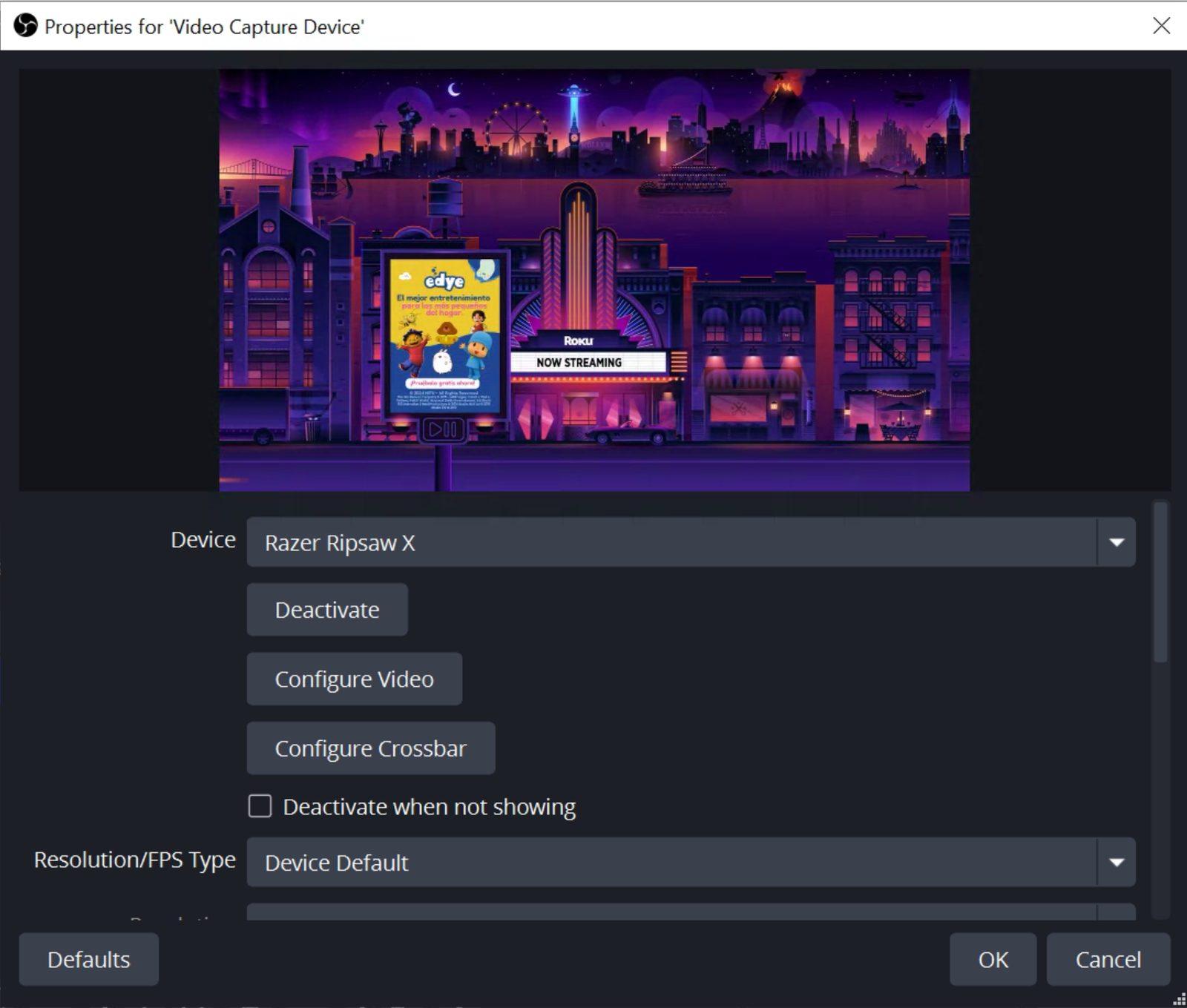
You should see a window like this:
-
Click OK.
-
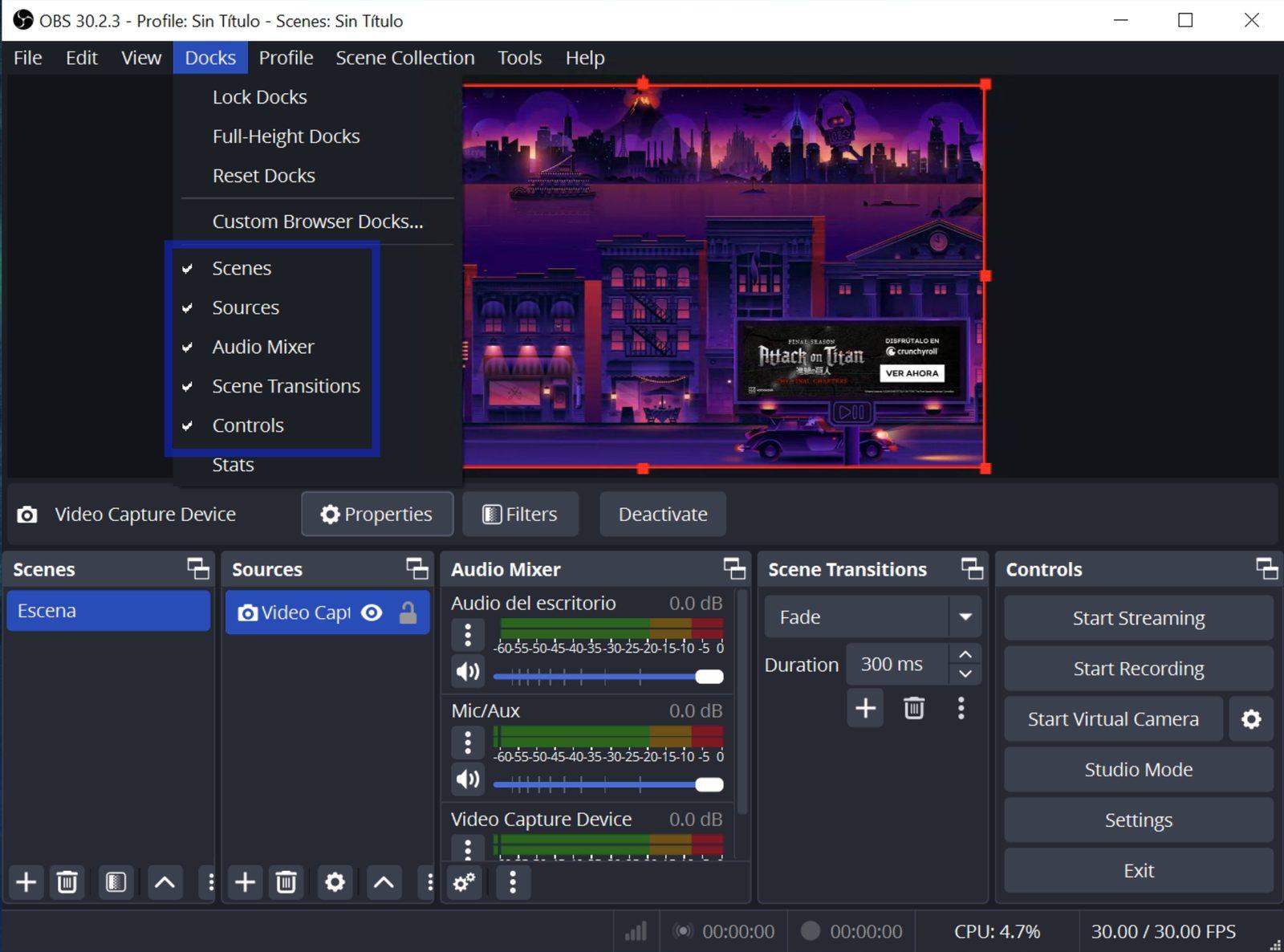
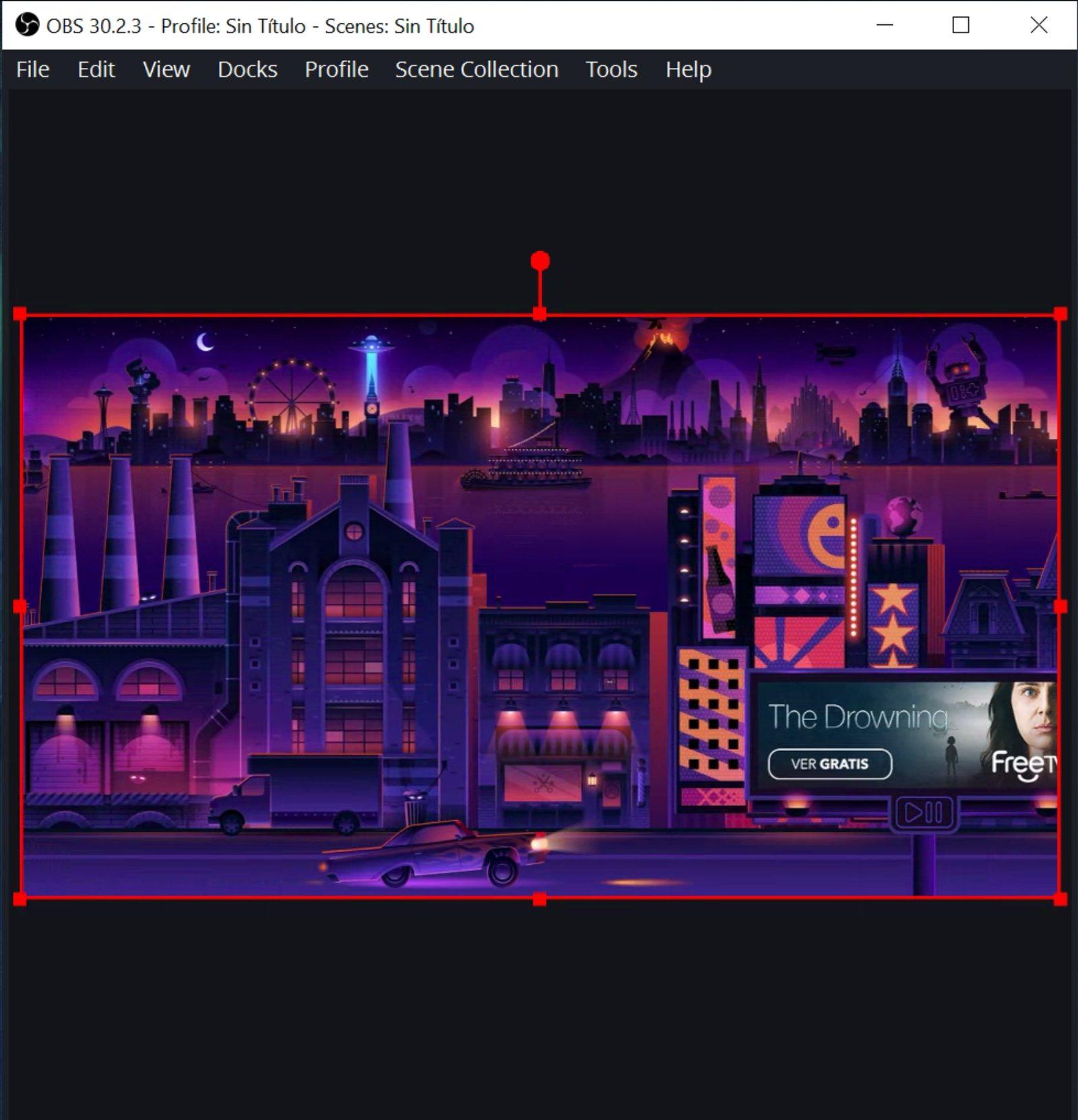
Navigate to the Docks menu and disable Scenes, Sources, Audio Mixer, Scene Transitions and Controls.
-
You should be able to see the video captured from the Roku device.
Last updated: September 24, 2024
If you have any feedback on this topic, please contact us at documentation@appvance.ai