
Configure Open Broadcaster Software for AIQ Test Evidence
Configure Open Broadcaster Software for AIQ Test Evidence
TheOpen followingBroadcaster Software (OBS) can be used to capture video evidence while AIQ tests run. Use it when a team needs visual proof of application behavior, playback issues, or environment-specific failures.
Setup guidance
- Install a supported OBS version on the machine where the browser, desktop app, or device stream is visible.
- Create a dedicated scene for AIQ evidence capture and include only the required window, display, or device feed.
- Set the output path to a location with enough disk space for the planned run duration.
- Use a recording format that can be recovered if the session stops unexpectedly.
- Mask or avoid capturing credentials, customer data, and unrelated desktop content.
Validation workflow
- Start a short recording before the AIQ
specific configuration in OBS.
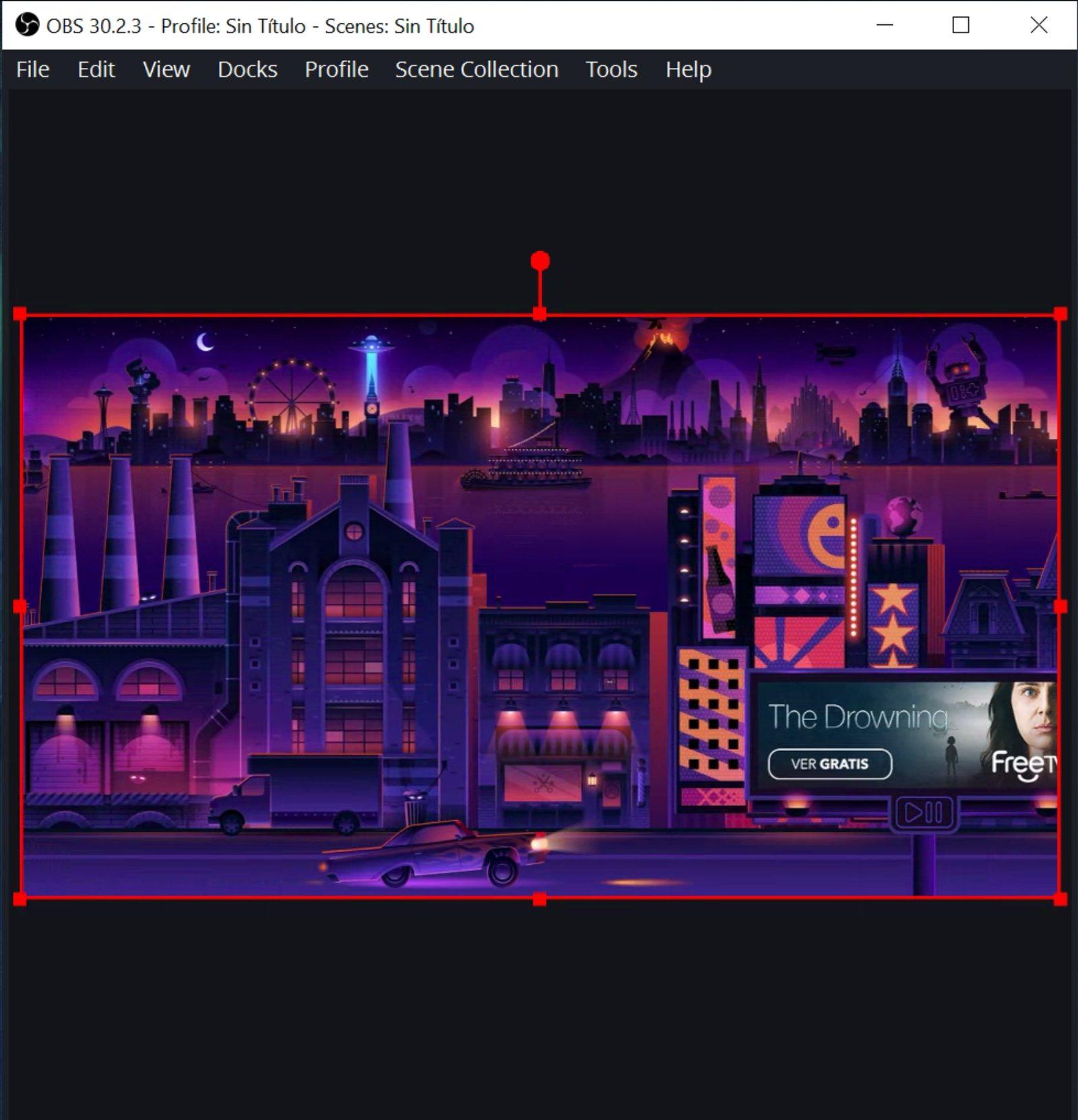
Open the OBS application. You will seeRun a windowsmall like the following.
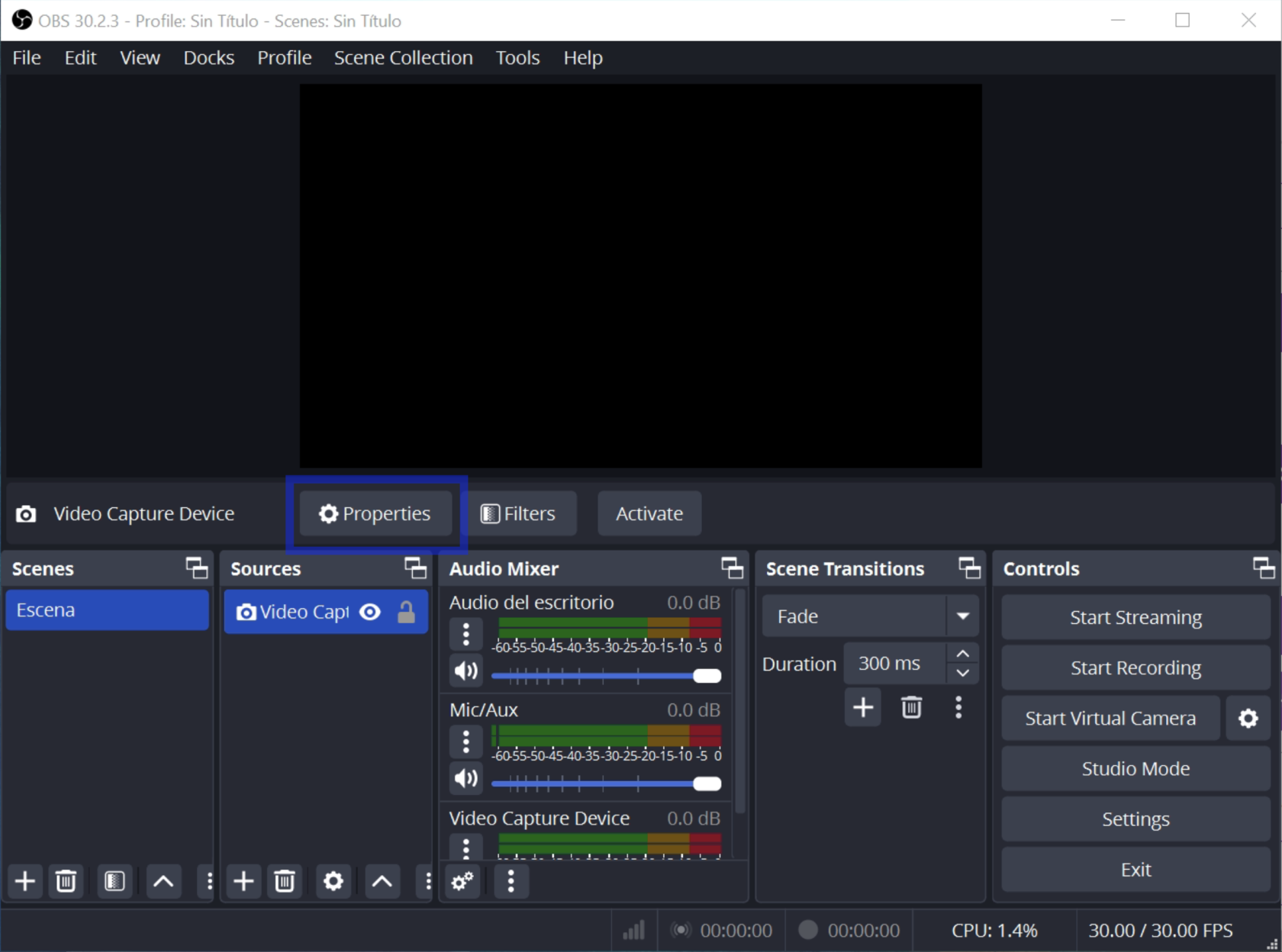
Click the Properties button on the Sources bar.
Open the Device drop downscenario and select the HDMI video capture device. The name is going to change depending on the one you are using. Click the Activate button if needed.
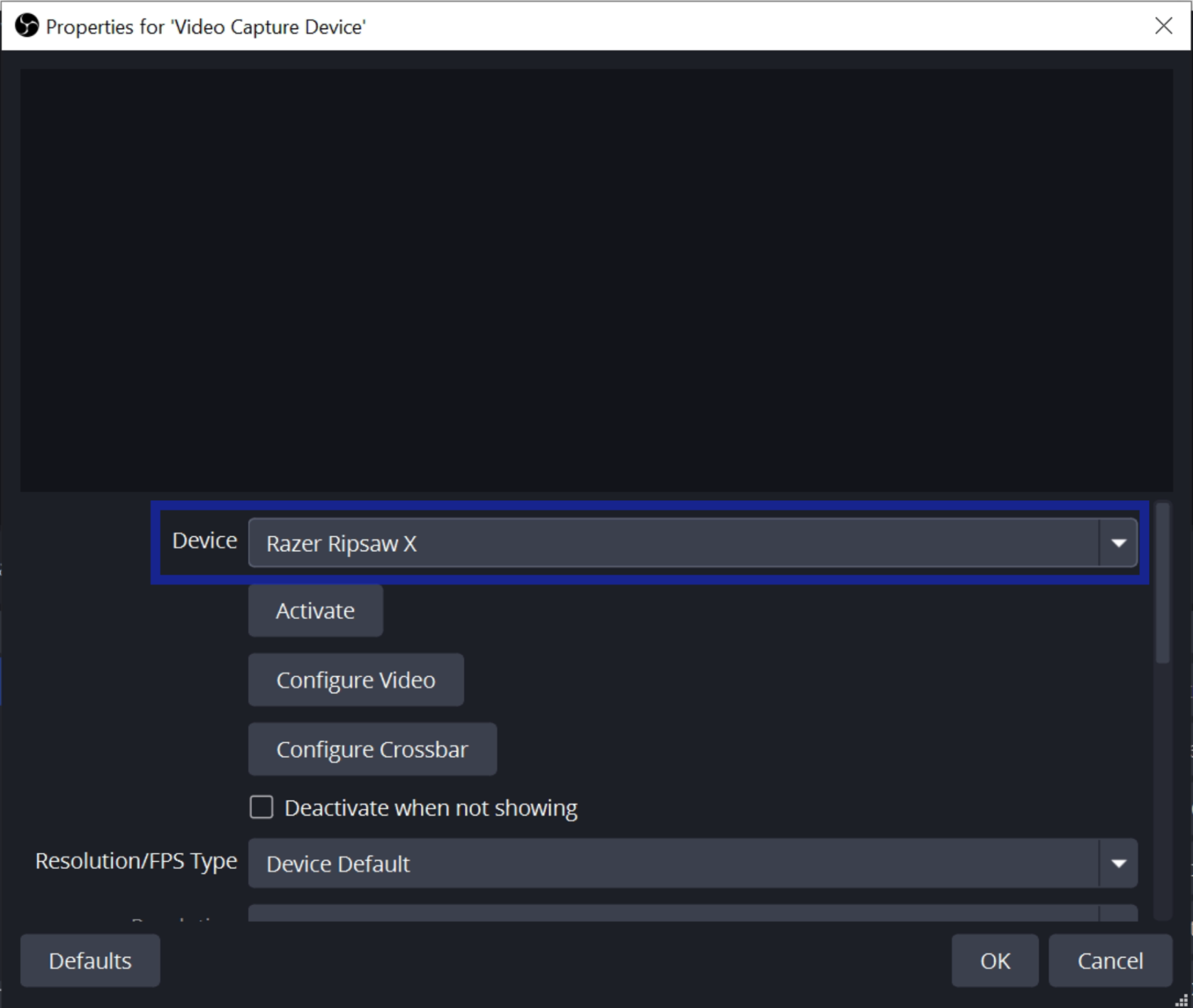
You should see a window like this:
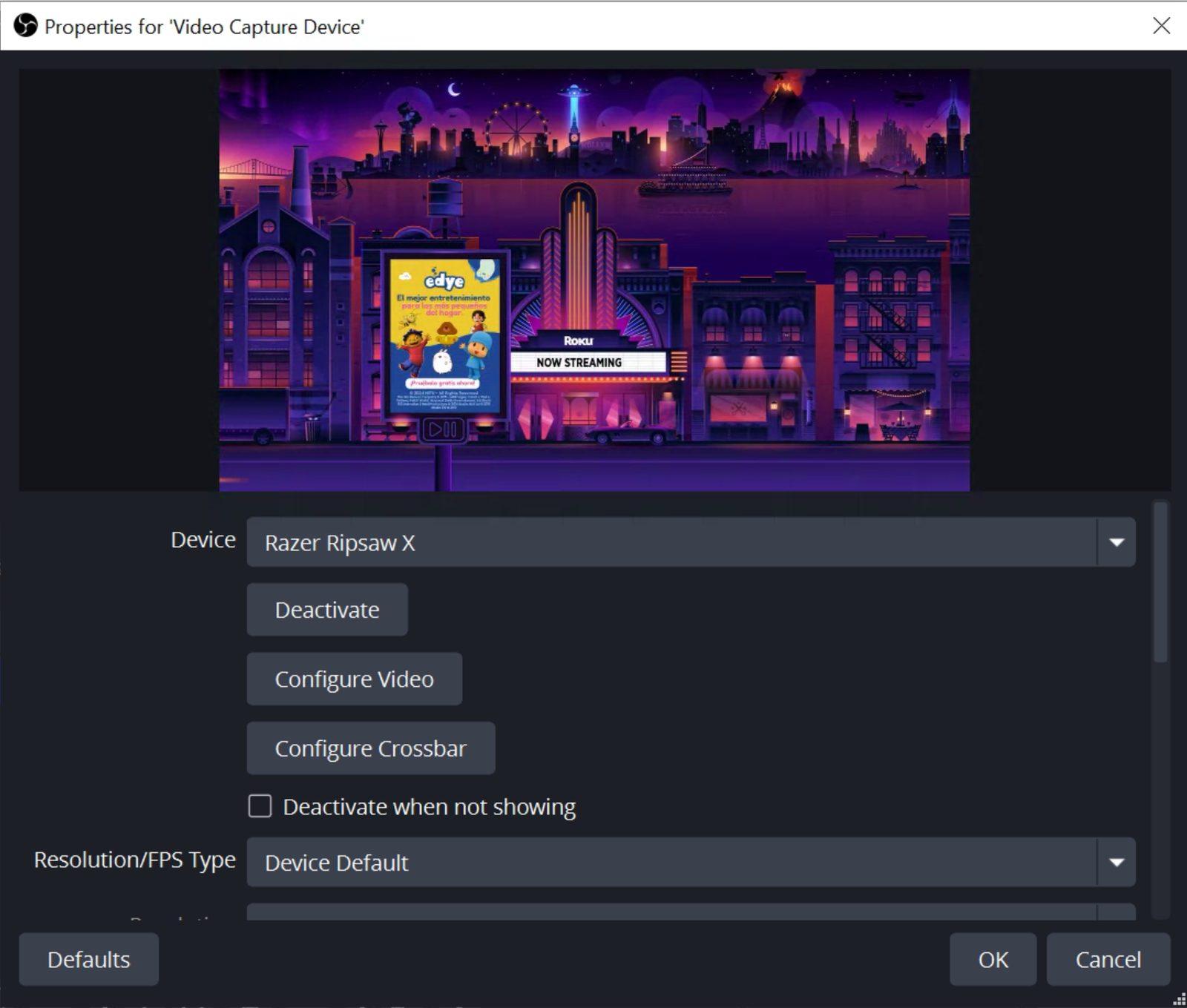
Click OK.
Navigate to the Docks menu and disable Scenes, Sources, Audio Mixer, Scene Transitions and Controls.
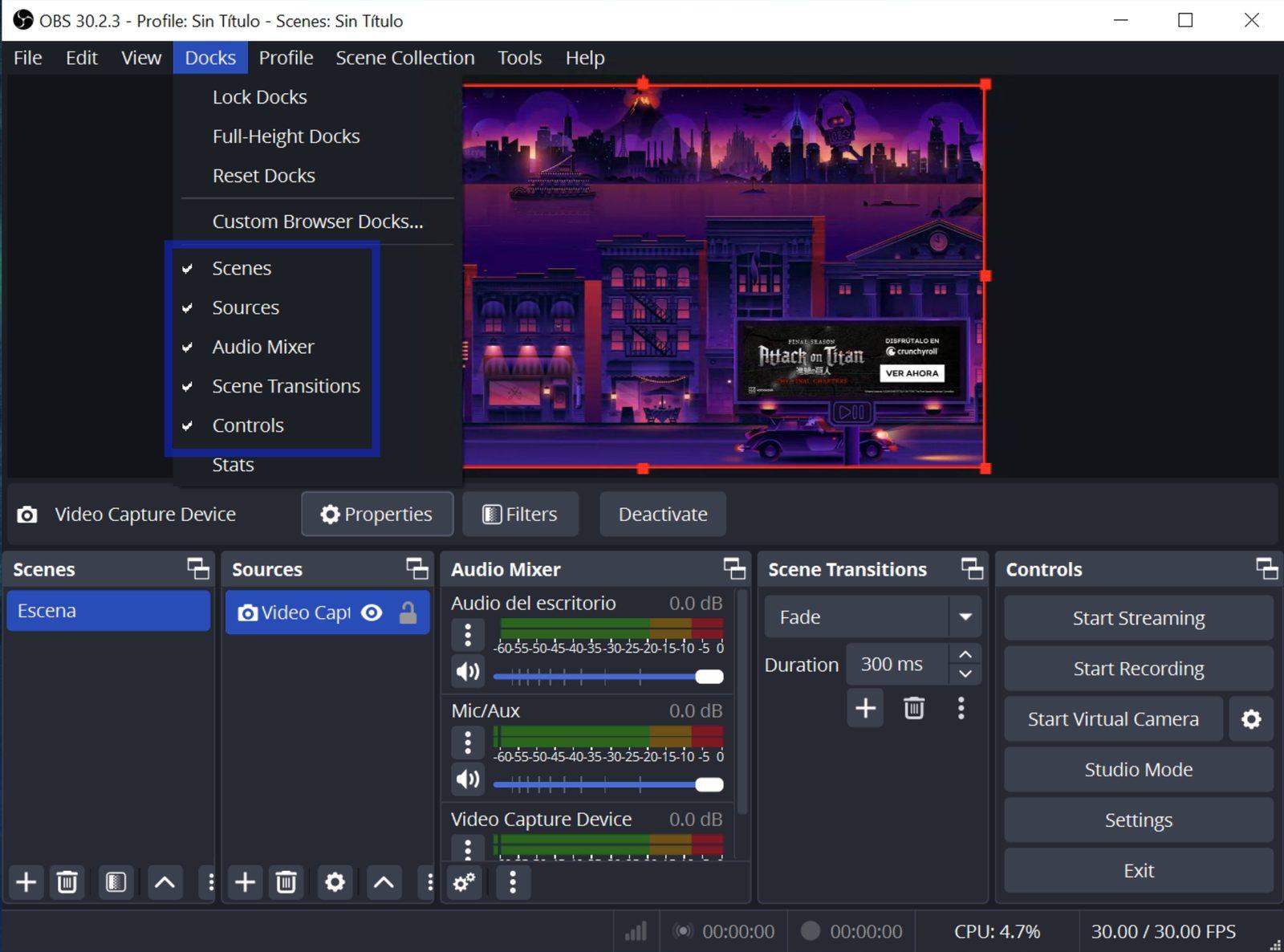
You should be able to seeconfirm the video captured fromshows the Rokurelevant device.
Last updated: SeptemberOctober 24,8, 20242026
If you have any feedback on this topic, please contact us at documentation@appvance.ai