
Installing and Configuring Desktop Designer - Legacy Reference
This is the installation
Installing and configuration process to setupConfiguring Desktop Designer in- orderLegacy Reference
This page is retained for teams that still maintain legacy Desktop Designer assets. For new AIQ authoring, prefer current AIQ workflows and Scenario Editor where applicable.
Legacy setup guidance
- Confirm the Desktop Designer version is still required for the existing asset being maintained.
- Validate Windows version, Java/runtime dependencies, browser/driver versions, permissions, and installation path.
- Use a dedicated test machine or controlled desktop session for legacy desktop automation.
- Document any migration candidates that should move to
testaWindowscurrentapplications.AIQ workflow. - Do not create new documentation patterns that treat Desktop Designer as the default authoring experience.
SystemValidation Requirementsworkflow
Hardware
Intel iCore 5Install oraboveverify
Amazon EC2
OS and Software
Windows 10 / Windows Server 2016
Windows Application Driver (WinAppDriver) (Version 1.2.1 or greater)
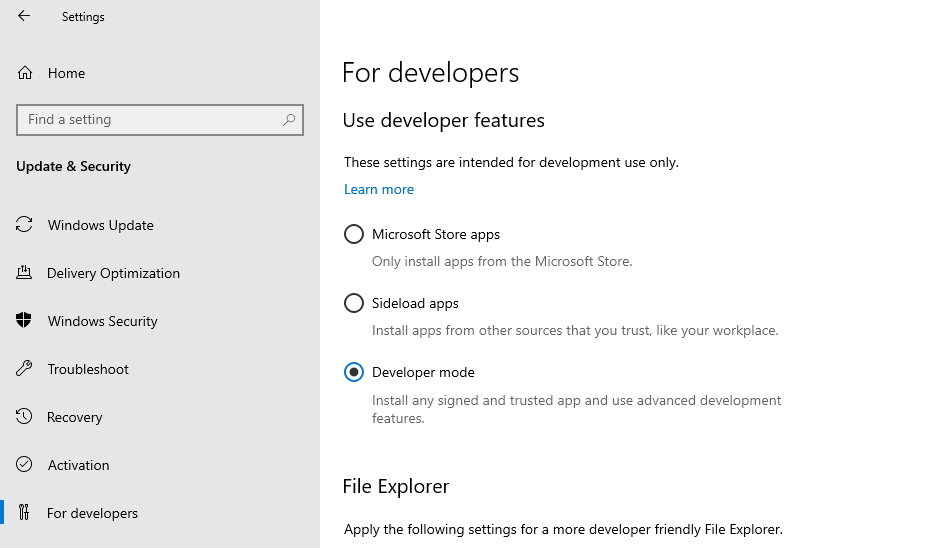
Developer Mode must be set to On.
Windows SDK (Optional)
Install Chocolatey. Chocolatey is software management automation for Windows that wraps installers, executables, zips, and scripts into compiled packages.
Installation Process
Enable Developer Mode.
Press WinKey+ I
In Privacy and Security, Select For Developers
Enable Developer Mode.
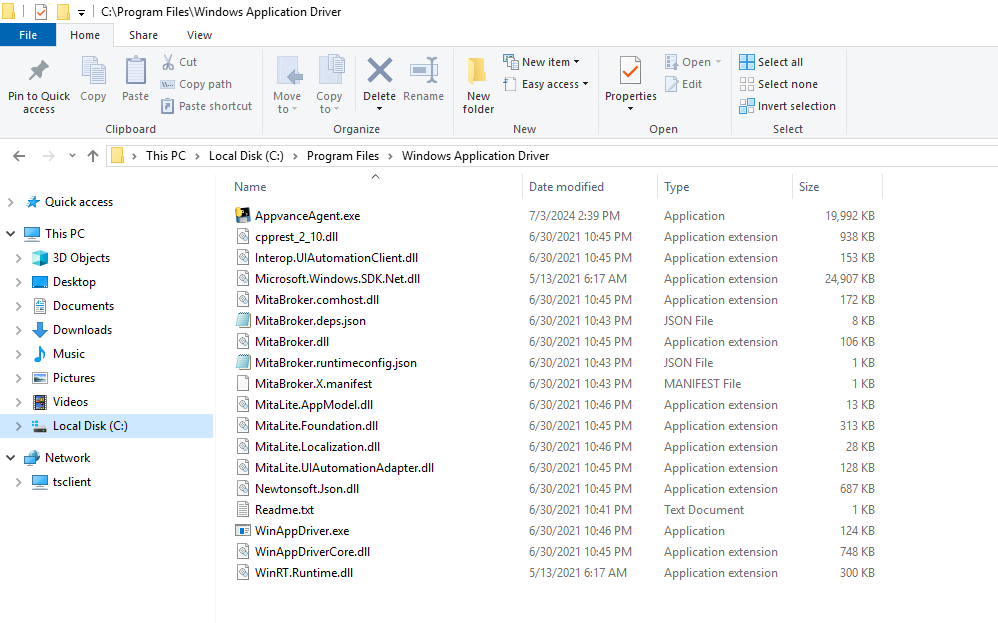
Download Windows Application Driver. Followin the installation process.
Open a Command Console in Administrator mode and navigate to the pathenvironment where the Windowslegacy Applicationtest Driveris wasmaintained.
small cdsmoke C://Program Files/Windows Application Driver/
An Enviroment Variable can be set using the cmd prompt: setx APPIUM_WAD_PATH "C:/Program Files x86/Windows Application Driver"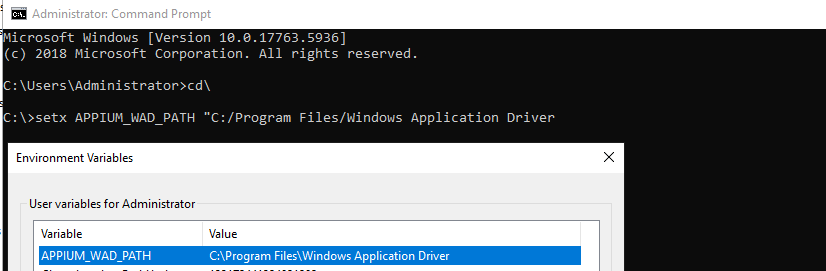
Download Video Recording Tool for Windows (AppvanceAgent.exe)test and copycapture toevidence.
C:/Programrequired Filespermissions, x86/Windowsand Applicationmigration Driver Tool
TheLegacy Windowsnote: AppvanceKeep Agentthis canarticle beonly downloadedas froma thelegacy reference until older Desktop Designer Installation Downloads page. Access to this pagecontent is restrictedconsolidated andor must be requested.
Install Chocolatey. This is needed to install the ffmpeg plugin.retired.
Install Chocolatey.
Full instructions can be found here: Installing Chocolatey.
Run PowerShell as Administrator with the following command:
Set-ExecutionPolicy Bypass -Scope Process -Force; [System.Net.ServicePointManager]::SecurityProtocol = [System.Net.ServicePointManager]::SecurityProtocol -bor 3072; iex ((New-Object System.Net.WebClient).DownloadString('https://community.chocolatey.org/install.ps1'))
Restart PowerShell and run it as Administrator again.
Run this command: choco install ffmpeg
Navigate to C:/Program Files x86/Windows Application Driver in PowerShell and run the following command:
AppvanceAgent.exe --port 4726 --executable WinAppDriver.exe --base_path /wd/hub --win_app_driver_port 4725
The first port is for video recording and the second is for WinAppDriver. Port 4726 would be the value videoPort in the config file. Port 4725 would be the port you use in the serverURL. The videoPort field is mandatory.See the Configuration File Example below.
To access WinAppDriver Remotely there are two options:
Use a bridge like NGrok:
Start ngrok with: ngrok http http://localhost:4725
Copy the forwarding URL and use it in your script capabilities.
Open a port on the test machine.
Open up Windows Firewall with Advanced Security.
You can also run the following command when run in an admin command prompt: netsh advfirewall firewall add rule name="WinAppDriver remote" dir=in action=allow protocol=TCP localport=4723
Run ipconfig.exe to determine your machine's local IP address.
Setting * as the IP address command line option will cause it to bind to all bound IP addresses on the machine.
Run AppvanceAgent.exe --port 4725 --executable WinAppDriver.exe --base_path /wd/hub --win_app_driver_port 4729 as an administrator with command line arguments as seen above specifying the local IP and port.
Configuration File Example
[
  {
    "app": "",
    "appActivity": "TEST",
    "appPackage": "Root",
    "bundleId": "",
    "validDomains": "",
    "service": "On-Premises",
    "configName": "Root_DesktopApp",
    "deviceMode": "Desktop",
    "proxyURL": "",
    "videoPort": "4726",
    "serverURL": "http://192.168.3.14:4725/wd/hub",
    "source": "package",
    "platformName": "Windows",
    "capabilities": {
      "deviceName": "WindowsPC",
      "platformVersion": "",
      "automationName": "Windows",
      "app": "",
      "noReset": "true"
    }
  }
]
Appium Capabilities
Appium is an open source automation tool for running scripts and testing native applications, mobile-web applications and hybrid applications on Android or iOS using a webdriver.
Appium has the ability to automate Windows PC Desktop apps. This driver relies on a project from Microsoft called WinAppDriver, which is an Appium-compatible WebDriver server for Windows Desktop apps (and more in the future). WinAppDriver is often abbreviated "WAD". WAD is bundled with Appium and does not need to be installed separately.https://appium.readthedocs.io/en/latest/en/drivers/windows/
Define the Application Under Test
The application under test can be defined with the following:
appCapabilities.SetCapability("app", "C:\Windows\System32\notepad.exe");
or
appCapabilities.SetCapability("app", "Microsoft.WindowsCalculator_8wekyb3d8bbwe!App");
Both the path to the application and the application ID are valid. The application ID can be found running in PowerShell with admin permissions : Get-StartApps
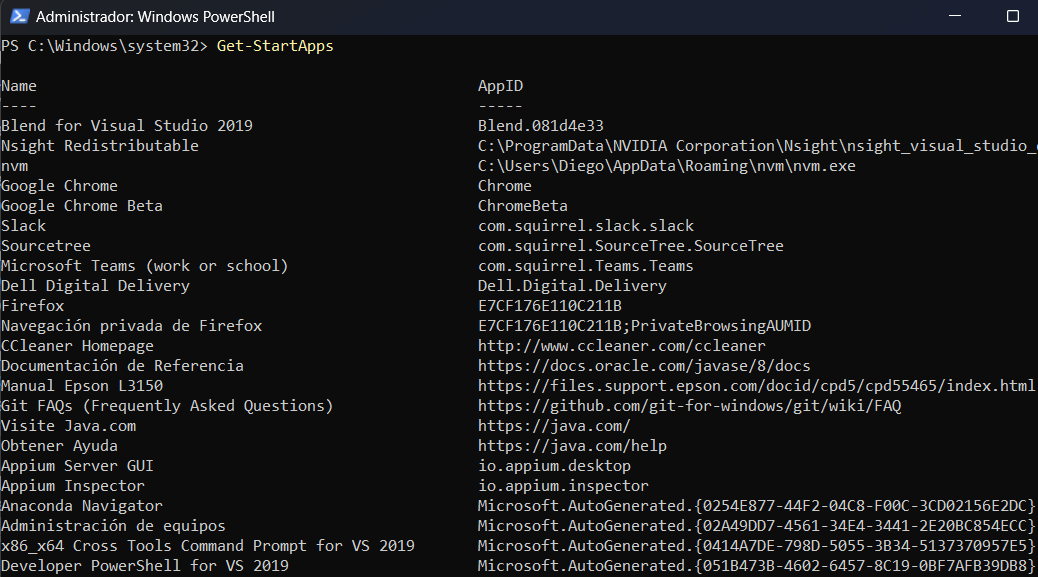
Platform and Device
The Platform and device are required:
appCapabilities.SetCapability("platformName", "platformName");
appCapabilities.SetCapability("deviceName", "WindowsPC");
Those capabilities are used to start the driver:
driver = new WindowsDriver(new URL("http://127.0.0.1:4723"), appCapabilities);
Enabling GUI even when RDP is Disconected
GUI can be still running if an automated RDP’s disconnection file is created using a batch file.
On the remote computer, do the following:
Create a batch file :
for /f "skip=1 tokens=3" %%s in ('query user %USERNAME%') do ( %windir%\System32\tscon.exe %%s /dest:console)
In the File properties, click Advanced and select Run as administrator.
Connectivity Details
If the Windows machine or Virtual Desktop Infrastructure (VDI) is in the same network than the machine running AIQ, then the local internal address can be use for connecting to the WinAppDriver.
Otherwise the machine hosting Windows must have assigned a Public IP and ports for RDP 3389 and 4725, 4726, 4727 forwarding the machine where the driver is running.
Last updated: MayOctober 14,10, 20252026
If you have any feedback on this topic, please contact us at documentation@appvance.ai