
Recording a Appvance Designer Script from Designer 3.0
Prerequisite
The Appvance Test Designer Setup must be complete before continuing
Recording your first Appvance Test Designer script
Before starting, make sure you have your Appvance IQ URL, user name and password available.
Open a browser, navigate to your Appvance IQ URL and login using your credentialsSelect theRecordoption
DS3 Recorder appears
SelectFile → New
ClickRecord and select the browser.
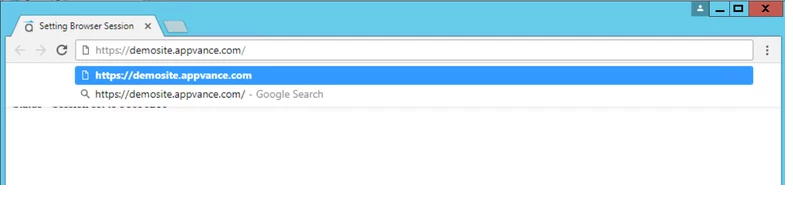
Browser opens then enter the URL of your application to record as shown below.
6. To successfully record each step, it is necessary to wait until DS3 IDE shows Recording as shown below.

7. After performing the steps you wish to record, return toDS3 Recorderand clickStop.
8. SelectFile→ Save
TheSavewindow appears, displaying the Appvance Test Designer controller file system; not the local machine.
9. Browse to the desired directory, enter a name for the script in theFileNamebox and clickSave
10. To playback from DS3 IDE, clickPlay and select the browser.
Last updated: June 26, 2023
If you have any feedback on this topic, please contact us at documentation@appvance.ai