
Record a Scenario Editor Test
Prerequisite
Record
a Scenario Editor TestTheThis Appvancearticle Testreplaces legacy Designer Setup3.0 mustwording bewith completecurrent Scenario Editor terminology. Use recording as a starting point, then review and maintain the scenario before continuingadding it to a suite.
RecordingRecommended your first Appvance Test Designer script
workflow
Before
- Prepare
starting,approvedmaketestsure you have your Appvance IQ URL, user namedata andpasswordaavailable.
Maintenance notes
- Do not keep obsolete Designer-only instructions in current AIQ documentation.
- Prefer
SelectcleartheRecordoptionscenarioDS3 Recorder appears
conditional waits
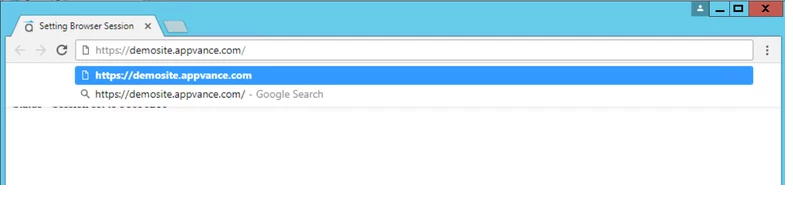
6. To successfully record each step, it is necessary to wait until DS3 IDE shows Recording as shown below.

7. After performing the steps you wish to record, return toDS3 Recorderand clickStop.
8. SelectFile→ SaveTheSavewindow appears, displaying the Appvance Test Designer controller file system; not the local machine.
9. Browse to the desired directory, enter a name for the script in theFileNamebox and clickSave
10. To playback from DS3 IDE, clickPlay and select the browser.
Last updated: JuneSeptember 26,18, 20232026
If you have any feedback on this topic, please contact us at documentation@appvance.ai