
Roku Environment Setup for AIQ Testing
Roku Environment Setup for AIQ Testing
ThisUse sectionthis willarticle detailwhen thepreparing requiredRoku setupdevices toor allowRoku-based recordingapplications for AIQ testing. Keep device state, network access, and runningapplication Desktopbuilds Designercontrolled scriptsso fortest aruns are repeatable.
Setup checklist
- Confirm Roku device
onmodel,aOSlocalversion,environment.app/channelversion,network,Thisanddocumentationaccountdoes not include the steps related toaccess. - Place the Roku device
setupanditself.AIQ-controlledIthostis assumed thaton theRokurequired network path. - Use a dedicated test account and reset application state when needed.
- Document remote-control method, expected screens, pairing requirements, and logs.
- Capture screenshots or device
islogsalreadywhensetuptroubleshootingandnavigationworkingfailures.
Validation expected.workflow
- Pair
Seeor configure theRoku website for information onRoku setup.
System Requirements
OS and Hardware
Windows Professional only. Window Home not supported.Windows 11 PRO is not certified at this time.Windows Server 2022 Datacenter not certified at this time.
Amazon EC2
For Windows Server t3.xlarge
Architecture
The way the Roku environment works is by using two different PCs / laptops connected to the same network.
One of them (PC-A) is going to run AIQ and is going to be used for script recording/playback.
The second one (PC-B) has a HDMI video capture device connected (with the Roku device connected to it). PC-B also runs the WindowsAppvanceServer along with the other required software applications used to display and control the Roku system.
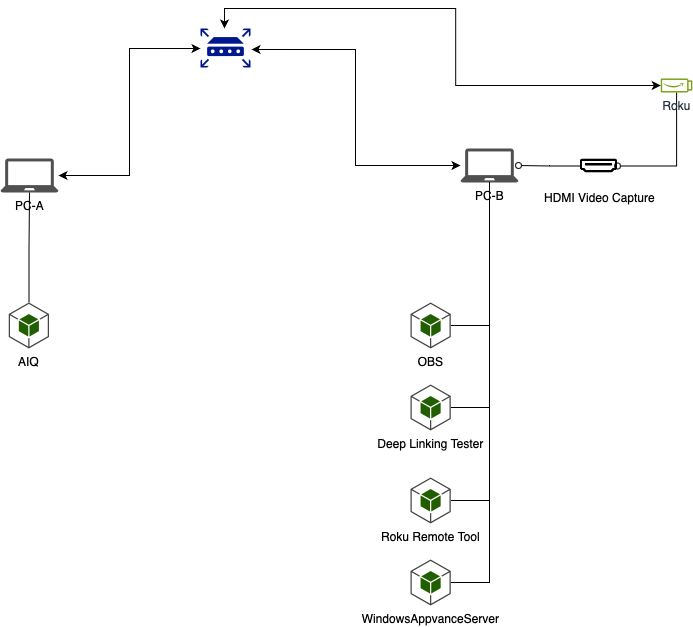
Prerequisite Setup
Make sure both computers are connected to the same network before completing the setup.
PC-A (AIQ)
Properly setup AIQ on this machine. Refer to the AIQ Documentation for setup information for AIQ.
PC-B (Roku Device)
Make sure the Roku device is plugged to the HDMI capture device, and is plugged to the computer.
Required Software Installations
The following installations are required. Please see the individual websitesmethod for the installertarget downloadsdevice.
Windows Appvance Driver
Windows Appvance Driver (WAD) works as a substitute for Windows App Driver in order to avoid well know issues reportedrequirements in the WinAppDriver.
Installation Instructions and Download Link: Windows Appvance Driver Setup
Open Broadcaster Software
OBS (Open Broadcaster Software) is free and open source software for video recording and live streaming.
Download Link: https://obsproject.com/.
Roku Remote Tool
The Roku Remote Tool provides developers a quick and intuitive way to create reusable scripts for ad-hoc testing of their channel.
Download Link: https://devtools.web.roku.com/RokuRemote/.
Roku Deep Linking Tester
The Roku Deep Linking Tester provides a UI for configuring, saving, import/exporting, and executing deep linking test cases.
Download Link: https://devtools.web.roku.com/DeepLinkingTester/.
Last updated: MayOctober 14,10, 20252026
If you have any feedback on this topic, please contact us at documentation@appvance.ai