
Running JMeter scripts as a Functional test
UseAppvance thisIQ article whenis a platform that supports to run JMeter scriptscripts. isHere beingare executedthe insteps AIQthat forwe functionalneed validationto ratherfollow thanto load generation.
Validation workflow
Import or selectrun the JMeterscriptscripts from Appvance IQ.- Navigate to the Appvance IQ Home screen and
confirmclickassertionsBuild.
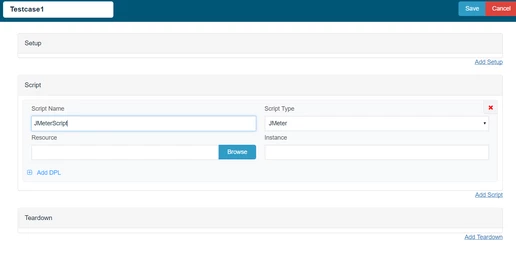
8. Click Browse and browse the JMeter file. Save the test case.
9. Click Locations tab.
10. Enter Name: localhost and URL: http://localhost:8080/TMServer/ws/TestNode
12. Also make sure the resources are present.
14. Click check box Custom Database Credentials (Database Logging) and make the scriptfollowing settings:
Database Type: MySQL
Driver: com.mysql.jdbc.Driver
URL: jdbc:mysql://localhost:3306/utp?useSSL=false
Default Schema: utp
Username: utp
Password: utp
15. Click File >Save to performancesave testing.
16. Click Play Scenario from the top navigation bar.
17. Controller window will open in a new tab which displays the tests running and will display the pass/fail status of the tests upon the test completion.
18. Left part shows the steps and the duration in milliseconds and right side shows the test run status under Output tab.
19. On The transactions tab we can find the request/response and an error tab to drill down further.
20. Click Click here link to get to the list of Reports that Appvance IQ supports.
Last updated: SeptemberJuly 25,28, 20262023
If you have any feedback on this topic, please contact us at documentation@appvance.ai