
Run SoapUI Scripts as Functional Tests in AIQ
Recommended guidance
Run SoapUI supportscripts wasas removedfunctional tests in releaseAIQ 5.2.0only when a SoapUI asset remains part of AIQ.the
Appvanceworkflow. IQFor isnew aAPI platformautomation, thatevaluate supportswhether toService runSuite can replace or simplify the legacy SoapUI scripts.dependency.
Before arerunning
- Confirm SoapUI version, script location, dependencies, environment, and credentials.
- Use safe placeholders or approved secret storage for endpoints and tokens.
- Validate network, proxy, certificate, and firewall access from the
stepsAIQthathost. - Define
wepass/failneedcriteriatoandfollowexpectedtoartifacts.
Validation workflow
- Run the SoapUI
scriptsscriptfromoutsideAppvanceAIQIQ.first
Froma small AIQ functional test wrapper.
Click File > New to create a new scenario.
Select Functional Test from the Scenario Test Type dropdown.
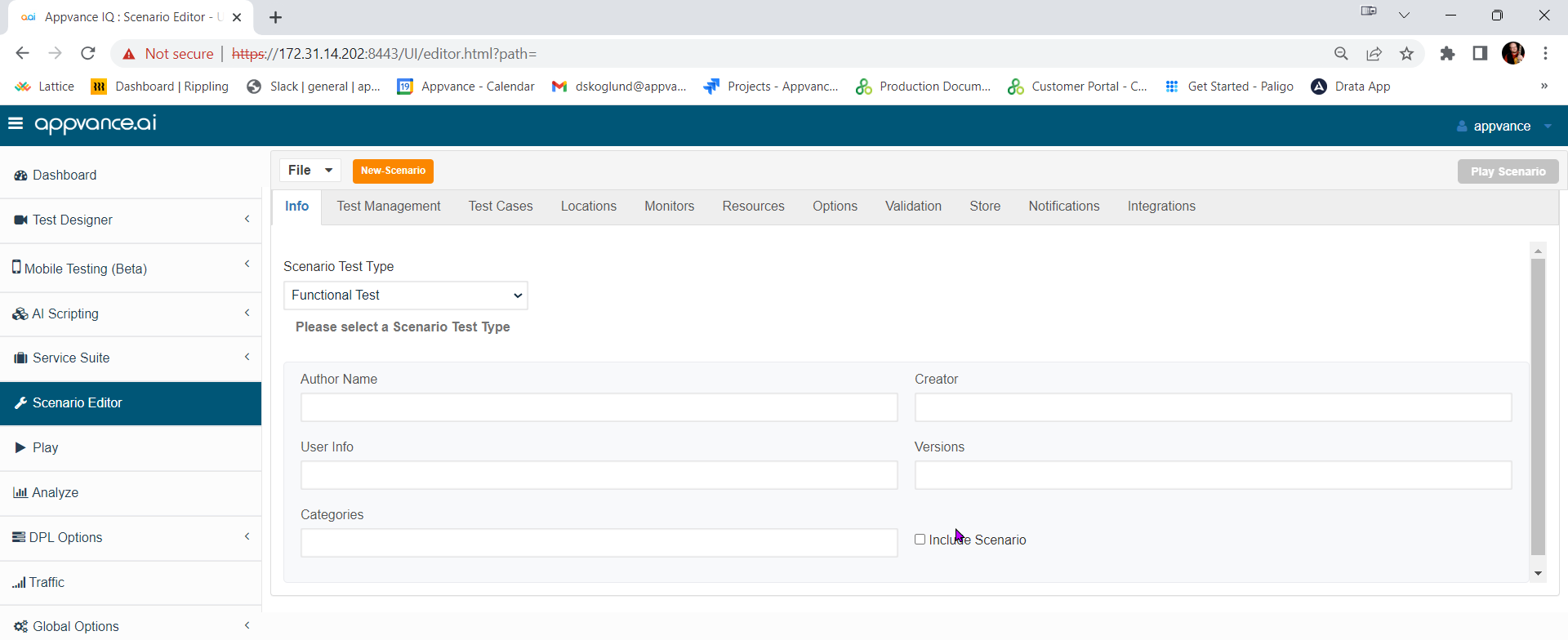
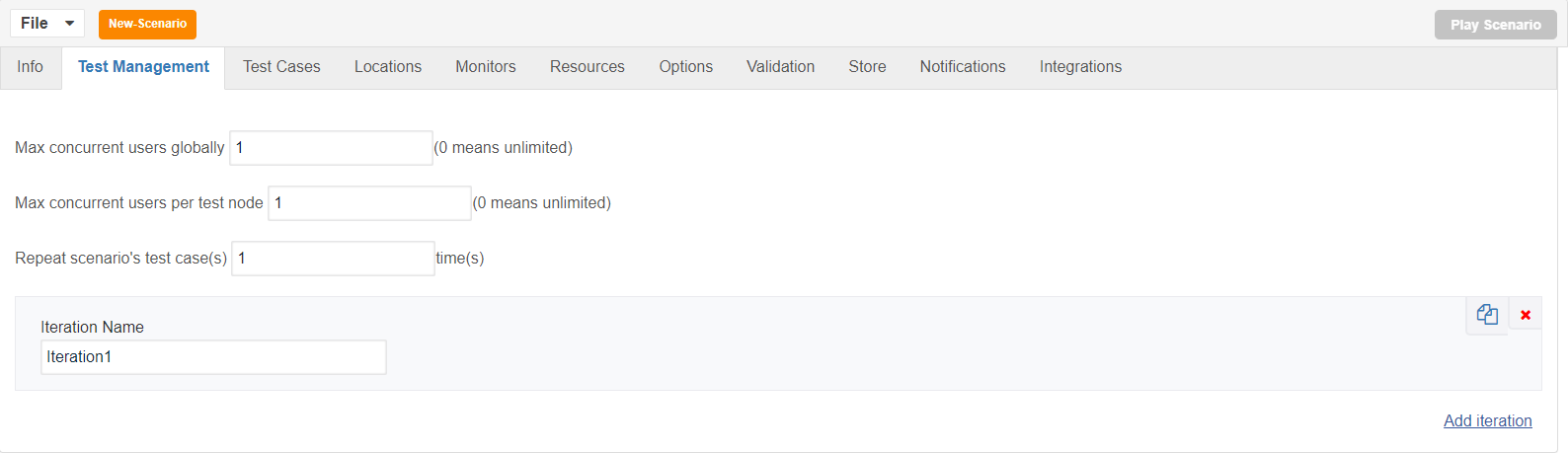
Click the Test Management tab and check: "Repeat scenario's test cases 1 time".
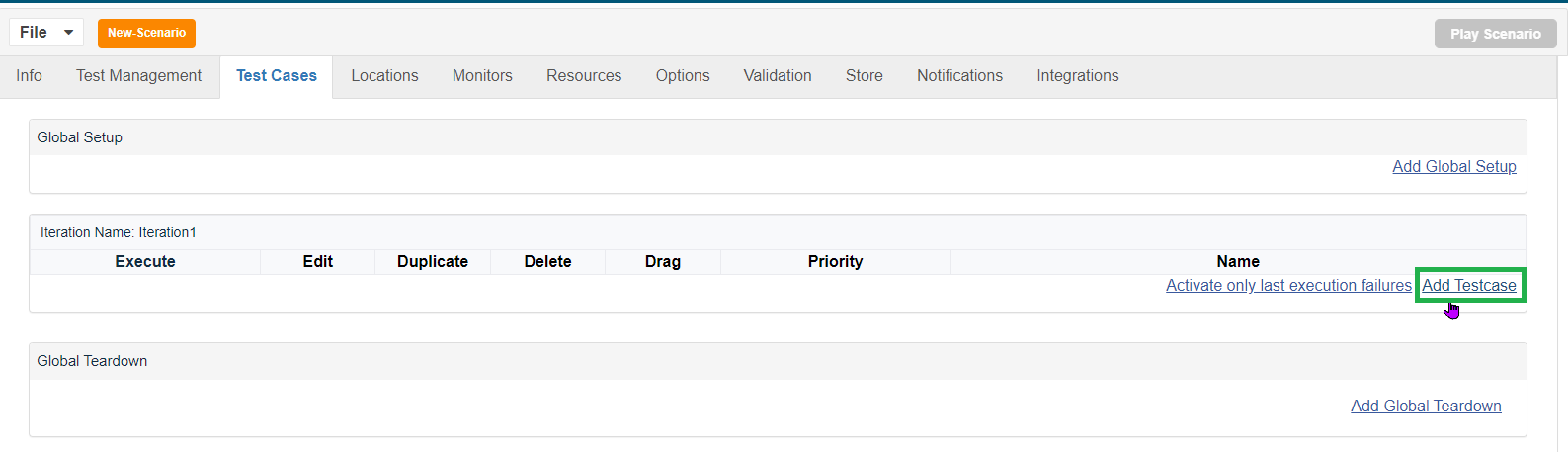
Click Test Cases tab and click the link for Add test case execution.
Enter Test case name and Script name.
Select SoapUI from Script Type dropdown.
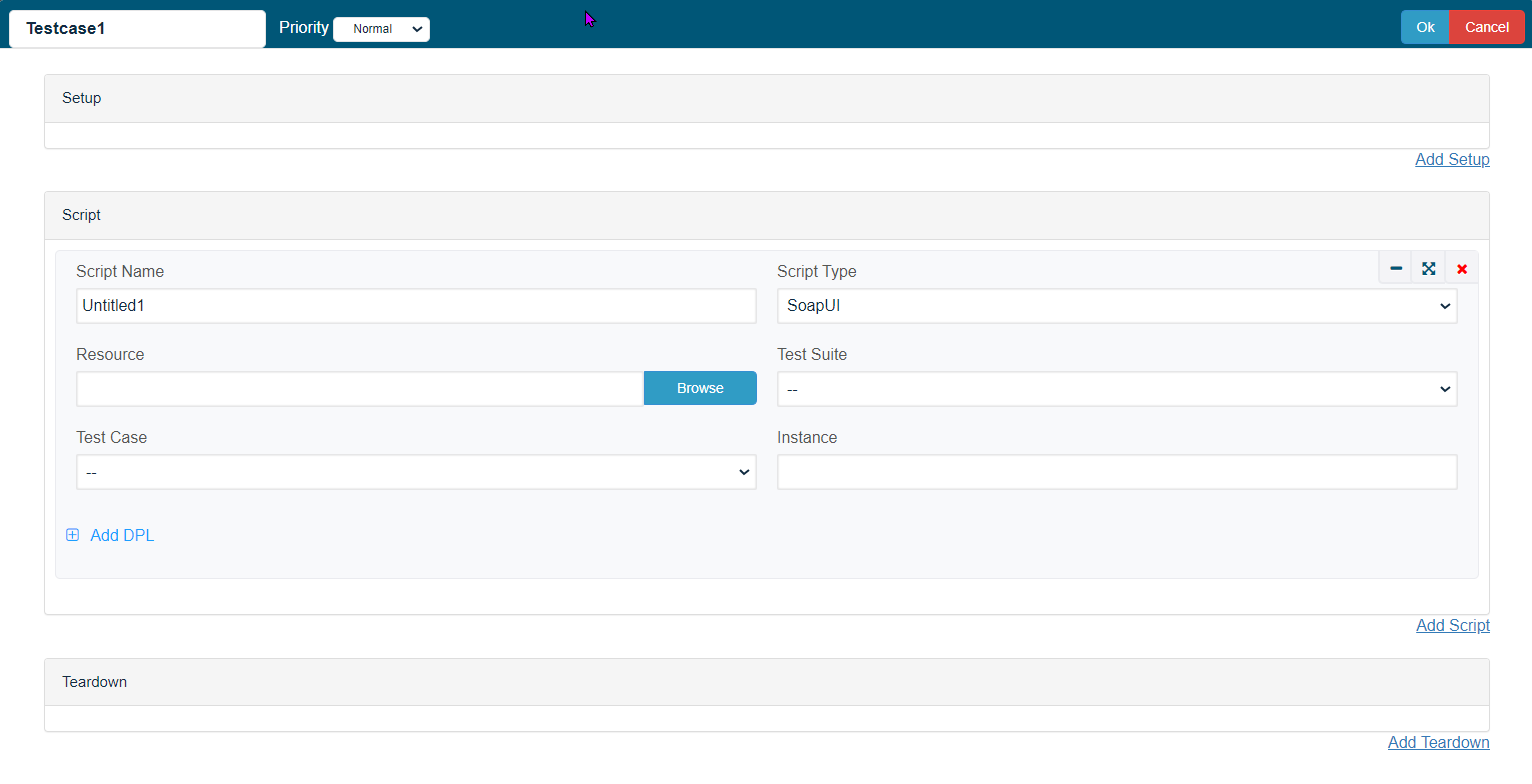
Click Browse and browse the Soap UI file and then the Test Suite and then the Test Case.
Save the test case.
Click Locations tab.
Enter Name: localhost and URL: http://localhost:8080/TMServer/ws/TestNode
Navigate to Resources and make sure SoapUI bundle with version 5.2.1 added by default.
Also make sure the resources are added with Name, Type and the correct path of the xml file.
Navigate to Options and make sure that Enable logging, Safe logs on Failure are selected.
Click check box Custom Database Credentials (Database Logging) and make the following settings:
Database Type: MySQLDriver: com.mysql.jdbc.DriverURL: jdbc:mysql://localhost:3306/utp?useSSL=falseDefault Schema: utpUsername: utpPassword: utp
Click File->Save to save new scenario.
Click Play Scenario from the top navigation bar.
Controller window will open in a new tab which displays the tests running and will display the pass/fail status of the tests upon the test completion.
Left part shows the steps and the duration in milliseconds and right side shows the test run status under Output tab.
On the Transactions tab we can find the request/response and an error tab to drill down further.
Click Click here link to get to the list of Reports that Appvance IQ supports.
Last updated: JulyOctober 25,6, 20242026
If you have any feedback on this topic, please contact us at documentation@appvance.ai