
Windows Appvance Driver Setup
Windows Appvance Driver Setup
Windows Appvance Driver (WAD) works as a substitute for Windows App Driver in order to avoid well know issues reported in the WinAppDriver.
The WAD is in charge of processing all Desktop Designer actions & recording Windows sessions.
Installation Prerequisites
Open Ports
Make sure to open any port you want to use with the Windows Appvance Driver so AIQ ca access it. By default the WAD uses port 4724.
Open Windows Firewall with Advanced Security.
You can also run the following command when run in an admin command prompt: netsh advfirewall firewall add rule name="WinAppDriver remote" dir=in action=allow protocol=TCP localport=4723
Install Chocolatey
Installing Chocolatey is required to install ffmpeg.
You can also install it by running PowerShell as Administrator and running the following command: Set-ExecutionPolicy Bypass -Scope Process -Force; [System.Net.ServicePointManager]::SecurityProtocol = [System.Net.ServicePointManager]::SecurityProtocol -bor 3072; iex ((New-Object System.Net.WebClient).DownloadString('https://community.chocolatey.org/install.ps1'))
Restart PowerShell. Be sure to run it as Administrator again.
Install ffmpeg
ffmpeg is a cross-platform solution that allows you to record, convert and stream audio and video.
Install ffmpeg plugin by running the following command: choco install ffmpeg
Installation Process
Download the installer. Note where the file is saved.
Download Link
Open a Command Prompt as Administrator.
Navigate to the folder where you downloaded the WindowsAppvanceDriver.
Run the executable by running the following command: WindowsAppvanceDriver.exe
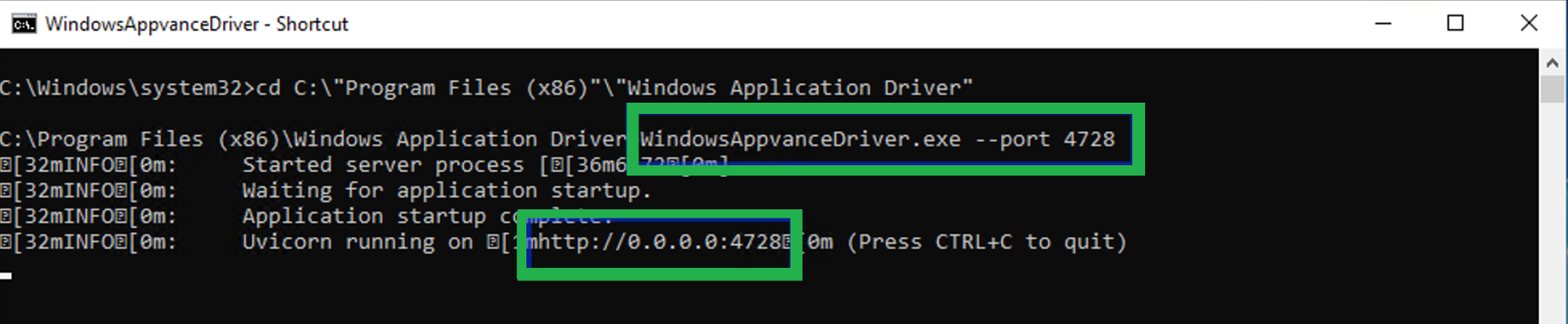
Wait until the driver is started. You should see something like this:

Important Considerations
WAD by default uses port 4724. You should use this port in the config file for videoPort and in the server URL fields.
You can change the port by adding the --port parameter when executing WAD. You should use the specified port in the config file for videoPort and in the server URL fields.
WindowsAppvanceDriver.exe --4728
Troubleshooting
If you get the following error:
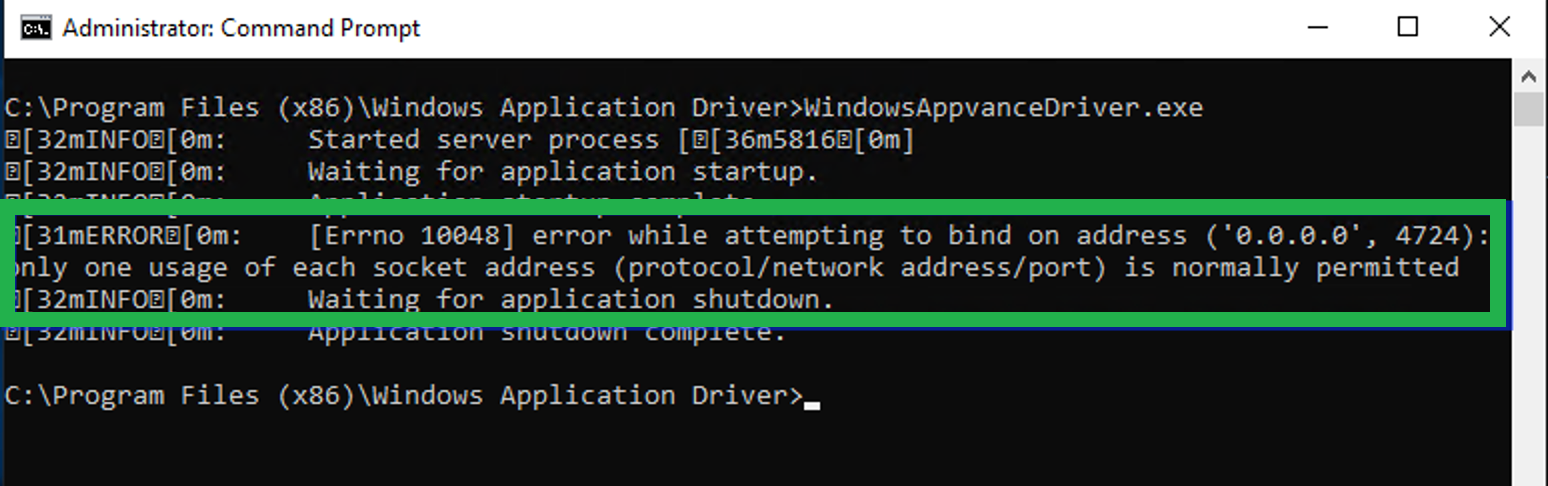
Make sure no other applications are using either the default port (4724) or the port you specified with the parameter --port.
Last updated: September 24, 2024
If you have any feedback on this topic, please contact us at documentation@appvance.ai