
Creating a New Database Scenario
NowOnce it’syou timehave created a valid SQL script, you can create an AppVance Scenario to execute it using the Scenario Builder.
This article assumes basic knowledge of AppVance Scenario Builder and focuses only on the configuration required to create a newDatabase Appvance scenarioScenario and use it to runexecute a SQL scriptscript.
Configure Appvancethe Scenario
1. Select the Database Scenario Builder to execute it. We assume a basic knowledge of the Appvance Scenario Builder system so this document will not go into details about it, we will only set up the Test Case for the test.Type
In the infoInfo section,section of the userScenario selectsBuilder, select Database as the Scenario testTest typeType.
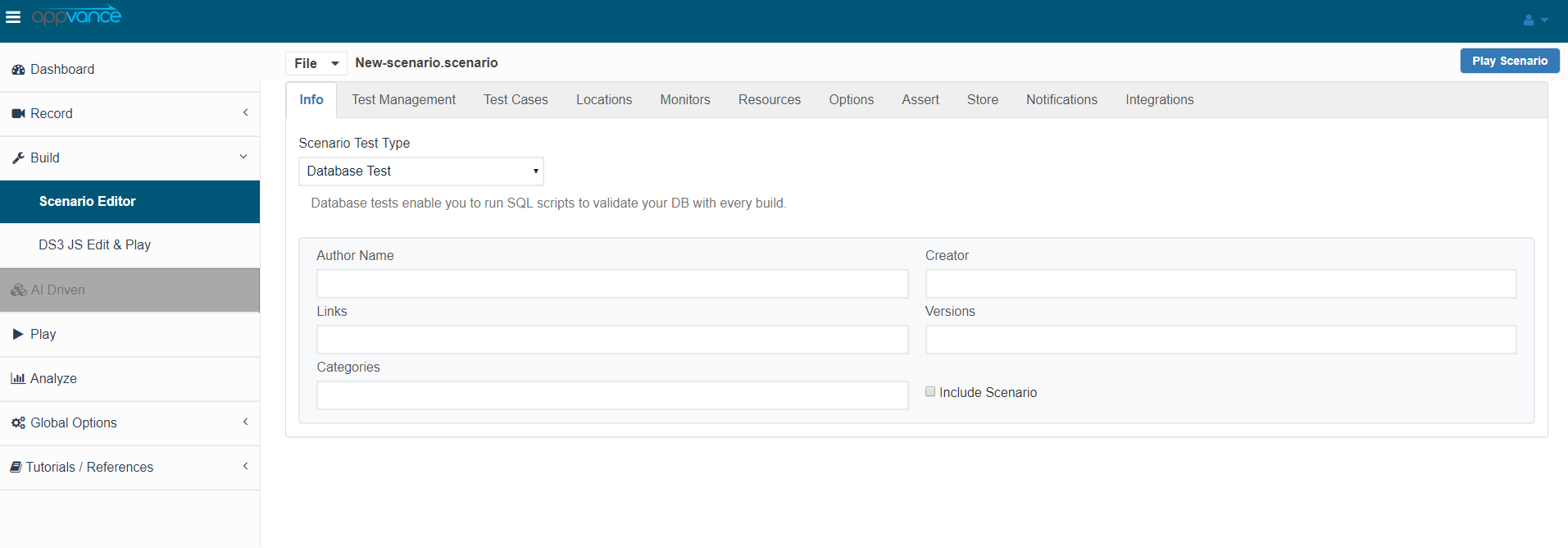
2. inConfigure the belowSQL screenshot.Test
In the Test Case section,section:
- Select
have to select “SQL”SQL from the Test Type drop-downmenu located next to “Test Type”, this will indicate Appvance to use ASE. Then inmenu. - In the
“SQLFile,”Fileyou have tofield, click“Browse”Browse. - Select and upload the
.sqlscriptfileyoujustcreatedcreatedpreviously.
Selecting SQL as the Test Type tells AppVance to use the ASE database execution mechanism.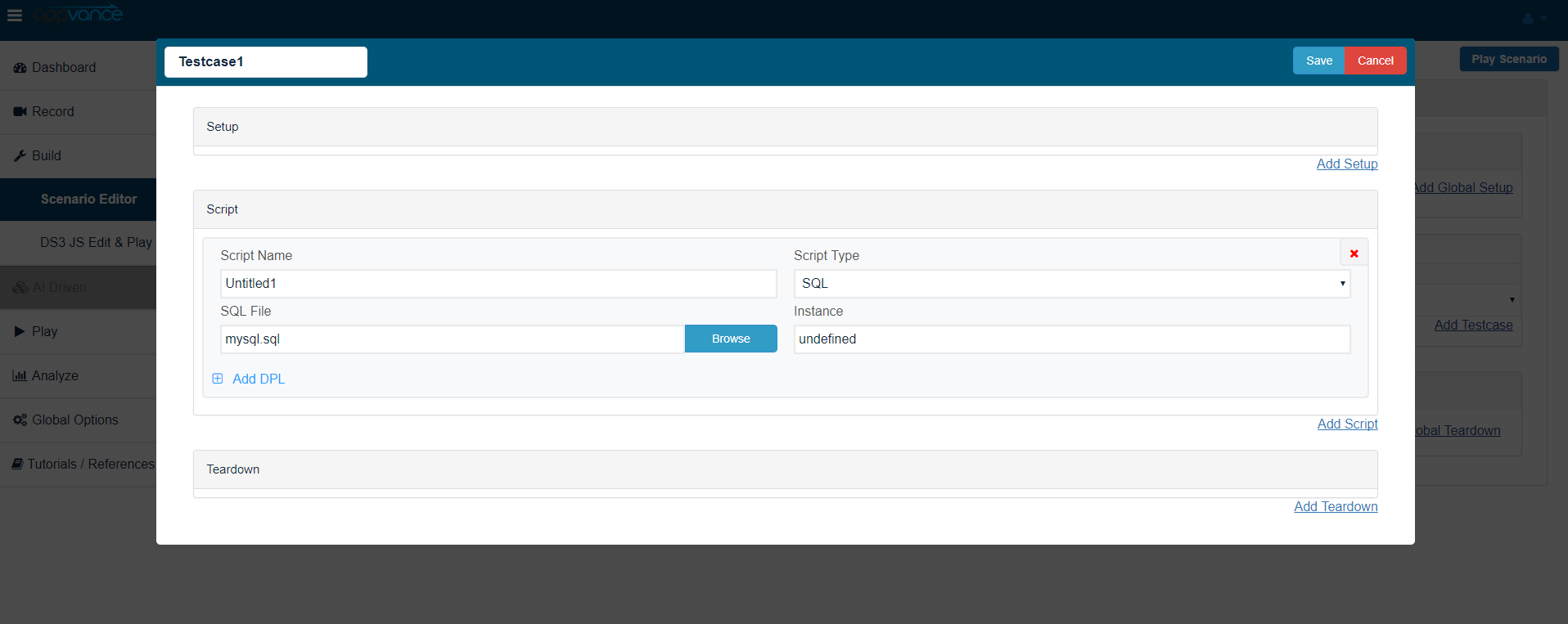
After configuring the Scenario and uploading the SQL file, save the Scenario.
Click Play to execute the Scenario and run the SQL script.
Before executing the Scenario, make sure that the database connection settings defined in the stepsSQL above.
are
After setting upthat the testtarget casedatabase configurationis youaccessible are ready to go, you just have to click “Play” oncefrom the scenarioenvironment haswhere beenthe created.Scenario is running.
Last updated: AprilSeptember 13,2, 20232026
If you have any feedback on this topic, please contact us at documentation@appvance.ai