
Creating a New Database Scenario
Now it’s time to create a new Appvance scenario and use it to run a SQL script using Appvance Scenario Builder to execute it. We assume a basic knowledge of the Appvance Scenario Builder system so this document will not go into details about it, we will only set up the Test Case for the test.
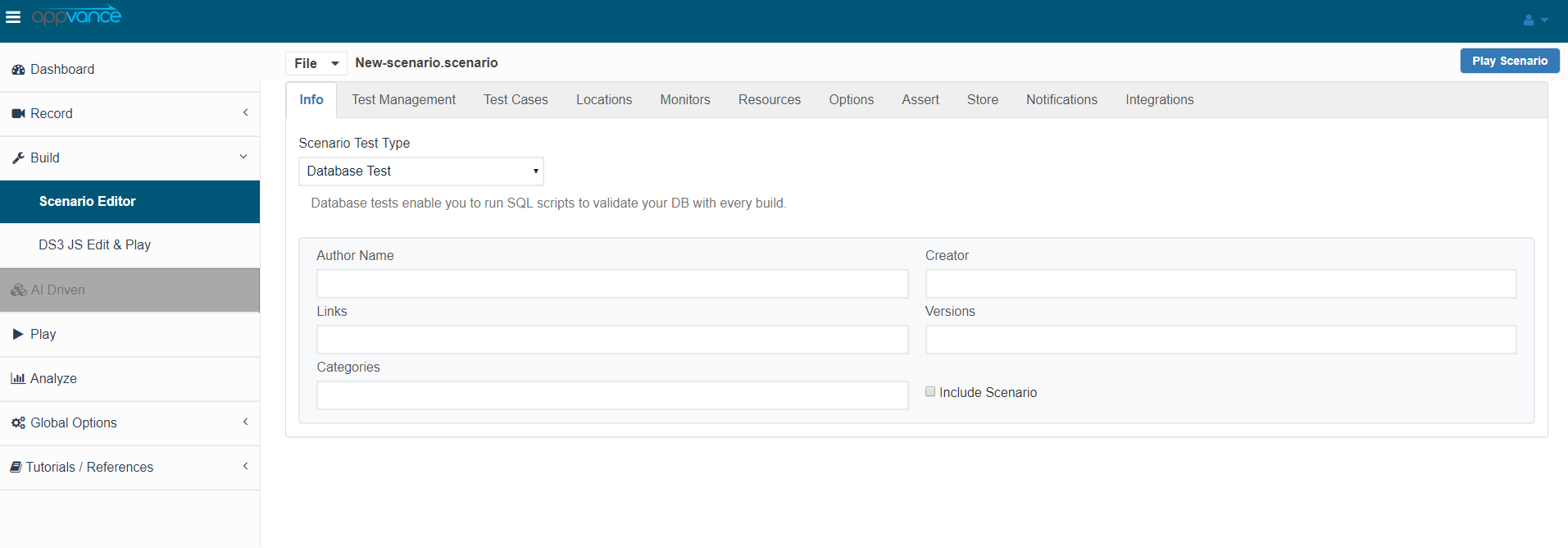
In the info section, the user selects Database as the Scenario test type as shown in the below screenshot.
In the Test Case section, you have to select “SQL” from the drop-down menu located next to “Test Type”, this will indicate Appvance to use ASE. Then in the “SQL File,” you have to click “Browse” and upload the .sql script file you just created in the steps above.
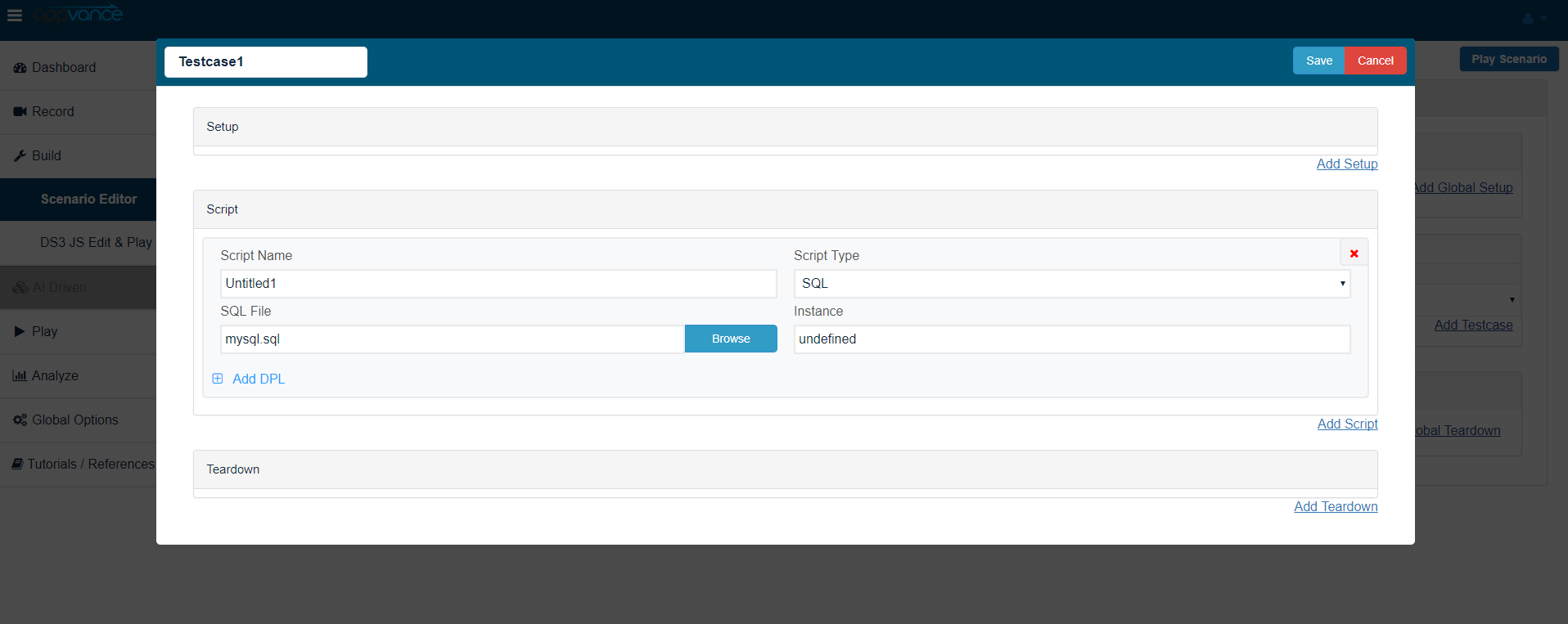
After setting up the test case configuration you are ready to go, you just have to click “Play” once the scenario has been created.
Last updated: April 13, 2023
If you have any feedback on this topic, please contact us at documentation@appvance.ai