
Reviewing SQL Test Execution Results
InThis thissection section,explains we are goinghow to review the results of a SQL test execution usingand Editor.how Thisto time we have performed a test usingcustomize the Derbystep DB SQL engine. This time we will introduce a couple of hints so you can have datanames displayed in athe differentexecution way.results.
ThisIn this example, the SQL test just simply inserts a new record into the database and then selects all ofretrieves the records outusing ofa theSELECT database.statement. Also,The weexecution willresults seecan howthen be reviewed to validate the data retrievedreturned fromby the SELECT statements.database.
TheseThe arefollowing example shows the results of a simpleSQL test executed against a MySQL database:
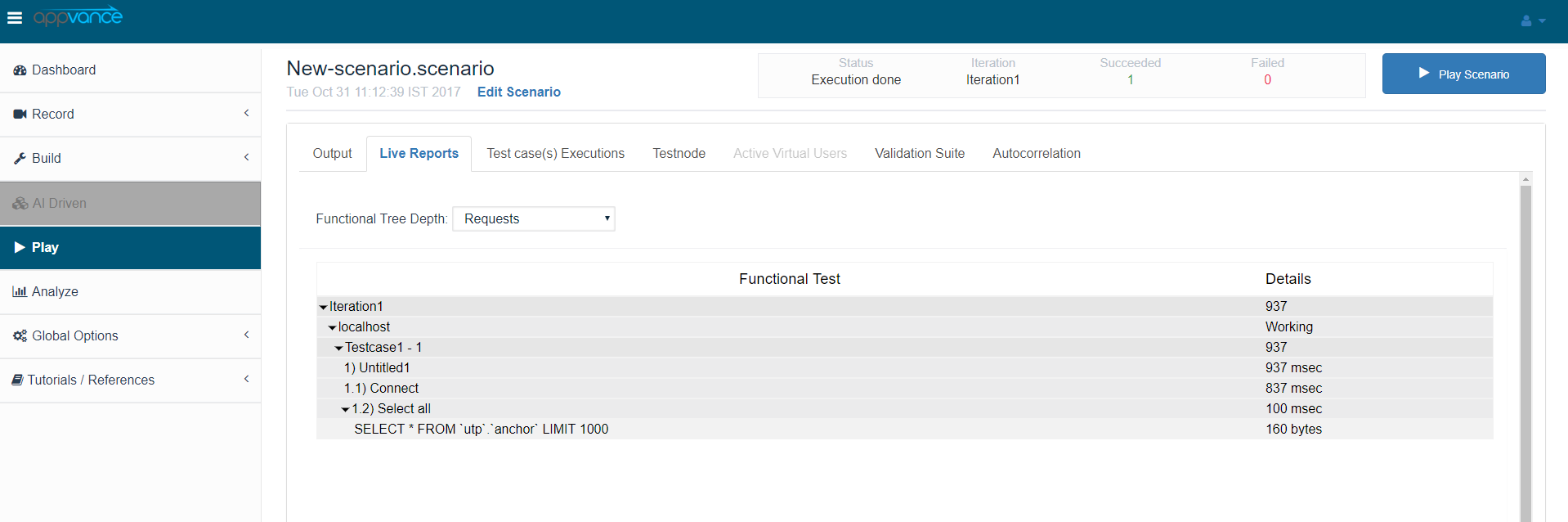
Customizing SQL remoteStep test performed on our MYSQL database installed in one of our server machines.
By default, the step name displayed onin the execution results screencorresponds is shown as the same name as the request, which isto the SQL actionsaction or request defined in the script.
You can notice, this time the step name is being displayed withassign a custom name. We can do this by adding some extra lines to the script which will be used to provide a custom step name to Editor.
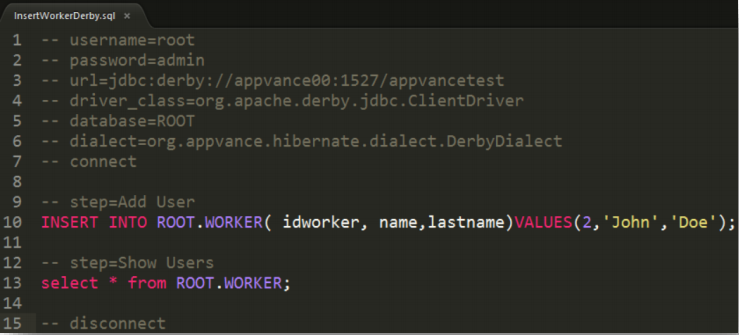
TheSQL way to do this it’s juststep by adding a new-- step instruction to the script rightimmediately before the corresponding SQL statementstatement.
Use the following syntax:
-- stepstep=Custom Step NameFor example:
Where must be replaced with the custom step name you want to have displayed on the results screen, for example:
-- step=Select All
SELECT * FROM users;.
The SQL action is displayed in the execution results using Select All as the step name.
This can make execution results easier to understand, especially when a stepSQL withscript thecontains namemultiple “SelectSQL All”.statements.
OurThe .sql script settings used for this execution are theshown following:below:
Reviewing SELECT Results
IfYou you’dcan like to validatereview the data retrievedreturned by a SELECT statement from the SELECTRequest action.& YouResponse cansection have downloadedof the request-responseexecution forresults.
To step.review Youthe canresponse:
- Open
thisthebySQLnavigatingtesttoexecution results. - In the panel
located aton the right side of the resultsdisplayscreen,screen.selectThen click “Test-caseExecutions”, you will see all of the test cases executed on that test, if you have only one then you should see just one registry. Click the “Request & Response” tab and then clickExecutions. - Select the test case execution
registryyouabovewant tohavereview. - Open
itsthedataRequestdisplayed.& Response tab. - Select the step associated with the
SELECTstatement.
OnceThe youRequest do& thisResponse tab displays the requests and responses dataassociated get displayed inwith the “Requestindividual &execution Response”steps. tab.The Thiscustom tabstep showsnames assigned with the steps requests and responses identified by each-- step name.instruction Ifcan yoube clickused to identify the corresponding SQL statements.
Selecting the request thatassociated belongs towith the SELECT statement,statement thisdownloads actionthe willcorresponding downloadrequest data as a plain-text file.
The downloaded file does not have a file named “request”. This is a standard plain text file with no extension, thereforeso youit can openbe this fileopened with a wordtext processoreditor such as Notepad or Sublime (recommended).Text.
The youfile opencontains the records returned by the SELECT statement during the test execution. You can use this file,information youto willverify seethat allthe database returned the expected data and validate the results of the recordsSQL that were retrieved from the SELECT statement from your test case execution. This way you can validate the data contained in your database registries against the test response.operation.
Last updated: AprilSeptember 13,3, 20232026
If you have any feedback on this topic, please contact us at documentation@appvance.ai.