
Execution Results
In this section, we are going to review a SQL test execution using Editor. This time we have performed a test using the Derby DB SQL engine. This time we will introduce a couple of hints so you can have data displayed in a different way.
This test just simply inserts a new record into the database and then selects all of the records out of the database. Also, we will see how to validate the data retrieved from the SELECT statements.
These are the results of a simple SQL remote test performed on our MYSQL database installed in one of our server machines.
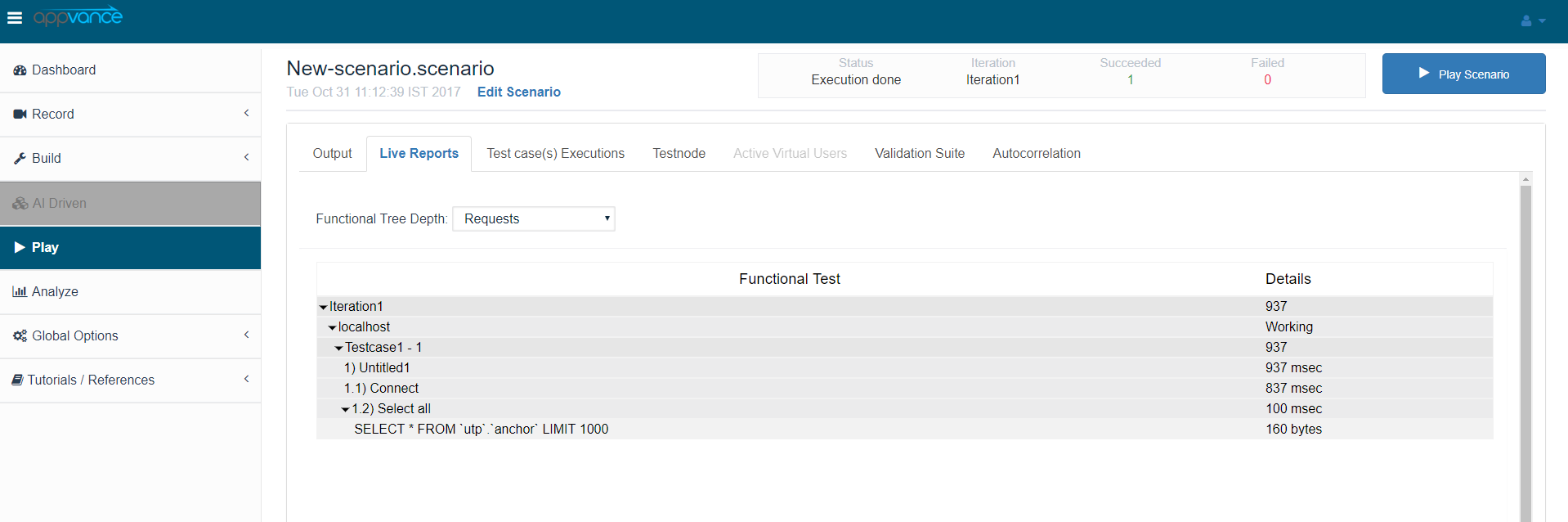
By default, the step name displayed on the results screen is shown as the same name as the request, which is the SQL actions in the script. However, as you can notice, this time the step name is being displayed with a custom name. We can do this by adding some extra lines to the script which will be used to provide a custom step name to Editor.
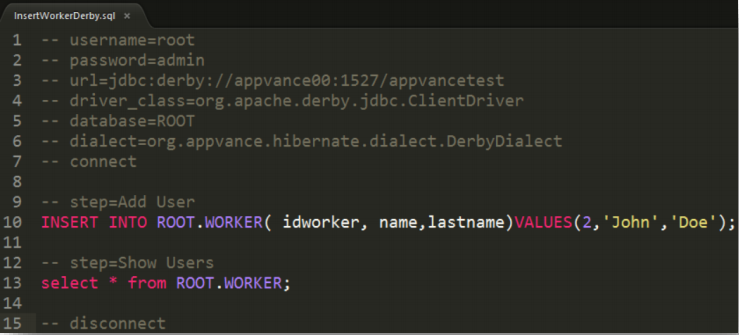
The way to do this it’s just by adding a new instruction to the script right before the SQL statement with the following syntax: -- step
Where must be replaced with the custom step name you want to have displayed on the results screen, for example: -- step=Select All. This will display the SQL action as a step with the name “Select All”.
Our .sql script settings for this execution are the following:
If you’d like to validate the data retrieved from the SELECT action. You can have downloaded the request-response for this step. You can do this by navigating to the panel located at the right of the results display screen. Then click “Test-case Executions”, you will see all of the test cases executed on that test, if you have only one then you should see just one registry. Click the “Request & Response” tab and then click the test case execution registry above to have its data displayed.
Once you do this the requests and responses data get displayed in the “Request & Response” tab. This tab shows the steps requests and responses identified by each step name. If you click the request that belongs to the SELECT statement, this action will download a file named “request”. This is a standard plain text file with no extension, therefore you can open this file with a word processor such as Notepad or Sublime (recommended). When you open this file, you will see all of the records that were retrieved from the SELECT statement from your test case execution. This way you can validate the data contained in your database registries against the test response.
Last updated: April 13, 2023
If you have any feedback on this topic, please contact us at documentation@appvance.ai