
Setting up the Environment
Setting up the Environment
Now let’s see how to create an SQL script using the required configuration settings. In this example, we use a MySQL database named appvancetest with a worker table containing the following columns:
idworkernamelastname
The database can be hosted on a local or remote machine. MySQL uses port 3306 by default, although the port may vary depending on your database configuration.
1. Configure the database connection
The first step is to add the Hibernate settings required to connect to the database and execute the script.
The configuration settings must be defined at the beginning of the SQL script, before any SQL actions are executed.
As shown in the example, provide the appropriate value for each setting required to establish the database connection.
These settings are specific to your database environment. For example, the database host, database name, username, password, and port must correspond to the MySQL instance you want to access.
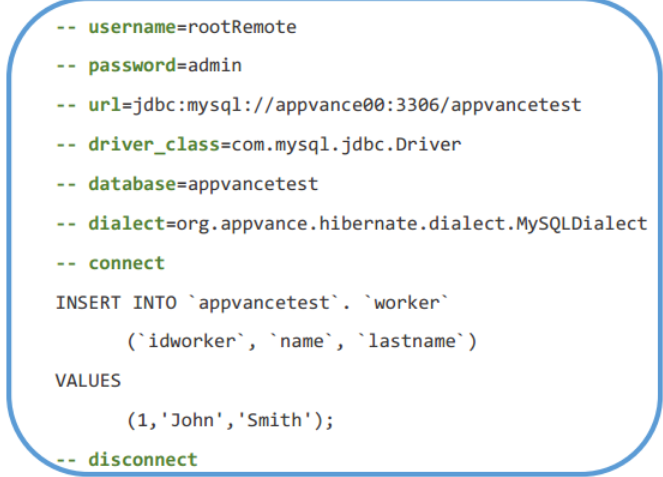
2. Add the SQL actions
After defining the connection settings, add the connect delimiter before the SQL actions.
You can then add the SQL statements that you want to execute. Once all SQL actions have been defined, add the disconnect delimiter to close the database connection.
For example, a script that inserts a new record into the worker table follows this structure:
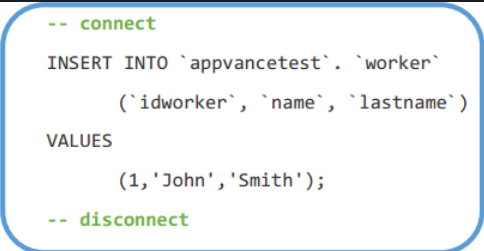
-- Hibernate configuration settings

connect

INSERT INTO worker (idworker, name, lastname)
VALUES (1, 'John', 'Doe');

disconnect
The exact configuration values and SQL statement will depend on your database environment and the operation you want to perform.
These are the basic steps for creating a valid SQL script for ASE and using it in a scenario to execute database-related test actions.
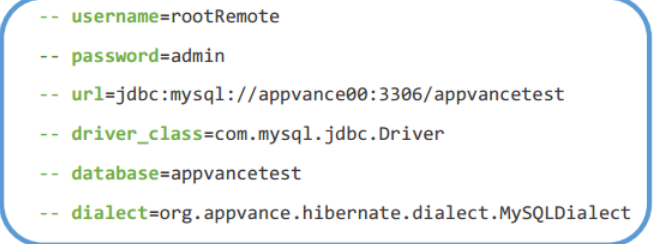
Important
- The configuration settings must be placed before the SQL actions.
- Type
--before each configuration setting so that ASE recognizes the setting. - The SQL script must use the
.sqlfile extension. - Make sure the database host, port, credentials, and database name are valid and accessible from the environment where the script is executed.
Last updated: August 13, 2026
If you have any feedback on this topic, please contact us at documentation@appvance.ai.