
Configure JavaScript DPL Data
Introduction
Configure
All Functions and Methods
JavaScript DPL in Test Designer
Use a JavaScript DPL inwhen Scenariotest Editor
JavaScriptneeds DPLlightweight intransformation AISG
Introduction:
JavaScript DPLit is aconsumed data production library generator, that generatesby a CSV file with JavaScript functions and methods which could be evaluated during run time or it will generate an evaluated CSV file with the selected functions and methods which could be used in data driving scripts in Test Designer, data driving scripts in Scenario Editor andtest. also during AISG of an application.
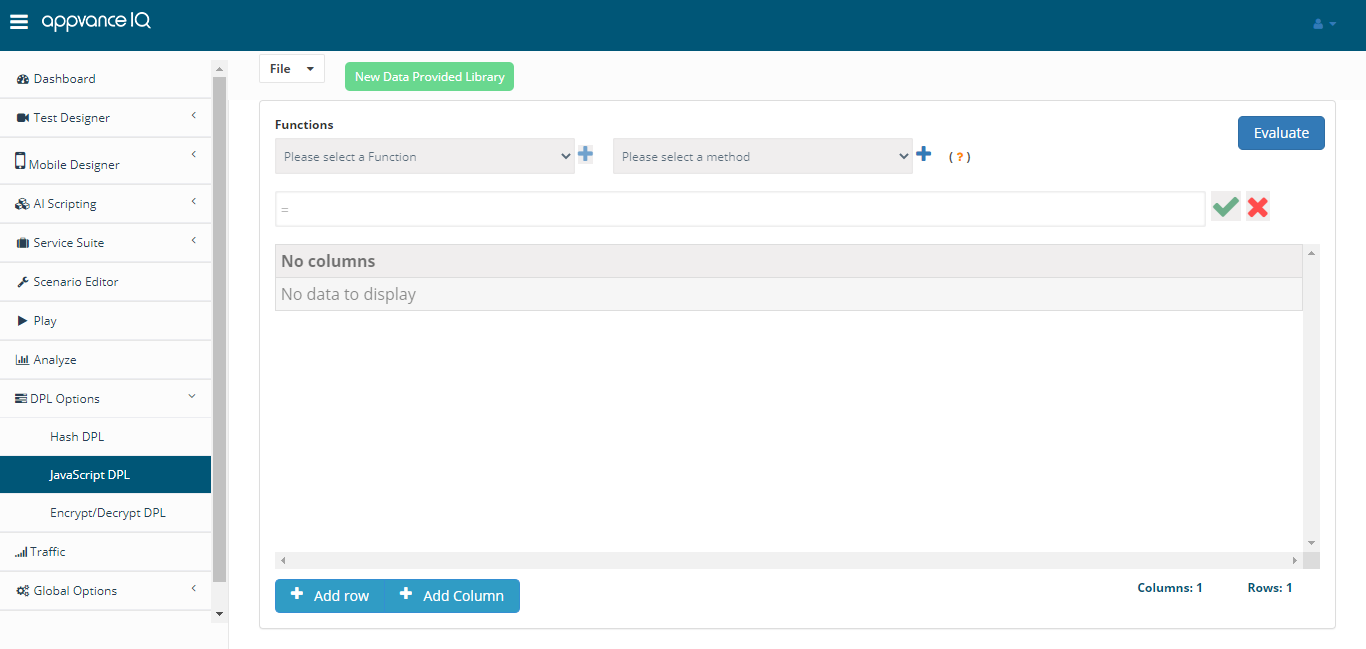
Thepreparation; nextavoid stepplacing istest toflow, addbrowser theautomation, requiredcredentials, columnsor andenvironment-specific rowspaths to createin the DPL.
Click
Recommended Adduse
- Normalize
buttonor format values before sending them to the application under test. - Combine fields from an approved data source into a value required by a step.
- Generate simple derived values that are safe to calculate at
theruntime.
Validation providechecklist
- Confirm the
columnJavaScriptname and clickCreate & Close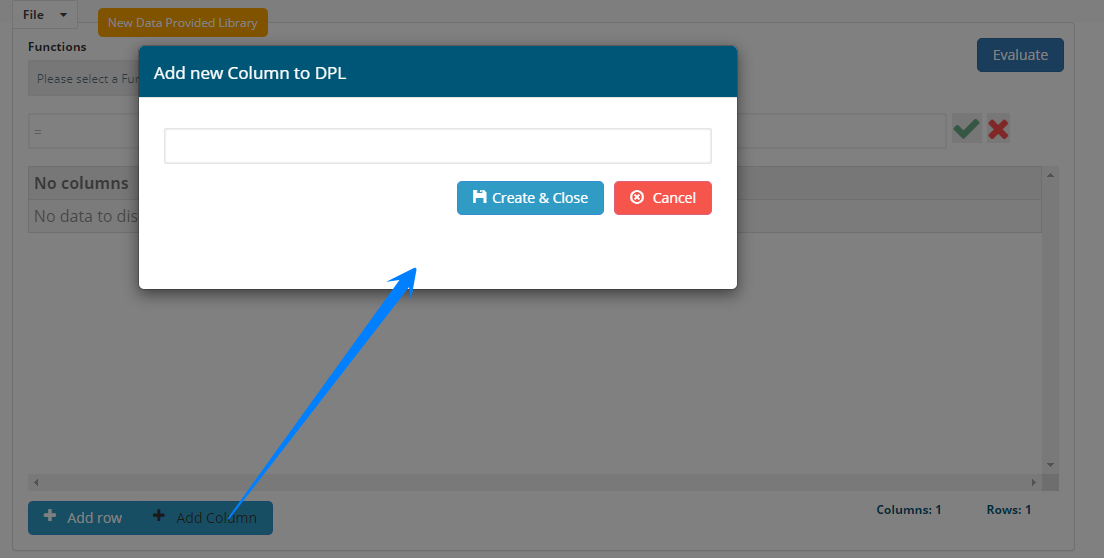
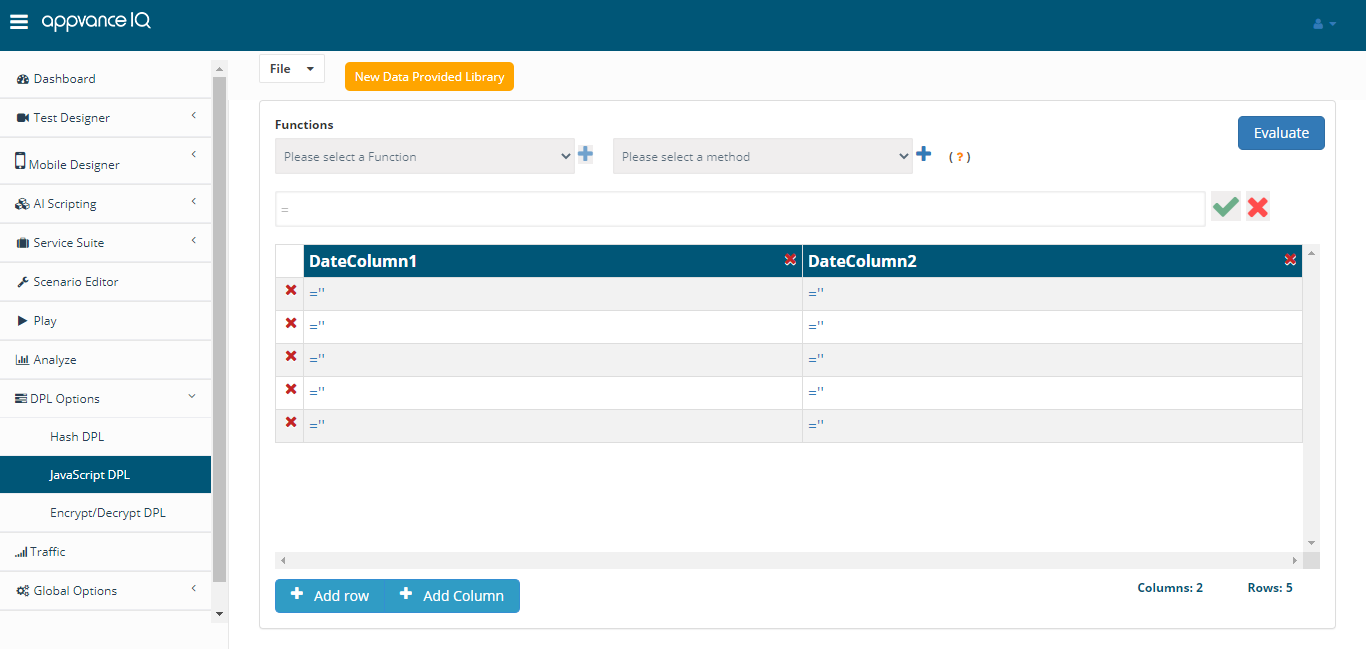
On any given cell, clickreturns the="expectedlinkvalue for a small sample. - Handle empty or
clickmalformed input values predictably. - Verify the
columnDPLnamemappingforinenteringadatashort Scenario Editor execution before scaling the test.
Do not embed secrets in the entireDPL column.script. Store credentials and environment-specific settings in approved configuration locations.
Choose the required Function from the functions drop-down and choose a method (depending on the function chosen) and click the green tick mark for the function and method (if available) to be added to all the row(s).
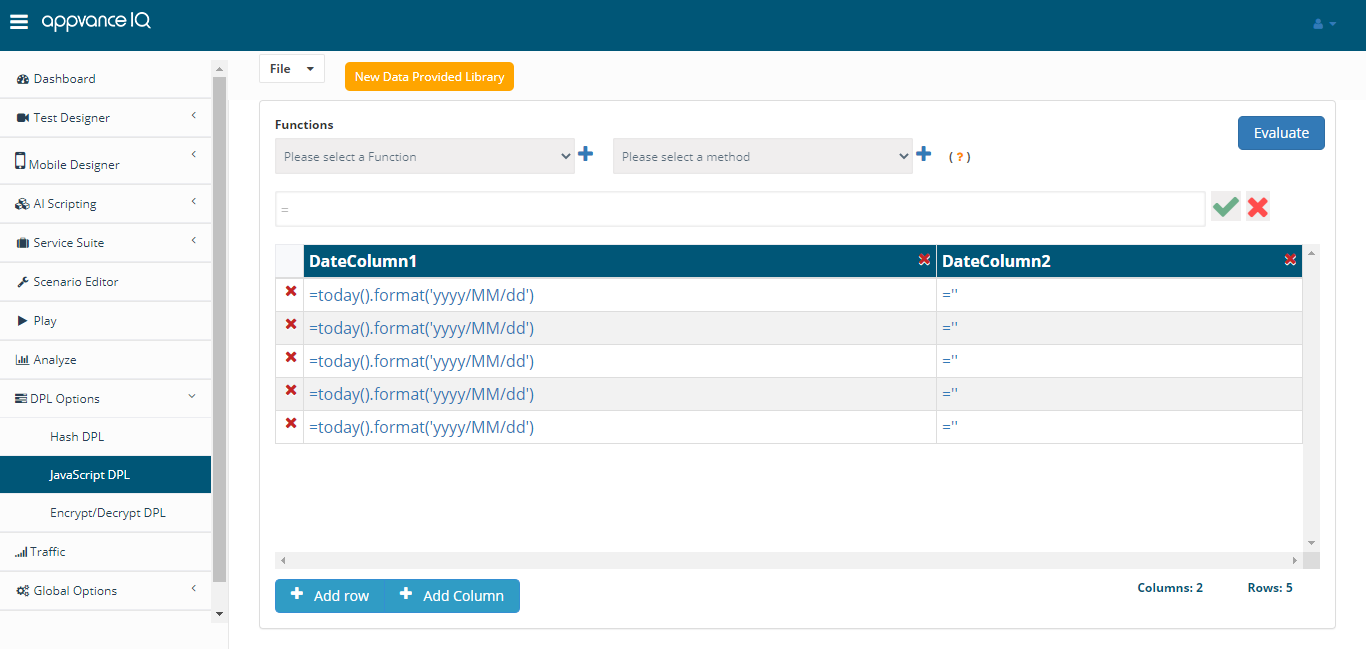
Similarly, there are several functions and methods that could be chosen from the list.
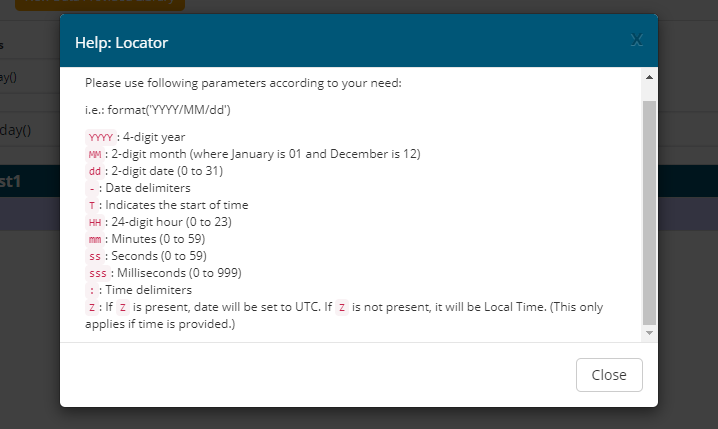
You can also click Help Locator to get some of the formats and examples.

After selecting the required functions and methods, it is time to save the file. Click File > Save, choose the location where you want to save the file. Click Save.
Once the file is saved you could download the created file either as a JavaScript CSV file (with functions and methods) which will be evaluated during the run-time or you could evaluate using the evaluate symbol on the top right and then download the file as well.
You can click the Evaluate button to check the evaluated values and undo the evaluation to undo the evaluation done.
Last updated: JuneSeptember 26,18, 20232026
If you have any feedback on this topic, please contact us at documentation@appvance.ai