
JavaScript DPL
Introduction
UseAll aFunctions and Methods
JavaScript DPL whenin testTest Designer
JavaScript DPL in Scenario Editor
JavaScript DPL in AISG
Introduction:
JavaScript DPL is a data needsproduction lightweightlibrary transformationgenerator, beforethat generates a CSV file with JavaScript functions and methods which could be evaluated during run time or it iswill consumedgenerate byan aevaluated CSV file with the selected functions and methods which could be used in data driving scripts in Test Designer, data driving scripts in Scenario Editor test.and Keepalso during AISG of an application.
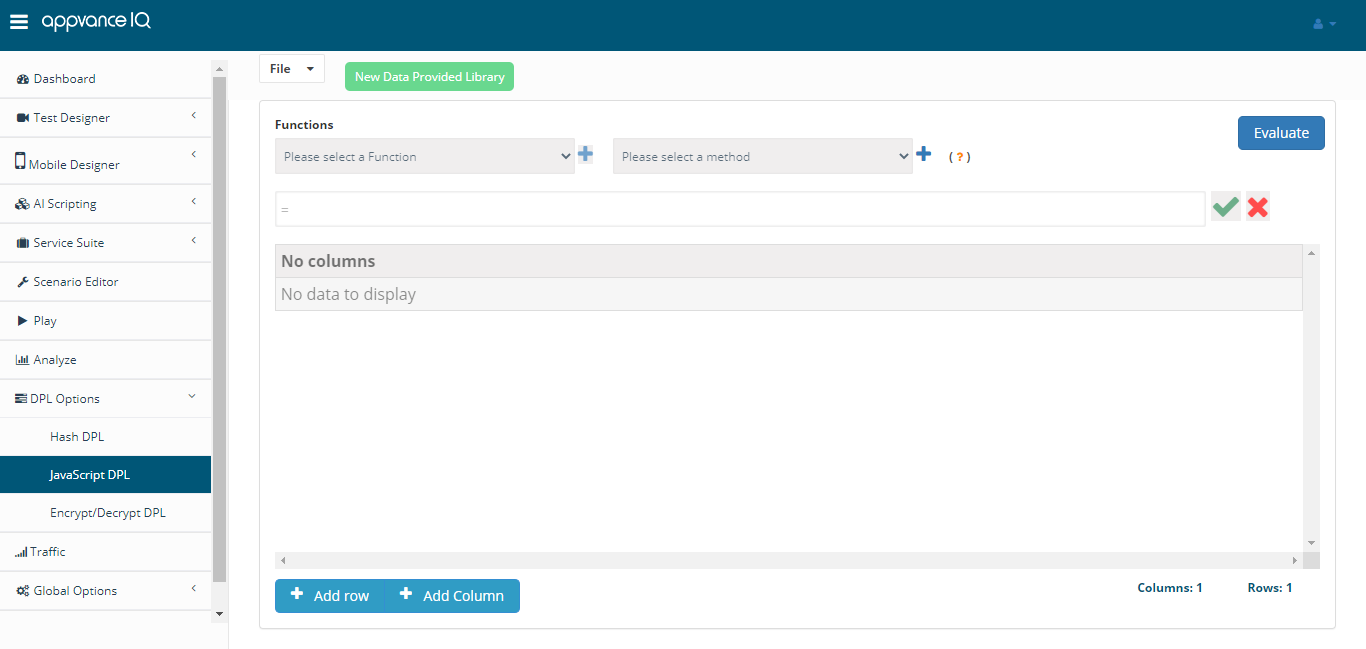
The avoidnext placingstep testis flow,to browseradd automation,the credentials,required orcolumns environment-specificand pathsrows into create the DPL.
Recommended
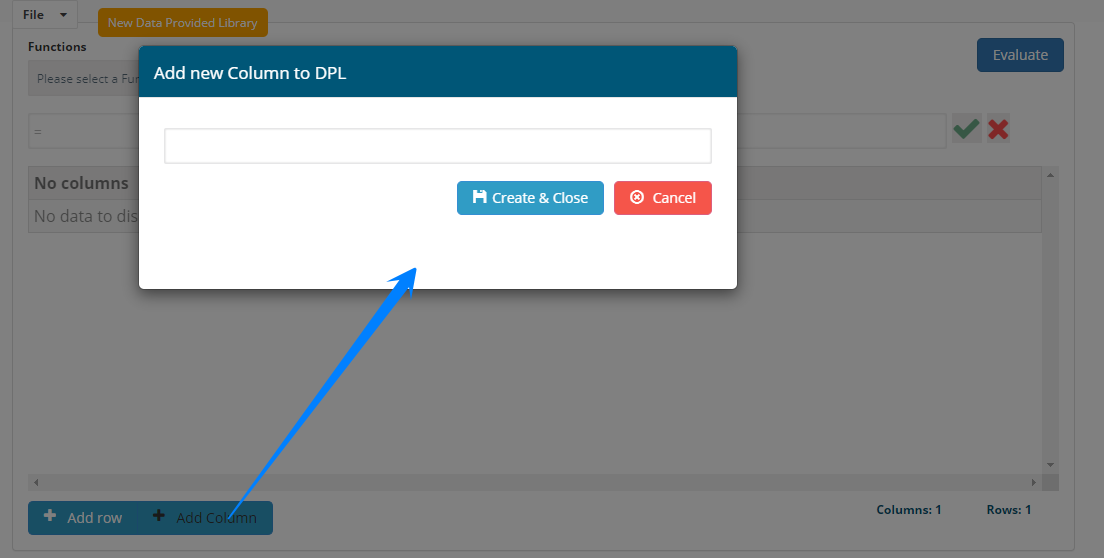
Click useAdd NormalizeColumn button at the bottom, provide the column name and click Create & Close
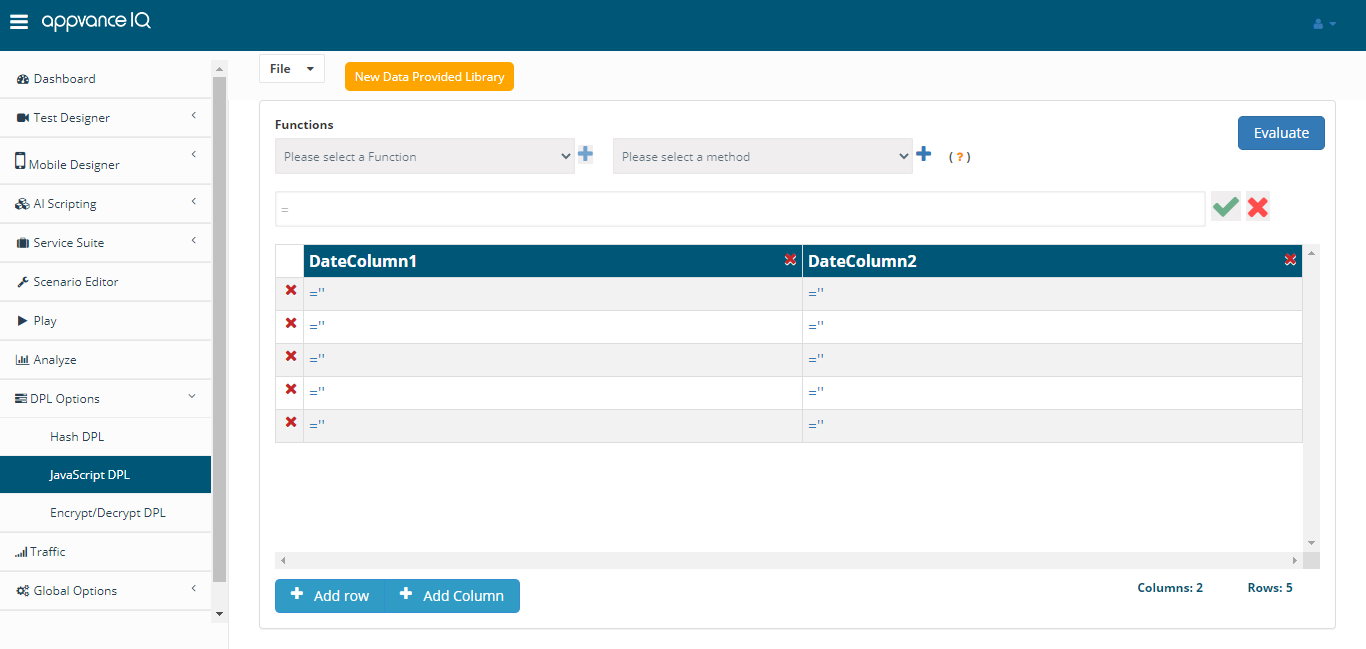
On any given cell, click the =" link or format values before sending them toclick the applicationcolumn under test.
Validation checklist
Confirm the JavaScript returns the expected valuename foraenteringsmall sample.Handle empty or malformed input values predictably.Verify the DPL mapping in a short Scenario Editor execution before scaling the test.
Do not embed secretsdata in the DPLentire script.column.
Choose credentialsthe required Function from the functions drop-down and environment-specificchoose settingsa inmethod approved(depending configurationon locations.the function chosen) and click the green tick mark for the function and method (if available) to be added to all the row(s).
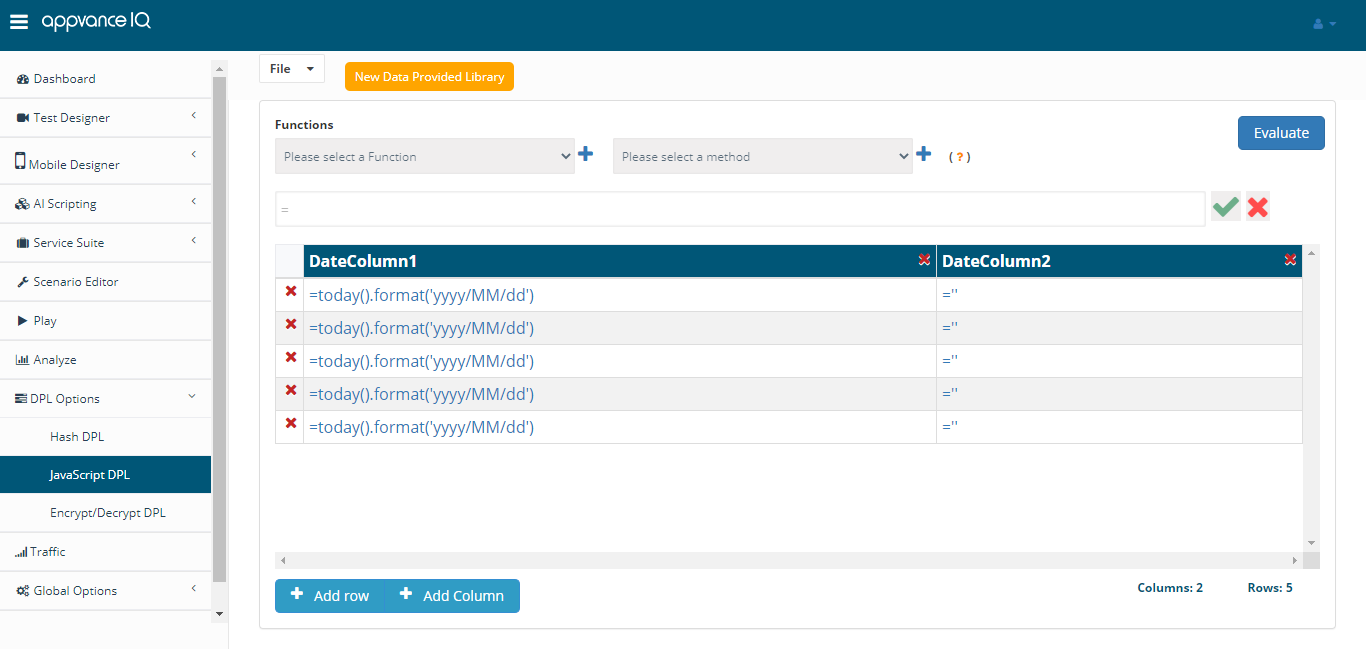
Similarly, there are several functions and methods that could be chosen from the list.
You can also click Help Locator to get some of the formats and examples.

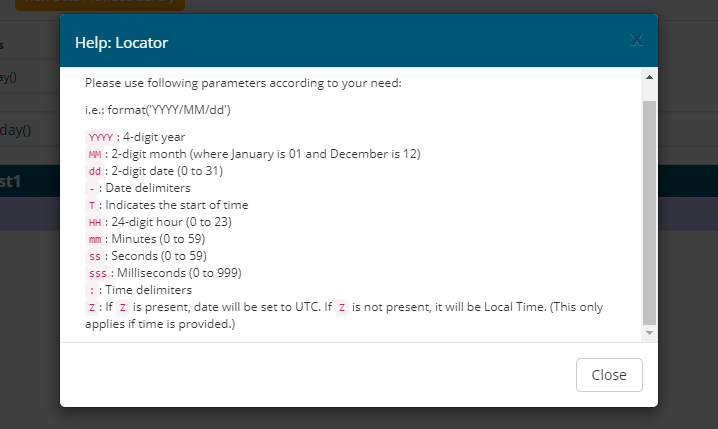
After selecting the required functions and methods, it is time to save the file. Click File > Save, choose the location where you want to save the file. Click Save.
Once the file is saved you could download the created file either as a JavaScript CSV file (with functions and methods) which will be evaluated during the run-time or you could evaluate using the evaluate symbol on the top right and then download the file as well.
You can click the Evaluate button to check the evaluated values and undo the evaluation to undo the evaluation done.
Last updated: SeptemberJune 18,26, 20262023
If you have any feedback on this topic, please contact us at documentation@appvance.ai