
Configure AIQ DPLs
Recommended guidance
Configure AIQ implementsDPLs aso Datascenarios Productionand Libraryservices (DPL) as an extensible framework to provide operational test data to test script runners at test runtime. The DPL framework is general inreceive the sense that it can getright data from a variety of sources, including a relational database, comma-separated-value file, and data generating objects. A DPL also provides a safe way to store data between test steps. AIQ comes with pre-built DPLs and makes it easy for software developers to add their own custom DPLs.
DPLs work in conjunction with script runners at test runtime. Test scenarios define the DPL and script runner interaction. The AIQ Tutorials give instructions on using the pre-built DPLs.
AIQ users configure Test Use Cases in the Appvance Scenario Builder to use operational test data from a DPL. To see this in action follow these steps:
Start AIQ
Click Build from the Start Screen. The Scenario Builder opens with a blank page.
Click File, then New to create a new empty scenario. AIQ sets the default name of the new scenario to New-Scenario.
In the Info tab, which is opened by default, select Functional Test for this example.
Click the Resources tab.
Click Add Data Source.
Choose "HashDPL - Reads CSV" in the DPL Type drop-down menu.
Click Browse to select a CSV data file.
Provide a name for the DPL in the Name box.
Click Test Cases on the left-hand side.
Under Iteration Name: Iteration 1, click Add a Test Case Execution
Provide a Test Case Name at the topright oftime. DPL configuration should define source, format, ownership, lifecycle, reset behavior, and security boundaries.
Configuration checklist
- Choose the
pop-upcorrectwindow.DPL type for static, file-backed, generated, dynamic, or service-backed data. - Confirm
- field
Selectnames,Typeformats,Selenium,rowprovidecounts,a Script Nameuniqueness, andthenrequiredclickvalues. - Define
Browse to find your appropriate Selenese file.
Click Add DPL and under Select DPL choose the DPL you created earlier.
Choose Get Next Row of Data from the Actions menu.
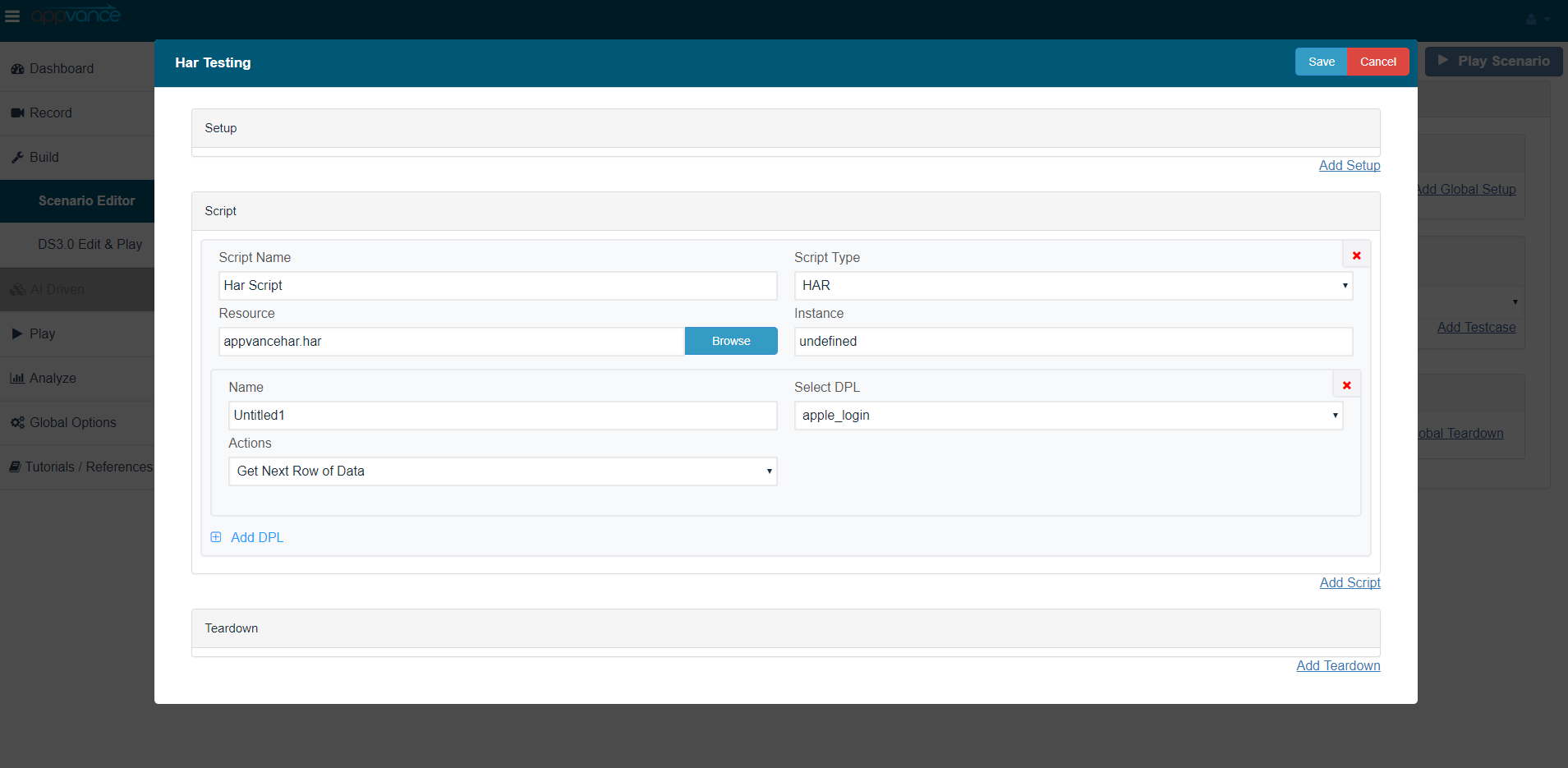
Provide a name for the DPL action and then click Save at the top.
Click File at the top and then Save and choose a location to save the Test Scenario
This configuration tells the AIQ Selenium script runner to look into the Selenium test and replaces values inhow the test withconsumes valuesrows fromand thewhat data.csvhappens file.
Thedata is exhausted.
Validation fromworkflow
- Run a small scenario with known data.
csv - Check
fileOutputasLogsAforIQmissingrunsorthemalformedSeleniumvalues. - Verify
script,assertionsat test run time.The DPL uses the first row in the CSV file to identify field mapping names. Insert these mapping names into the Selenium file where you want AIQ to inject the test data from the CSV file.After the mapping name row comes the rows ofconfirm the datafilewascontainingusedthe actual data. Thecorrectly. - Review DPL
ActionchangesdeterminesbeforethelargerowregressionofordataperformanceAIQ provides to the test.In a load test, setting the DPL Action to Get Next Row of Data tells AIQ to advance to the next row of data.When the DPL reaches the bottom of the table, the DPL starts at the top.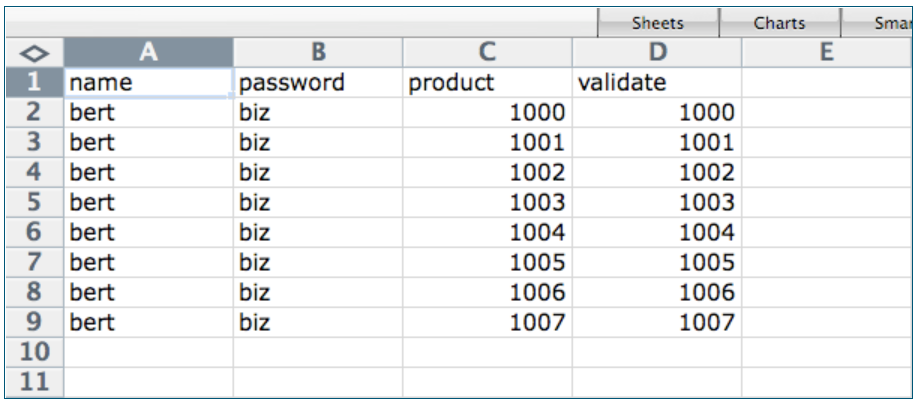
The Selenium, SoapUI, and Command-Line script runners provide support for data mapping from DPLs.
Script runners for Appvance Designer Script, Java, Jython, JRuby, VB, .NET, Groovy, and the other support scripting languages receive DPL data in a dictionary structure (map).
For TestNG engine to work with DPLs, it is necessary to need to define the @DataProvider annotation inside the TestNG, an AIQ will override that method providing the DPL values as arguments for the @Test method:
public class TestNG {
@DataProvider(name = "DPLDataProvider")
public Object[][] ValidDataProvider3() throws Exception {
return new Object[][] {
{'C', 65}, {'c', 97},
{'D', 66}, {'d', 98}
};
}
@Test(dataProvider = "DPLDataProvider")
public void basicTest(final char character, final int ascii) throws Exception {
System.out.println("character " + character + " ascii " + ascii);
}
}
In this case, you need to use CSV DPL in your Scenario. AIQ will do the casting of the arguments to the ones expected in the @Test method.
If you want to use HashMap instead (sending arguments as map dictionaries) then you need to add an AIQ provided annotation @TestNGParams (tools.jar):
public class TestNG {
@DataProvider(name = "DPLDataProvider")
public Object[][] ValidDataProvider3() throws Exception {
return new Object[][] {
{'C', 65}, {'c', 97},
{'D', 66}, {'d', 98}
};
}
@Test(dataProvider = "DPLDataProvider")
@TestNGParams(params = {"character","ascii"})
public void basicTest(final char character, final int ascii) throws Exception {
System.out.println("character " + character + " ascii " + ascii);
}
}
DPLs have the ability to share data from one test to the next. For example, TheLocker DPL takes the results from a test step authored in SoapUI as input to a second test step authored in Appvance Designer Script.
SoapUI support was removed in release 5.2.0 of AIQ.
The above example shows how to use data from a CSV file. DPLs work in the same way with data from a Relational Database (RDBMS DPL, RDBMS Map DPL) and other data-generating objects.
Last updated: JulyOctober 25,6, 20242026
If you have any feedback on this topic, please contact us at documentation@appvance.ai