
Synthetic DPL Data in AIQ
During
Recommended system development and testing, the employment of synthetic data can be very useful. This is because it prevents one from using one's real identity, especially for data like identification numbers, full names, and date of birth, among others. Manually generating synthetic data takes time, hence slowing down the testing process since it is hard to come up with a lot of new data.guidance
Synthetic DPL allows users to generate massive amounts of data for their project use.
It can generate a massive amount of data thereby allowing a developer to push their programs to the limit during testing. Developers can then analyze the data as one would have done in real-life situations and come up with desired decisions.
What type of data doesUse Synthetic DPL generate?
Somewhen examplesAIQ oftests need generated values that are safe, repeatable enough for validation, and independent from production customer records. Synthetic data thatshould can be generated include, but are not limited tomatch the below categories:
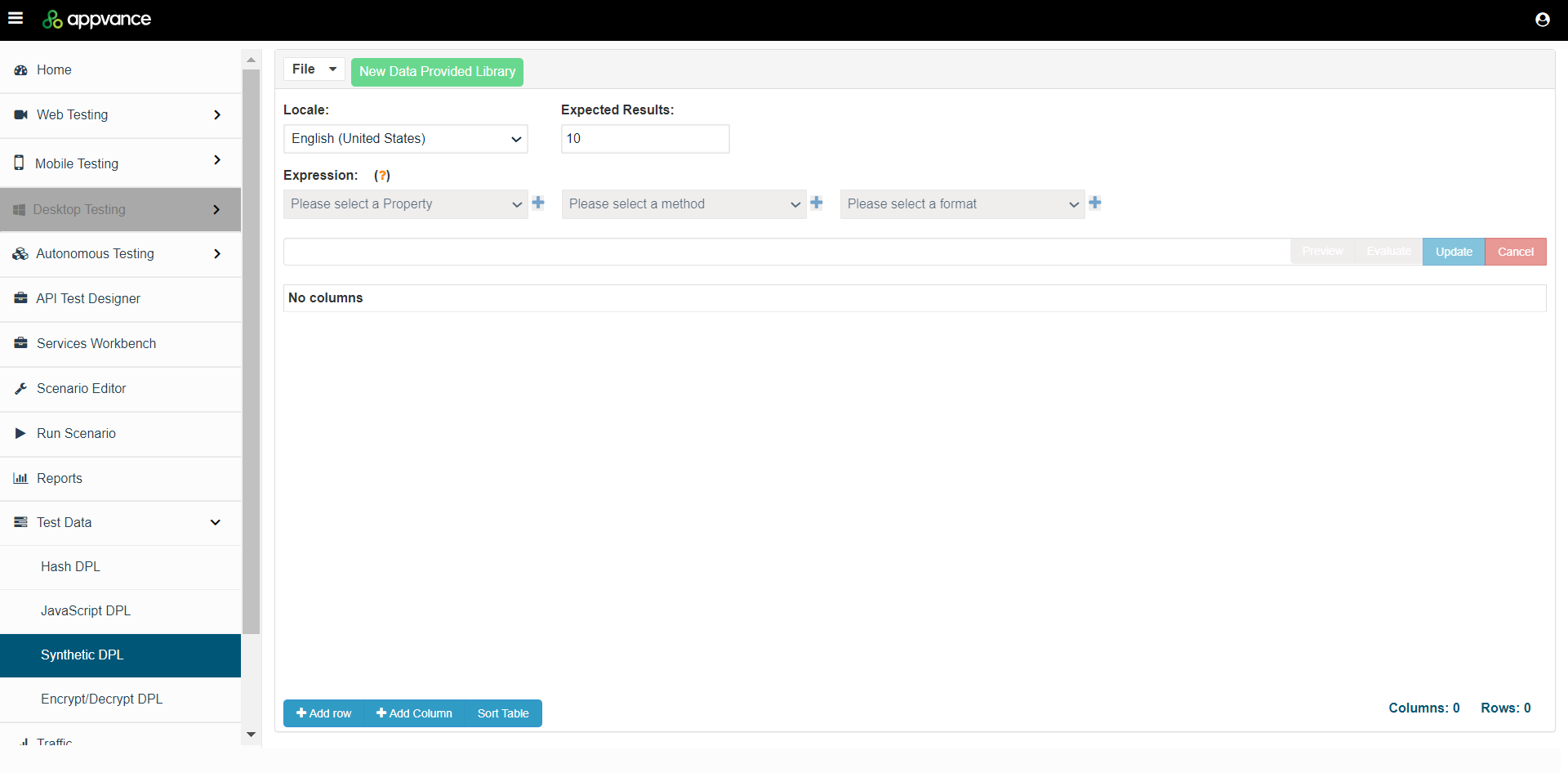
Use File > New to start creating a new Synthetic DPL file.
Start by adding a new Column by clicking Add Column button.
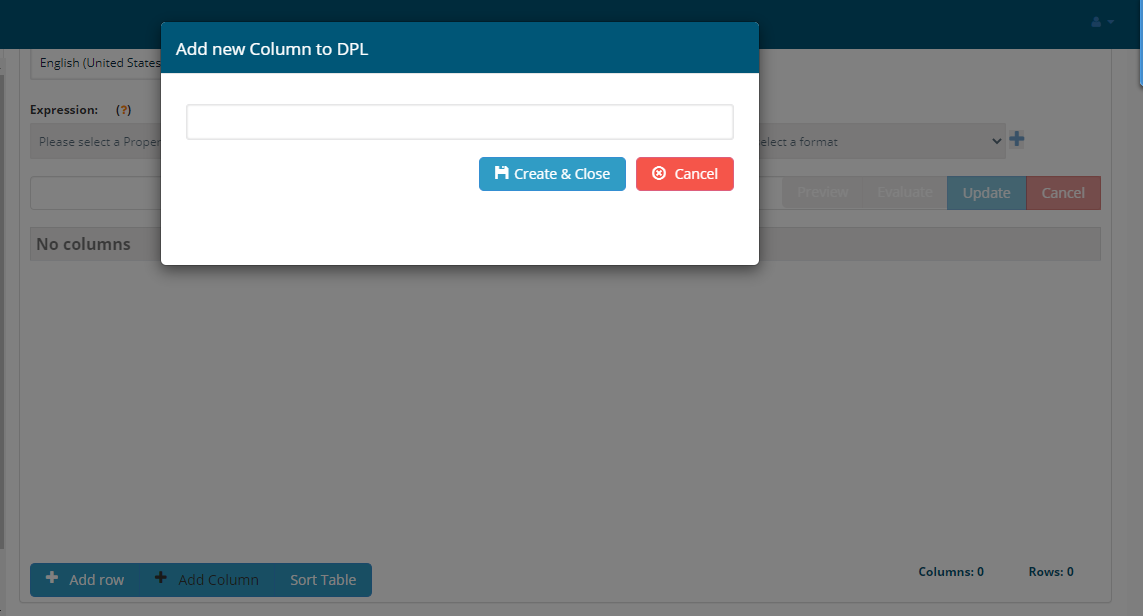
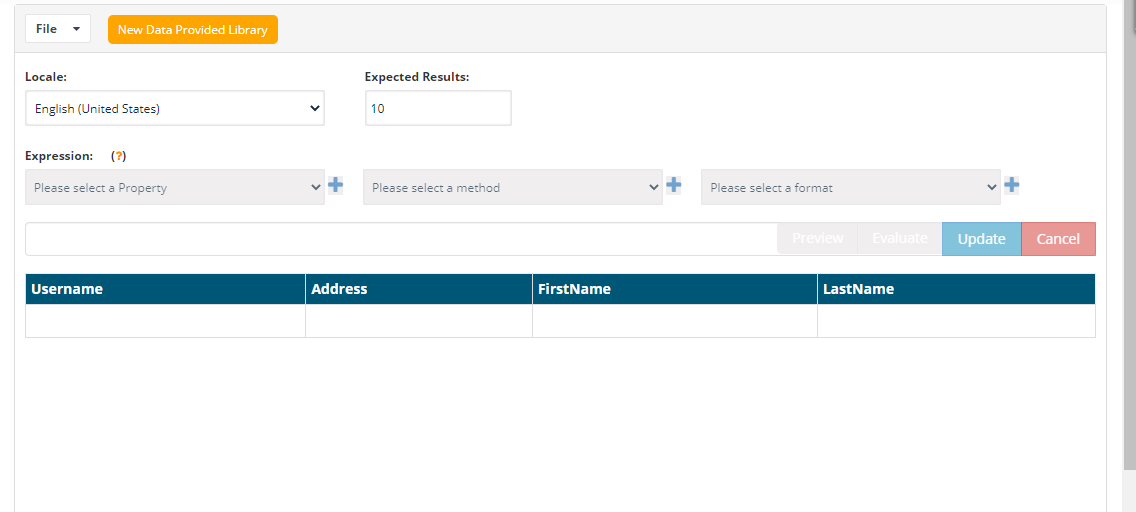
Locale
You can generate data in multiple languages, The default language locale is set to English.
Supported languages are:
ArabicArmenianAzerbaijaniChineseChinese (Taiwan)CroatianCzechDutchDutch (Belgium)EnglishEnglish (Australia)English (Australia Ocker)English (Bork)English (Canada)English (Great Britain)English (India)English (Ireland)English (Southern Africa)English (United States)FarsiFinnishFrenchFrench (Canada)French (Switzerland)GeorgianGermanGerman (Austria)German (Switzerland)IndonesianItalianJapaneseKoreanNepaliNorwegianPolishPortuguese (Brazil)Portuguese (Portugal)RomanianRussianSlovakSpanishSpanish (Mexico)SwedishTurkishUkrainianVietnamese
Click a cell to highlight and The Expression would be enabled to choose from the drop-down.
For example, for firstname - Expression could be name
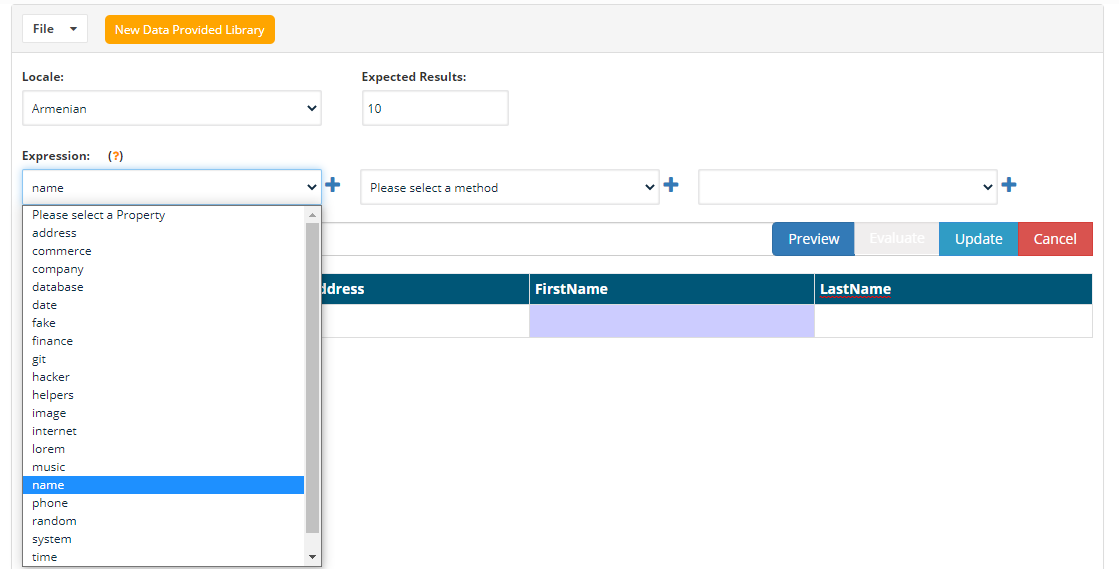
After choosing name, click the + icon to add the name to the expression.
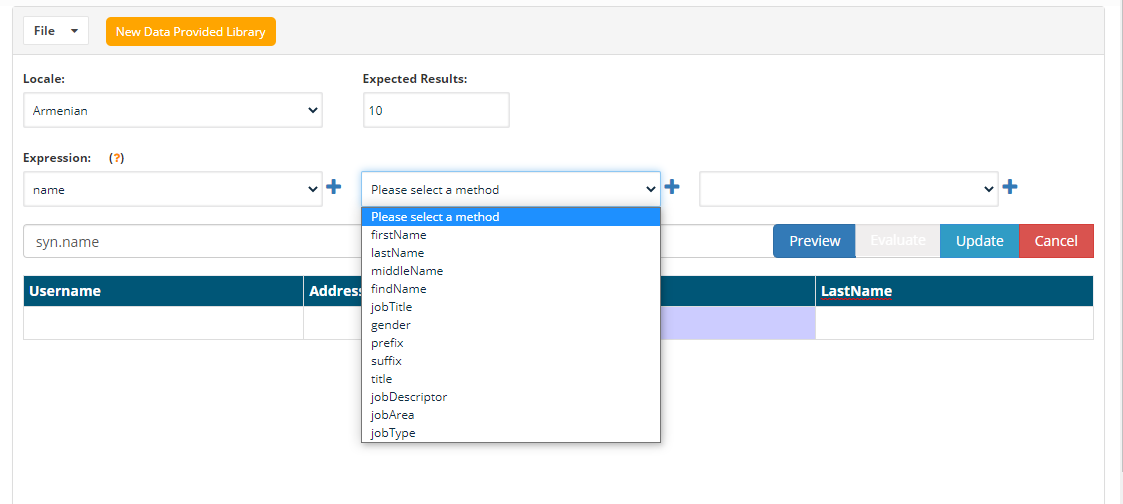
Then choose the method to be firstname and click the + icon.
You can click the Preview button to check the value generated.
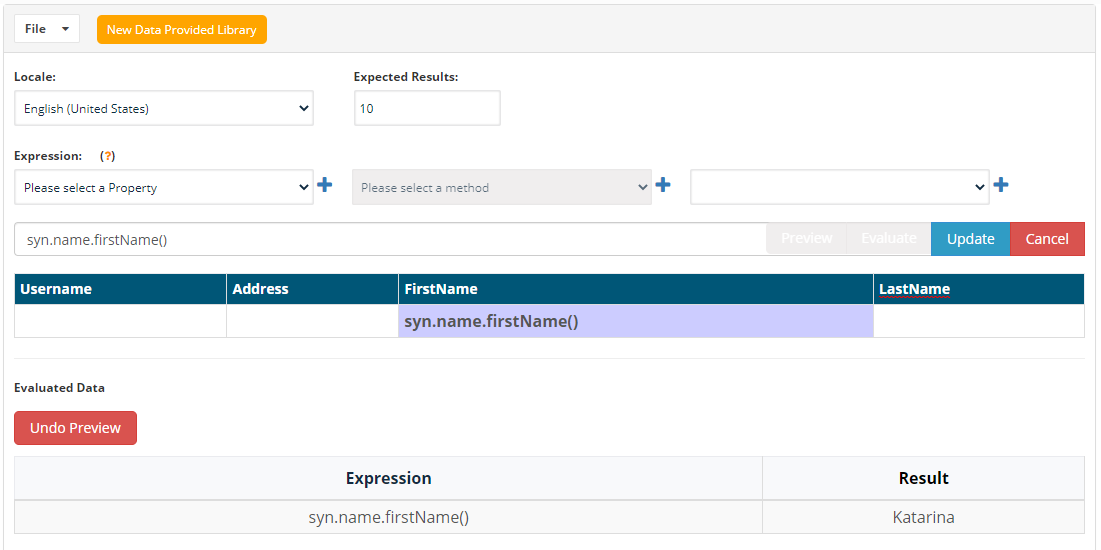
Undo Preview can be used to undo the preview.
After filling all the columns, you can click Evaluate button to generate data, Expected Result text box next to Locale will provide the number of rowsconstraints of the syntheticapplication under test.
Good use cases
- Generating names, IDs, addresses, emails, or other non-sensitive values.
- Creating unique values per run to avoid duplicate-data conflicts.
- Testing validation rules without exposing real customer data.
- Supporting performance or regression runs that need large data
generated.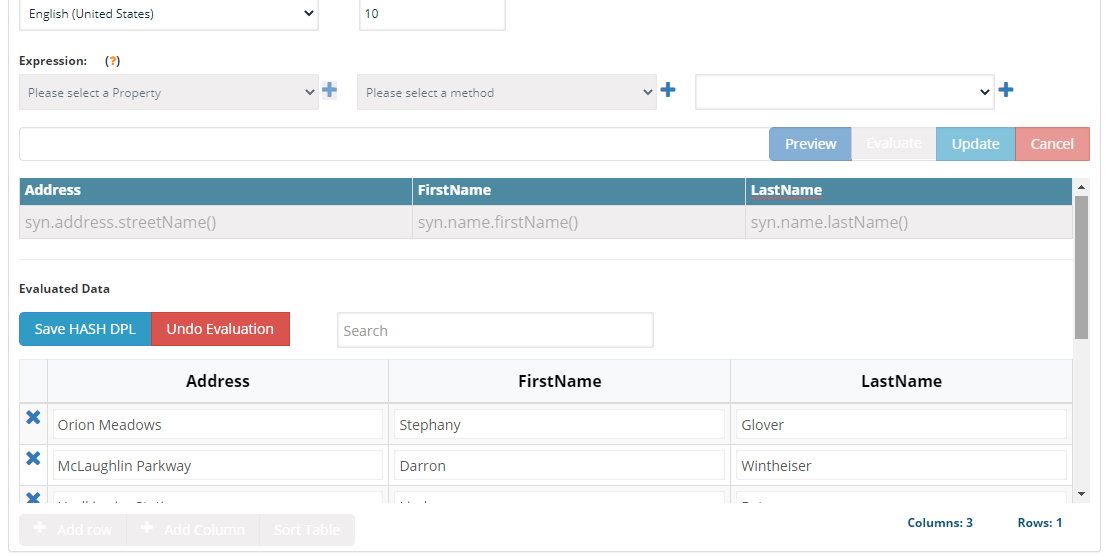
Ifvolume.
Quality wantchecks
- Confirm
updategeneratedthevaluescells,matchyoufieldcanlength, format, and business rules. - Document randomness, uniqueness, and cleanup expectations.
- Do not use
undosyntheticevaluationvalueswhichthatgoesaccidentallytoresembleeditrealmodesensitive data. - Validate failures against both scenario logic and
click a cell to change values, and clicking the Update button will take the changed values.You can download thegenerated dataas HashDPL by using the Save HashDPL button, which will download the CSV file that can be used in the Test Designer, Scenario Editor, or AISG.To remove columns, you can right-click the column name to remove the selected column.Some of the Expressions and Methods supportedaddresszipCodezipCodeByStatecitycityPrefixcitySuffixcityNamestreetNamestreetAddressstreetSuffixstreetPrefixsecondaryAddresscountycountrycountryCodestatestateAbbrlatitudelongitudedirectioncardinalDirectionordinalDirectionnearbyGPSCoordinatetimeZone
animaldogcatsnakebearlioncetaceanhorsebirdcowfishcrocodiliainsectrabbittype
commercecolordepartmentproductNamepriceproductAdjectiveproductMaterialproductproductDescription
companysuffixescompanyNamecompanySuffixcatchPhrasebscatchPhraseAdjectivecatchPhraseDescriptorcatchPhraseNounbsAdjectivebsBuzzbsNoun
databasecolumntypecollationengine
datatypenumberfloatdatetimestringuuidbooleanhexaDecimaljsonarray
datepastfuturebetweenbetweensrecentsoonmonthweekday
fakefinanceaccountaccountNameroutingNumbermaskamounttransactionTypecurrencyCodecurrencyNamecurrencySymbolbitcoinAddresslitecoinAddresscreditCardNumbercreditCardCVVethereumAddressibanbictransactionDescription
gitbranchcommitEntrycommitMessagecommitShashortSha
hackerabbreviationadjectivenounverbingverbphrase
helpersrandomizeslugifyreplaceSymbolWithNumberreplaceSymbolsreplaceCreditCardSymbolsrepeatStringregexpStyleStringParseshufflemustachecreateCardcontextualCarduserCardcreateTransaction
imageimageavatarimageUrlabstractanimalsbusinesscatscityfoodnightlifefashionpeoplenaturesportstechnicstransportdataUrilorempixelunsplashlorempicsum
internetavataremailexampleEmailuserNameprotocolhttpMethodurldomainNamedomainSuffixdomainWordipipv6portuserAgentcolormacpassword
loremwordwordssentenceslugsentencesparagraphparagraphstextlines
mersennerandseedseed_array
musicgenre
namefirstNamelastNamemiddleNamefindNamejobTitlegenderprefixsuffixtitlejobDescriptorjobAreajobType
phonephoneNumberphoneNumberFormatphoneFormats
systemfileNamecommonFileNamemimeTypecommonFileTypecommonFileExtfileTypefileExtdirectoryPathfilePathsemver
timerecent
uniquevehiclevehiclemanufacturermodeltypefuelvincolorvrmbicycle
File MenuNew - is used to create a new file.Open - is for opening an already created file.Save - to save the created file, save can be used.Save As - to save the opened file with a different name, save as can be used.Download Evaluated DPL - This option will help you to download the file locally which is evaluated so it can be used as HashDPLDownload Raw DPL - This option will help you download the file locally which is a raw file, so it can be used as a Synthetic DPL.
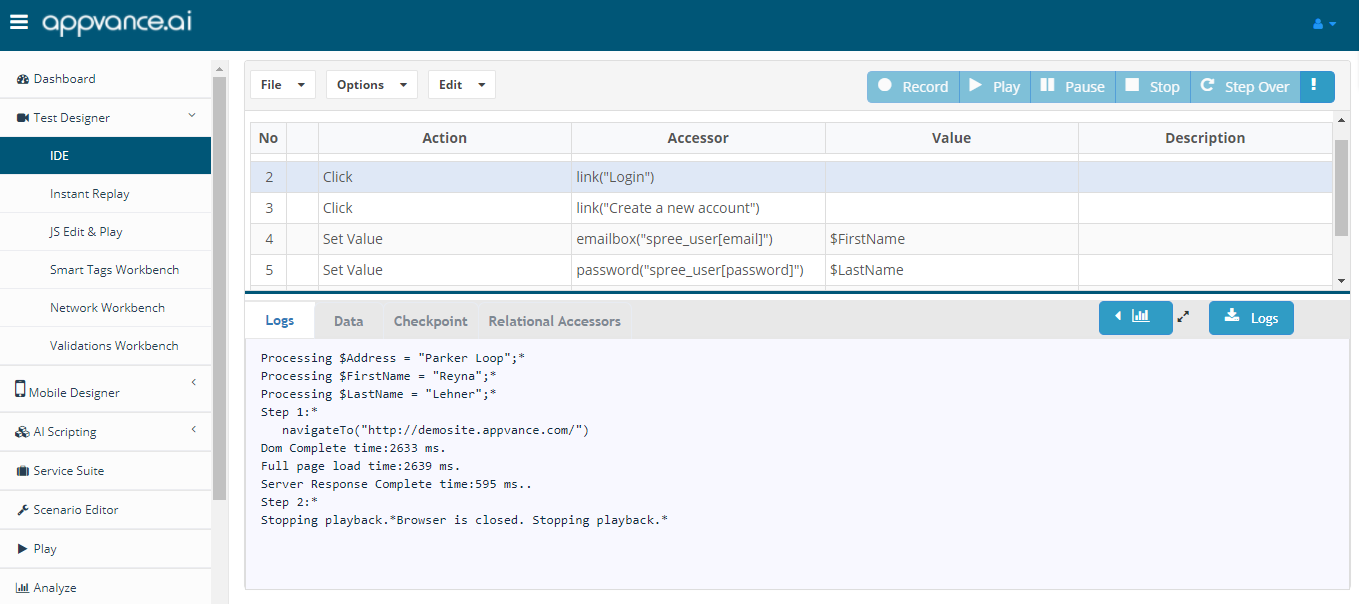
How to use in Test DesignerCreate a synthetic raw DPL using the synthetic DPL feature with the required fields based on the script.Open Test Designer script that needs to be data-driven.Open the data tab, select Synthetic DPL from the drop-down, Choose locale.Browse the raw CSV created using the synthetic DPL.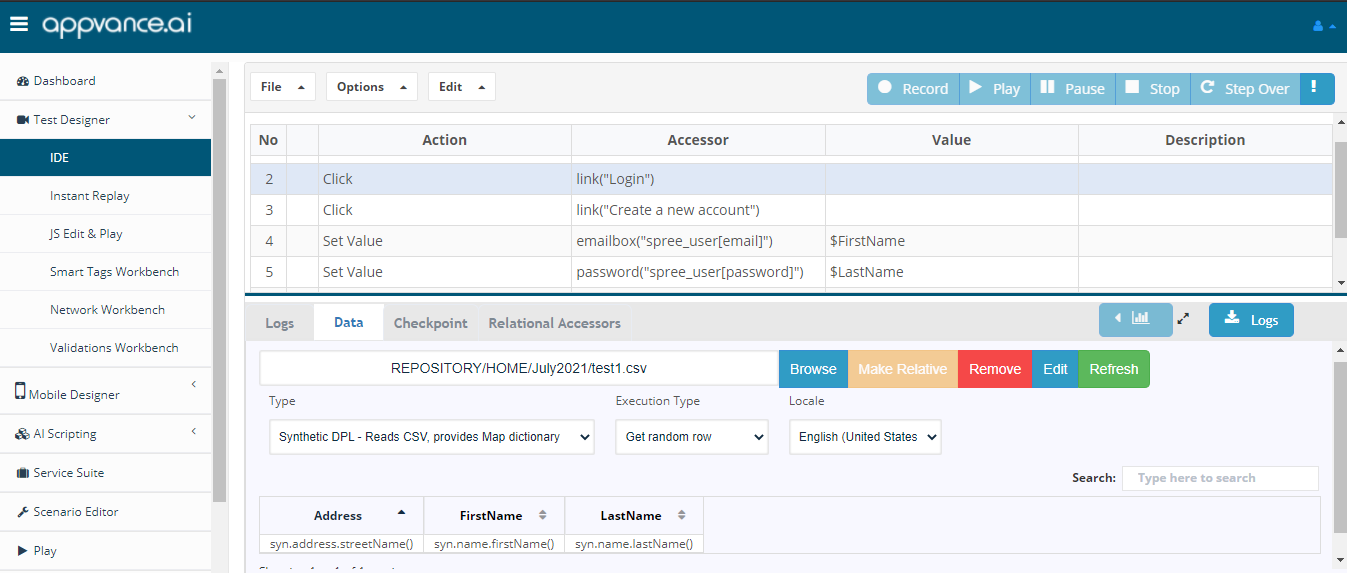
Drag and drop the values to the respective value or the accessor column to be data-drivenPlay the script to generate the data during run time and use that generated data in the scriptquality.
How to use in Scenario EditorOpen Scenario EditorCreate functional or performance tests as required and choose the test cases that are data-driven and add them to the test cases tabGo to the Resources tab and choose the type to be Synthetic DPLBrowse the raw CSV file created using synthetic DPLChoose the locale depending on the requirement, default to English (United States), and provide a name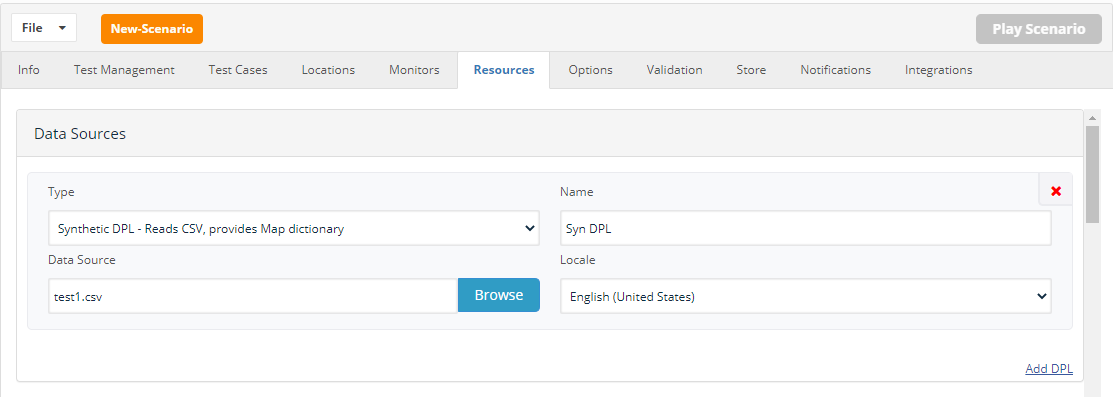
Go back to the test cases tab, edit, add DPL, choose the created DPL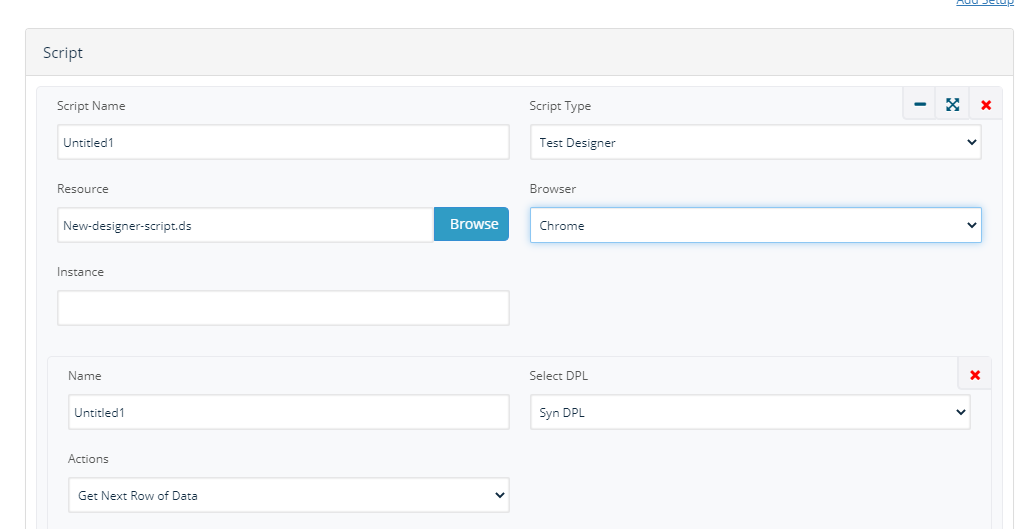
Save and play the scenario to run the scenario with newly created synthetic data
How to use AISGGo to Create AISGCreate a AISG for your application with any scan type and provide all the required detailsClick Next to open the Create Execution pageFrom the Type drop-down, Choose Synthetic DPL, choose locale as preferred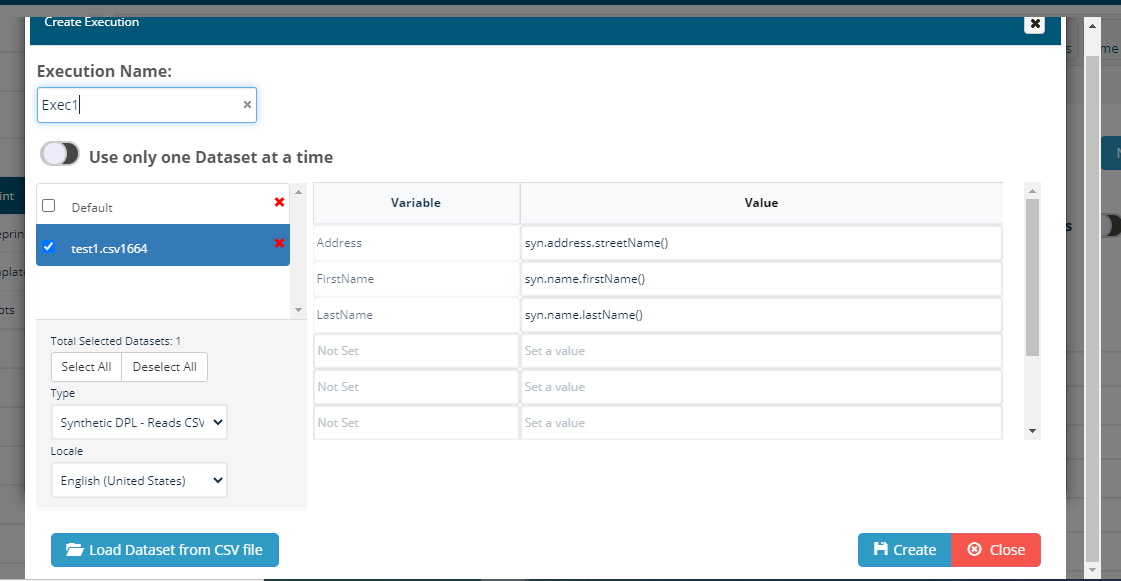
Click Load dataset from CSV file and choose the raw data file created using synthetic DPLCheck the check-box of the browsed CSV fileClick Create and once the pages are found during the AISG process, start mapping the defined variablesAISG would be created creating synthetic DPL data every time it is run
Last updated:
AprilOctober11,6,20242026If you have any feedback on this topic, please contact us atdocumentation@appvance.ai