
DPL Usage with Appvance Designer Script
UseHow to work with DPL Datain Appvance Designer scripts?
Navigate to Appvance Designer
Click File > New
Click Record and provide a valid URL and start recording the desired use case where there are setValues involved in Scenariothe Editorscript
Once the recording of the script is complete something looks like the below
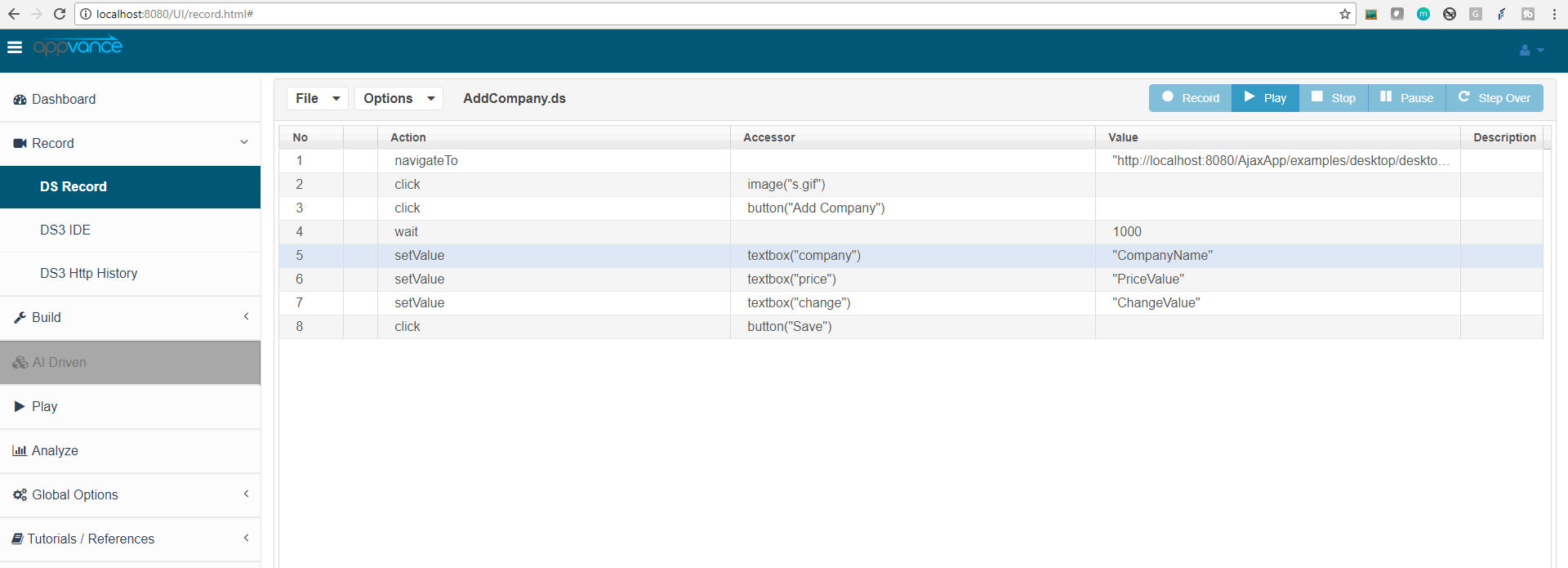
Assuming the user has to data enable Row 5, 6 and 7
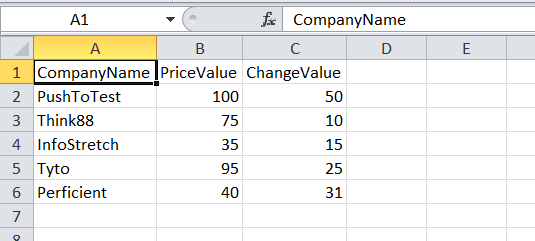
Create a data CSV sheet with 3 columns and have data for all those 3 columns, Example screenshot below
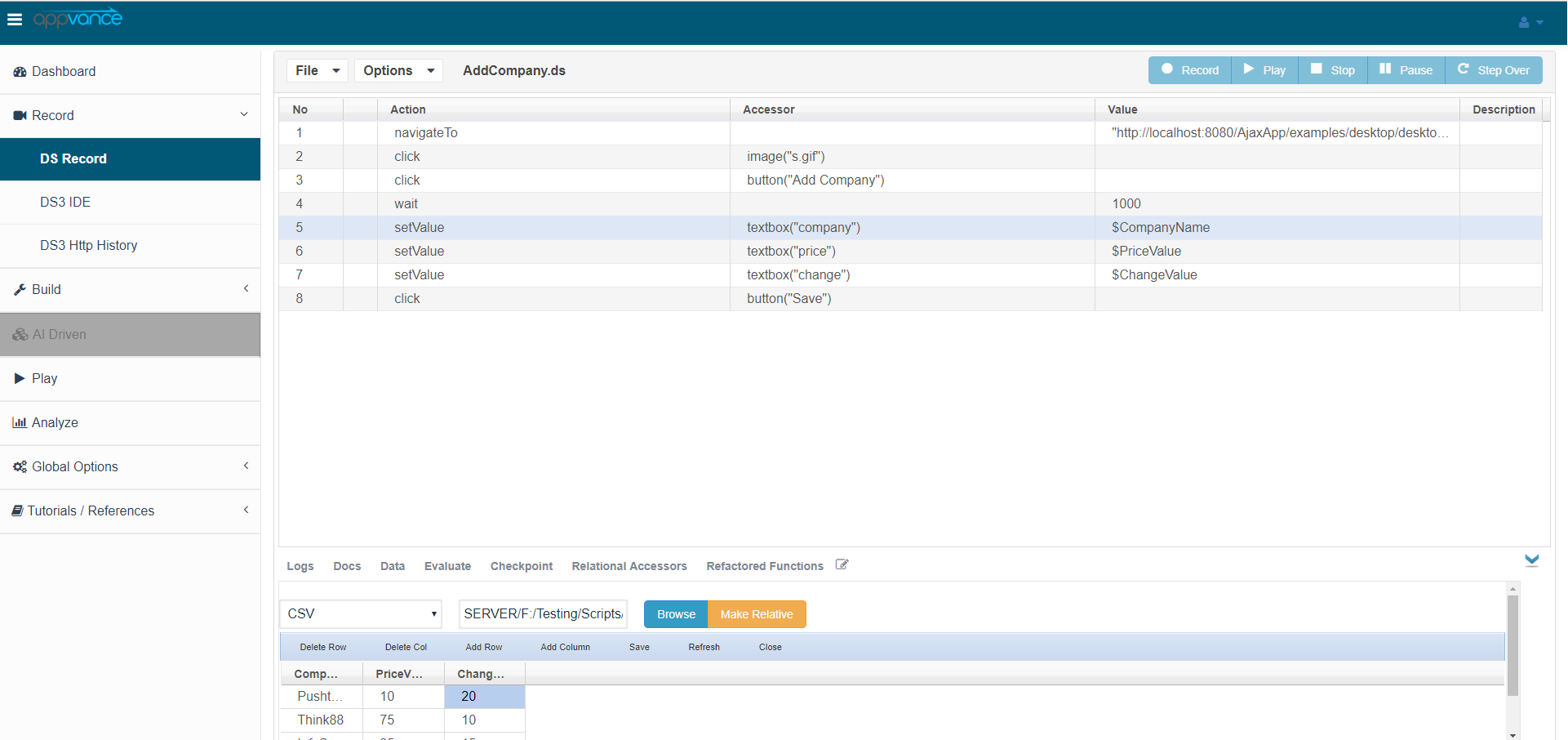
Now come back to Appvance Designer, click Options > DPL Options > and browse the CSV sheet that was created and Click OK
Go to the Data tab at the bottom, Drag the first value from column 1 and drop the same in the value filed of Row 3, the value should get changed to “$CompanyName”
Note: The column name can be anything specific
Similarly, drag and drop the same for Row 5 and 6
UseBelow DPLis datathe sourcesscreenshot of how this should look
Click File > Save and save the Appvance Designer Script
Now go to provideBuild repeatableand test datanavigate to Scenario Editorbuilder executions.to Storecreate sourcethe filesdata enabled scenario
Click File > New
Info Tab: Select a functional test or performance test based on the requirements
With the example below I am selecting functional test with Repeat this use case options set to 2 in the test management section, in the case of performance test user can provide the number of users and databaseother connectioncompletion detailscriteria inthat approvedcan locationsbe used as per the requirements
Navigate to the Resource panel: Select “HashDPL-Reads CSV” as the type and avoidprovide embeddingsome credentialsvalid inDPL scripts.
1. Create orand select the requiredCSV datafile source.
2.we Mapcreated while creating the neededAppvance fieldsDesigner Script
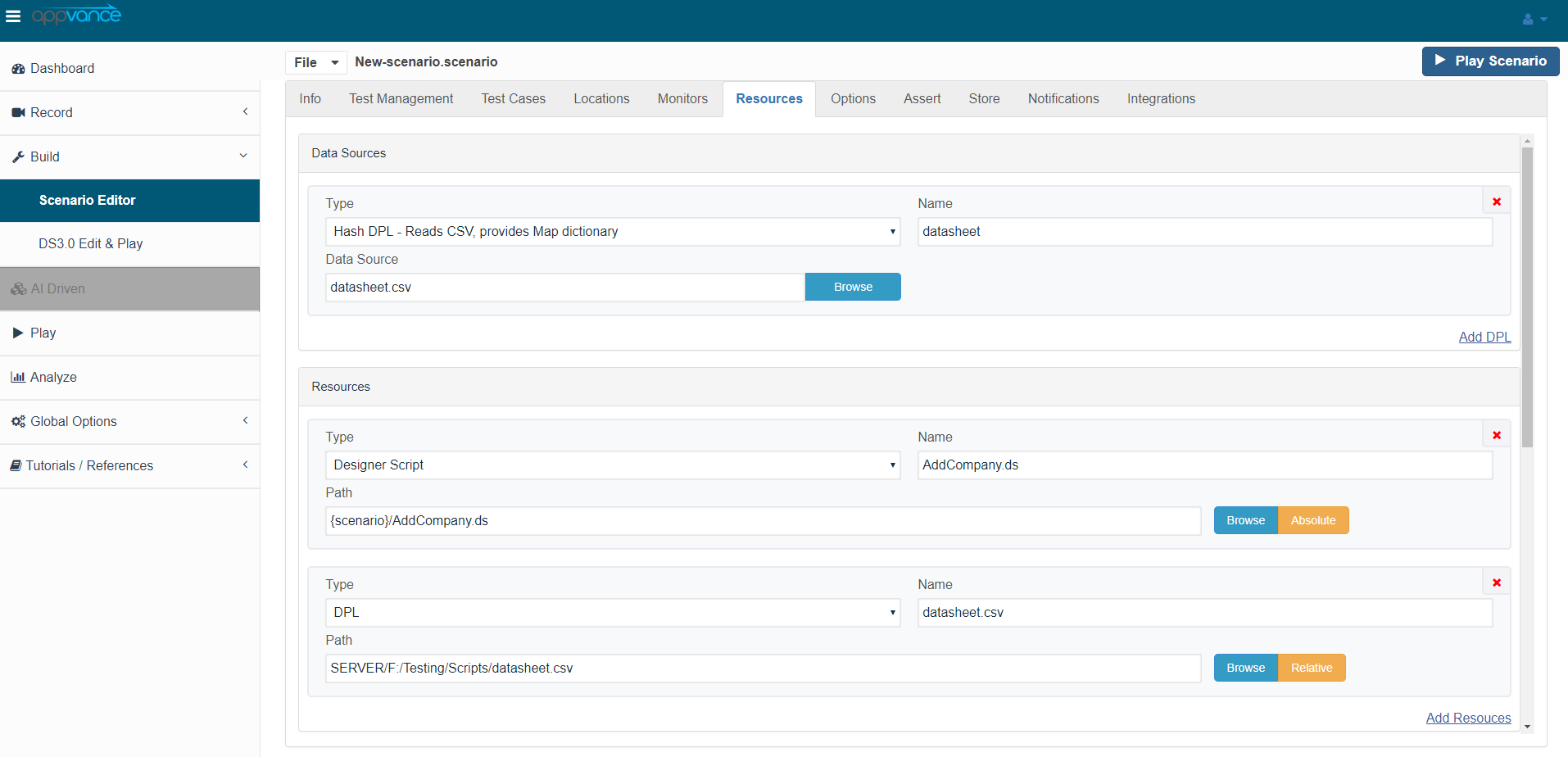
Come back to the relevanttest case panel: Click ‘Add a test inputs.case execution’, Select ‘Appvance Designer script’ from the test type drop-down, Browse the Appvance Designer script that was created which was data-enabled, Leave other options to default
3.Click ConfigureAdd DPL, Provide any valid name, select the DPL that was created in the resource panel in the available drop-downs and select Action to be ‘Get Next row of Data’
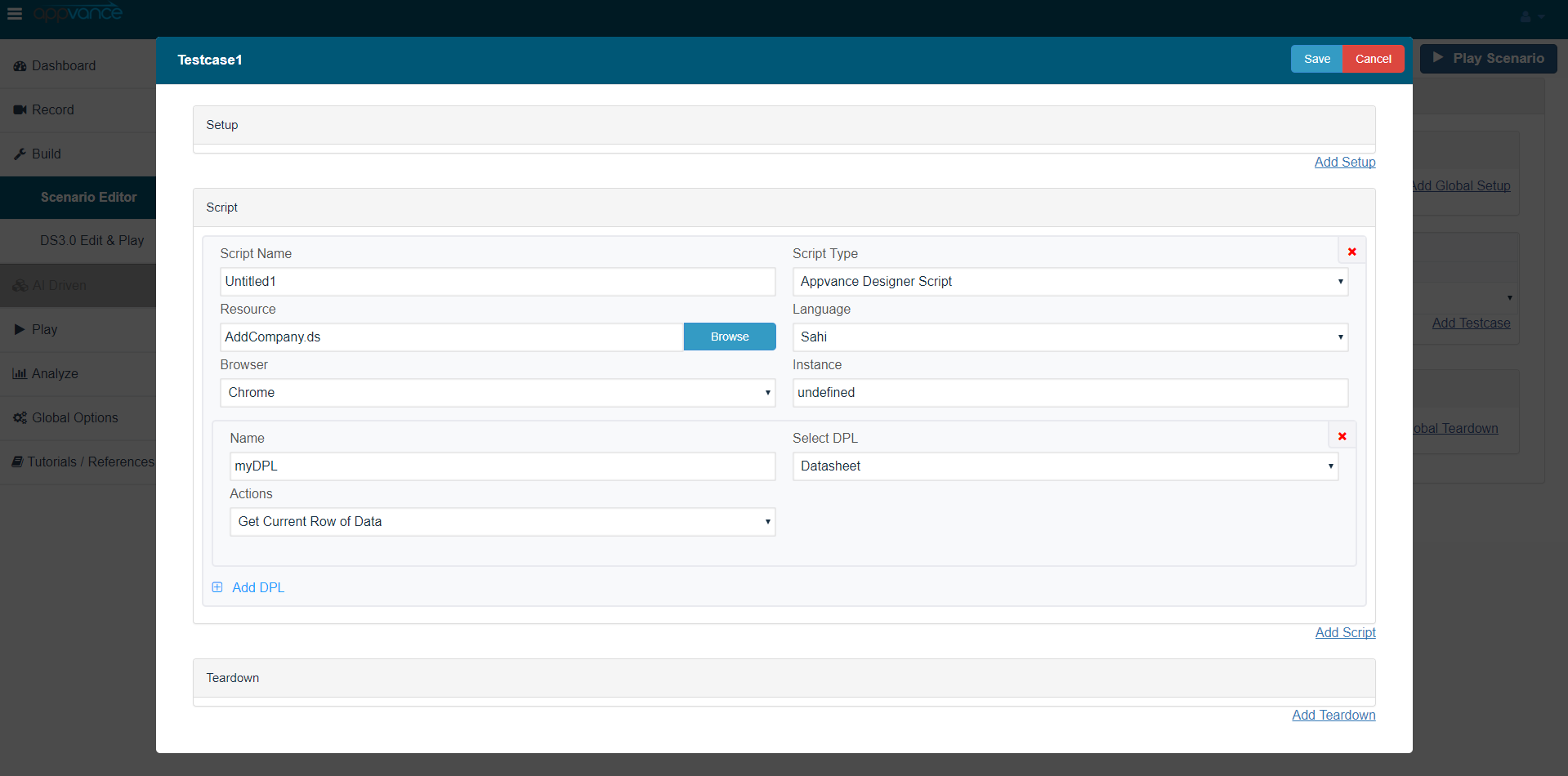
Click Save
As this is a functional test with a repeat use case set to 2, the scenario will run the test case for a couple of iterations and pick 2 different values from the CSV sheet
Logs in the Options panel can be set to 100%
Click File > Save and save the scenario and click play Scenario
The test controller will open and run the test scenario that was set up, as mentioned this test will run for 2 iterations picking 2 different values from the CSV sheet
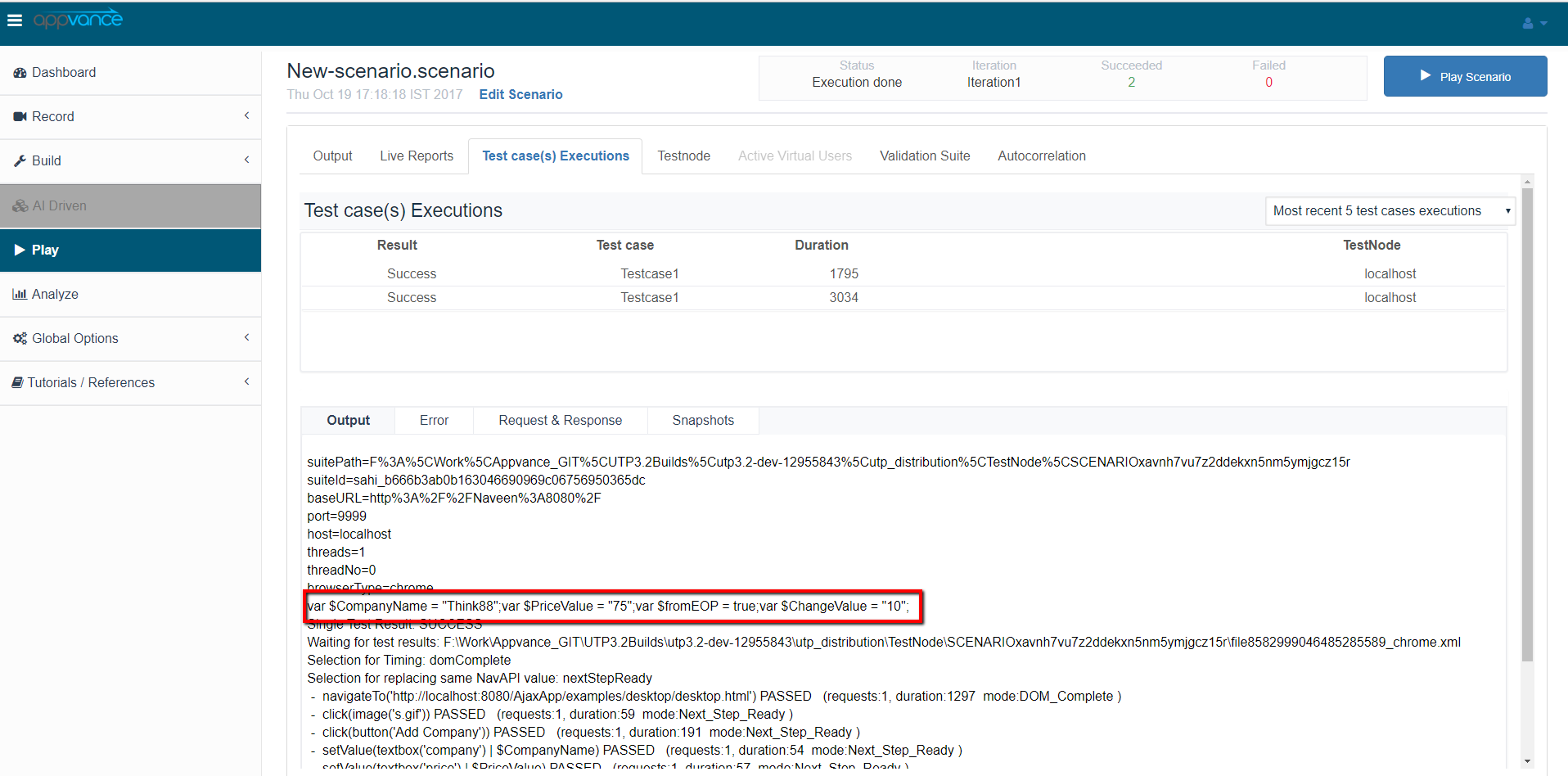
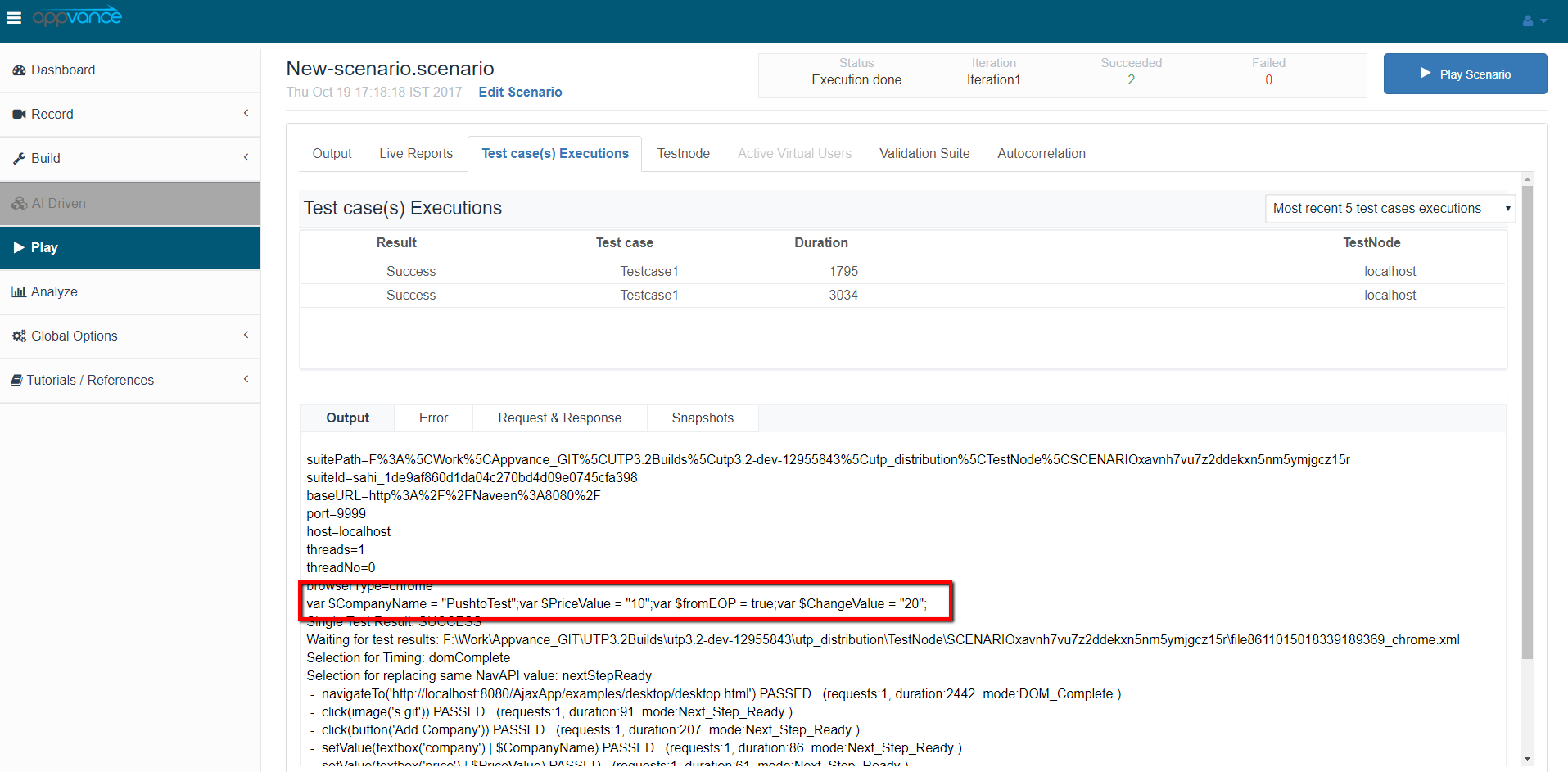
Once the test is complete, click test case execution behavior,on suchthe test controller, you should notice 2 successful executions
Click each execution and notice the values that were picked as advancingseen in the below screenshot
How to use RDBMSMapDPL in the Appvance Designer Script?
Navigate to Appvance Designer
Click File > New
Click Record and provide a valid URL and start recording the desired use case where there are setValues involved in the script.
Assuming the user has to data enable Row 7
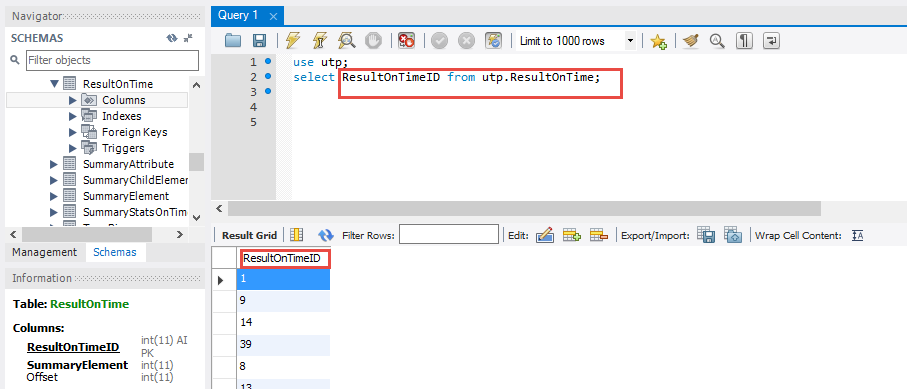
Now Data Enable value field, i.e Provide the column name of the table from which data will be retrieved
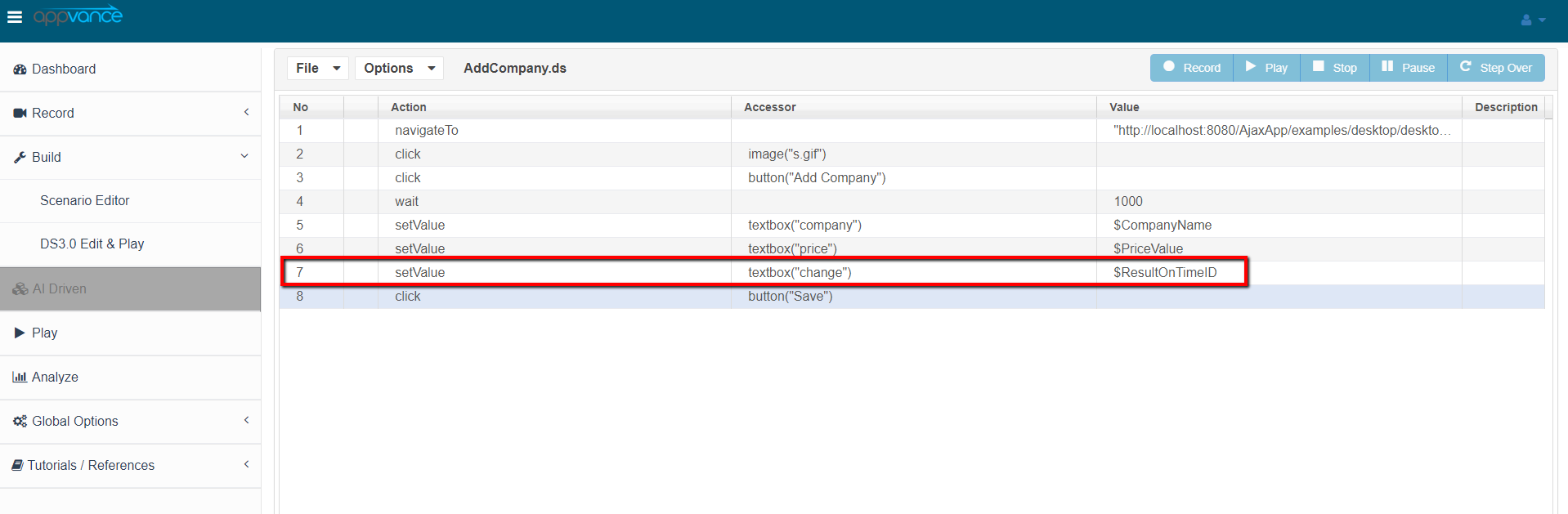
Click File > Save and save the Appvance Designer Script
Now go to Build and navigate to Scenario builder to create the data enabled scenario
Click File > New
Info Tab: Select a functional test or performance test based on the requirements
Navigate to the nextResources availablepanel dataand row.click Add Data source
Select RDBMSMapDPL from DPL drop-down
Enter valid inputs in SQL Server, Database URL, User, Password, and query fields
Example:
4.SQL RunServer- acom.mysql.jdbc.Driver
Database validationURL- jdbc:mysql://localhost:3306/utp?useSSL
User- utp
Password- utp
Query- select ResultOnTimeID from utp.ResultOnTime
Come back to test case and select the DPL added from the drop-down
Save and play scenario
The test controller will open and run the test scenario that was set-up
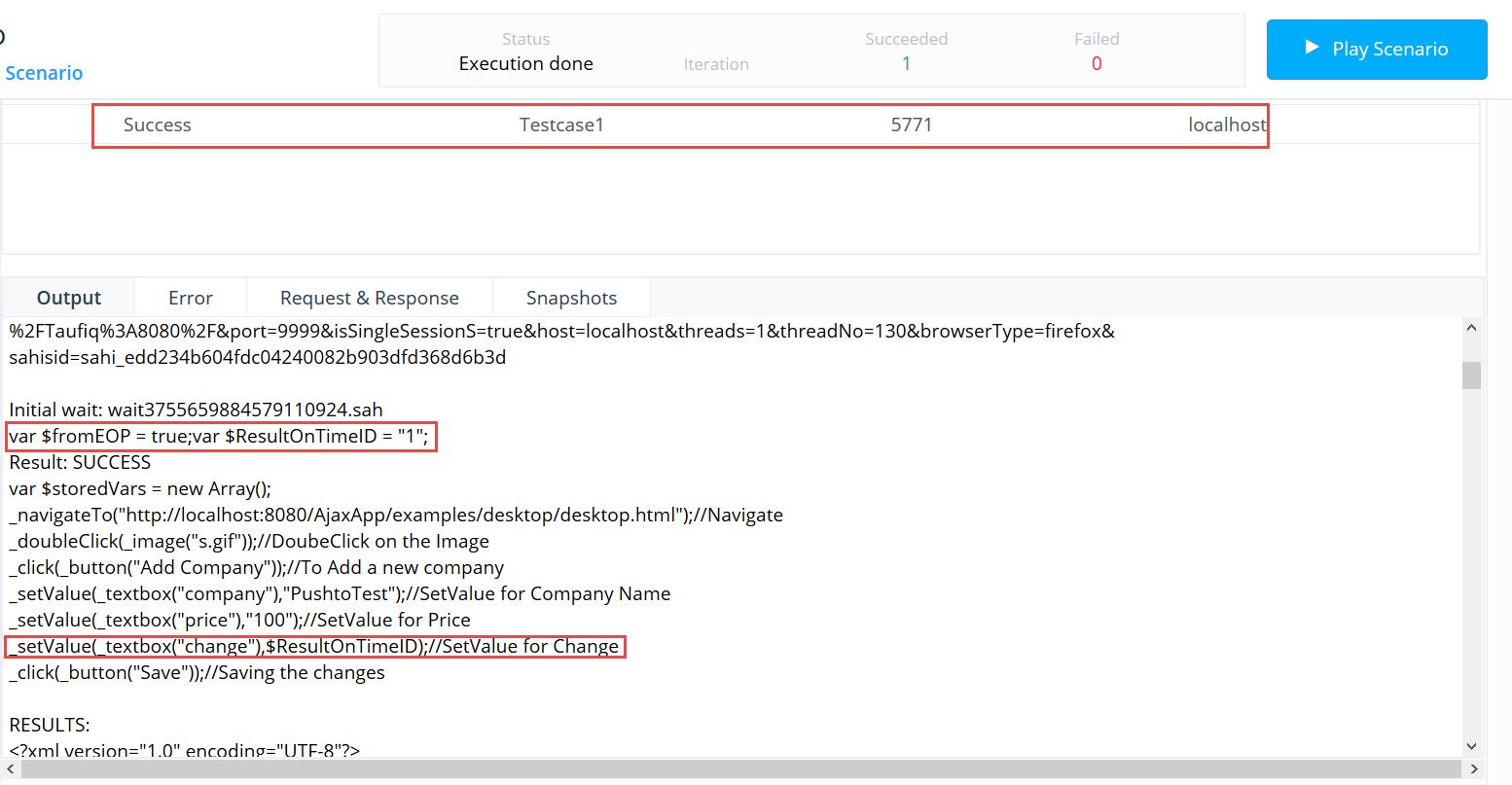
Once the test is complete, click test case execution before scalingon the test.
ReferClick toeach execution and notice the release-specificvalues DPLthat documentationwere for supported source types and configuration fields.picked
Last updated: SeptemberJune 14,26, 20262023
If you have any feedback on this topic, please contact us at documentation@appvance.ai