
Hash DPL
Use this article when a Scenario Editor test needs key-value style test data supplied through a Hash DPL.
Validationcan workflow
be DefinecreatedtheinkeyAppvancefieldIQandbyconfirm every required test case has a matching value.Referenceusing the Hash DPLfromInterface under DPL options, which can be used to data drive scripts in Test designer, JS Edit & Play, Scenario Editor, and others.-
Login to AIQ as a user or Admin
Click DPL Options in the Scenarioleft Editormenu
Click Hash DPL after expanding the DPL Options
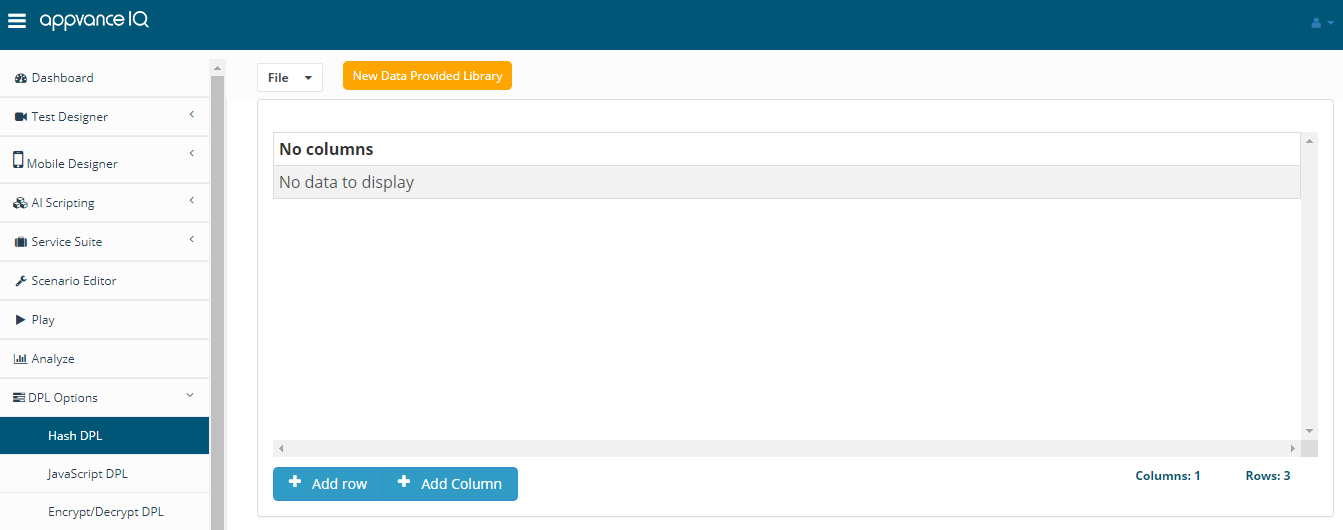
Click Add Column to create a new column
Provide a valid name
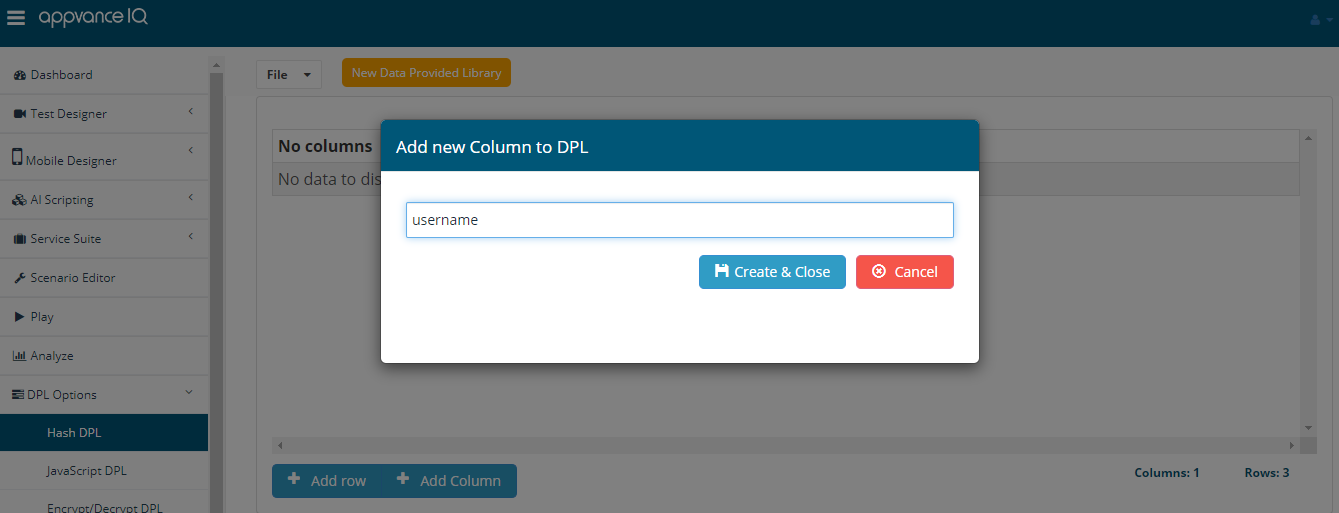
Click Create and validateClose
Similarly, multiple columns can be added as desired
Note: Invalid columns names are - Spaces are not allowed, Empty values are not allowed, Special characters are not allowed.
Click Add Row to add multiple rows
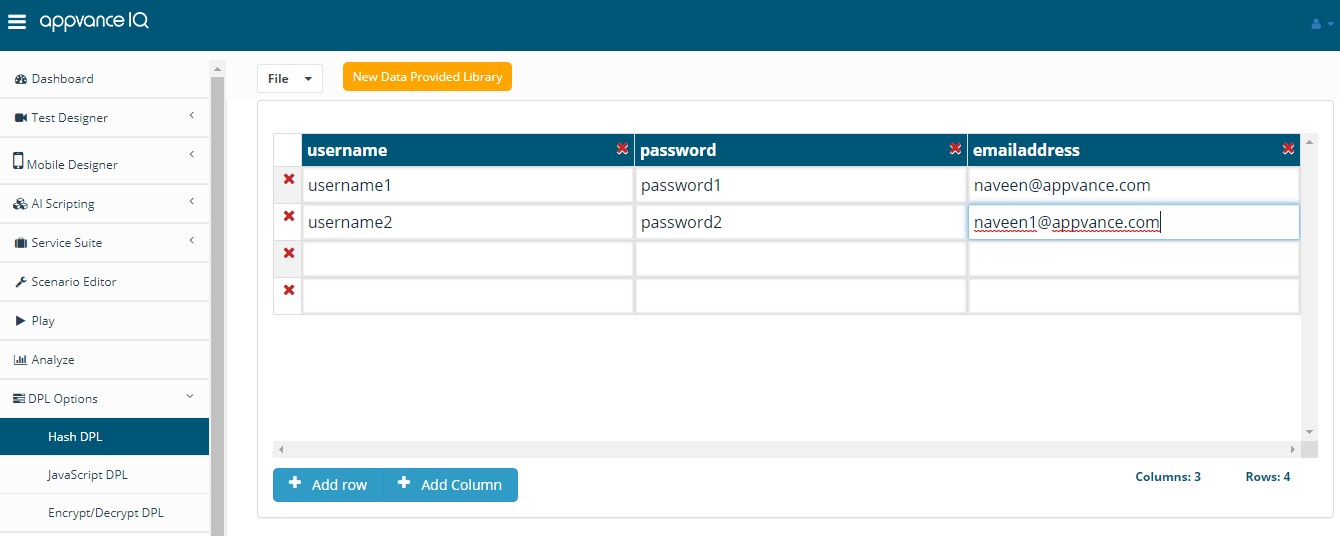
Click File > Save to Save the file with a matching-keyvalid file name, which can be used in Test Designer or others
Click delete rows/columns to delete the rows or columns
Right Click any cell to remove the entire column or the entire row
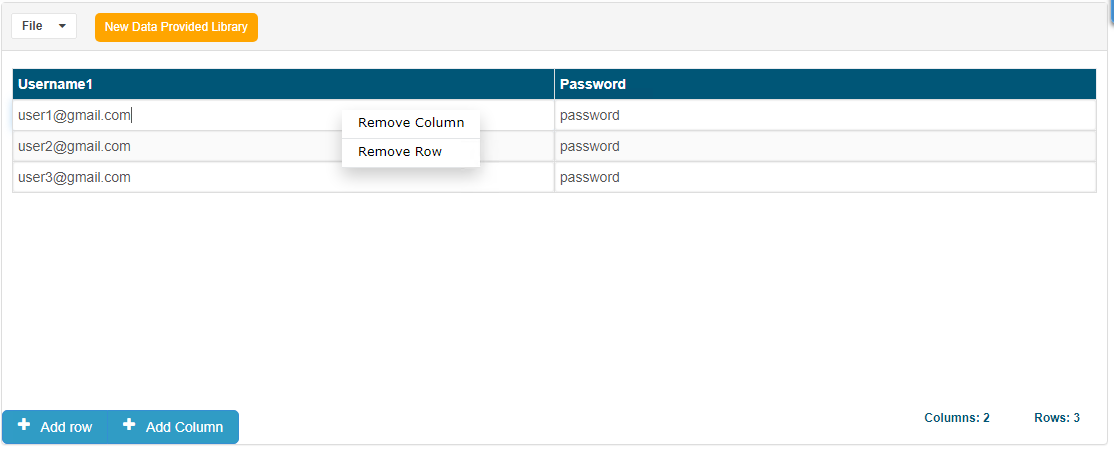
The column name field is editable, in case the names of columns are renamed, can be renamed just by editing those cells.
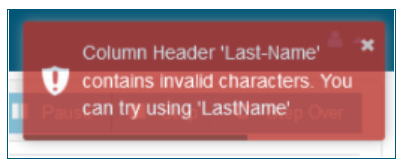
Note - Column names with special characters like - (hyphen) would not be allowed, there would be a warning message displayed and also a missing-keysuggestion case.to try without the special character.
Last updated: SeptemberAugust 30,14, 20262023
If you have any feedback on this topic, please contact us at documentation@appvance.ai