
Hash DPL
Hash DPL can be created in Appvance IQ by using the Hash DPL Interface under DPL options, which can be used to data drive scripts in Test designer, JS Edit & Play, Scenario Editor, and others.
-
Login to AIQ as a user or Admin
-
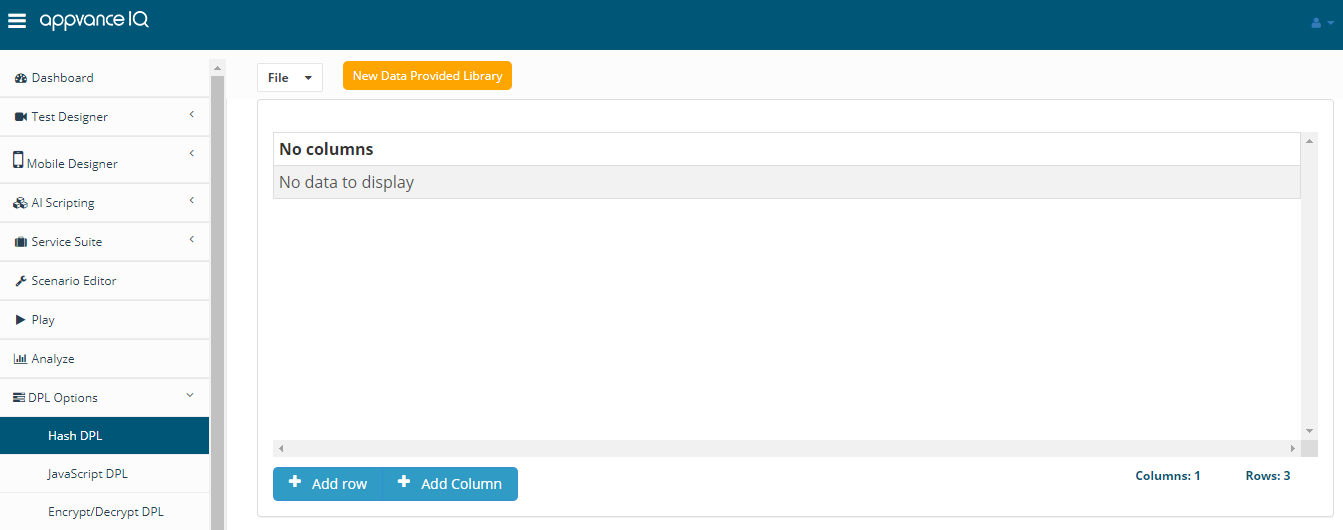
Click DPL Options in the left menu
-
Click Hash DPL after expanding the DPL Options
-
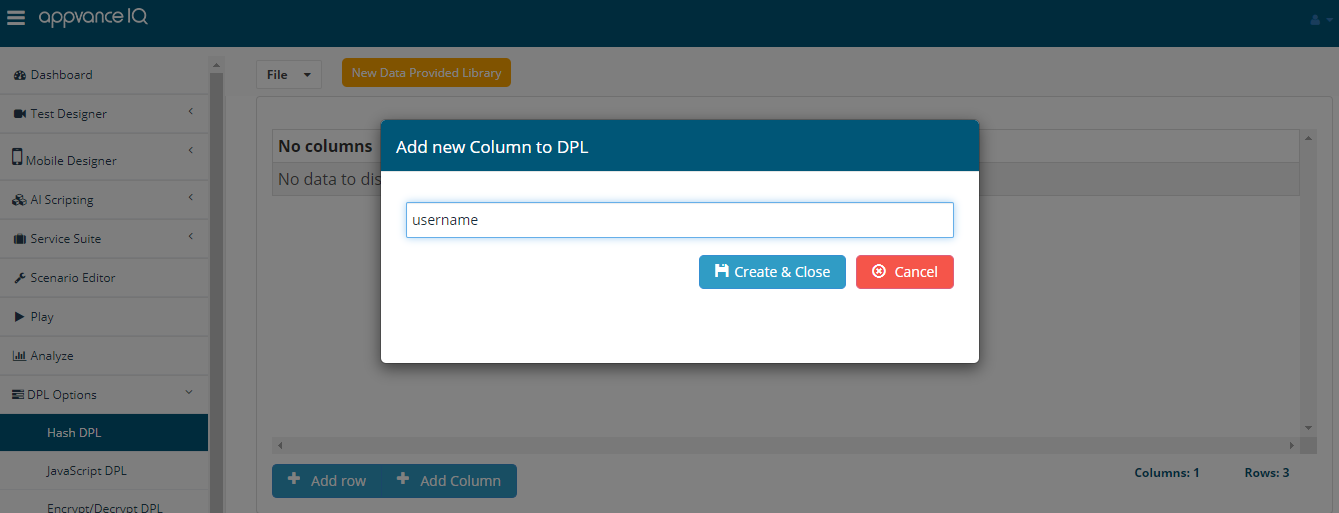
Click Add Column to create a new column
-
Provide a valid name
-
Click Create and Close
-
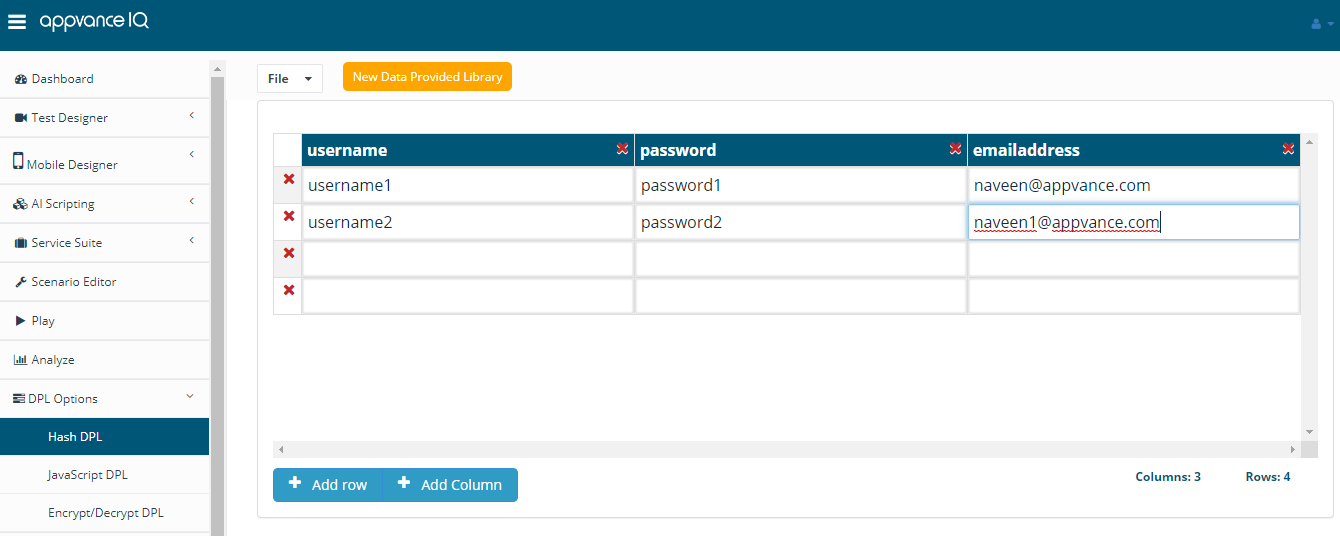
Similarly, multiple columns can be added as desired
-
Note: Invalid columns names are - Spaces are not allowed, Empty values are not allowed, Special characters are not allowed.
-
-
Click Add Row to add multiple rows
-
Click File > Save to Save the file with a valid file name, which can be used in Test Designer or others
-
Click delete rows/columns to delete the rows or columns
-
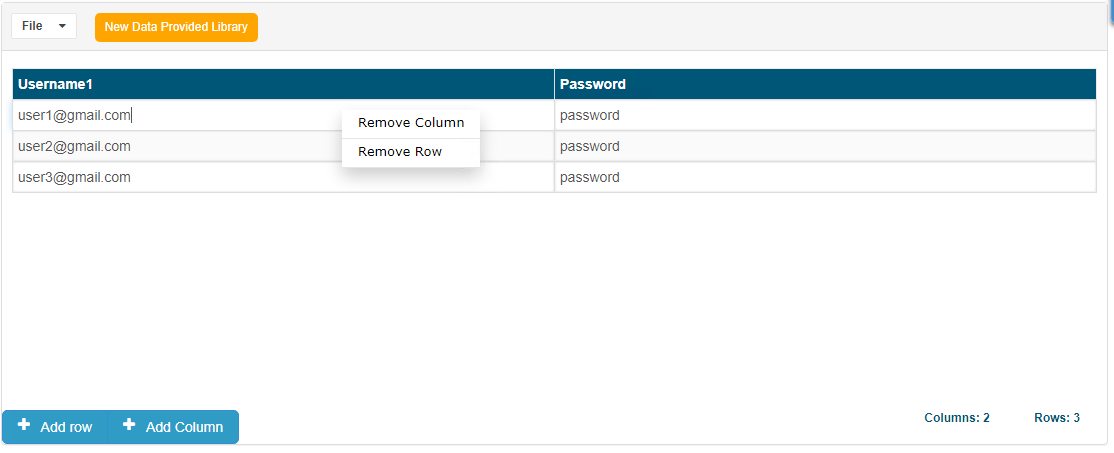
Right Click any cell to remove the entire column or the entire row
-
The column name field is editable, in case the names of columns are renamed, can be renamed just by editing those cells.
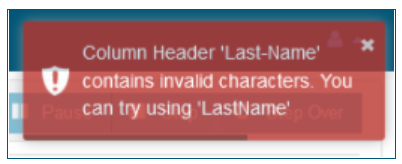
Note - Column names with special characters like - (hyphen) would not be allowed, there would be a warning message displayed and also a suggestion to try without the special character.
Last updated: August 14, 2023
If you have any feedback on this topic, please contact us at documentation@appvance.ai