
WhiteBoard DPL Usage in AIQ
TheLast Whiteboardreviewed: September 29, 2026
Use this article when test data must be shared or manipulated through a WhiteBoard DPL letsworkflow.
What sharechanged datain fromthis withinarticle
- Updated the title casing and tied the article to Operational Test
DesignerData/DPLscriptusage. - Added
inguidancetheonscenario even if they are in different iterations.The only restriction is that the scripts must run in the same test node.The below example shall show you how this could be used.There are 2 Test Designer APIs that is used for this purpose: Add towhen WhiteBoard
Get from WhiteBoard
As we know that this DPL is likeappropriate versus CSV, Dynamic DPL, or JavaScript DPL.
Validation workflow
- Confirm the test needs WhiteBoard-style shared or generated data rather than a
lockerstaticthatCSV. - Validate
couldproducedbevaluesusedacrosstomultipleshareiterationsdataandbetweenusers. - Confirm
testcleanupcasesorbetweenresetdifferentbehavioriterations.beforeBelow is tested designer script 1 that has a step "Add to Whiteboard" DPL where a hardcoded value "Appvance" is getting stored inusing thevariable "company"Here we could use getText to get the text from the browser and store the value in the variable to be stored in the WhiteboardDPLwhich shall be usedin adifferentrepeatable test run.
Review note: Clarified the DPL use case ofso WhiteBoard DPL is not chosen when a different iteration.

Below is Test Designer script 2 that has a step "Get from Whiteboard" DPL where the value that was stored using "Add to Whiteboard" could be retrieved and stored in another variable which could be used for further scripting or usage.

Once you have the script ready, it is time to create the scenario with different iterations and test cases.
The below example shows a performance test with 2 different iterations, with each iteration having a test case each, 1st test case in the iteration is going to add the value to Whiteboard and the 2nd test case in 2nd iteration will get the value from the whiteboard which could be used in further scripting.
Defining performance Test:
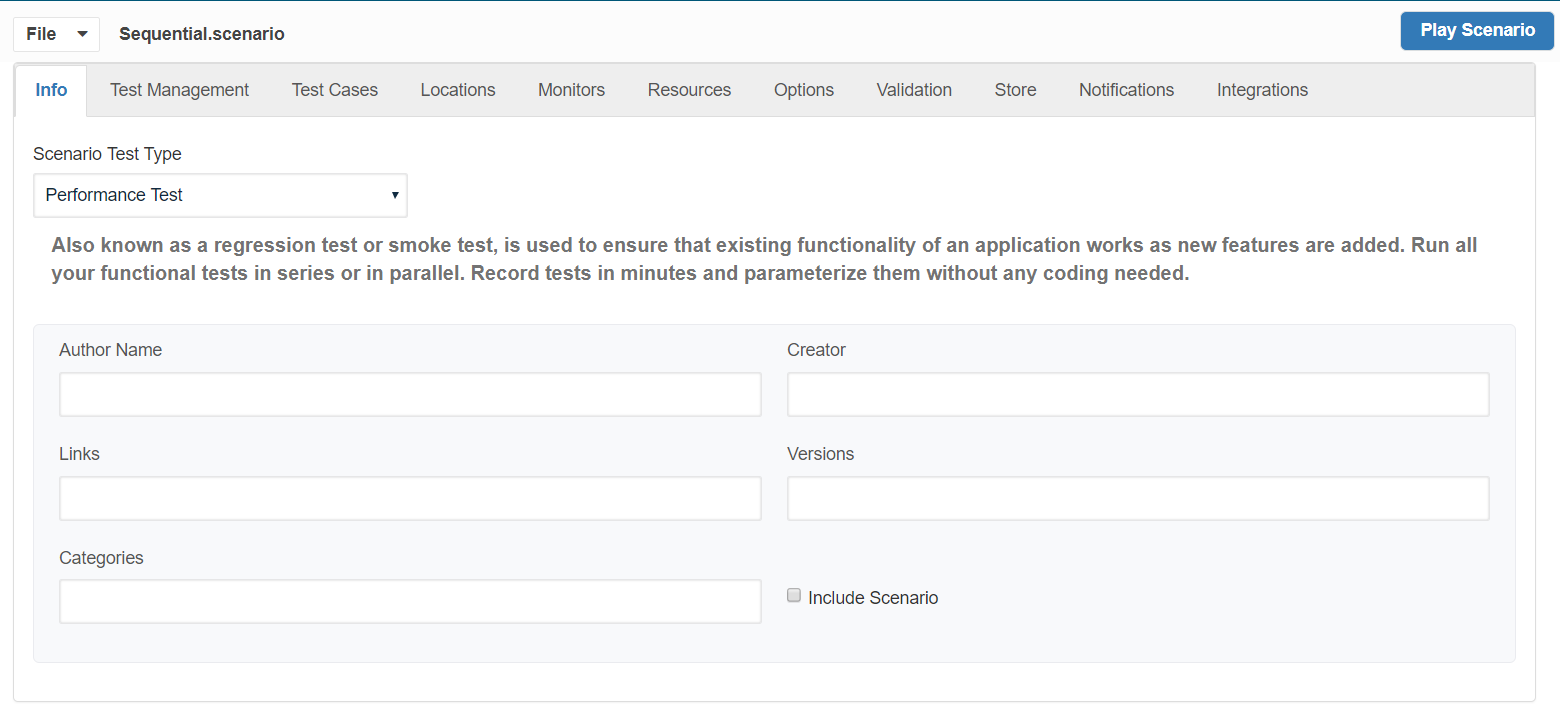
Defining 2 iterations:
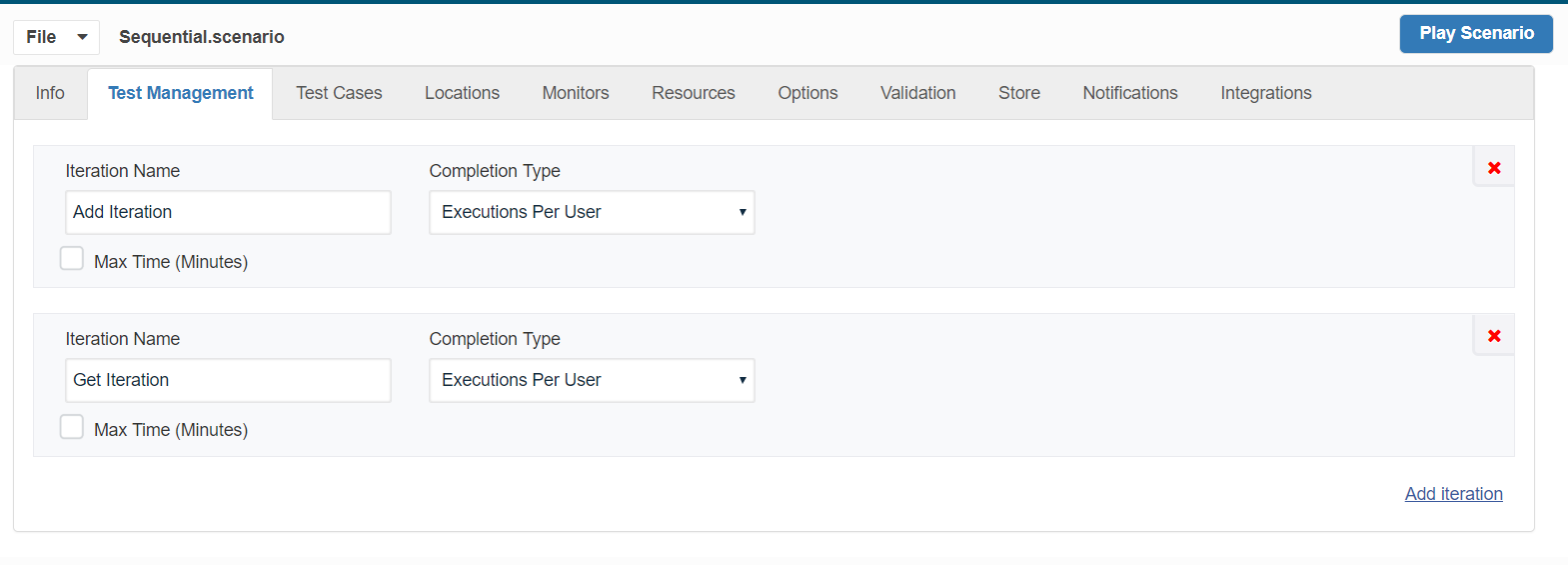
Defining 2 test cases for each iteration.
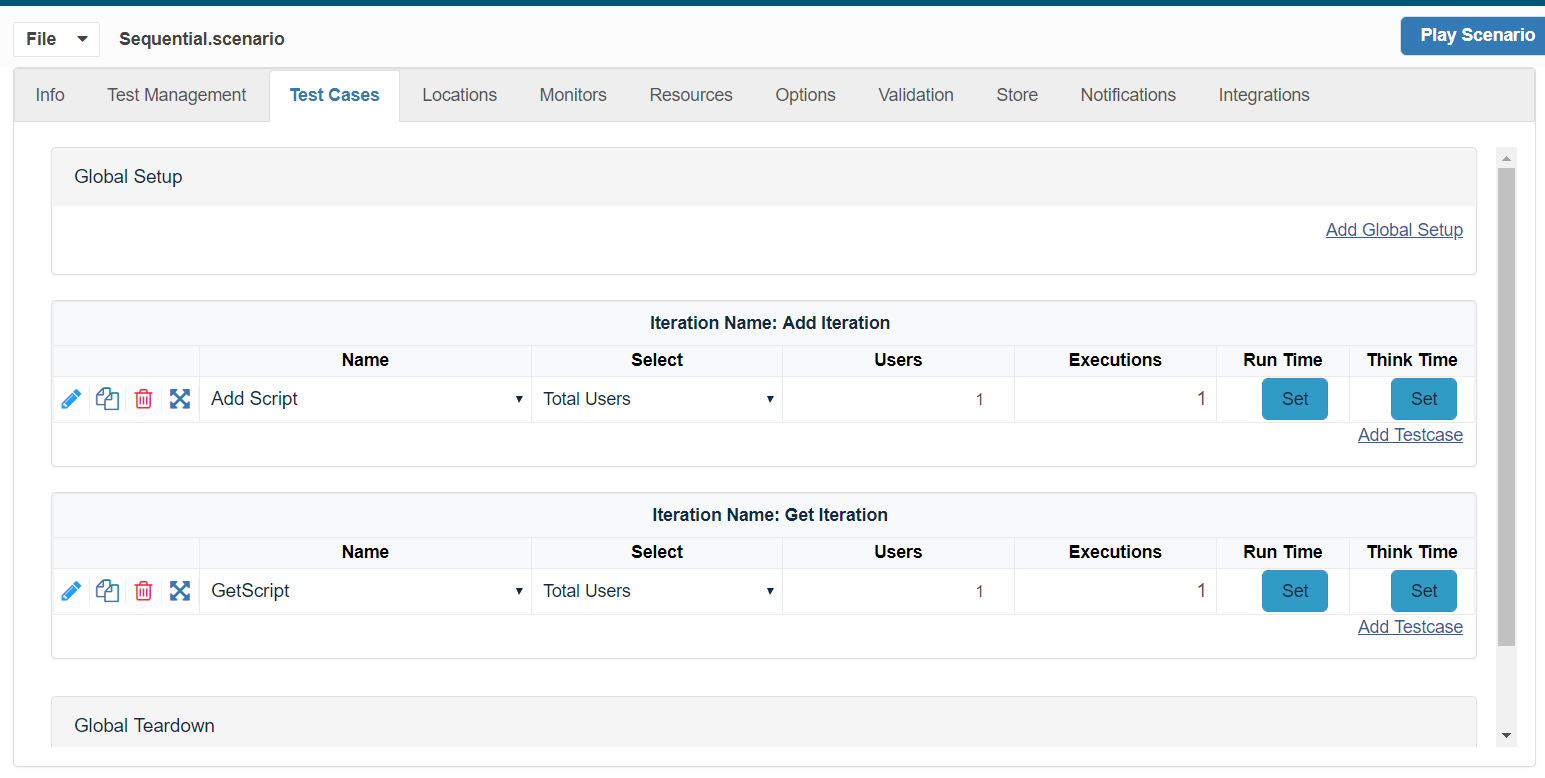
Result of Test case 1:
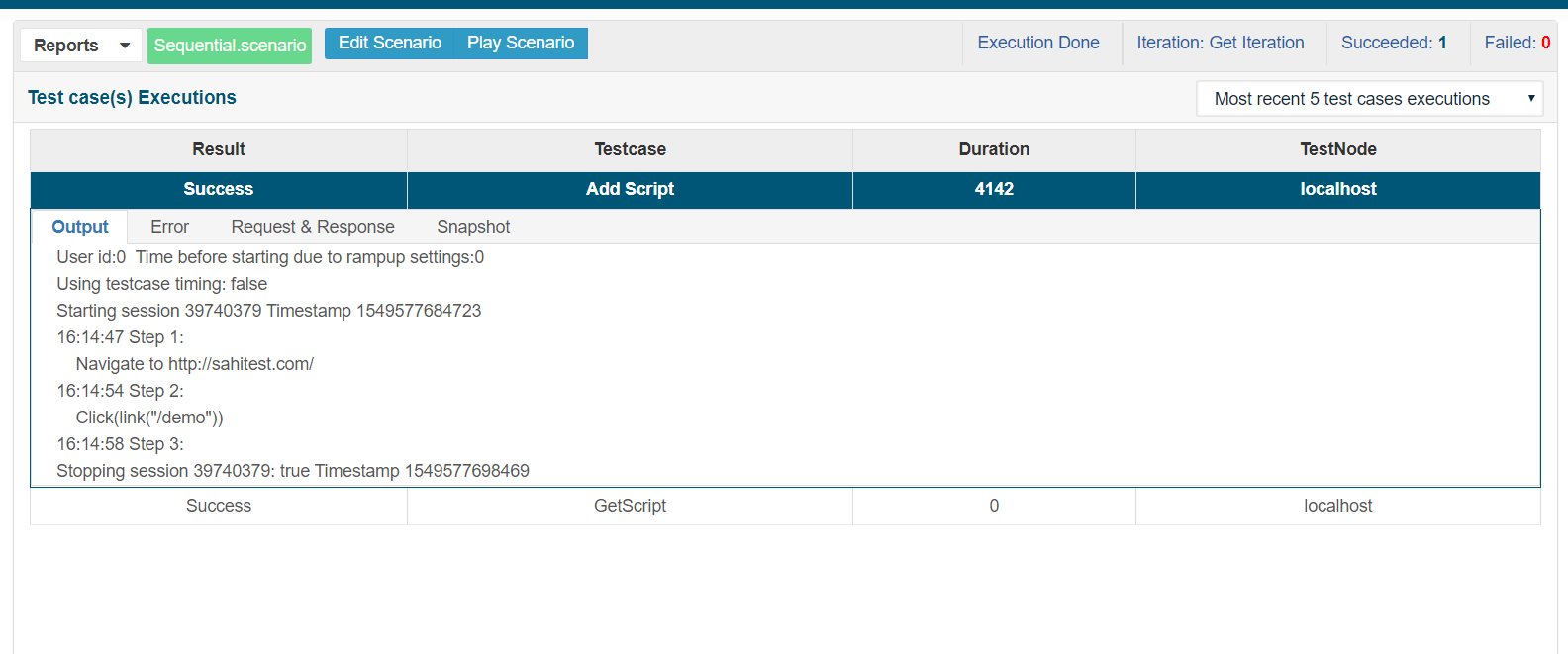
Result of Test case 2:
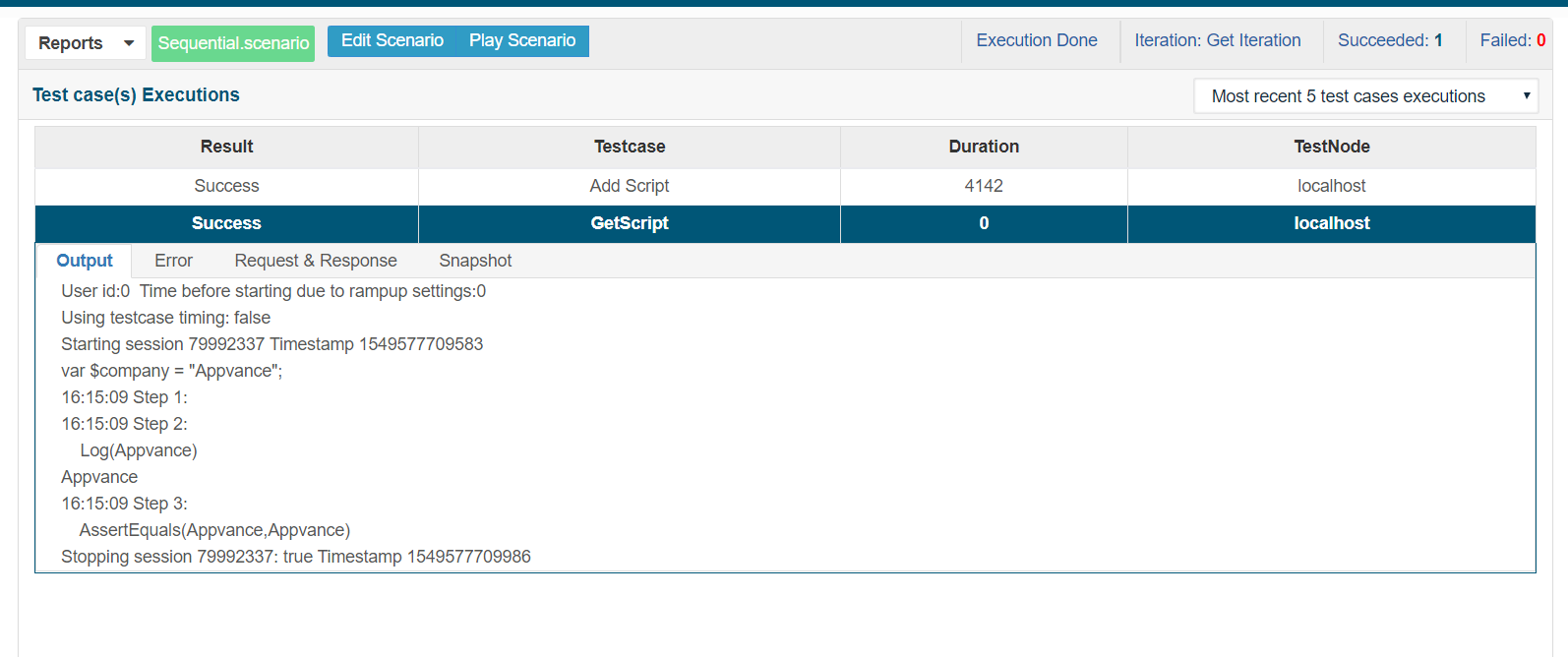
Whiteboard DPL in Scenario Editor:
Whiteboard DPL in Scenario Editor is a locker that could be used to sharesimpler data betweensource differentwould script types say for example you could store the data in a designer script and that data could be retrieved from the stored variable to another script type say Jmeter or SoapUI.work.
This is done in the Scenario Editor.
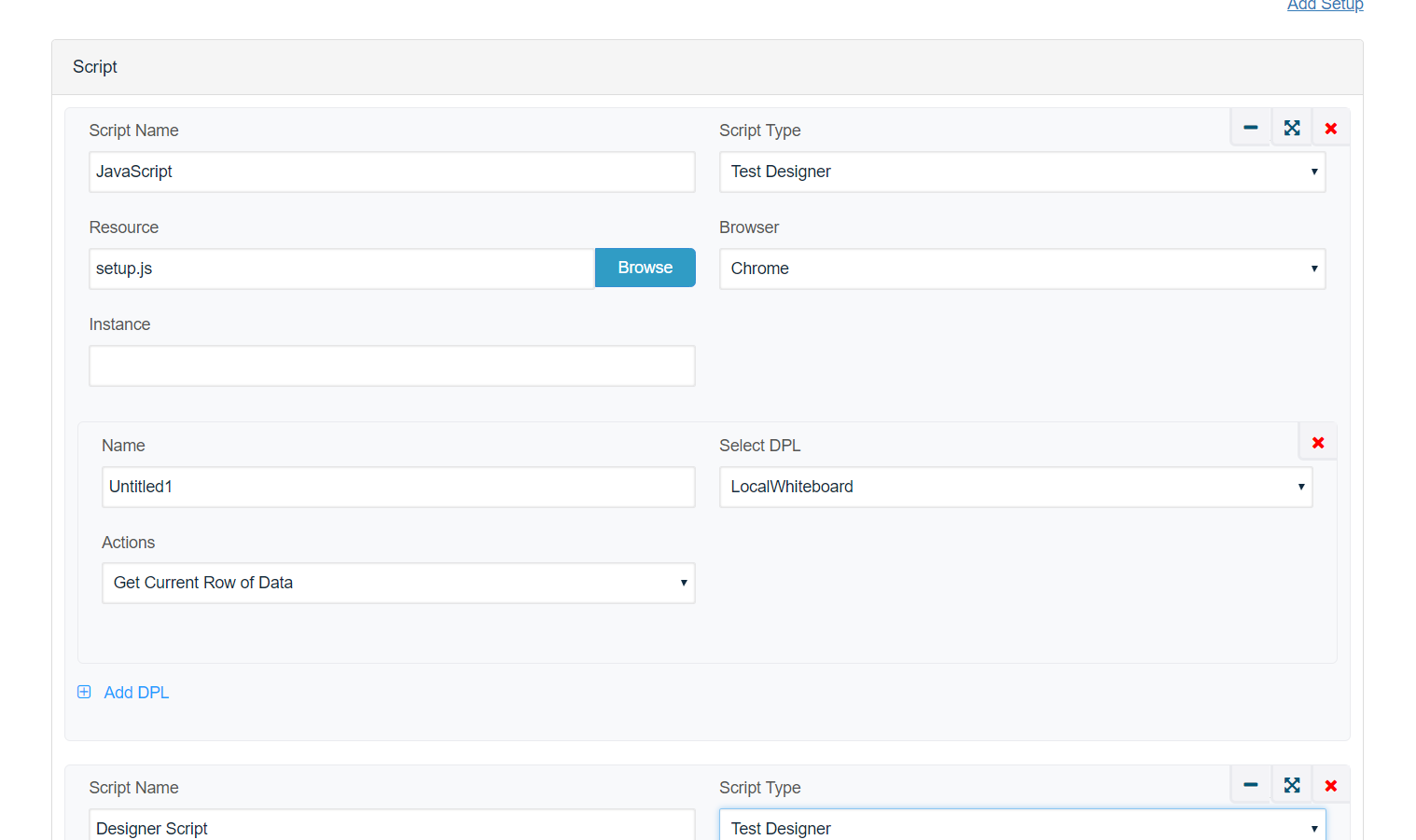
Create the first test case from the Scenario Editor by adding a new execution in the test case panel (Make sure that the script has Add to Whiteboard DPL used and the data is stored in a variable to be used in another script type)
Click on Add DPL.
Select LocalWhiteboard DPL from the Select DPL drop-down.
Save the Test case.
In the next test case (different script type - like Jmeter or SoapUI) from a different iteration, you could use this data that is stored in the whiteboard locker for further processing or for the next steps.
Last updated: AugustSeptember 03,29, 20232026
If you have any feedback on this topic, please contact us at documentation@appvance.ai.