
WhiteBoard DPL
UseThe Whiteboard DPL lets you share data from within any Test Designer script in the scenario even if they are in different iterations.
The only restriction is that the scripts must run in the same test node.
The below example shall show you how this articlecould whenbe used.
There are 2 Test Designer APIs that is used for this purpose:
Add to WhiteBoard
Get from WhiteBoard
As we know that this DPL is like a locker that could be used to share data between test datacases mustbetween different iterations.
Below is tested designer script 1 that has a step "Add to Whiteboard" DPL where a hardcoded value "Appvance" is getting stored in the variable "company"
Here we could use getText to get the text from the browser and store the value in the variable to be sharedstored in the Whiteboard DPL which shall be used in a different test case of a different iteration.

Below is Test Designer script 2 that has a step "Get from Whiteboard" DPL where the value that was stored using "Add to Whiteboard" could be retrieved and stored in another variable which could be used for further scripting or manipulatedusage.

Once you have the script ready, it is time to create the scenario with different iterations and test cases.
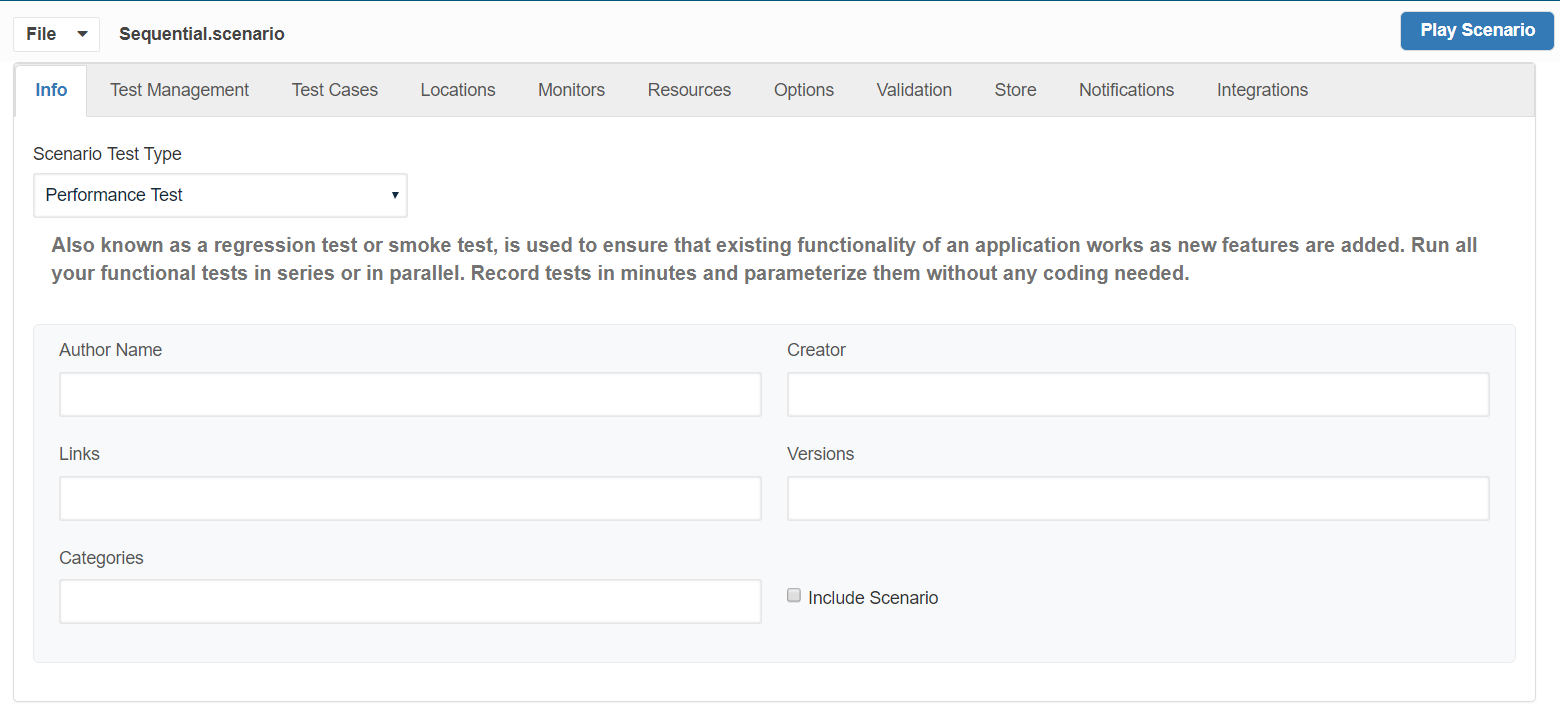
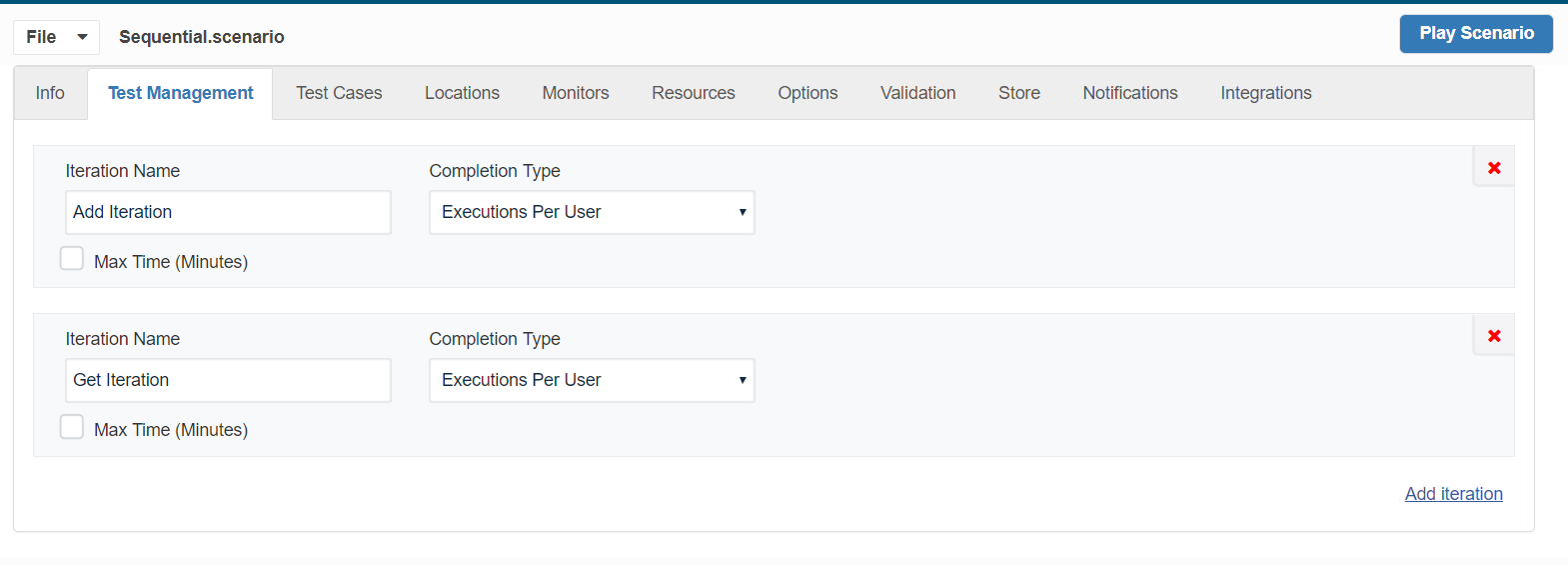
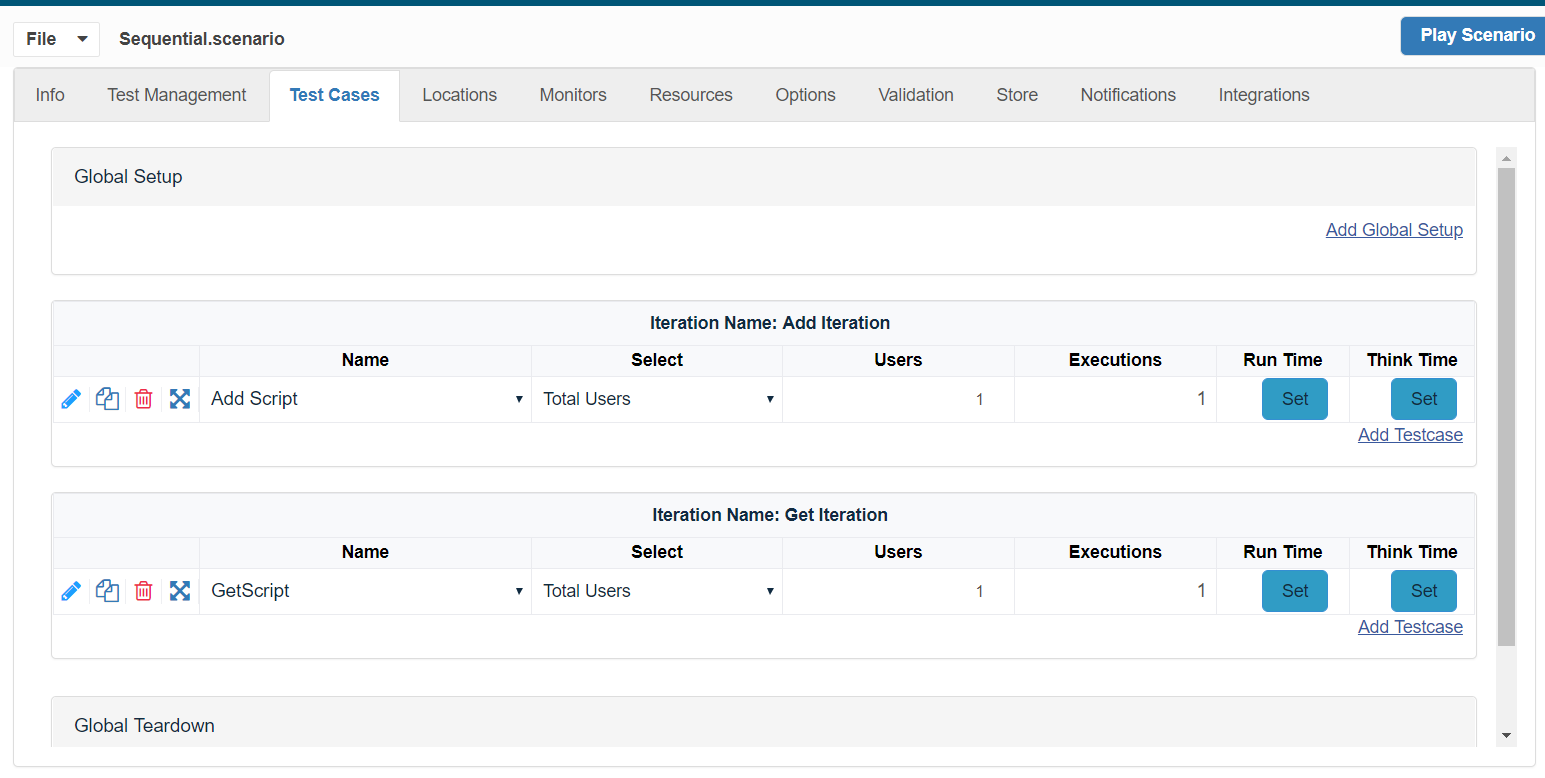
The below example shows a WhiteBoardperformance test with 2 different iterations, with each iteration having a test case each, 1st test case in the iteration is going to add the value to Whiteboard and the 2nd test case in 2nd iteration will get the value from the whiteboard which could be used in further scripting.
Defining performance Test:
Defining 2 iterations:
Defining 2 test cases for each iteration.
Result of Test case 1:
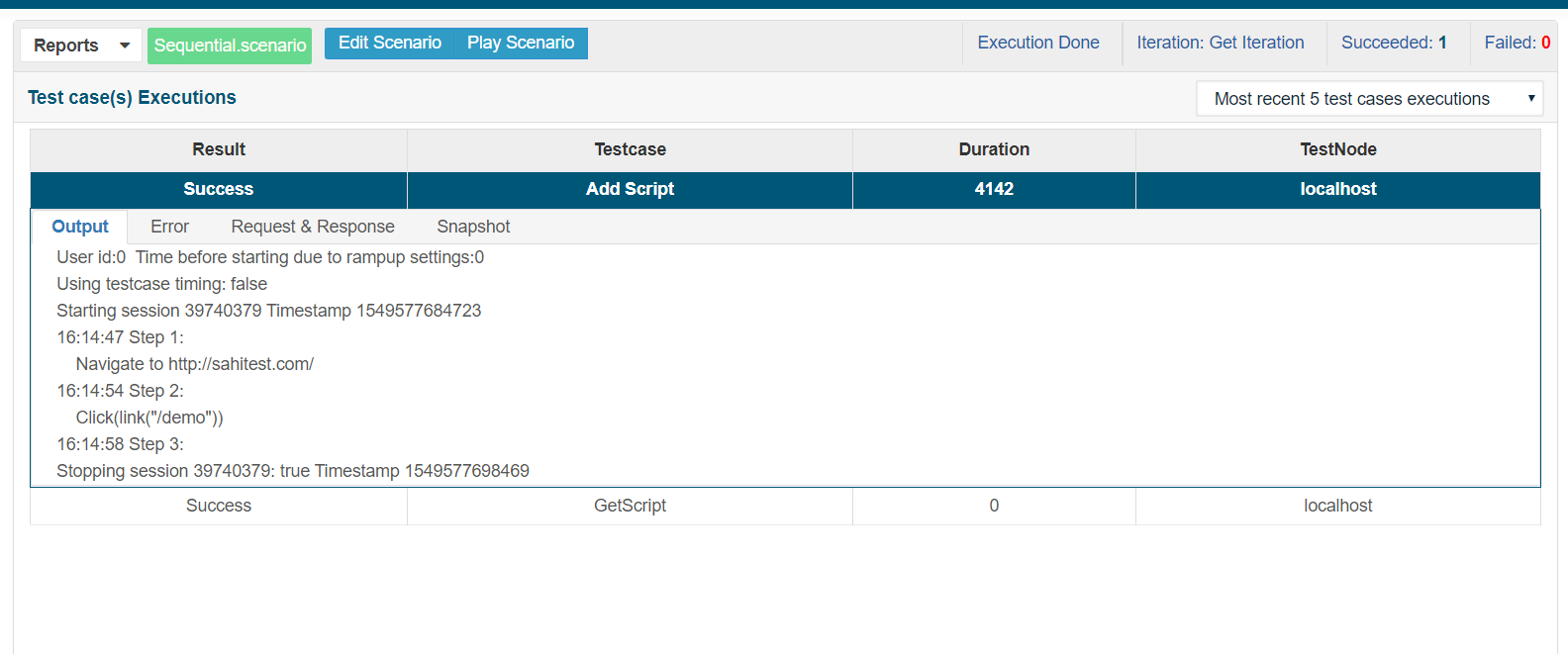
Result of Test case 2:
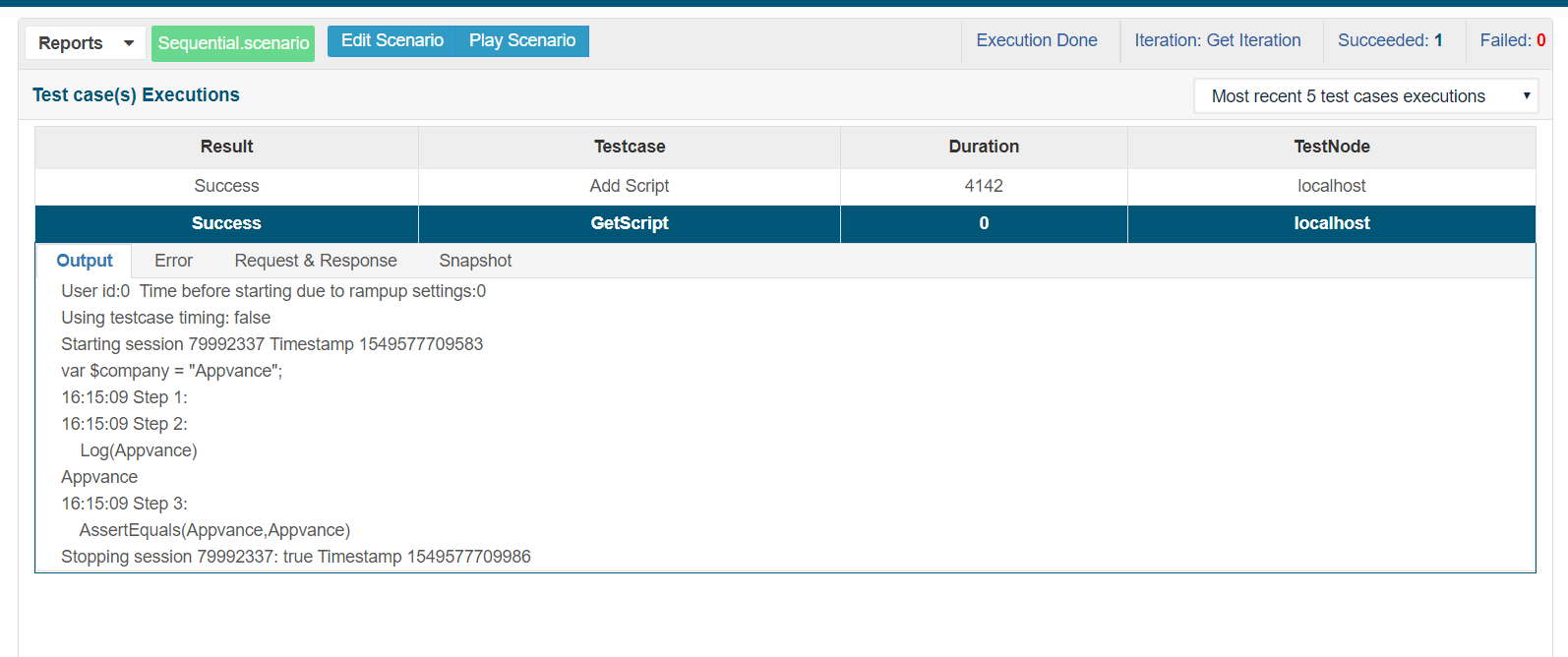
Whiteboard DPL workflow.in Scenario Editor:
Validation
Whiteboard workflowDPL
Confirmin Scenario Editor is a locker that could be used to share data between different script types say for example you could store the data in a designer script and that data could be retrieved from the stored variable to another script type say Jmeter or SoapUI.This is done in the Scenario Editor.
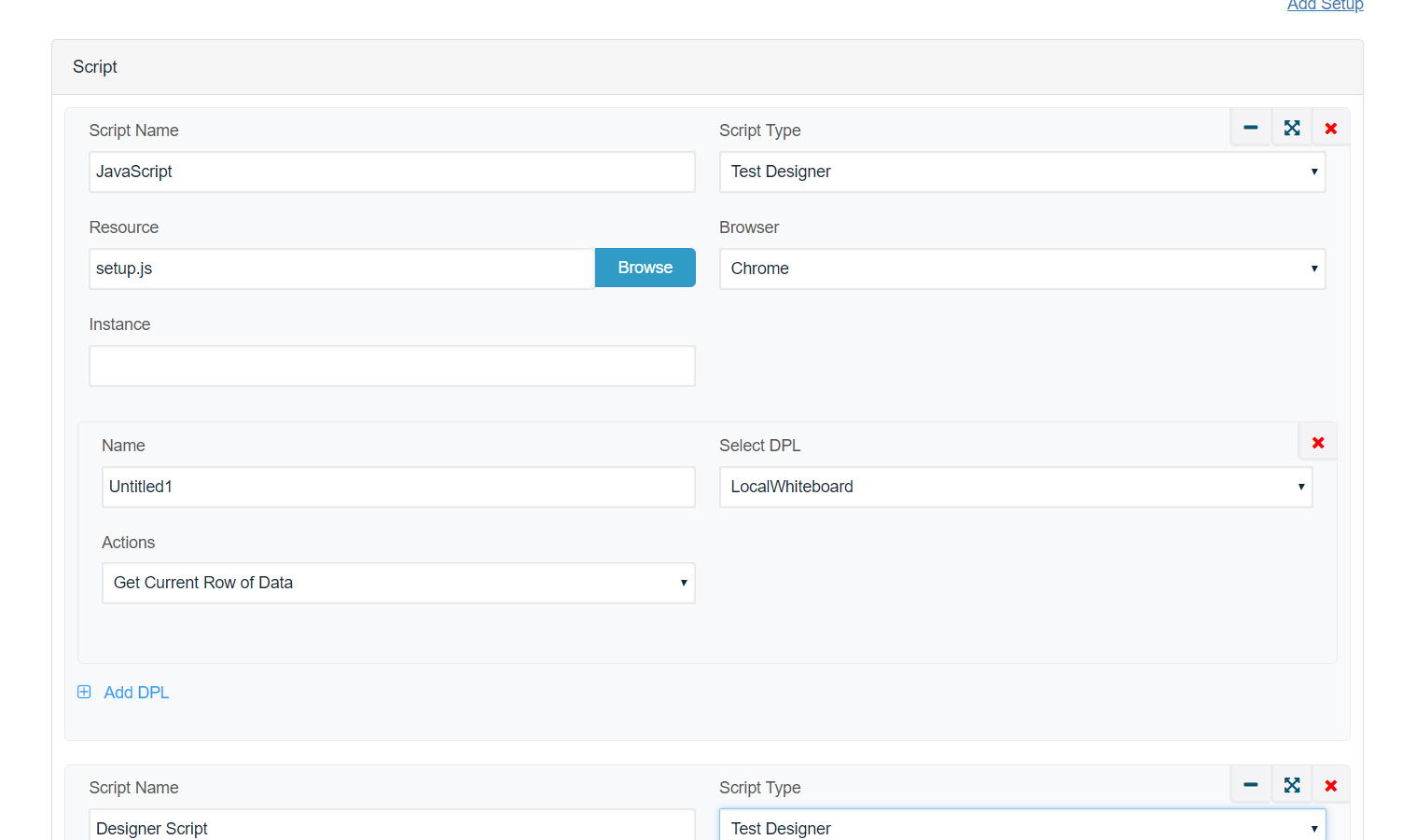
Create the first test case from the Scenario Editor by adding a new execution in the test
needscaseWhiteBoard-stylepanelshared(Makeorsuregeneratedthat the script has Add to Whiteboard DPL used and the dataratheristhan a static CSV.Validate produced values across multiple iterations and users.Confirm cleanup or reset behavior before using the DPLstored in arepeatablevariable to be used in another script type)Click on Add DPL.
Select LocalWhiteboard DPL from the Select DPL drop-down.
Save the Test case.
In the next test
run.
Last updated: SeptemberAugust 29,03, 20262023
If you have any feedback on this topic, please contact us at documentation@appvance.ai