
Analyze Page
Use
Appvance IQ stores the results of every test, every step, and every failure in a Results Repository (MySQL or Oracle RDBMS) as it operates the test.
View results from the previous test run using the Analyze Pagebuttons from the Start Screen. Results Analysis Reports display the results on a browser-based Web page by making live requests to the Results Repository. Appvance IQ keeps the results by execution.
TheConfiguration
Features
Configuration
What to review
Overall pass/fail status and error patterns.Step-level timing, failures, and repeated symptoms.Environment or data issues that affected the run.Evidence needed for follow-up, such as output details, screenshots, or logs.
Recommended workflow
Open the completed executiontab from theappropriatestartresultsscreen.orNo
controllerdataarea.Usewill be displayed by default since the default database configuration does not exist, on the top right of the page click the link 'Please configure default database configuration and refresh this page' which takes you to Options Page > Preferences > Results tab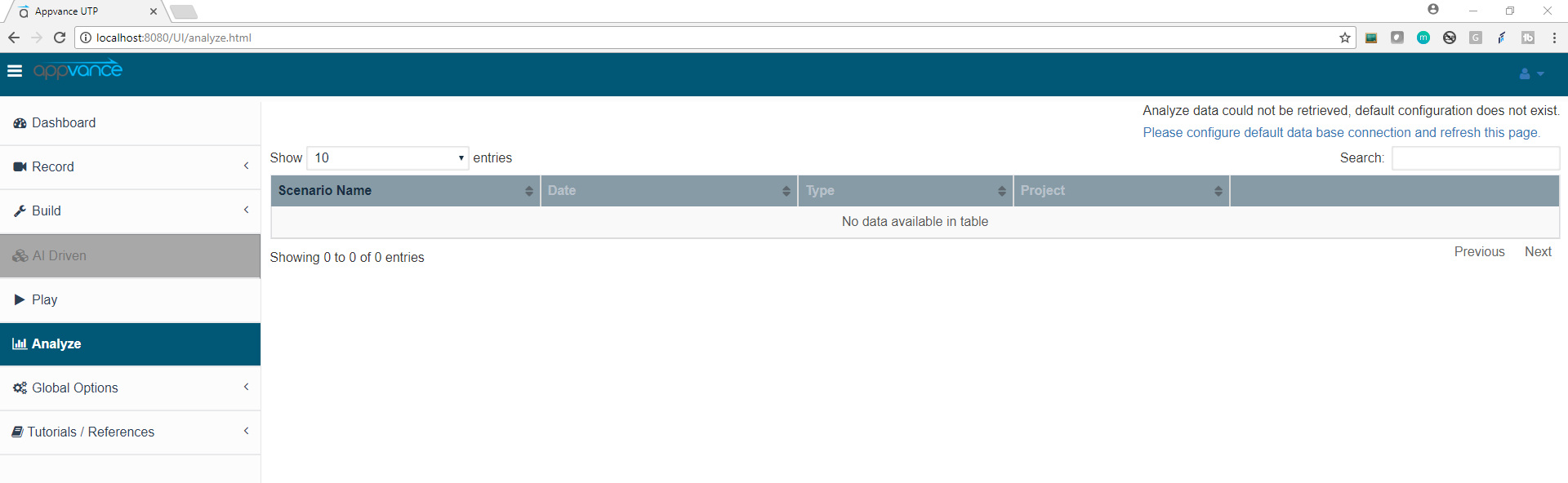
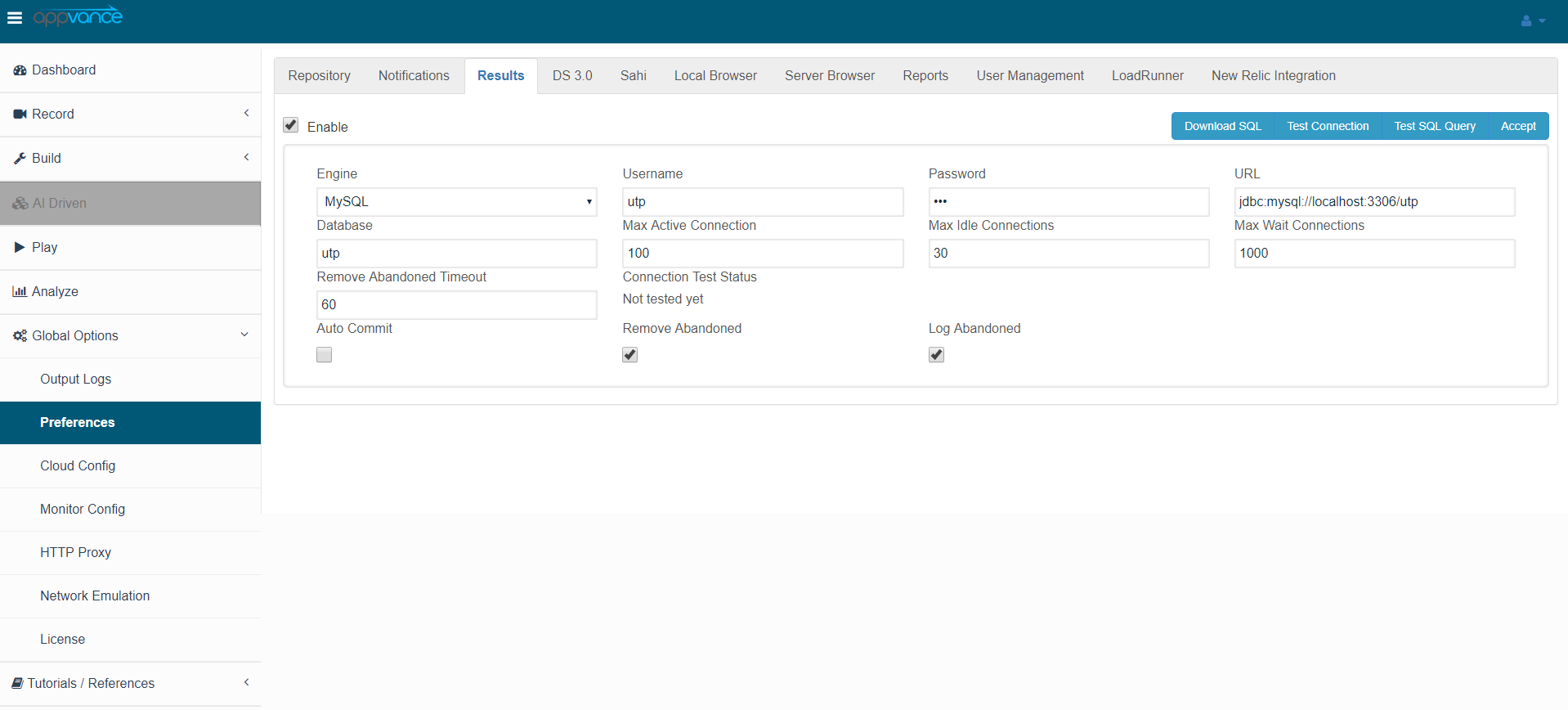
Click the Enabled check box and click Accept for the database configuration to be saved.
Come back to Analyze page to
narrowsee thefailureresults.to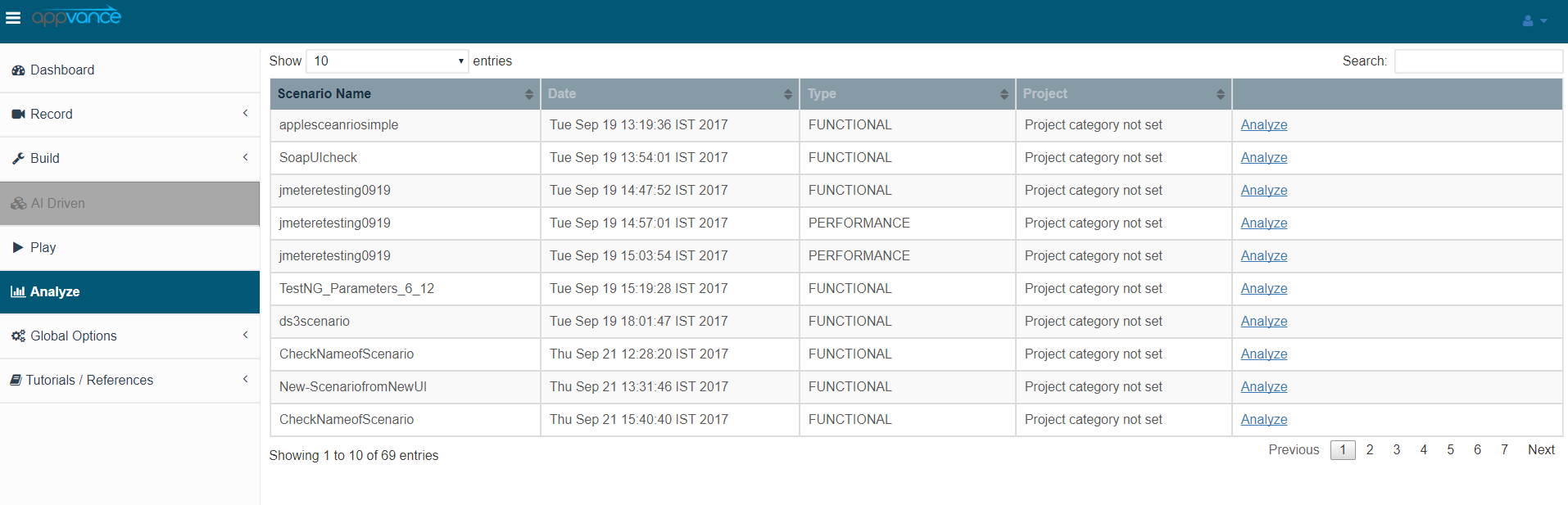
aFeatures
scenariostep,-
serviceRetrieve
call, data issue, or environment condition. Compareall thefailedpreviousrunexecutionswithusingaAnalyzeknownpagegood run when available.Recordfor thefindingdatabase configurations provided.
Users can change the database configurations in the relatedOptions defect,Page ticket,> Preferences > Results tab as mentioned earlier, for example, if the database used was an Amazon RDS MYSQL instance or test-maintenancea note.different Oracle database located on a different server used for scenario executions, those details could be provided and those execution details stored in that database will be fetched and displayed in the Analyze page.
ForUsing the Show number of entries drop-down, users can choose 10, 25, 50, or 100 entries on the same page.
Each entry will have Scenario EditorName, tests,Date, startType of the test scenario (functional, performance, Database, etc), Project Category, Analyze link (which takes to Result Analysis page), and a check box to delete the entry if not required for future reference.
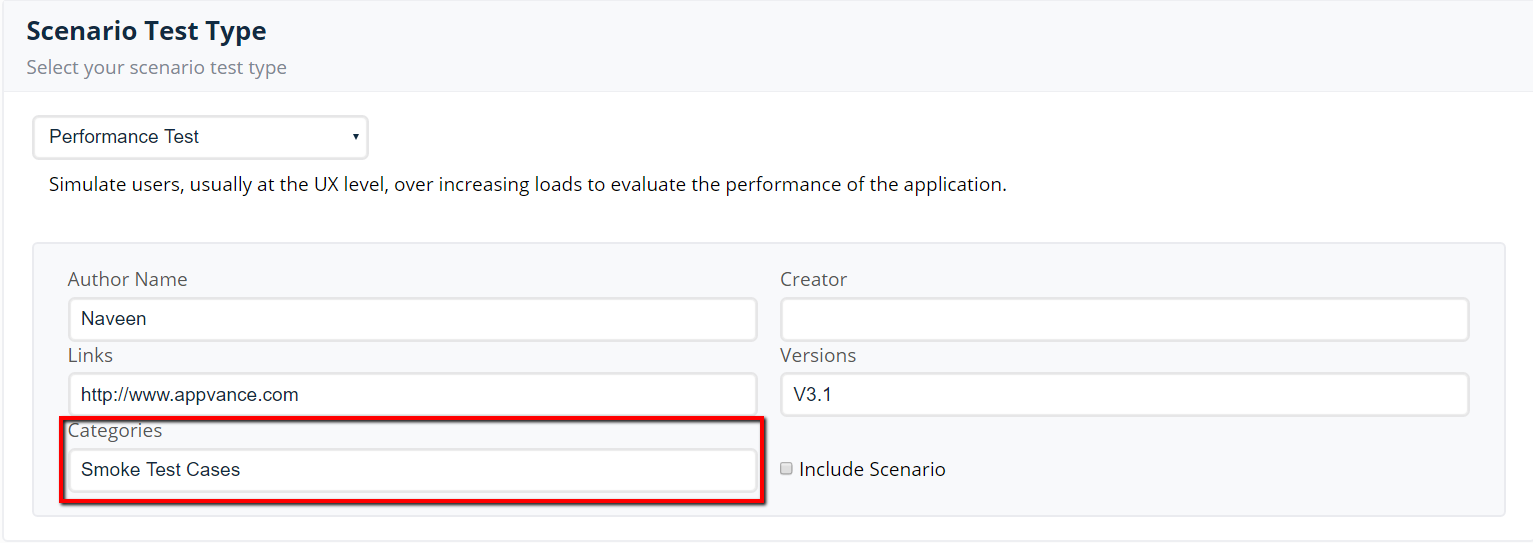
Project Category can be provided in the scenario Info tab of Scenario Builder as shown below.
The entries can be sorted based on Scenario Names or Dates.
In the Analyze section, the Date column displays the day, date, and time relative to the time settings on an individual user's system. Having this data in the user's local time zone makes it easier to read the data.
The dates display relative to the individual user's system was added in the AIQ 4.8.2 release.
Users can Search any Execution based on the scenario name, using the Search text field.
Use the Delete button to delete the execution which cannot be retrieved back, users can also do multi-select and delete all those entries.
Note: Doing multi-select and deleting the entries might be a little slow as those data will be deleted from the Database.
Use pagination to navigate to different pages.
Click Analyze button for each execution which will take you to the Result Analysis of that particular execution, Check the Result Analysis chapter for more details.
A Functional report of execution can be downloaded from the analyze page.
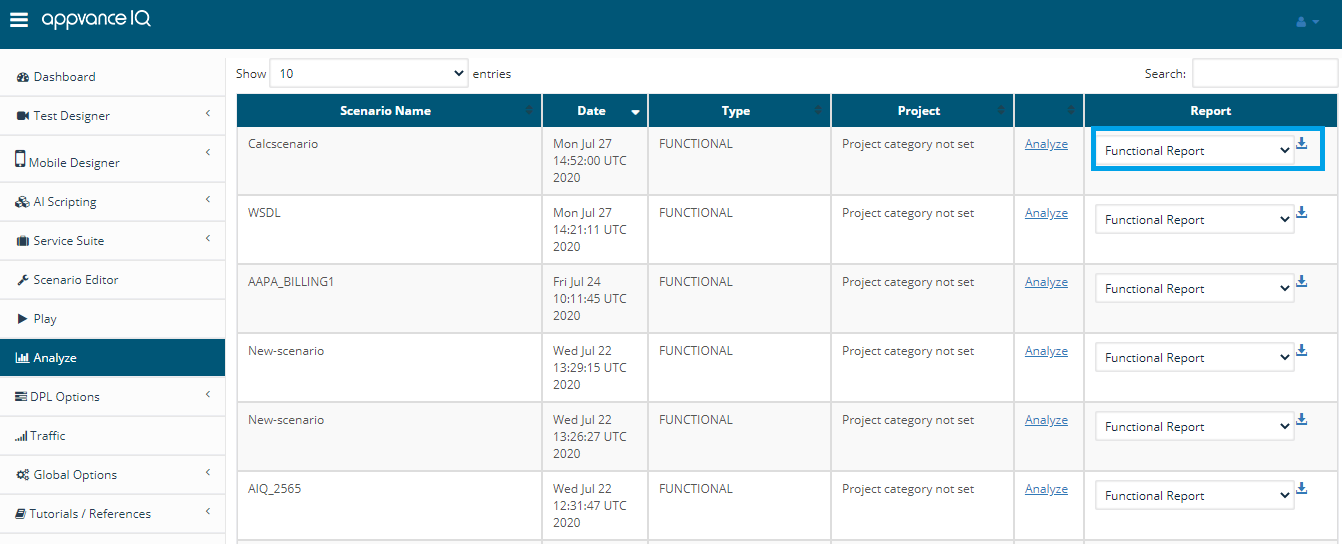
A functional HTML report would be downloaded to the local machine with all the resources (images, test assets, etc), the report includes all the functional run details including failure screenshot, Test Designer, and instant replay logs of the test run for further analysis.
Failures Report
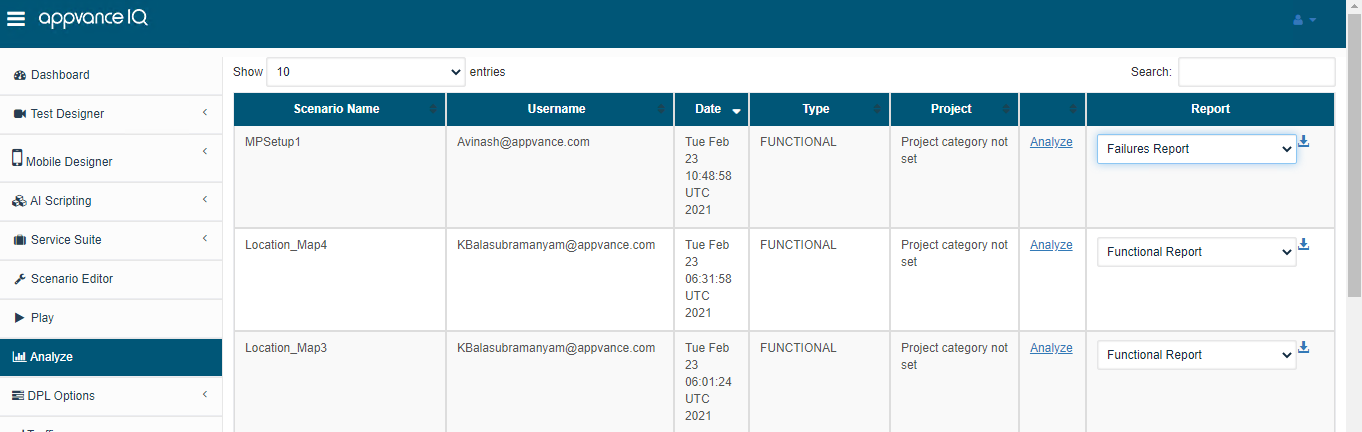
A Failure Report per execution can be downloaded from the Analyze page by checkingselecting Failures Report from the faileddrop-down and clicking the download button.
A zip file with all the resources would be downloaded, it is required to extract all the resources and open the "Failure.html" Report.
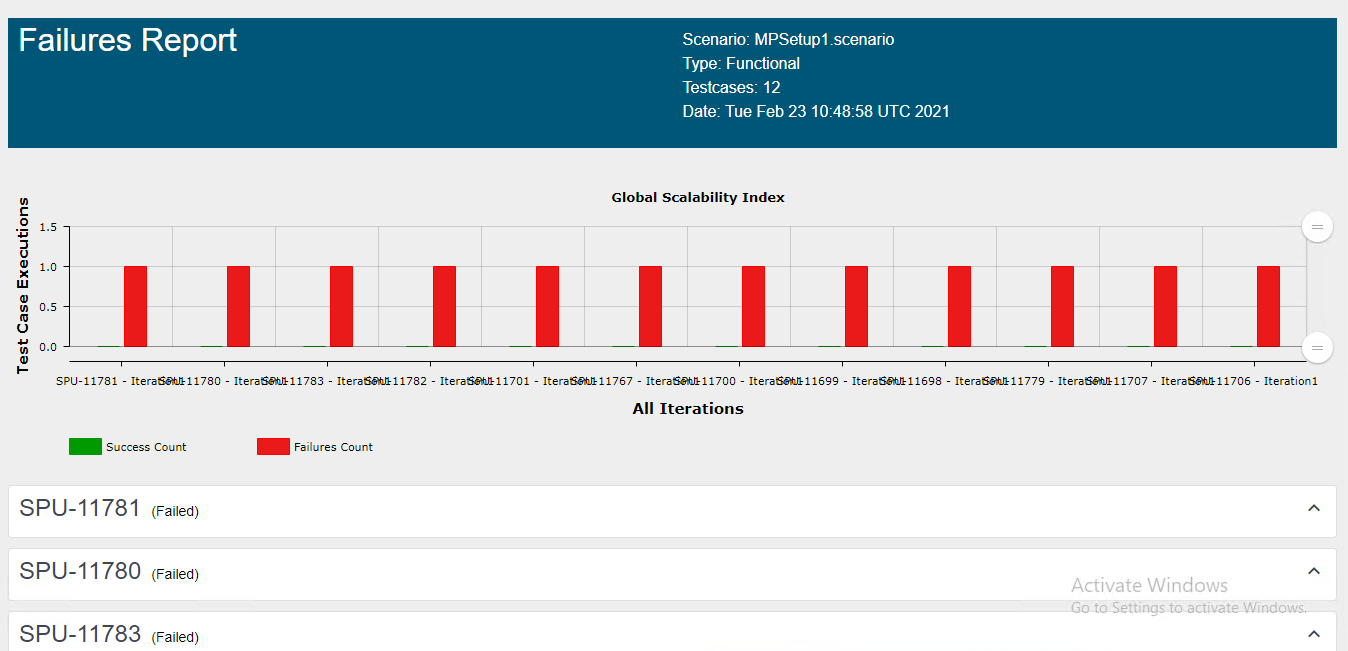
You can click each of the test cases mentioned which shows all the step and its test data before changingdetails, the scenario.step that was failed, script snapshot, application failure snapshot, Request/Response details.
All Iteration summary Reports - From the Reports page, The iteration summary report lets you download the iteration summary report per iteration, but using this drop-down report, you will be able to download the zip of all the iteration summary reports generated per execution.
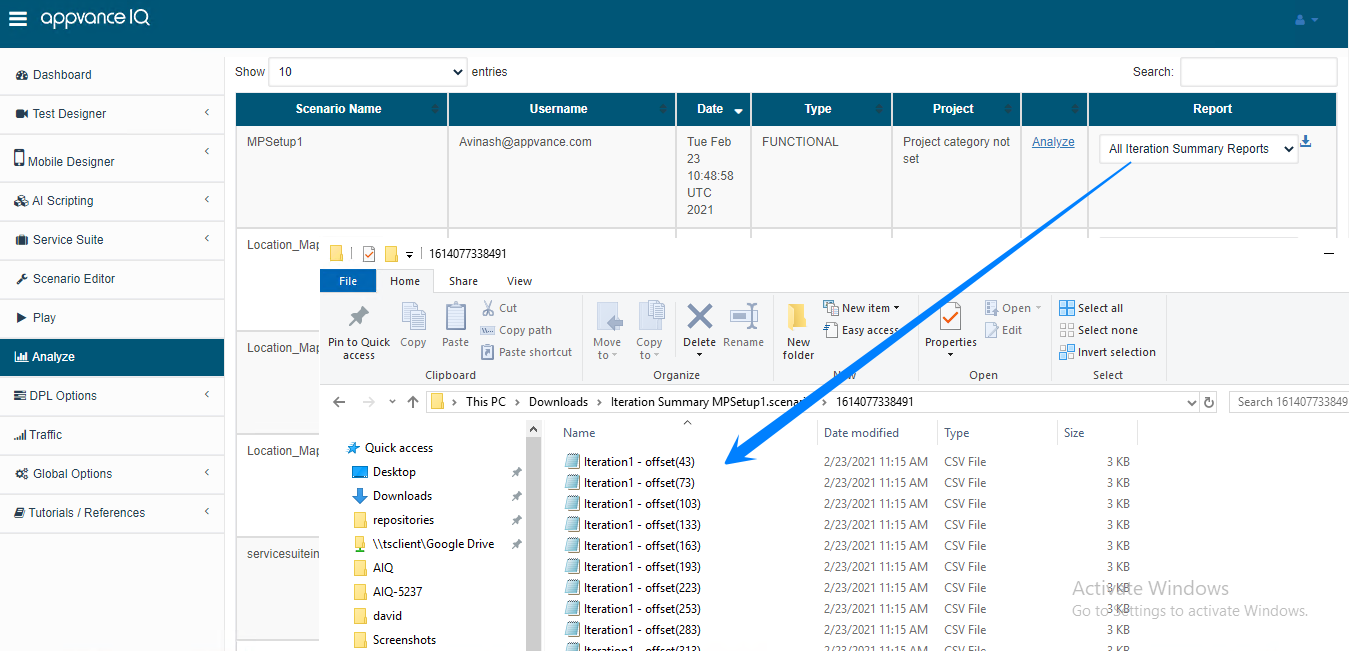
User name column - The user name column will be shown only for Admins and it will show all the list of users executing the scenarios.
Last updated: June 26, 2023
LastIf updated:you Septemberhave 18,any 2026feedback on this topic, please contact us at documentation@appvance.ai