
Command Line Script Type Reference
AppvanceUse IQthis isarticle when a platformscenario thator supportsservice runningworkflow any Command-Line commands. Here are the steps that we need to followneeds to run the command line command from Appvance IQ.
Running a Command-Line Functional Test
Running a Command-Line Performance Test
Running a Command-Line Functional Test
Please follow the below steps.
In AIQ navigate to Scenario Editor.
Click File and select New to create a new scenario
Select Functional Test in the Scenario Test Type dropdown.
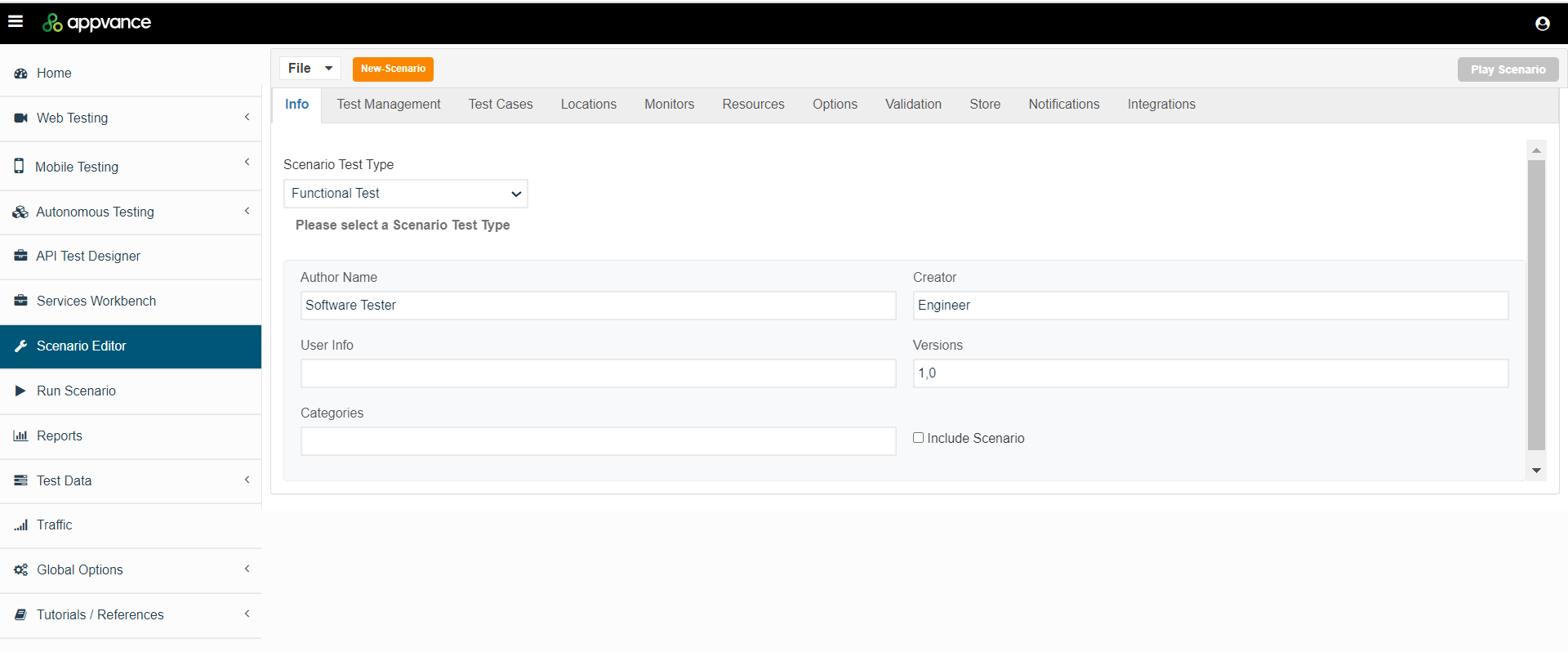
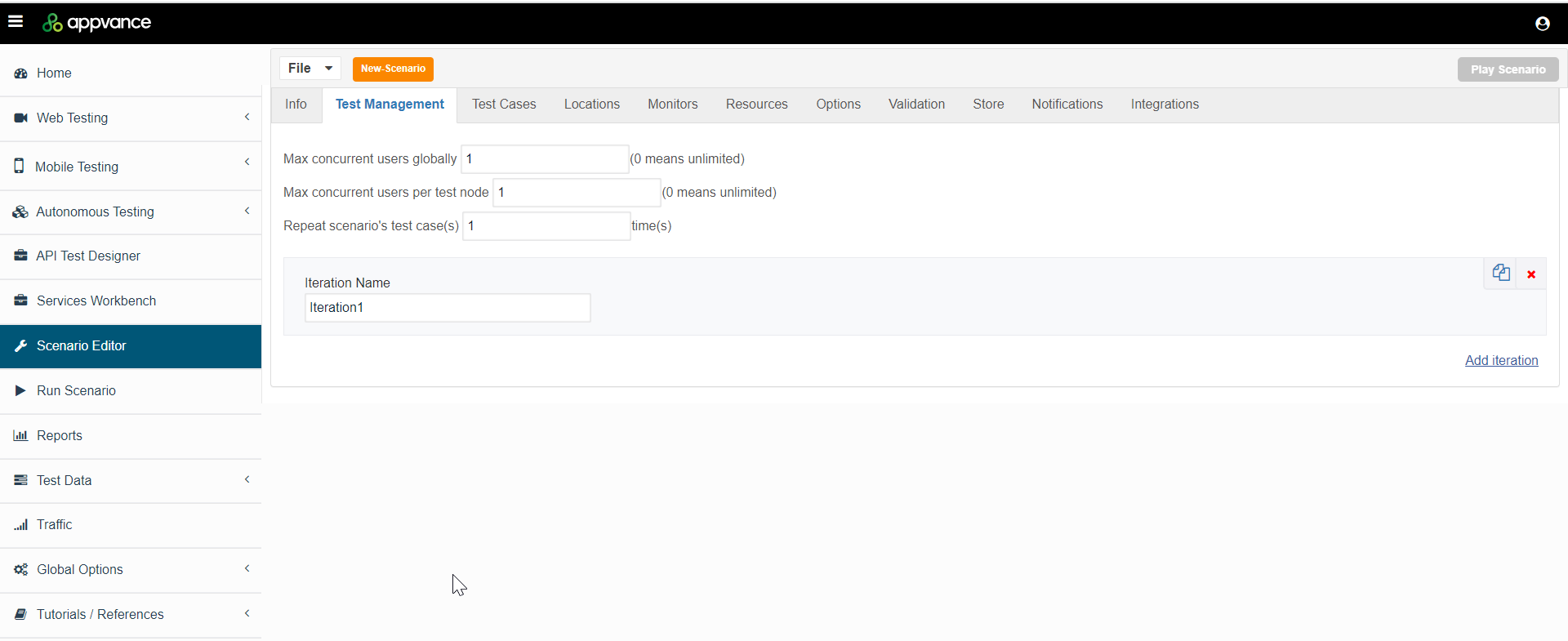
Click the Test Management tab and check: "Repeat scenario's test cases 1 time"
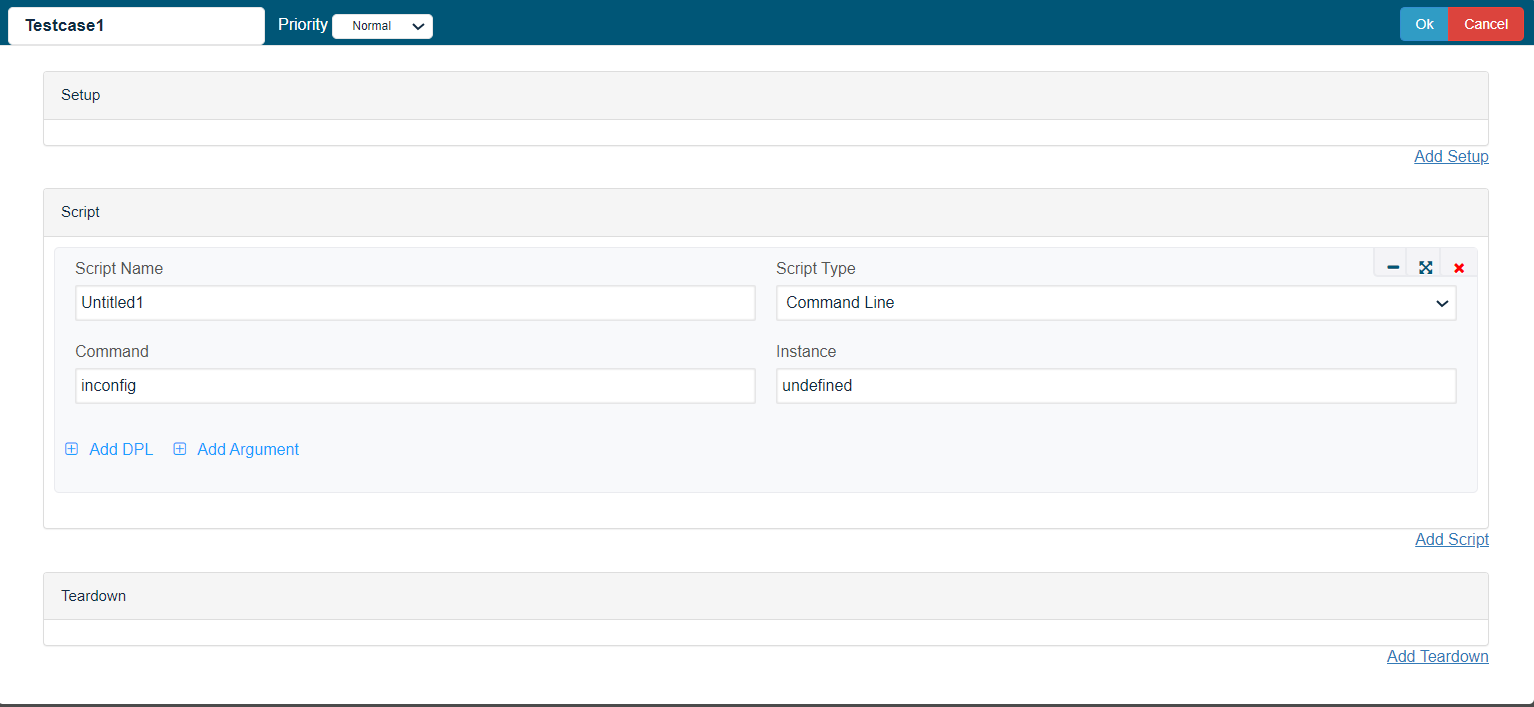
Click the Test Cases tab and click Add Testcase to add an execution.
Enter the Test Case Name and Script Name.
Select Command Line from the Script Type dropdown
Type the command that needs to be executed, Following are some of the commands that can be run, but anyapproved command-line commandscript can be used.
For example
lsmkdir "C:/Users/User1/FolderName"ipconfigping http://www.google.comtaskkill /f /im firefox.exetaskkill /f /im java.exedirTasklistPowercfg
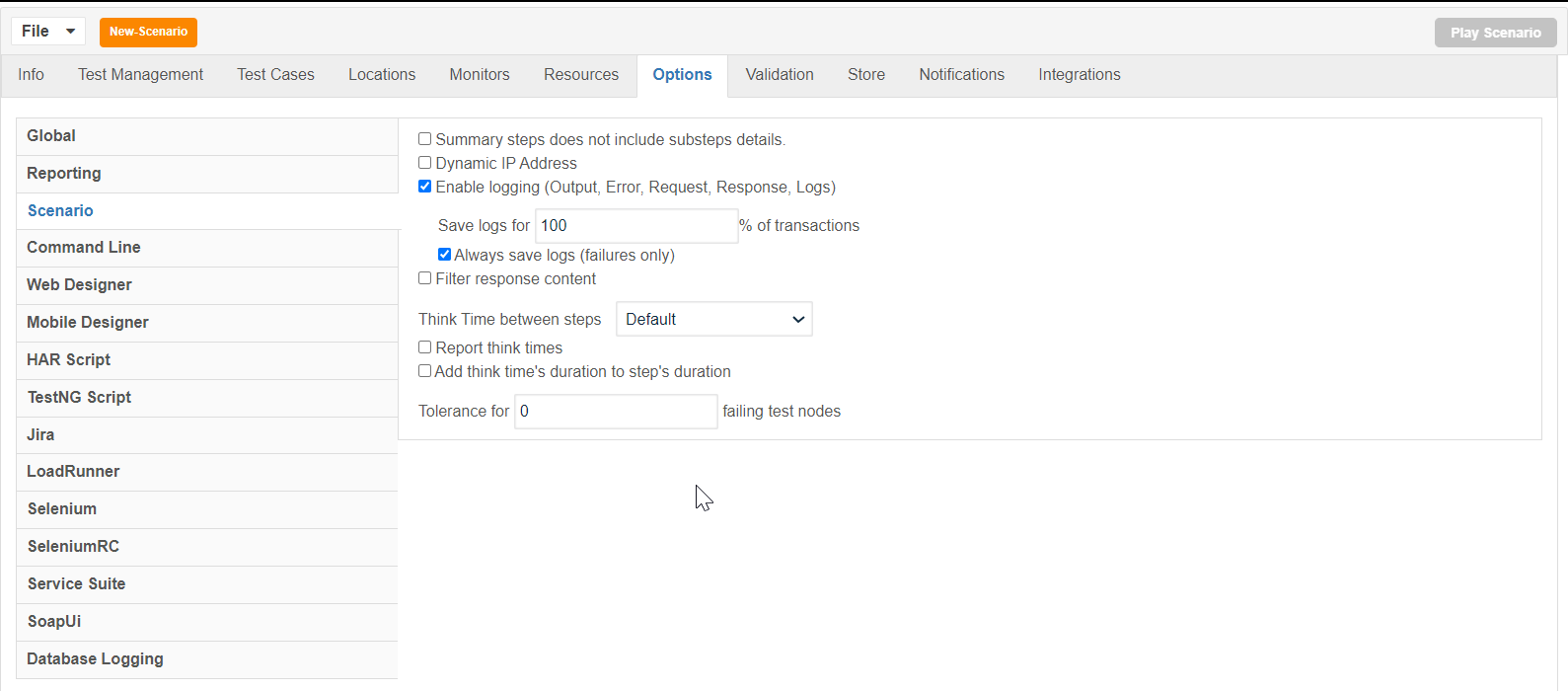
Navigate to the Options tab and select the Scenario section.
Make sure that Enable logging, and Always save logs (failures only) are selected.
Click File > Save to save the new scenario.
Click Play Scenario.
The Controller window will opentype in a newcontrolled tab,AIQ execution environment.
What changed in this article
- Scoped command-line script execution as a controlled capability, not a generic shell-execution recommendation.
- Added checks for script ownership, execution host, working directory, arguments, environment variables, timeout, exit code, stdout, stderr, and
displayleast privilege. - Added warnings to avoid secrets in command arguments or output logs.
Validation workflow
- Confirm the
testscommand-linewhilescripttheyisareapprovedrunning.andThesafepass / fail status offor theteststargetwillexecutionbehost. - Validate
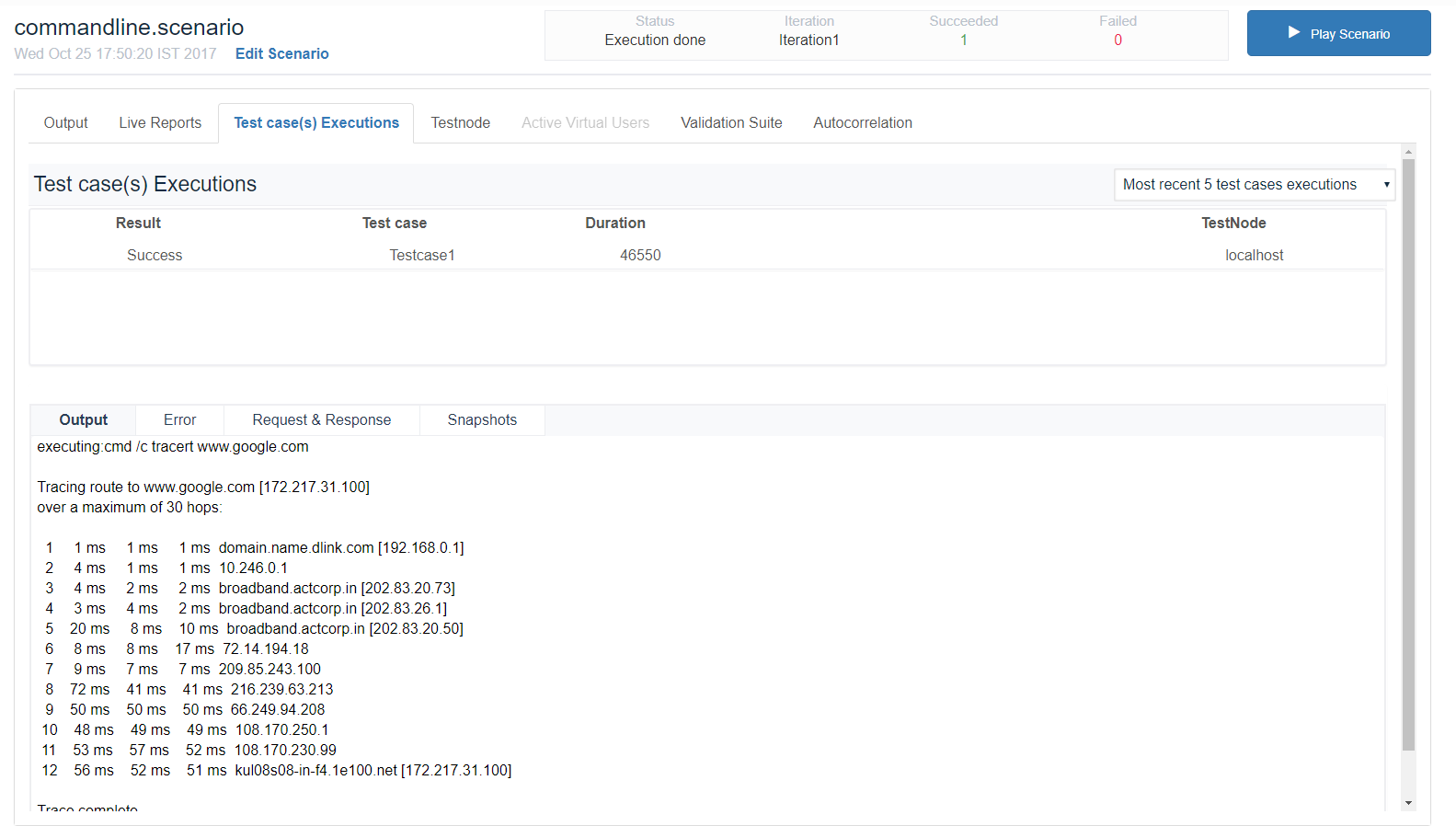
displayedpath,uponarguments,testpermissions,completion.timeout,Theexpectedleft part shows the stepsoutput, andthefailureduration in milliseconds and the right side shows the test run status under the Output tab.
Navigate to the Test Case(s) Execution tab and click the test case result. Then click the Output tab below to see the output.
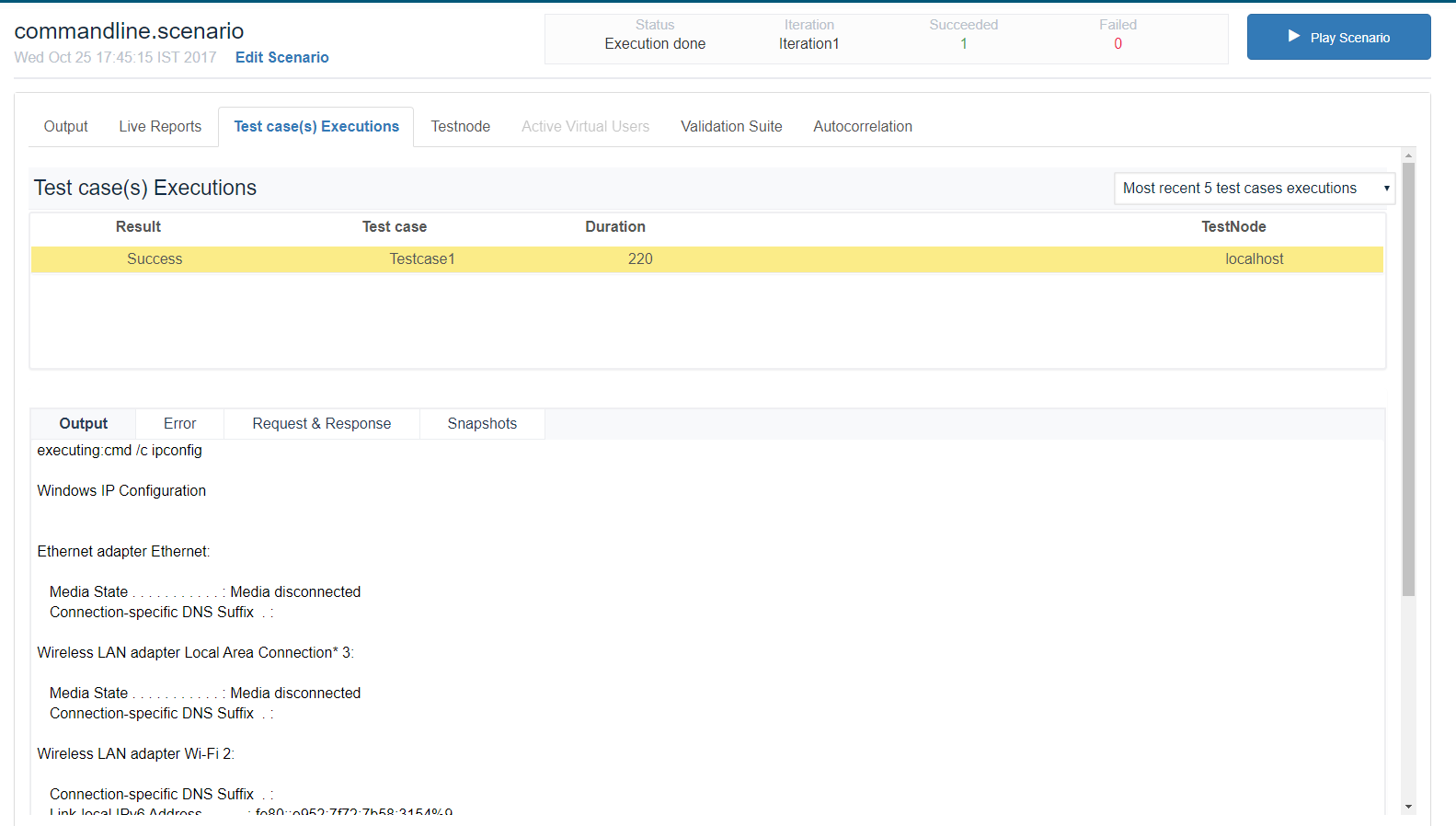
On the Transactions tab, you can find the request/response. Click on the Error tab to drill down further into the results.
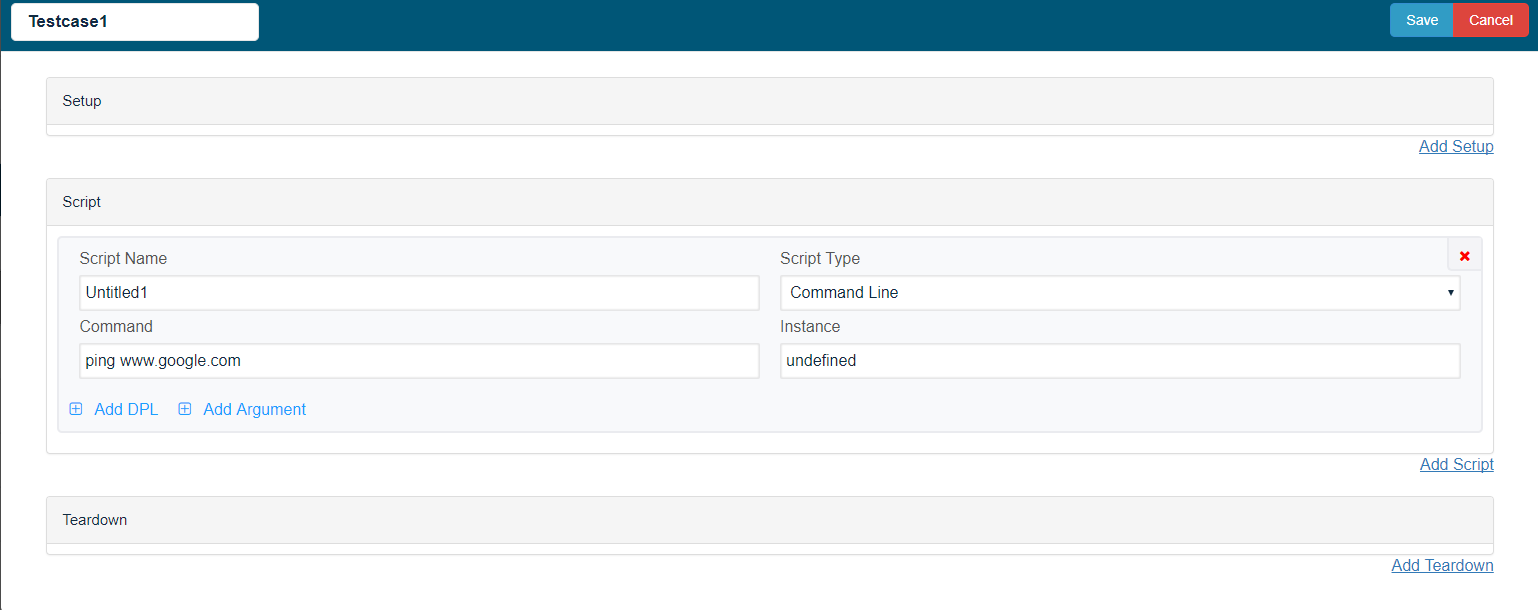
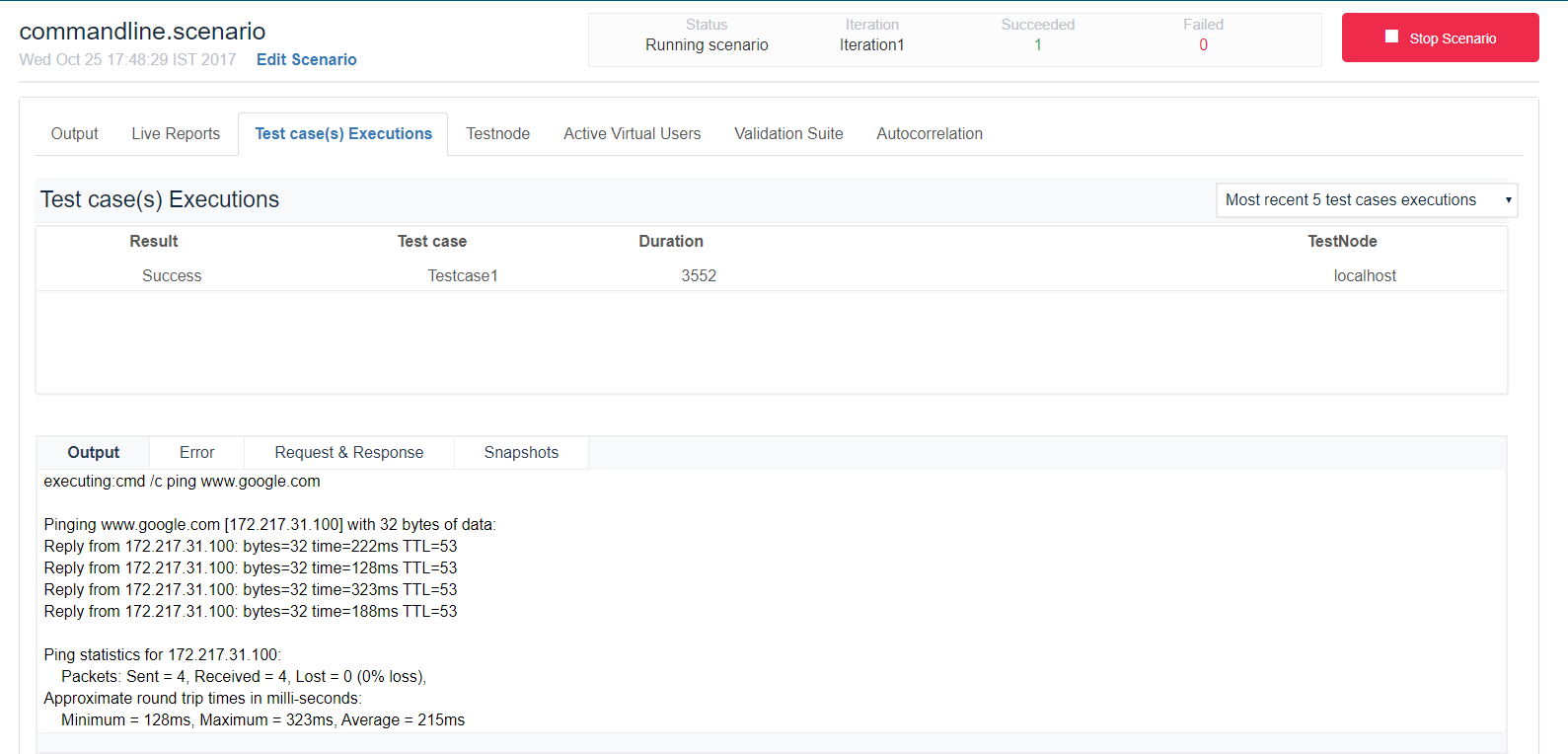
Additional Example - ping command
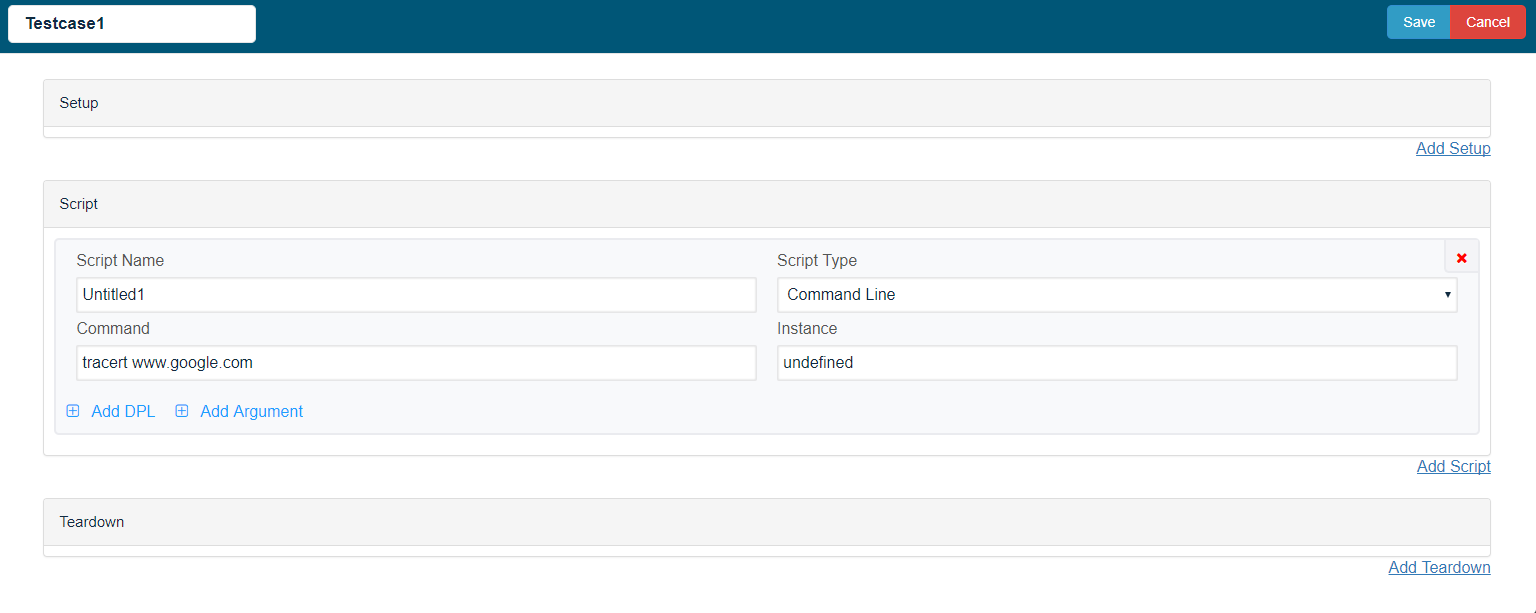
Additional Example - tracert command
Running a Command-Line Performance Test
Please follow the below steps:
In AIQ navigate to Scenario Editor.
Click File and select New to create a new scenario
Select Performance Test in the Scenario Test Type dropdown.
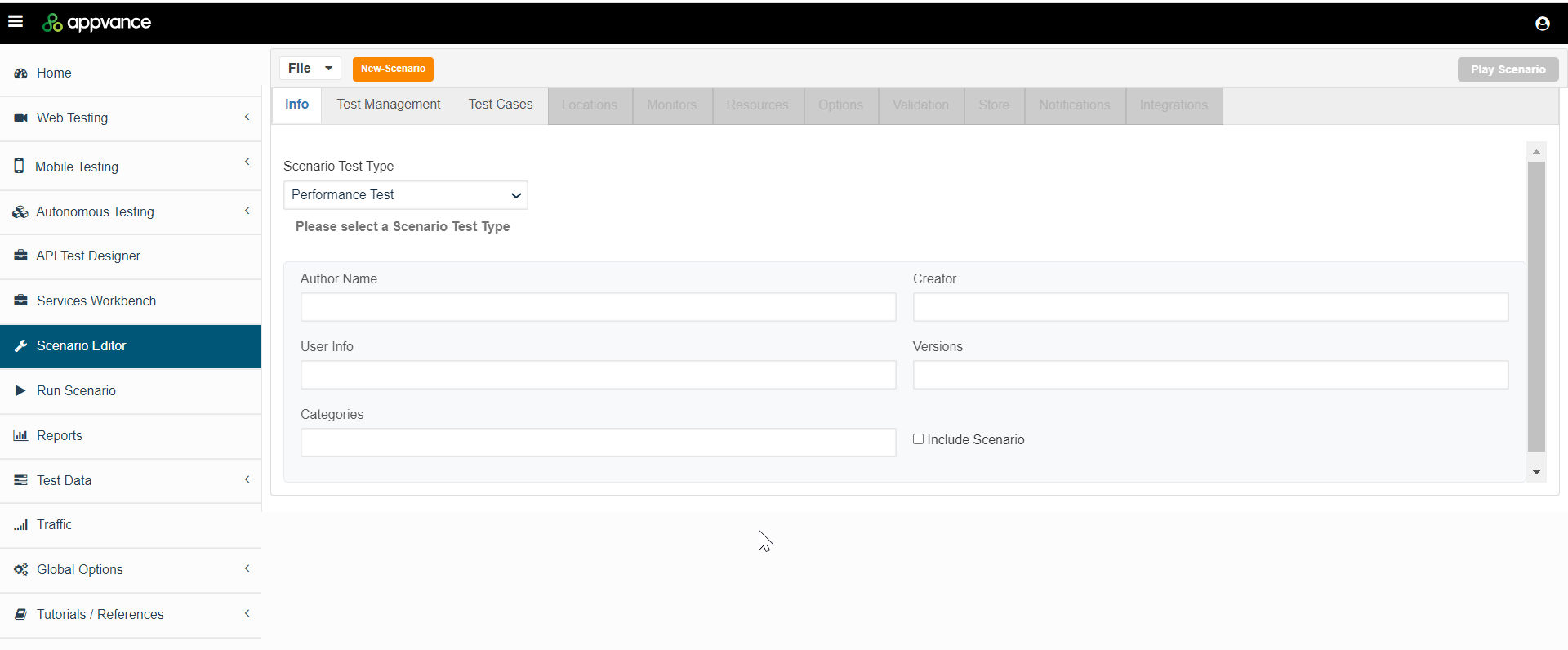
Click the Test Management tab.
Enter an Iteration name and then select Executions Per User from the Completion Type dropdown.
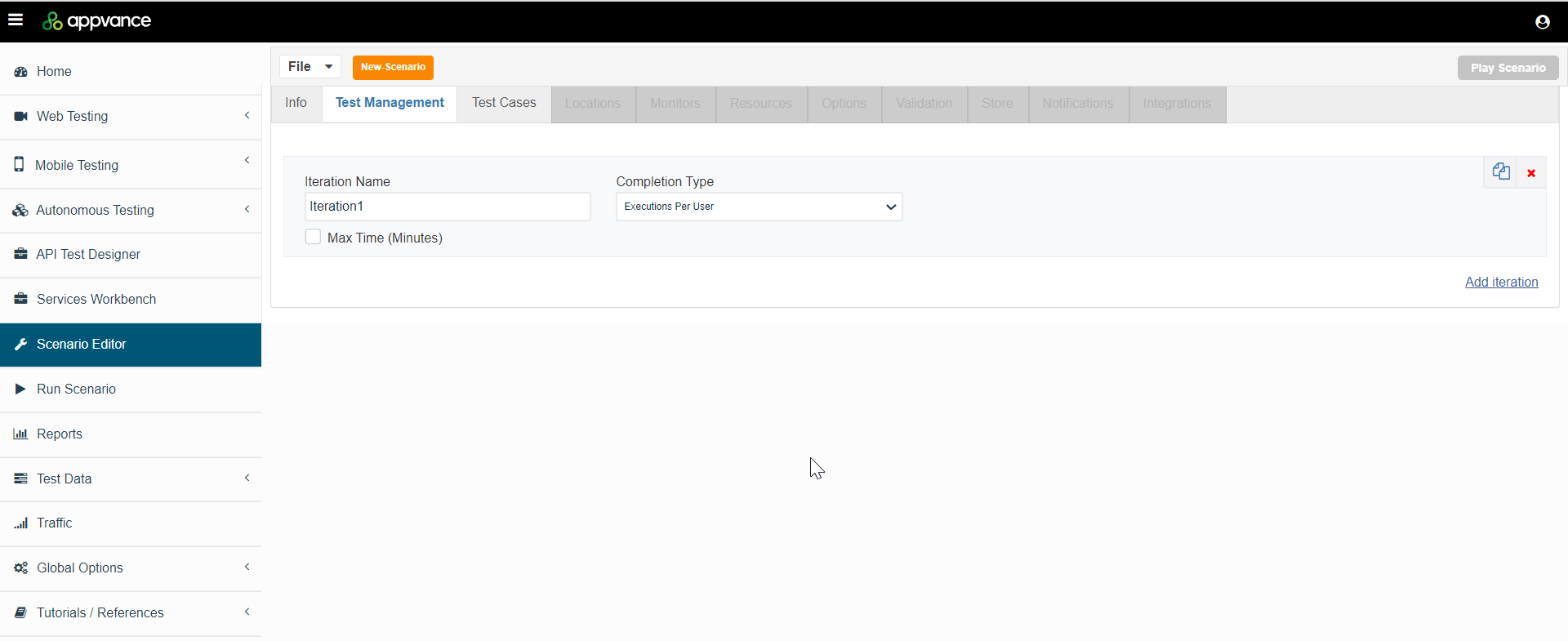
Click the Test Cases tab and click Add Testcase to add an execution.
Enter the Test Case Name and the Script Name.
Provide the command line command. Click Save.
Enter 5 in the Users field and 5 in the Executions field.
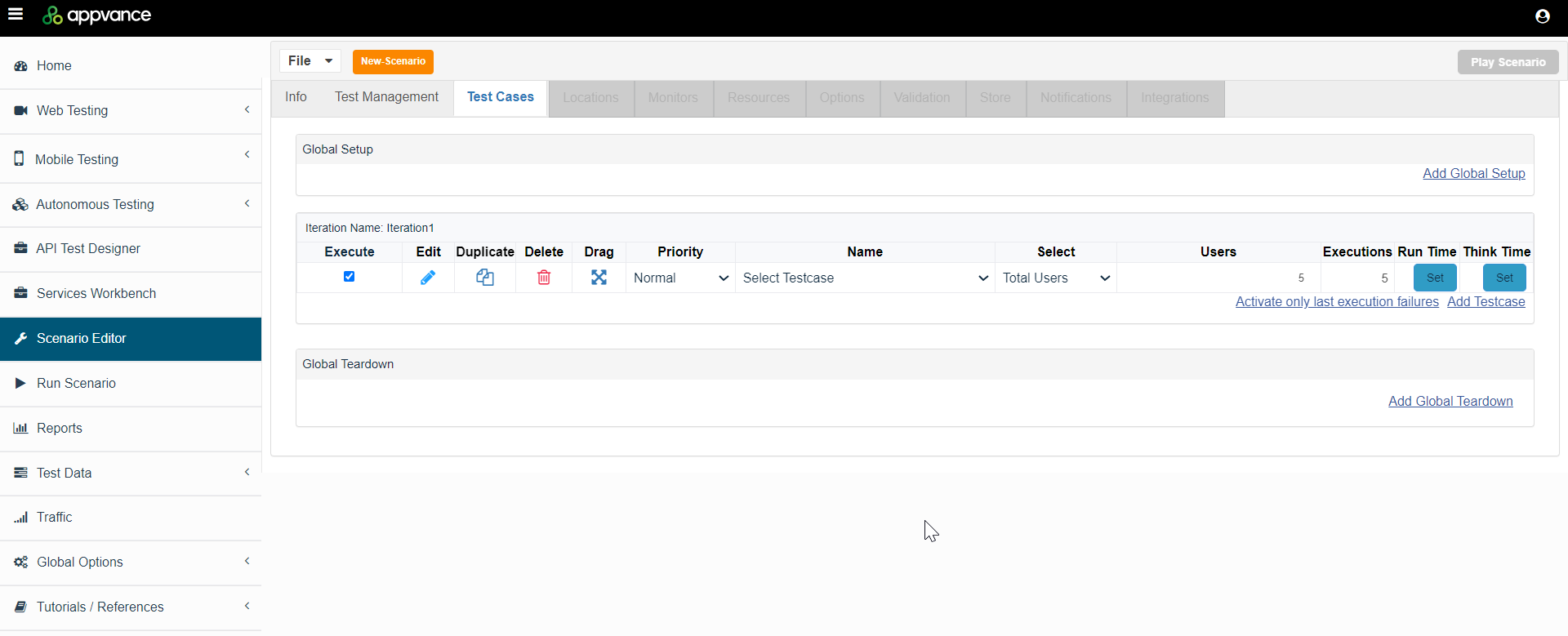
Navigate to the Options tab and select the Scenario section.
Make sure that Enable logging, and Always save logs (failures only) are selected.
Click File > Save to save the new scenario.
Click Play Scenario.
The Controller window will openbehavior in a newsmall tab,run.
Review failnote: statusThis ofpage now aligns with the testsService willSuite becommand-execution displayed upon test completion.
The left part shows the steps and the duration in milliseconds and the right side shows the test run status under the Output tab.
Navigate to the Test Case(s) Execution tab and click the test case result. Then click the Output tab below to see the output.
Command-Line Resource
Command-Line Resource is another Script Type that requires the resource to be browsed.
Files with .cmd, .sh extension can be used with this Script type just like designer scripts (.ds) etc. This file will be added as a resource file in the Resources Panel of the Scenario Builder.
An example could be to open a swing or JavaFX applicationcleanup from aearlier shell or command script.batches.
cd /opt/utp/MyScripts/SwingSet2
sh Swing.sh
Last updated: DecemberOctober 13,5, 20232026
If you have any feedback on this topic, please contact us at documentation@appvance.ai.