
Command Line Script Type
UseAppvance thisIQ article whenis a platform that supports running any Command-Line commands. Here are the steps that we need to follow to run the command line command from Appvance IQ.
Running a Command-Line Functional Test
Running a Command-Line Performance Test
Running a Command-Line Functional Test
Please follow the below steps.
In AIQ navigate to Scenario Editor.
Click File and select New to create a new scenario
Select Functional Test in the Scenario Test Type dropdown.
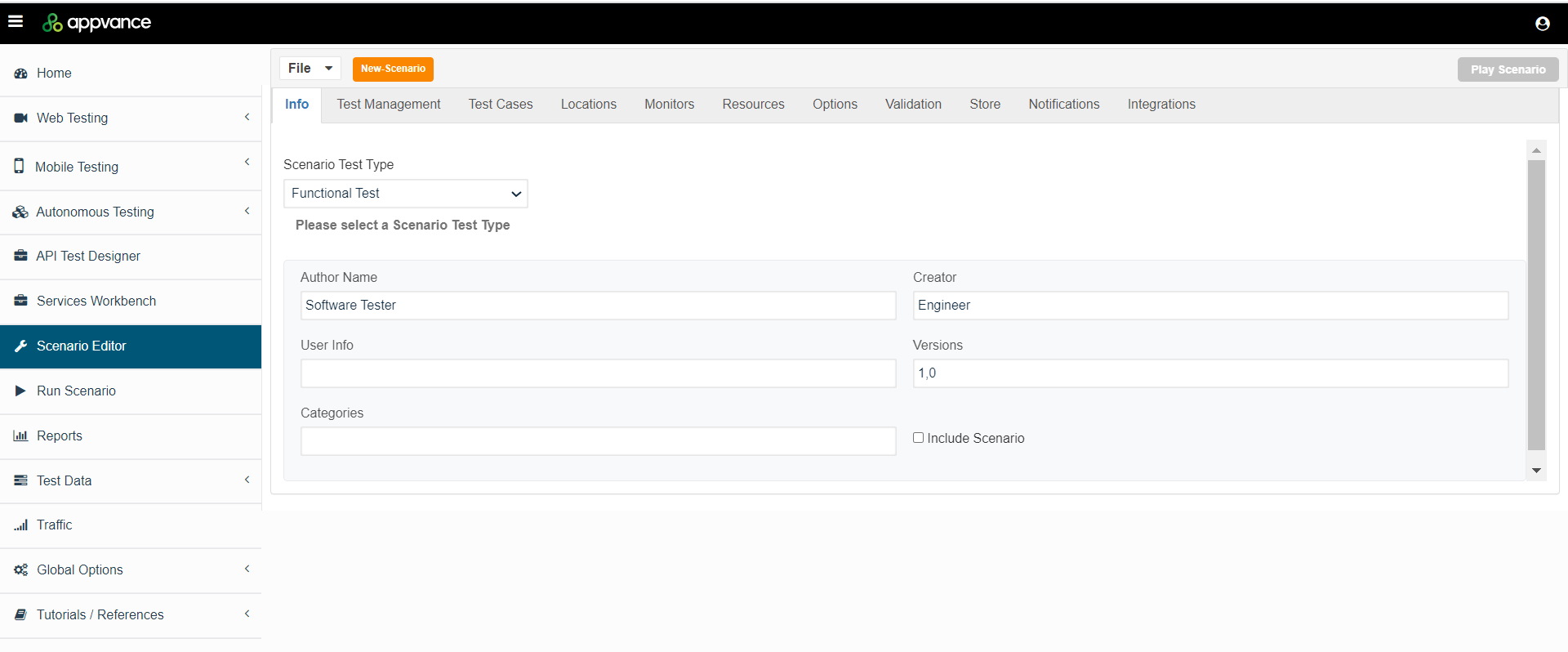
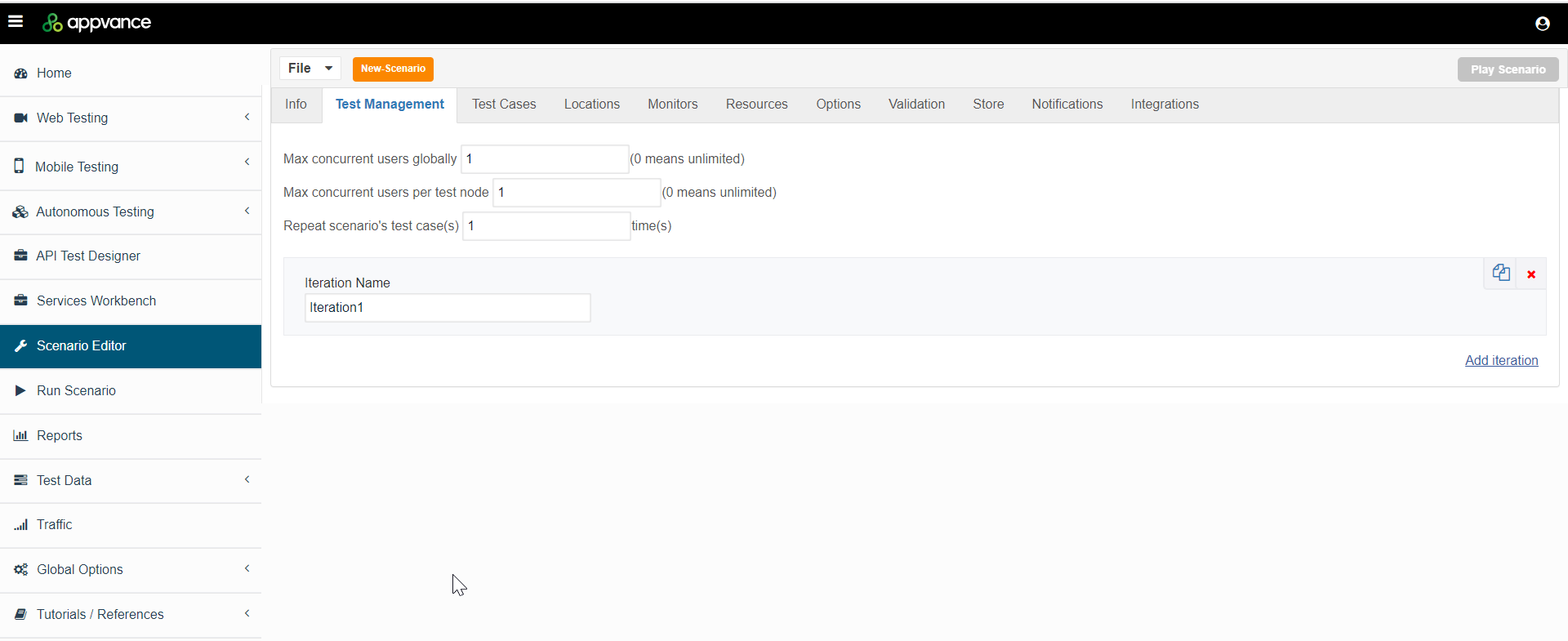
Click the Test Management tab and check: "Repeat scenario's test cases 1 time"
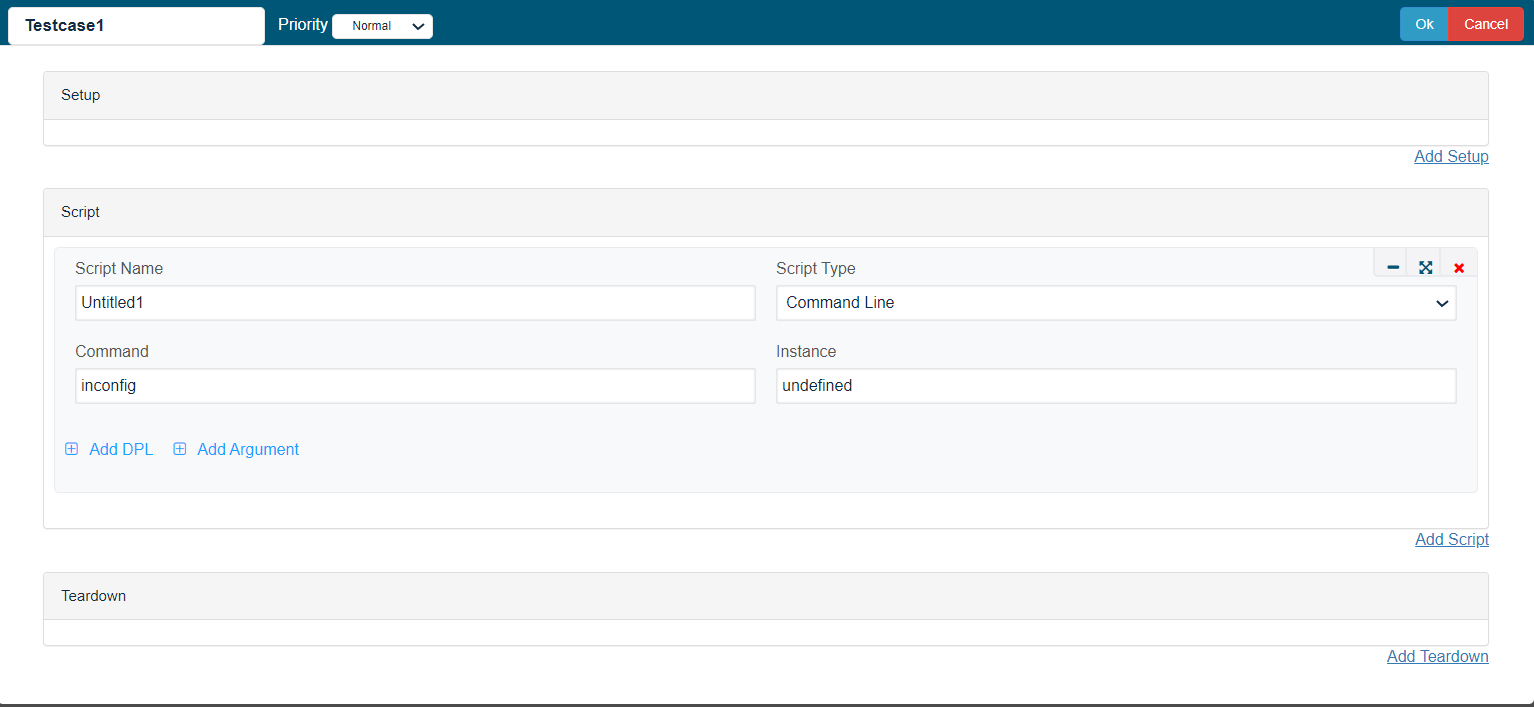
Click the Test Cases tab and click Add Testcase to add an execution.
Enter the Test Case Name and Script Name.
Select Command Line from the Script Type dropdown
Type the command that needs to runbe anexecuted, approvedFollowing are some of the commands that can be run, but any command-line scriptcommand typecan be used.
For example
- ls
- mkdir "C:/Users/User1/FolderName"
- ipconfig
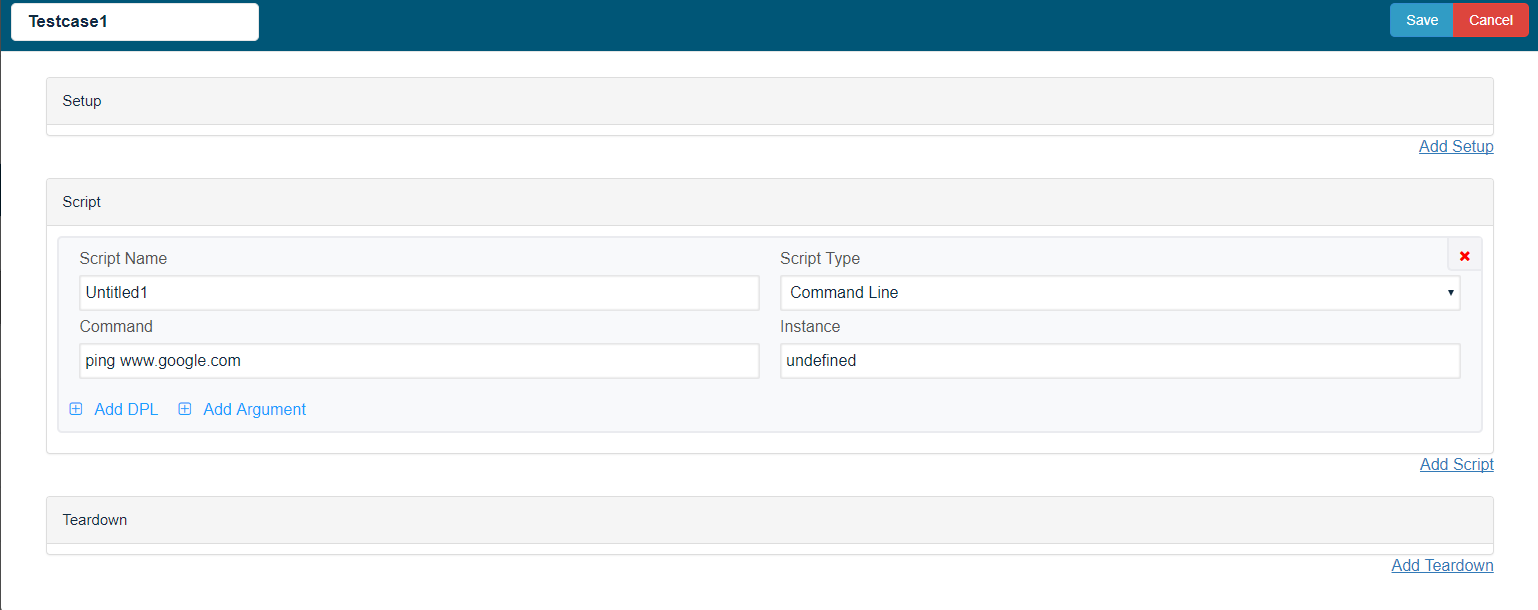
- ping http://www.google.com
- taskkill /f /im firefox.exe
- taskkill /f /im java.exe
- dir
- Tasklist
- Powercfg
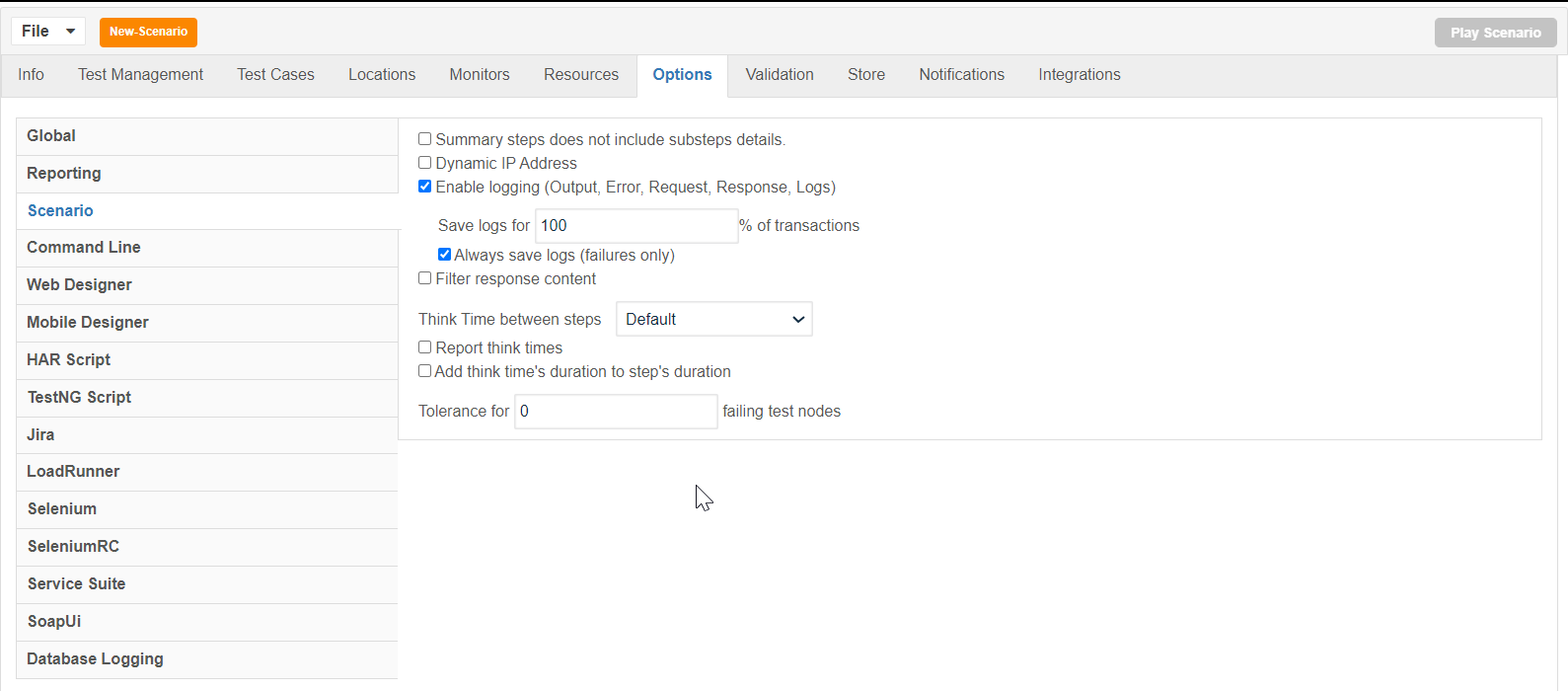
Navigate to the Options tab and select the Scenario section.
Make sure that Enable logging, and Always save logs (failures only) are selected.
Click File > Save to save the new scenario.
Click Play Scenario.
The Controller window will open in a controllednew tab, and display the tests while they are running. The pass / fail status of the tests will be displayed upon test completion.
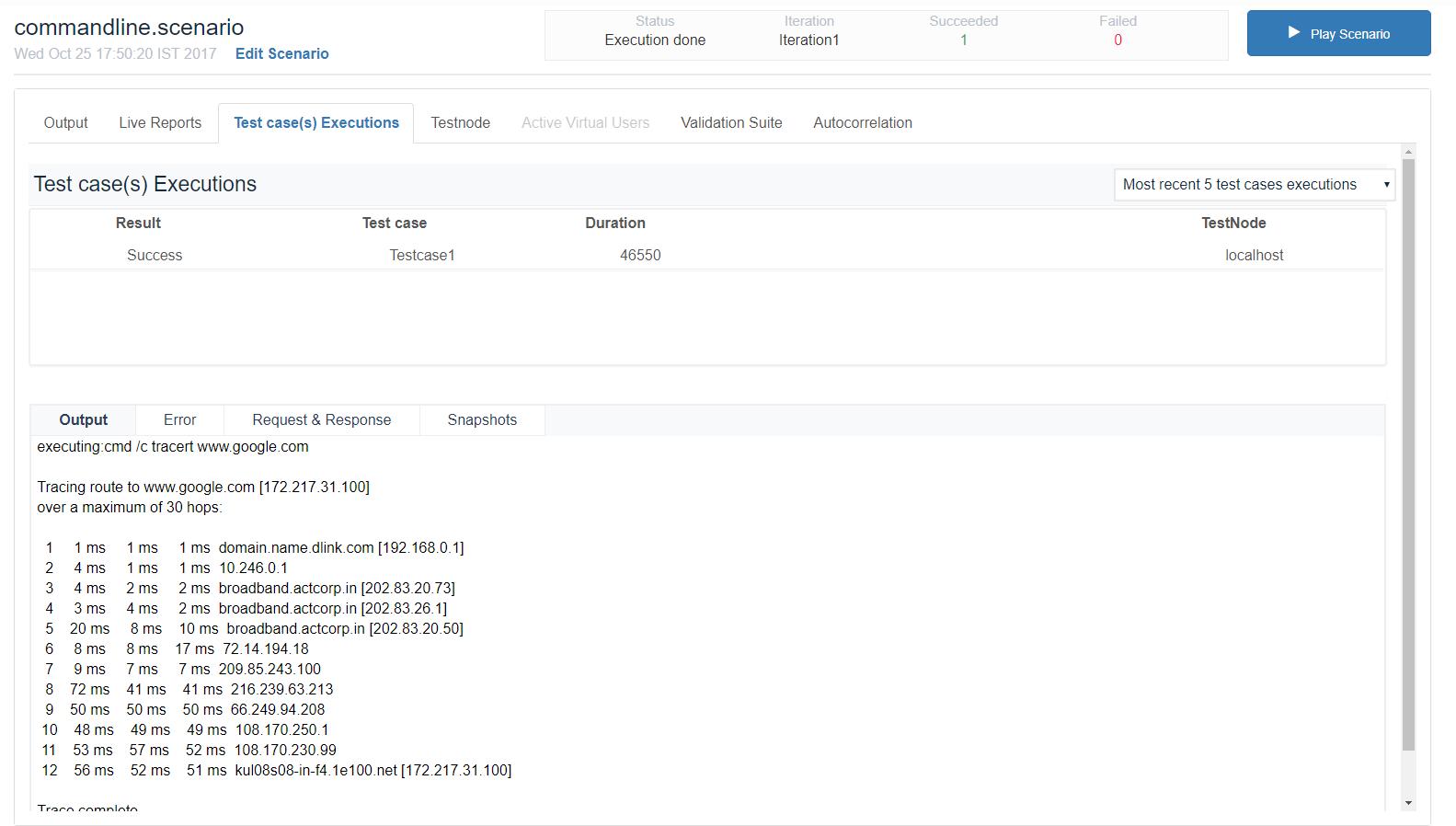
The left part shows the steps and the duration in milliseconds and the right side shows the test run status under the Output tab.
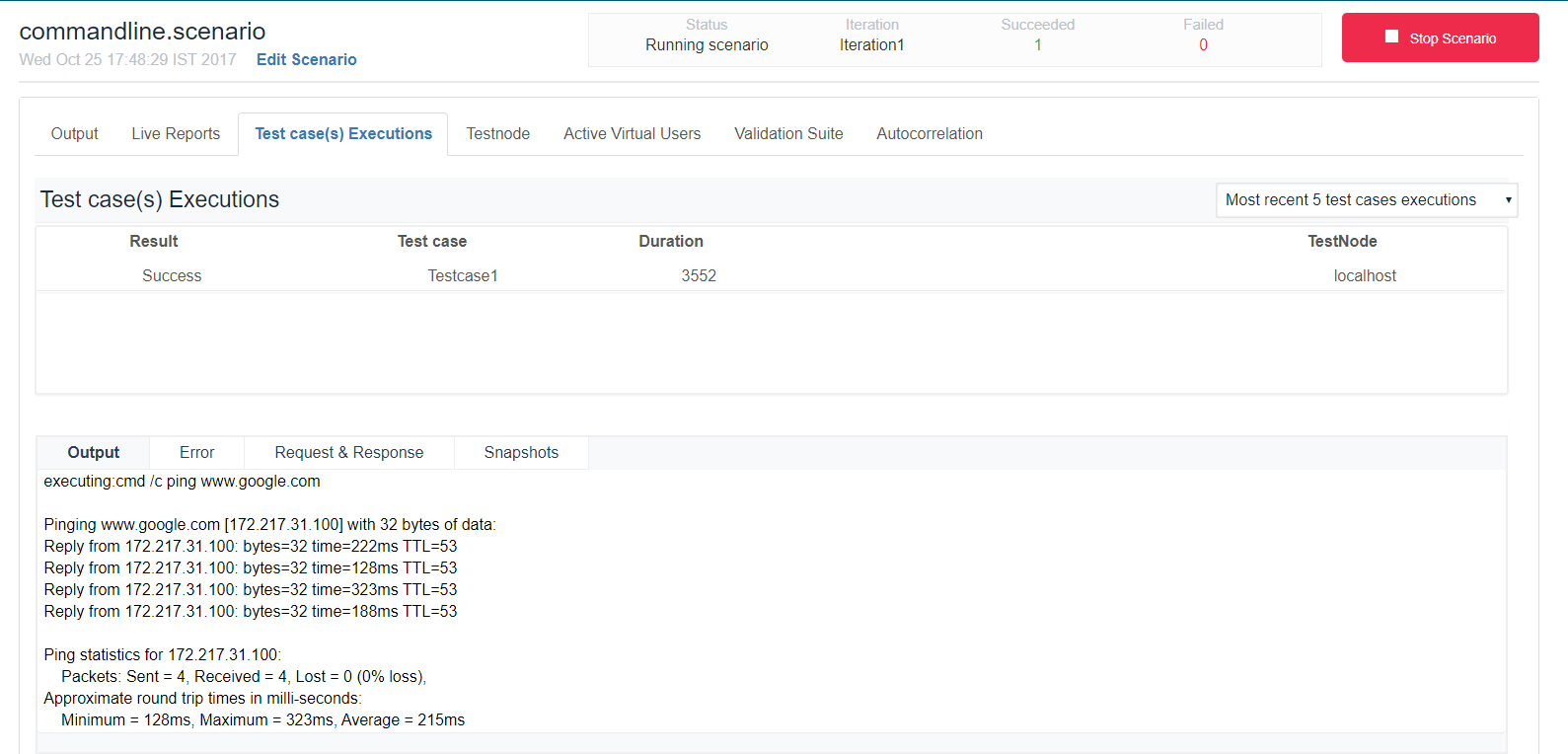
Navigate to the Test Case(s) Execution tab and click the test case result. Then click the Output tab below to see the output.
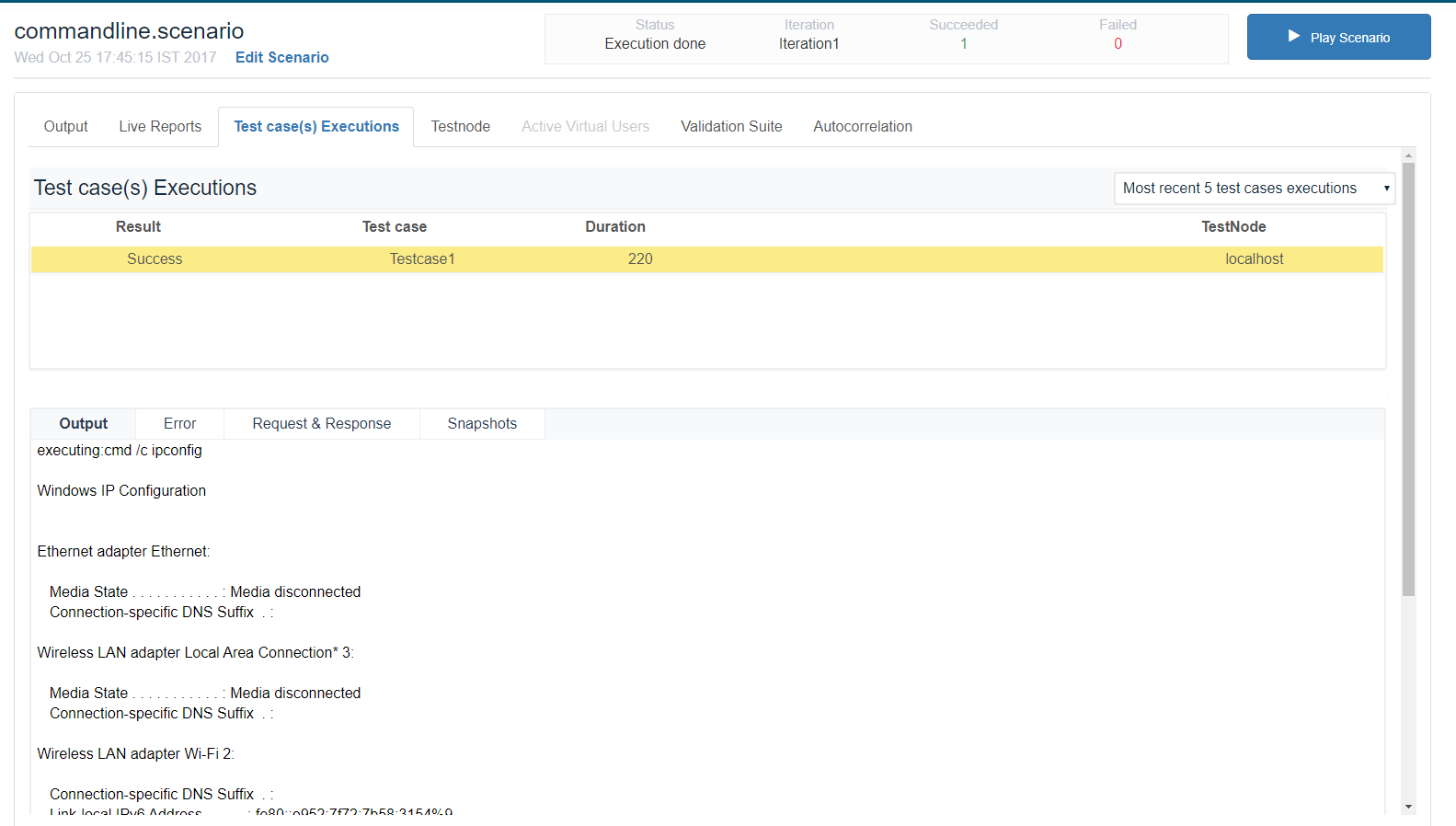
On the Transactions tab, you can find the request/response. Click on the Error tab to drill down further into the results.
Additional Example - ping command
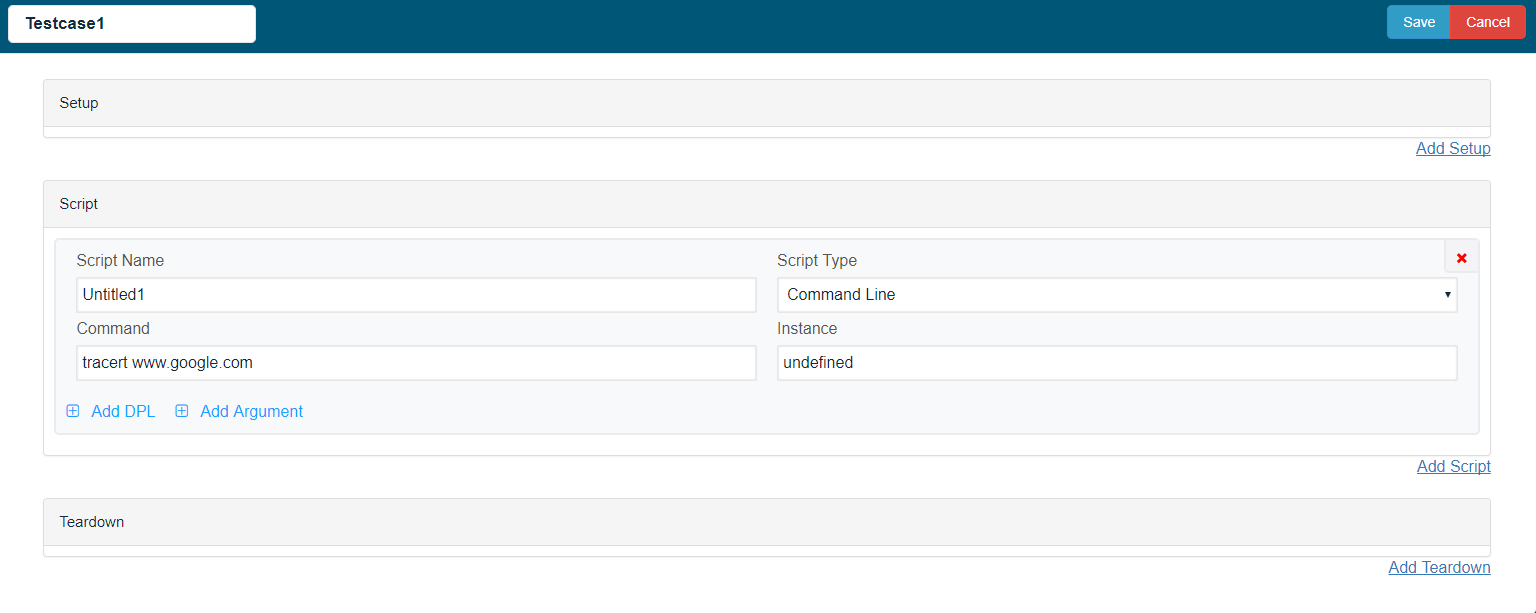
Additional Example - tracert command
Running a Command-Line Performance Test
Please follow the below steps:
In AIQ executionnavigate environment.to Scenario Editor.
What
Click File and select New to create a new scenario
Select Performance Test in the Scenario Test Type dropdown.
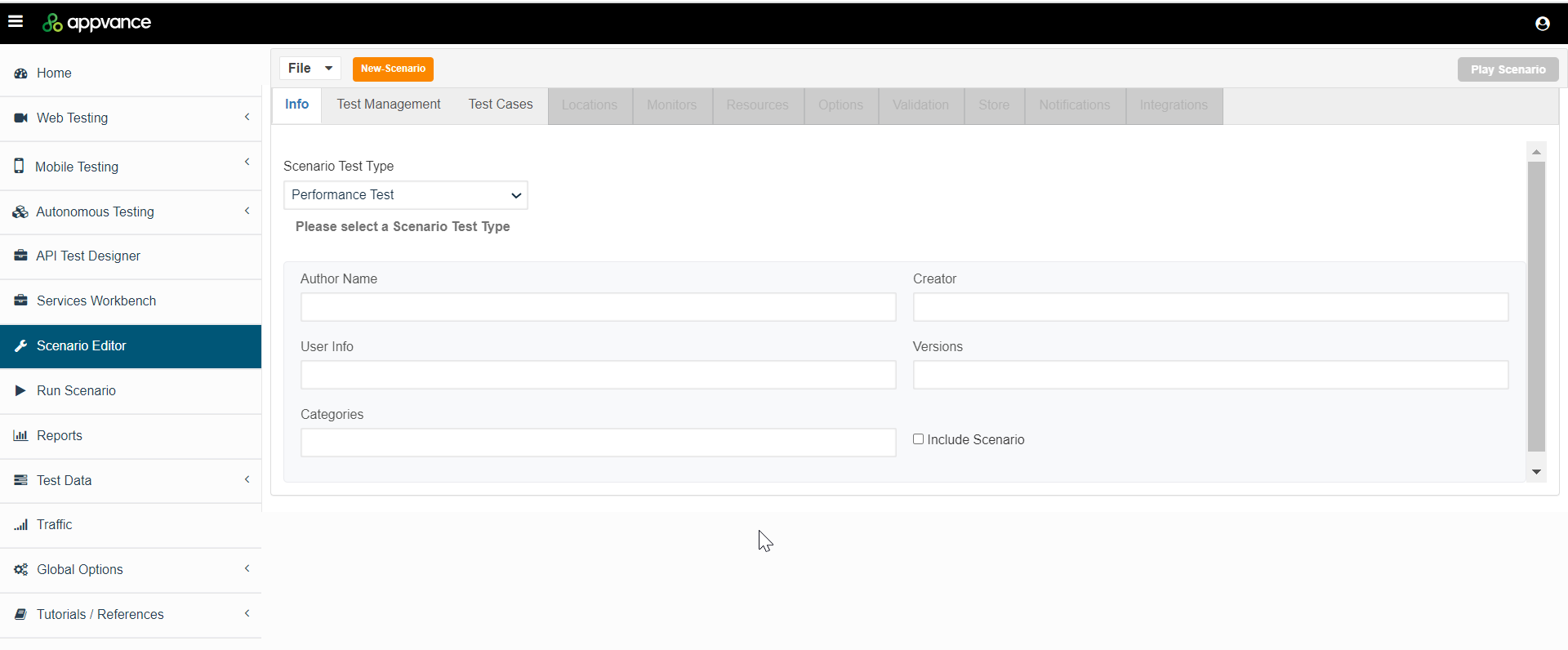
Click the Test Management tab.
Enter an Iteration name and then select Executions Per User from the Completion Type dropdown.
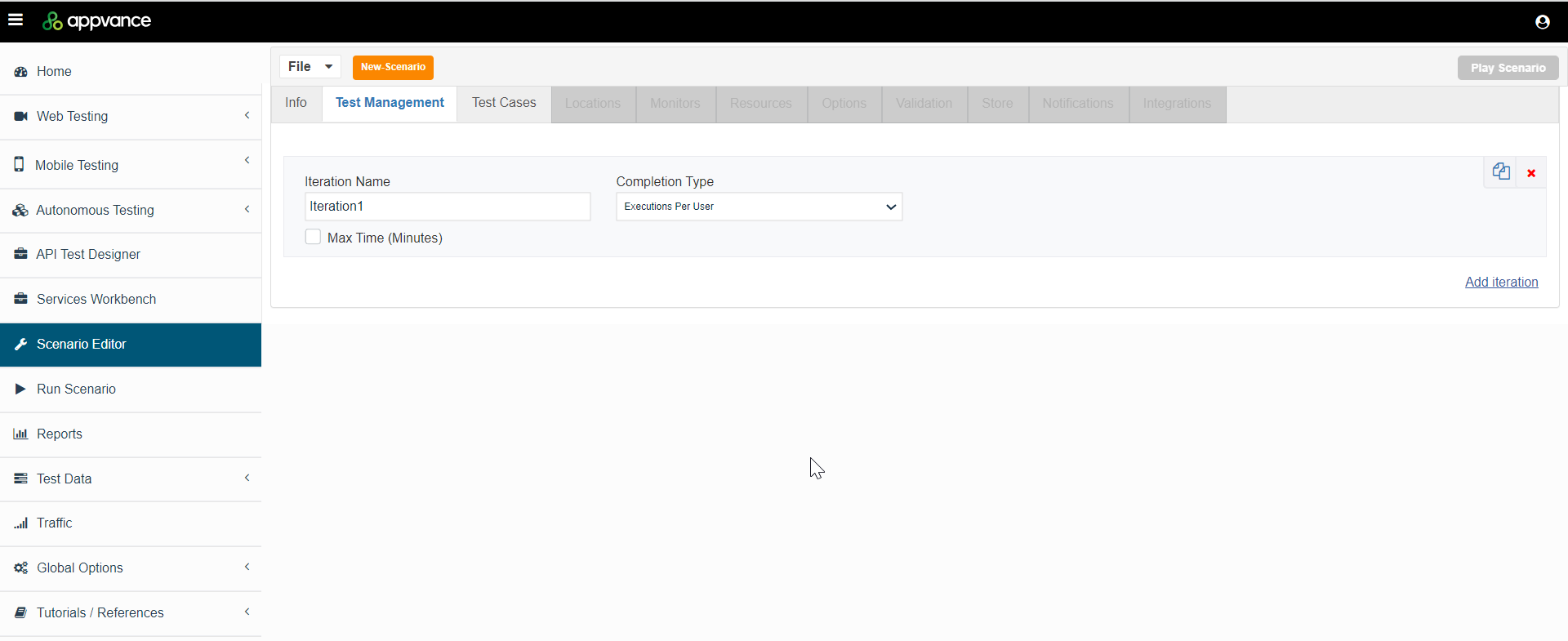
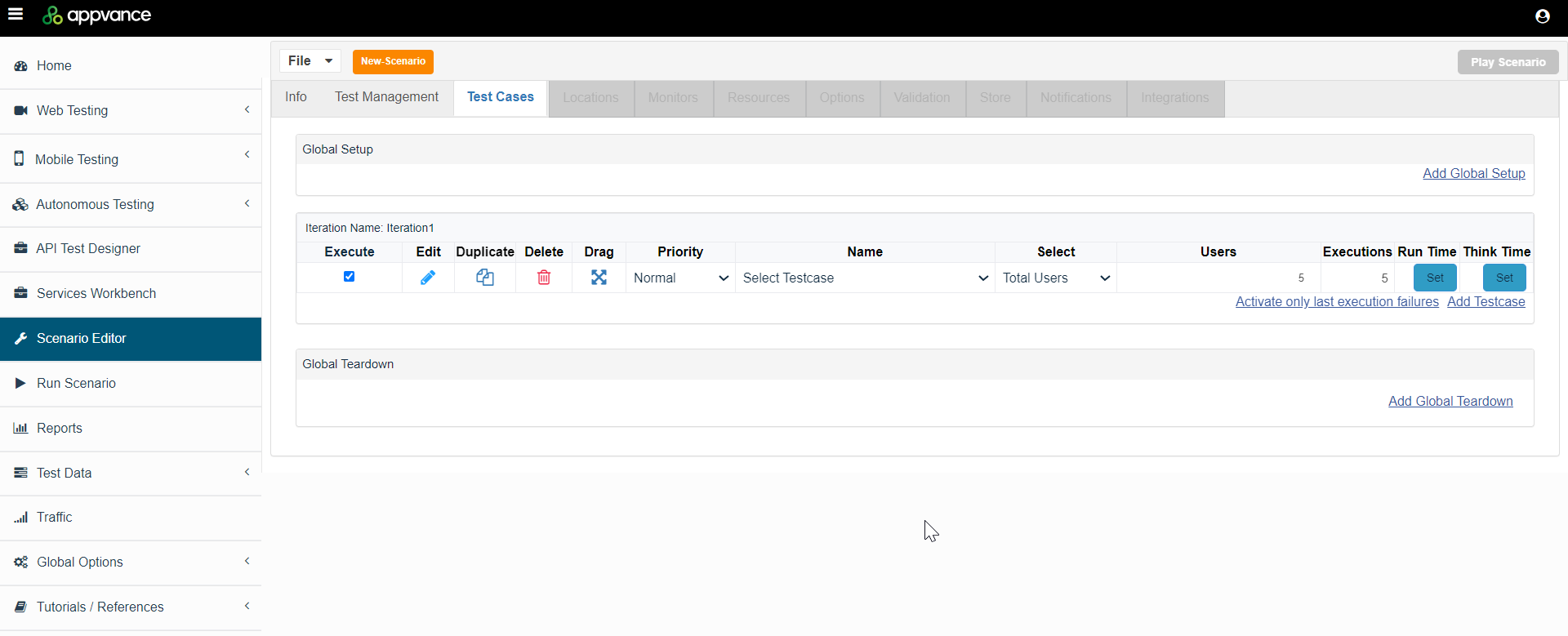
Click the Test Cases tab and click Add Testcase to add an execution.
Enter the Test Case Name and the Script Name.
Provide the command line command. Click Save.
Enter 5 in the Users field and 5 in the Executions field.
Navigate to the Options tab and select the Scenario section.
Make sure that Enable logging, and Always save logs (failures only) are selected.
Click File > Save to save the new scenario.
Click Play Scenario.
The Controller window will open in a new tab, and display the tests while they are running. The pass / fail status of the tests will be displayed upon test completion.
The left part shows the steps and the duration in milliseconds and the right side shows the test run status under the Output tab.
Navigate to the Test Case(s) Execution tab and click the test case result. Then click the Output tab below to see the output.
Command-Line Resource
Command-Line Resource is another Script Type that requires the resource to be browsed.
Files with .cmd, .sh extension can be used with this articleScript
Scopedtypecommand-linejustscriptlikeexecutiondesigner scripts (.ds) etc. This file will be added as acontrolledresourcecapability,filenotin the Resources Panel of the Scenario Builder.An example could be to open a
genericswingshell-executionorrecommendation.AddedJavaFXchecksapplicationforfromscriptaownership,shellexecution host, working directory, arguments, environment variables, timeout, exit code, stdout, stderr, and least privilege.Added warnings to avoid secrets inor commandargumentsscript.oroutput-
logs.cd /opt/utp/MyScripts/SwingSet2
sh Swing.sh
Validation workflow
Confirm the command-line script is approved and safe for the target execution host.Validate path, arguments, permissions, timeout, expected output, and failure behavior in a small run.Review exit code, stdout, stderr, and AIQ logs before using the script in a shared or scheduled workflow.
Review note: This page now aligns with the Service Suite command-execution cleanup from earlier batches.
Last updated: OctoberDecember 5,13, 20262023
If you have any feedback on this topic, please contact us at documentation@appvance.ai.