
JS Edit & Play for Web Testing
JS Edit & Play is a tool within Test Designer that is completely JavaScript. Using this tool you can write custom code, add conditional statements, add loops, and create any complex scripts using JS Edit & Play like you would using IDEs such as Netbeans or Eclipse.
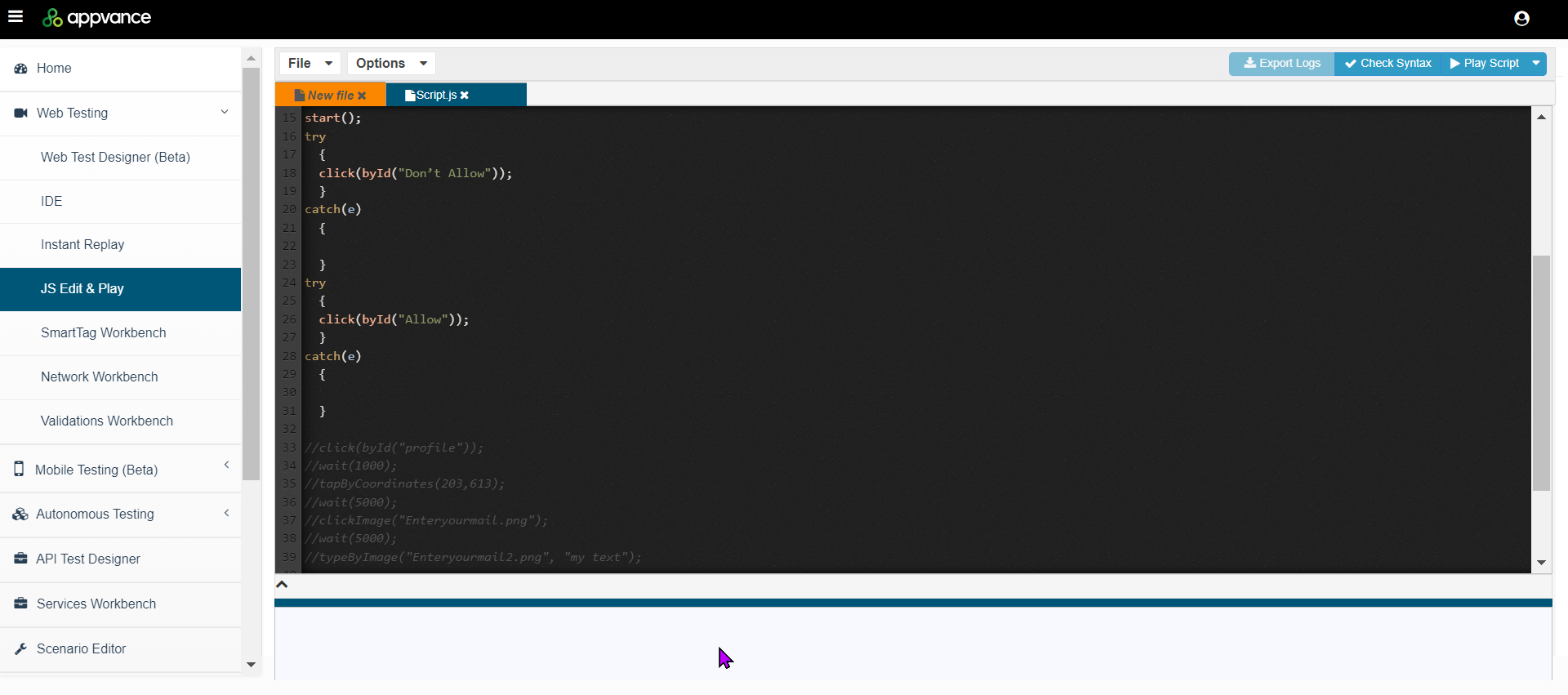
In JS Edit & Play, you can have can open multiple files which open in different tabs which makes it easy for the user to copy contents between different scripts.
JS Edit & Play also has IntelliSense, which is a code-completion aid. That means as you type, the default methods and functions along custom-defined variables and functions are available to select from the drop-down.
Note: Test Sesigner services must be running to work with JS Edit & Play.
Accessing JS Edit & Play
There are multiple ways to access JS Edit & Play.
Option 1
Open the Test Designer IDE
Open any existing Test Designer script or record a new script
Click File > Export > JavaScript.
Click Save to save the script. The script will have a .js extension.
Click Play.
The Test Designer JS Edit & Play window will open with the script opened. From here you can edit the script, add more JS steps, and perform other actions.
Option 2
From AIQ navigate to Test Designer > JS Edit & Play.
From here you can create a new script or open an existing script.
Related Topics
The following topics provide more information on the JS Edit & Play user interface and details and examples of working with scripts in the tool.
JS Edit & Play for Web Testing User Interface - Information about the following menus and functions:
File menu
Options menu
Export logs option
Check Syntax option
Play Script option
Debugging in the Console
Custom Functions in JS
Script Examples
Exporting DS Script with Descriptions to JS
<![CDATA[ ]]>
Last updated: July 25, 2023
If you have any feedback on this topic, please contact us at documentation@appvance.ai