
Network Workbench Reference
Recommended
Introductionguidance
Use Network Workbench is similar to theunderstand network behavior that affects AIQ Validationweb suite,testing, butAPI itvalidation, isand specific to Test Designer/JS Edit & Play.
Usingtroubleshooting. Network Workbench, the requests can be extracted when it matches the URL which will be in a specific format like JSON, HTML, HTTP, MD5, PDF, etc., from the response to validate it or to create variables for future usage in the scripting.
The request has to be identified as a Regex that matches a fully qualified URL, Fully qualified means the protocol and portevidence should be provided.reviewed alongside Scenario Editor steps, Output Logs, browser behavior, and application server logs.
Example:
Useful Appvance.aireview -points
- Request
unifiedURLs, methods, status codes, redirects, and timing. - Authentication, authorization, session, cookie, and CSRF behavior.
- API responses that drive UI state or test
automationassertions. - Proxy,
softwarecertificate,-CORS,Themixed-content,fully-qualifiedandURLblocked-resourceisissues. - Slow
https://www.appvance.com:443endpointsInoranyrepeatedcase,callsitthatisaffectalwaysperformancebetterand stability.
Best practices
- Capture the smallest time window that reproduces the issue.
- Remove or mask secrets before sharing network evidence.
- Compare failing and passing runs to
useidentify.*changedthatrequestswillormatchresponses. - Use
any protocol, domain, and port.
waits,Network Workbench will create variables on the fly with extraction data instead of adding themfindings totheimprovelocker.Networkassertions,Workbenchserviceused full JS Rhino for post-processing while AIQ post-processing is very limited.Navigation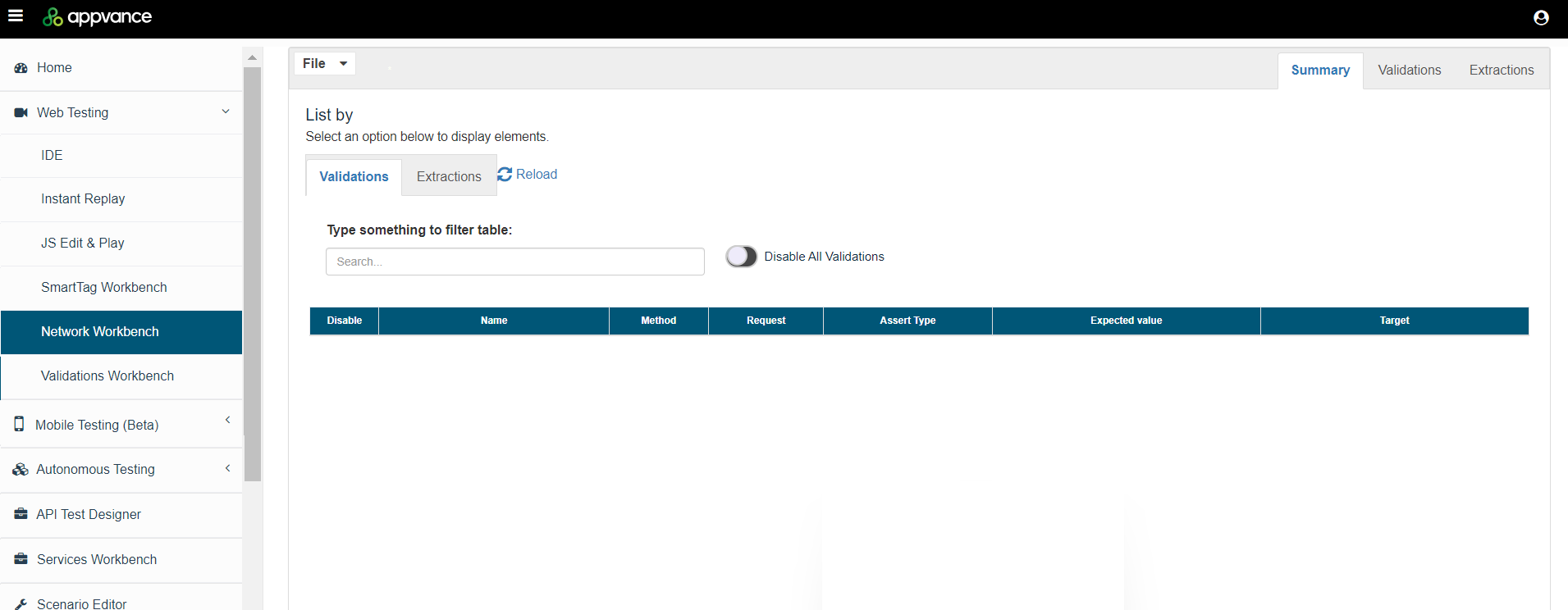
You can use the summary tab to search the validations and extractions using the search option.
Has option to disablechecks, or enableenvironment definitions, disabling all of them can be used to disable all the validations and extractions, etc.
Columns can be sorted.
The summary will provide details and links for the extractors and validations used.
Validations
Several validations could be added by providing the Validation Name, choosing what method, and providing the request details.
Responses can be validated for the following formats:
PDF
JSON
HTML
HTTP
MD5
Text
XML
String
CSV
Assertion Types:
Assert Equals
Not Equals
Contains
Does Not Contain
Less Than
Greater than
Less or Equal
Greater or Equal
Exists
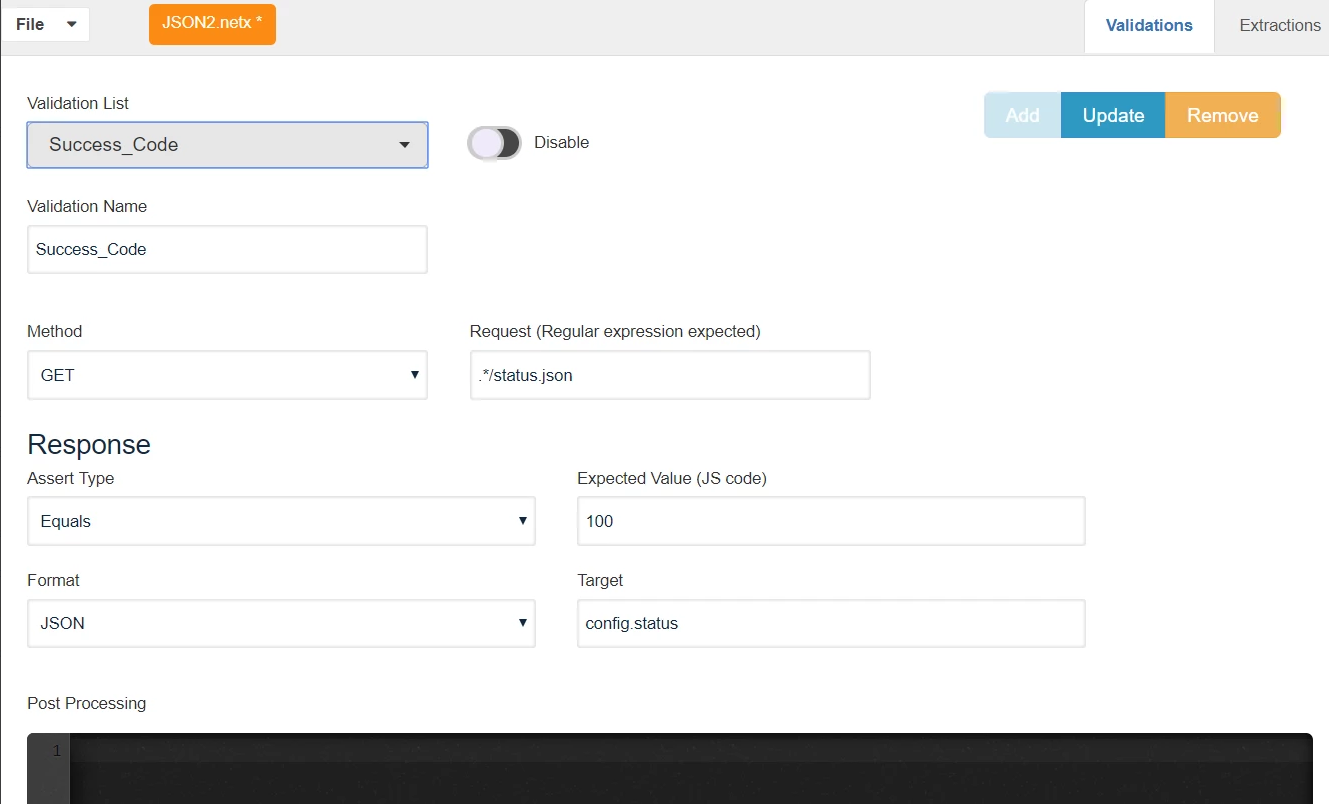
In the above example, any request matching .*status.json should have a JSON object called config which should have a status integer with a status code of 100.
Validations can be enabled or disabled using Disable/Enable Toggle.
Multiple validations can be added using Add button, Existing Validations can be updated using the Update button and can be removed using the Remove button.
Extractions
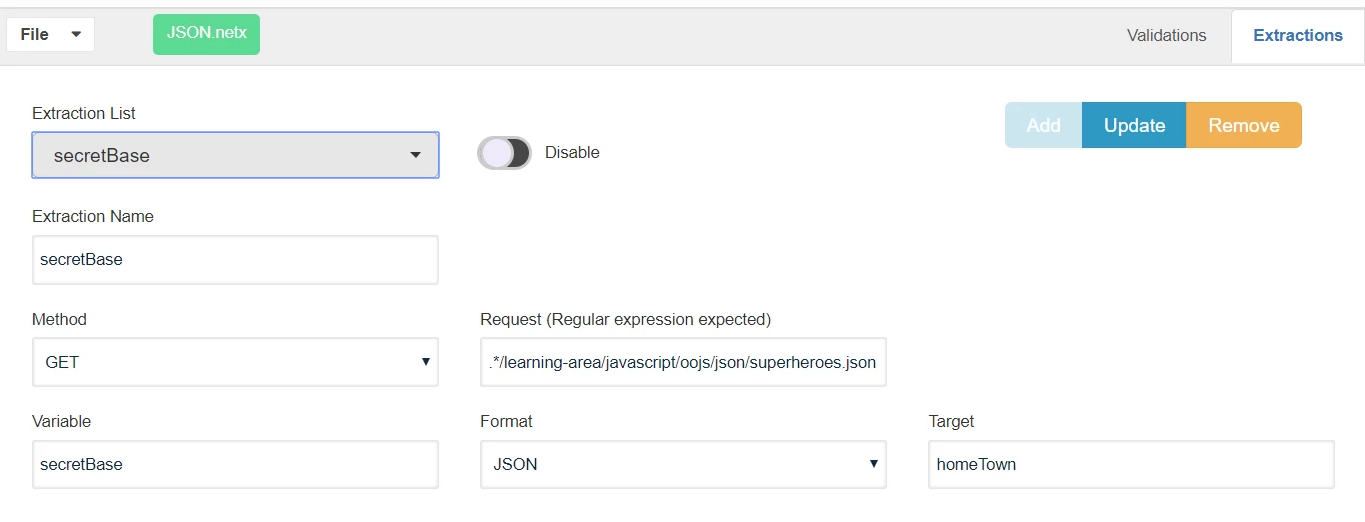
Extractions will create variables on the fly with extraction data instead of adding them to the locker. The variables are created with a $ at the beginning of the variable name, extraction will find any HTTP Request which matches .*/learning-area/javascript/oojs/json/superheroes.json
It will process the response as JSON and will get the string "homeTown", it will create a variable $secretBase with results. The $ is added at the beginning of the variable name. The variable could change value during the test if a subsequent call also matches the request URL (in this case .*/learning-area/javascript/oojs/json/superheroes.json)
Formats and Examples
JSON Format
Follows the same format as the AIQ JSON format. For this JSON,
{
"users":[
{
"username":"John"
},
{
"username":"Jane"
}
]
}
To get the first username ("John") the target should be
users[0].username
To get the second username ("Jane") the target should be
users[1].username
PDF Format
The example below will show how to extract the contents of a downloaded PDF page and perform some assertions on the same.
Steps for the scenario:
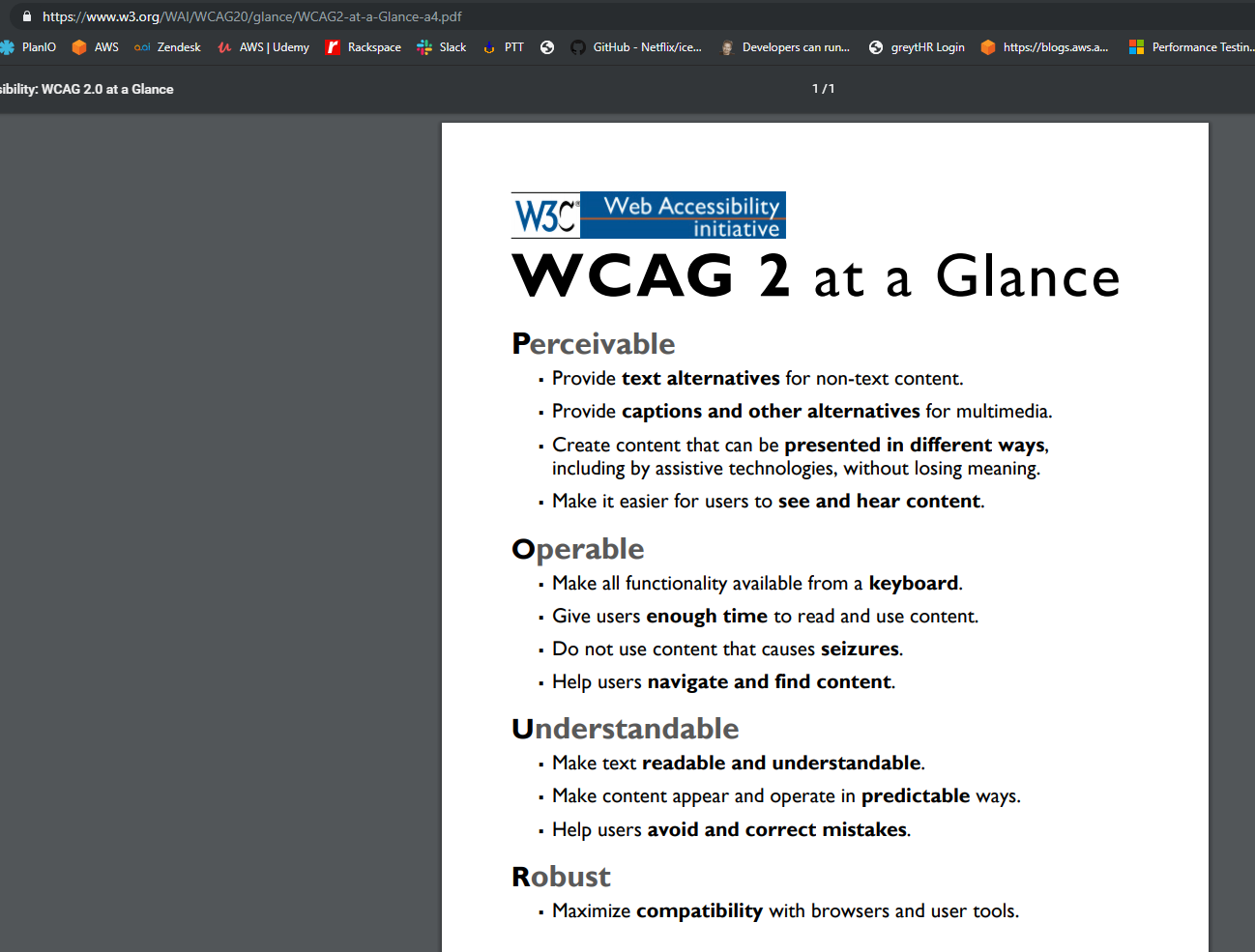
Click a pdf link that downloads a pdf file ("WCAG 2 at a Glance (PDF) A4")
Assert the word "Perceivable" in the downloaded pdf file.
4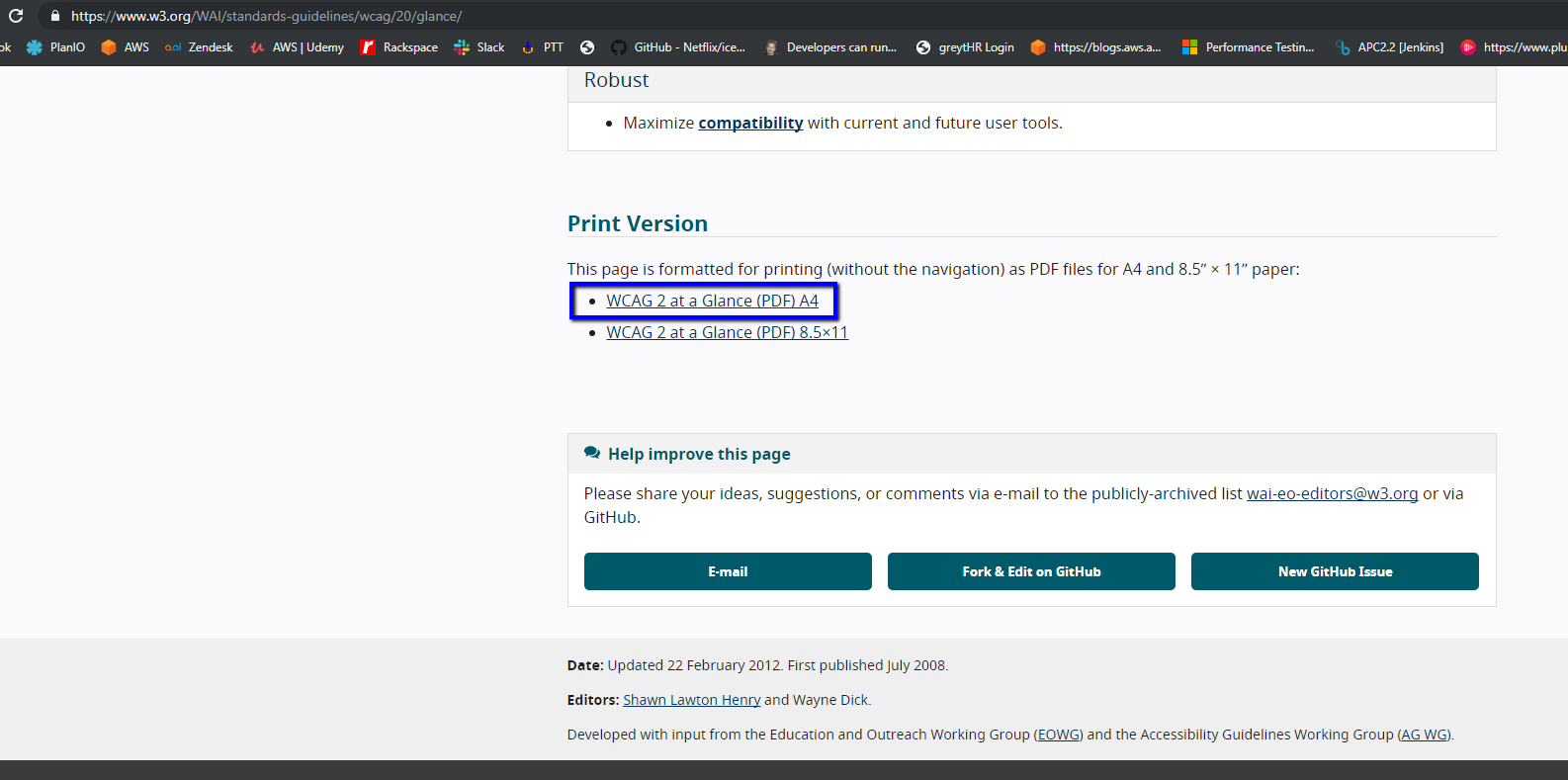
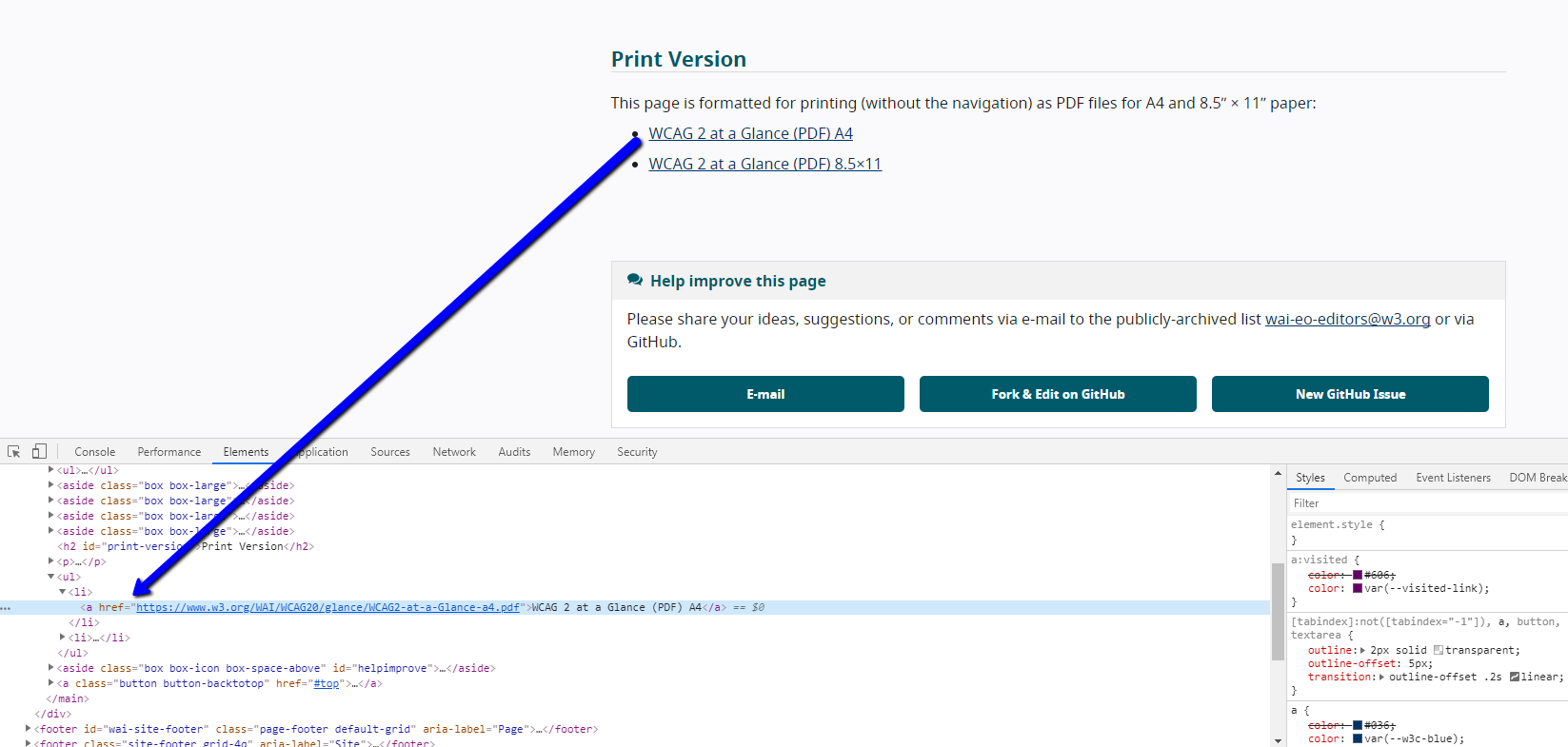
If we inspect the element of the pdf, it will show the request which is what you will need to add to the extractor defining a variable.
Go to Network Workbench
Click the Extractions Tab and provide the mentioned values from the screenshot.
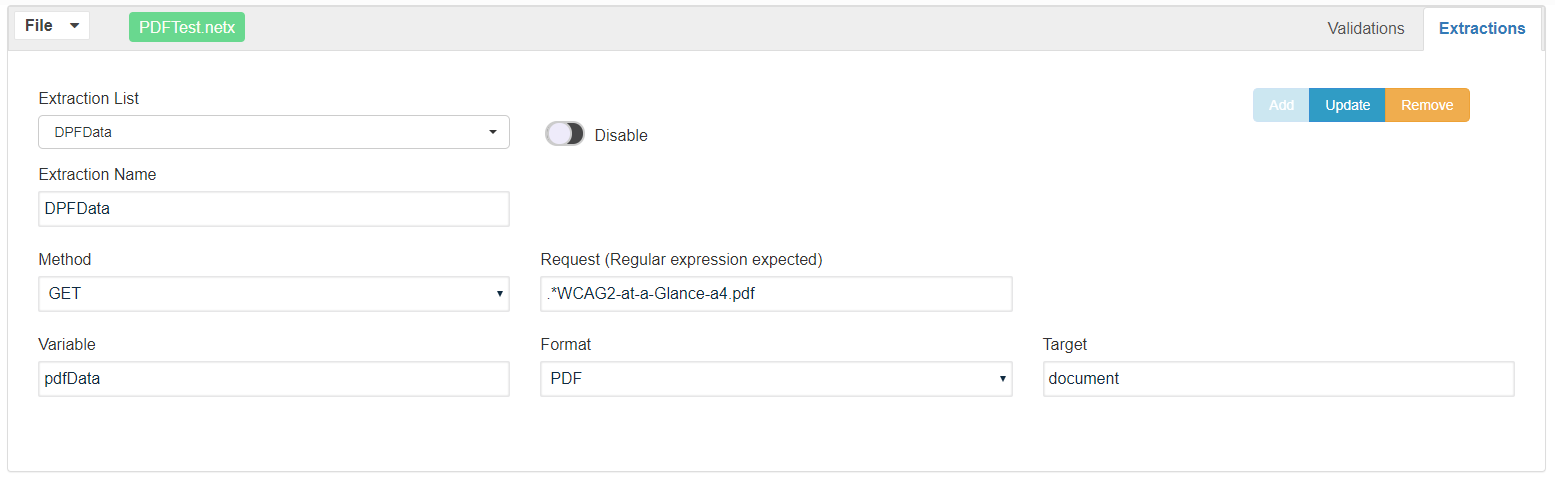
Target:
The document which will extract full text from the PDF
documentforms which will extract a JSON string with the name and value pairs of existing forms in the PDF document
page:### where ### indicate the page toindicates the text
regex:RRR: It will extract the full text, then it will provide the first string that matches the RRR regex. This could be generated with post-processing but is provided as a utility to speed up the process.
HTTP:
Header:Accept will return the value of the request header named "Accept"
CookieValue:expires will return the value of the request cookie named "expires"
TEXT:
Given the request's response is: "This is the ID Id=ABCDEF." then the TEXT extractor can use regular expressions as target values
Id=.* will return matching text (evaluating as regular expression): Id=ABCDEF.
HTML / XML:
Given the request's response is an XML or HTML then the this extractors can use XPath expressions as target values
//*[local-name()='CountryCode']
//*[@id="cart-total"]
STRING Format
Given the request's response is: "This is the ID Id=ABCDEF." with 25 characters, then the STRING extractor can use
15,24 will return "Id=ABCDEF"
Id=,false will return "ABCDEF."
Id=,true will return "Id=ABCDEF."
Id=,24,true will return "Id=ABCDEF"
Id=,25,false will return "ABCDEF."
Network Workbench files will have a .netx extension.
Now how to use this file in JS / Test Designer?
Below is a Javascript example file that calls the .netx file and performs the other steps of downloading the pdf and then performing the assertions:
addNetworkLibrary("{ds}/PDFTest.netx");

prepareDomain("https://www.w3.org  ");
navigateTo("https://www.w3.org/WAI/standards-guidelines/wcag/20/glance/  ");
click(link("WCAG 2 at a Glance (PDF) A4"));

log($pdfData);

assertContains($pdfData,"Perceivable");
Note: It is recommended to add addNetworkLibrary as the very first step, even before navigating to.
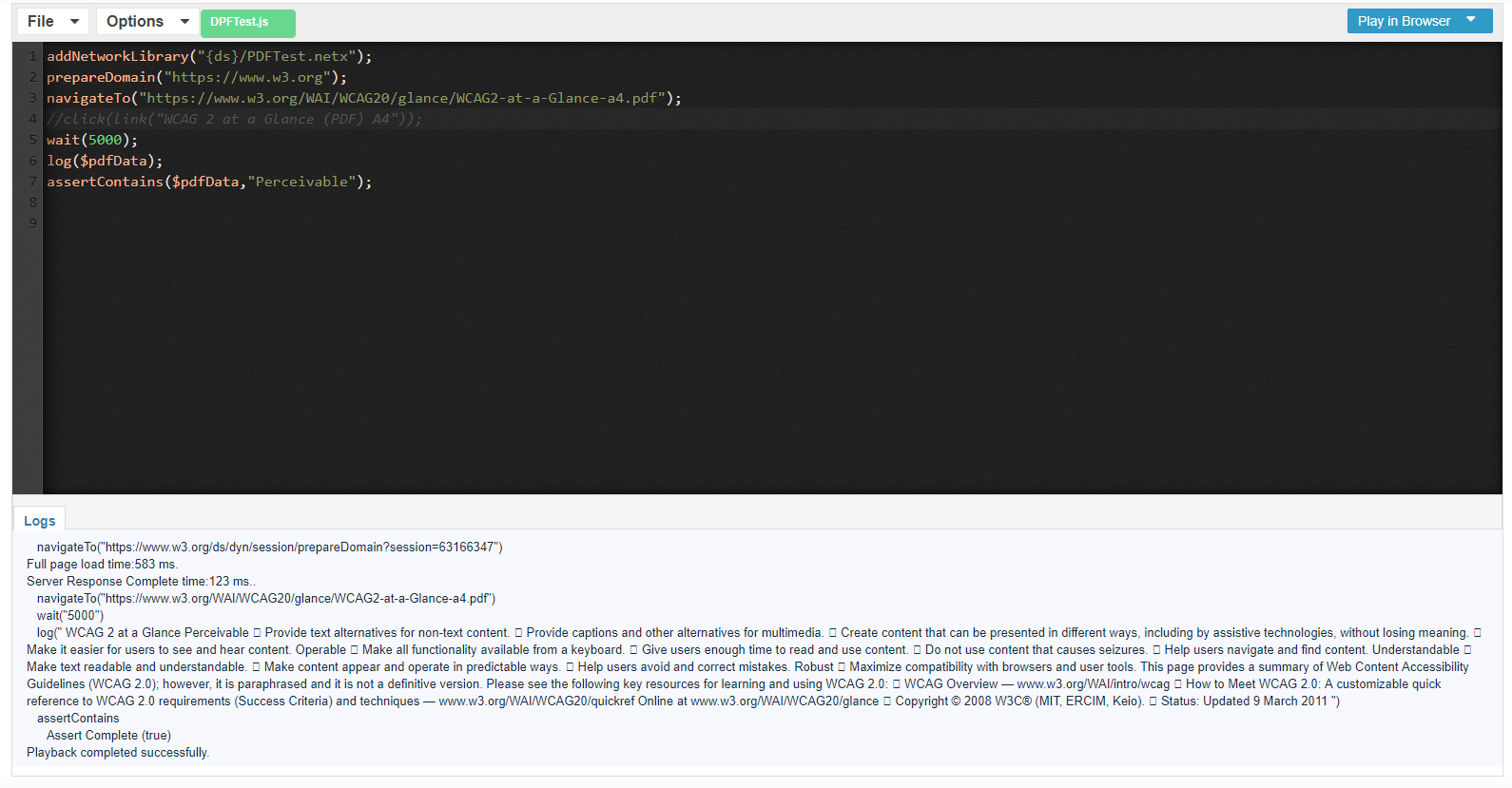
Example with zip Extractor
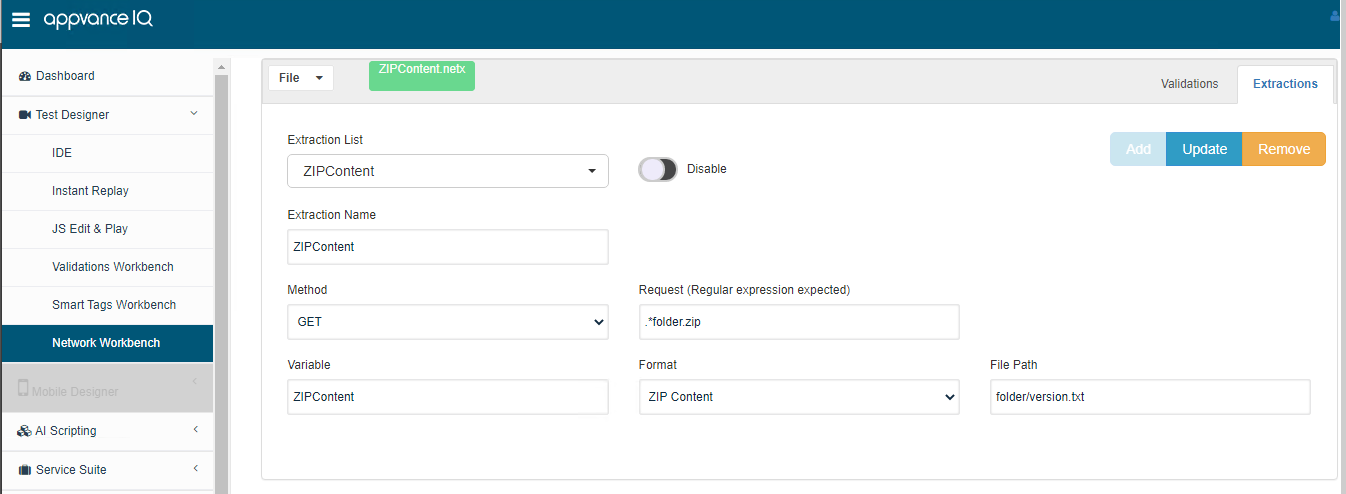
API Validation workbench also supports extracting the contents of a zip file and also checking the contents inside certain files and also checking asserting some of the metadata of the file (size of the file for example).
The below example shows how to test this scenario using a Network workbench.
Zip Content Extractor
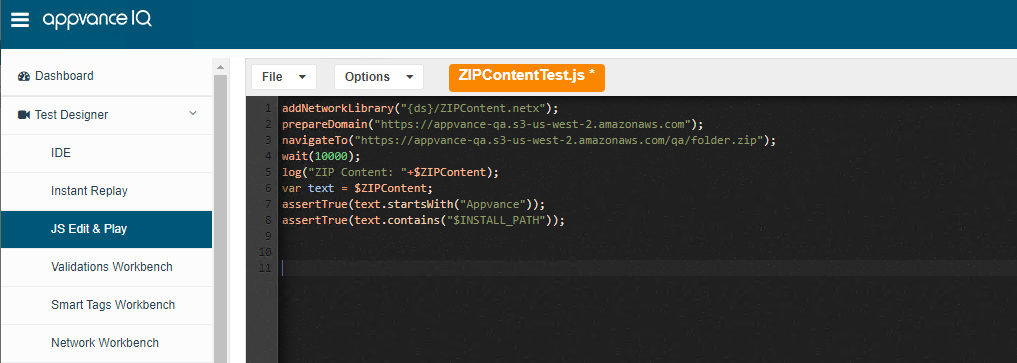
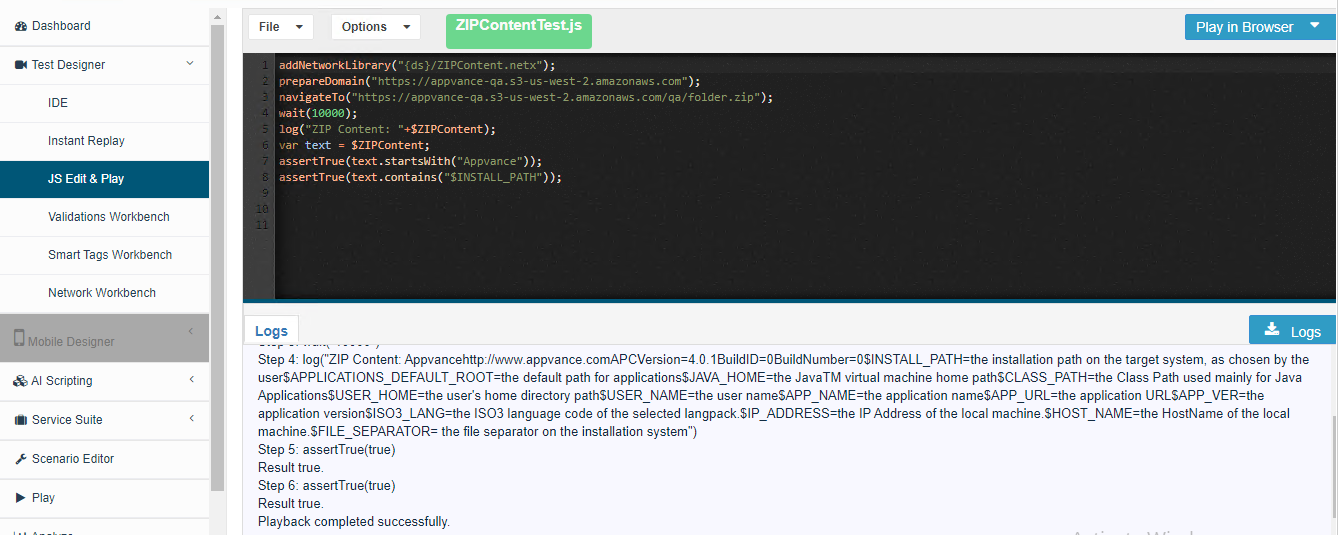
Below is an example of a JS Script that navigates to a site to download the zip file and validates the contents of a file inside the zip.
prepareDomain("https://appvance-qa.s3-us-west-2.amazonaws.com");

navigateTo("https://appvance-qa.s3-us-west-2.amazonaws.com/qa/folder.zip");

wait(10000);

log("ZIP Content: "+$ZIPContent);

var text = $ZIPContent;

assertTrue(text.startsWith("Appvance"));

assertTrue(text.contains("$INSTALL_PATH"));
JS Script
Network Workbench Definition
Output
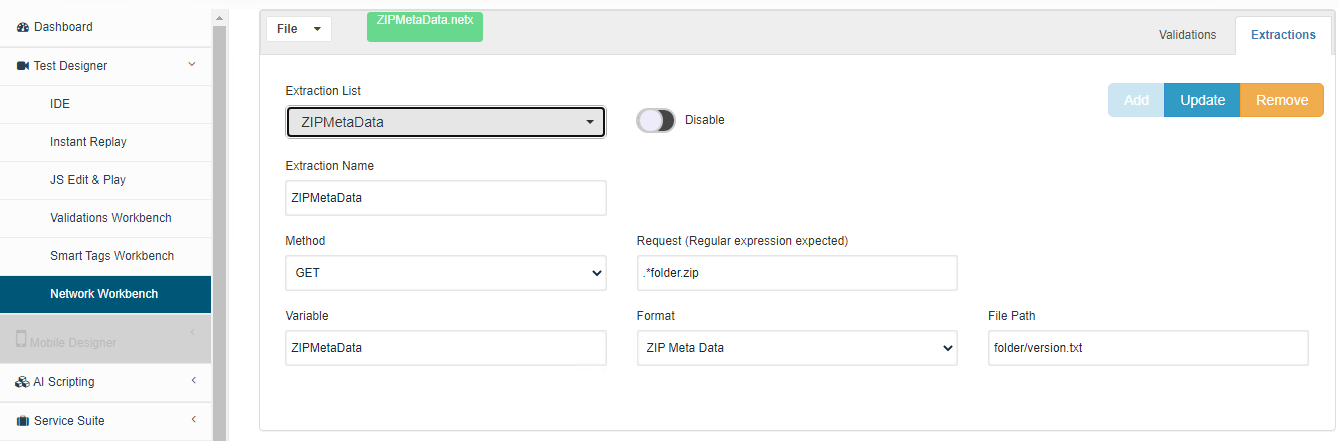
Zip MetaData Extractor
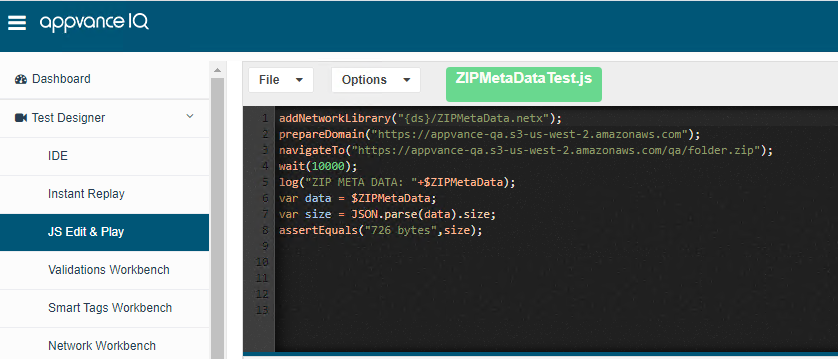
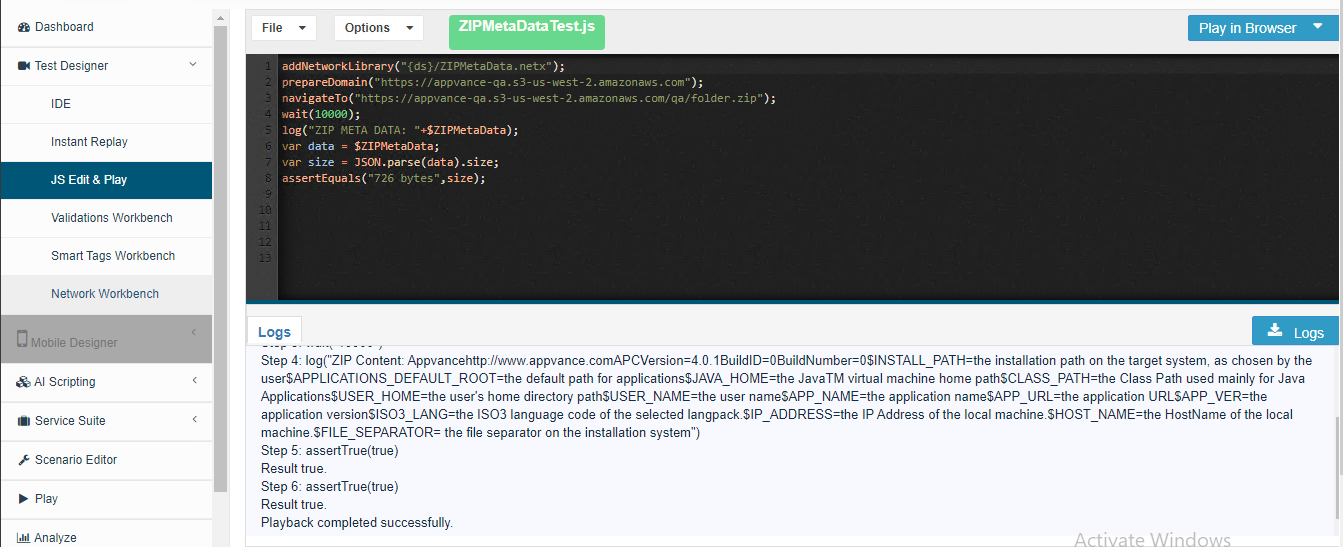
Below is an example of a JS Script that navigates to a site to download the zip file and validates the metadata (size) of a file inside the zip.
addNetworkLibrary("{ds}/ZIPMetaData.netx");

prepareDomain("https://appvance-qa.s3-us-west-2.amazonaws.com");

navigateTo("https://appvance-qa.s3-us-west-2.amazonaws.com/qa/folder.zip");

wait(10000);

log("ZIP META DATA: "+$ZIPMetaData);

var data = $ZIPMetaData;

var size = JSON.parse(data).size;

assertEquals("726 bytes",size);
JS Script
Network Workbench Definition
Output
Last updated: MarchOctober 18,5, 20242026
If you have any feedback on this topic, please contact us at documentation@appvance.ai