
AWS Device Farm Mobile Testing with AIQ
What
Recommended Is AWS Device Farm?
Device Farm is an app testing service that enables you to test and interact with your Android, iOS, and Web apps on real, physical phones and tablets that are hosted by Amazon Web Services (AWS). There are two main ways to use Device Farm:
Automated testing of apps using a variety of available testing frameworks
Remote access to devices onto which you can load, run and interact with apps in real-time
Automated App Testing
Device Farm allows you to upload your tests or use built-in, script-free compatibility tests. Because testing is automatically performed in parallel, tests on multiple devices begin in minutes.
A test report containing high-level results, low-level logs, pixel-to-pixel screenshots, and performance data is updated as tests are completed.
Device Farm supports testing of native and hybrid Android, iOS, and Fire OS apps, including those created with PhoneGap, Titanium, Xamarin, Unity, and other frameworks. It supports remote access to Android apps for interactive testing.
Supported Test Types and Built-in Tests
Device Farm currently provides support for the following test types:
For Android:
Appium Java JUnit
Appium Java TestNG
Appium Python
Calabash
Instrumentation (JUnit, Espresso, Robotium, or any instrumentation-based tests)
UI Automator
Explorer
For iOS:
Appium Java JUnit
Appium Java TestNG
Appium Python
Calabash
UI Automation
XCTest (including KIF)
XCTest UI
For Web Apps:
Appium Java JUnit
Appium Java TestNG
Appium Python
If you do not have your tests, you can use a built-in fuzz test. For more information, see Built-in: Fuzz (Android and iOS).
Remote Access Interaction
Remote access allows you to swipe, gesture, and interact with a device through your web browser in real-time. There are several situations where real-time interaction with a device is useful. For example, customer service representatives can guide customers through how to use or set up their devices. They can also walk customers through how to use apps running on a specific device. You can install apps on a device running in a remote-access session and then reproduce customer problems or reported bugs.
During a remote access session, Device Farm collects details about actions that take place as you interact with the device. Logs with these details and video capture of the session are produced at the end of the session for your review.
Initially, a limited number of Android and Fire OS devices are supported for remote access. However, the list of devices will grow during the beta period and as new devices enter the market.
Test Types inUse AWS Device Farm when AIQ mobile testing needs coverage on real Android or iOS devices that are not available in the local lab. Treat Device Farm as an external execution environment: prepare the app build, test package, target device pool, network requirements, credentials, and expected evidence before starting the run.
When this is useful
- Validating mobile behavior across multiple physical devices, operating system versions, or form factors.
- Collecting device logs, screenshots, video, and performance evidence for failures that are difficult to reproduce locally.
- Comparing AIQ mobile test results with a cloud device provider when local devices are limited.
Before running the test
- Confirm the application build is current and signed for the target platform.
- Confirm the test package or Appium/Selenium assets match the app version under test.
- Use controlled test accounts and test data; do not upload production credentials or customer data.
- Check required network allowlists, proxy settings, and access to back-end services.
- Define the device pool intentionally instead of selecting every available device.
- Record the AWS project, run name, app version, test package version, and device set in the test evidence.
Validation workflow
- Run a small smoke test first to confirm the app launches and the test framework starts correctly.
- Review Device Farm logs, screenshots, video, and device-level errors.
- Compare Device Farm failures with AIQ output and Scenario Editor assertions.
- Rerun only after correcting app, data, device, or environment issues identified in the evidence.
Note:
AWS Device Farm provideschanges manyindependently differentfrom built-inAIQ. Re-check supported platforms, frameworks, and customdevice test types for Android, iOS, and Web applications. Built-in tests enable you to test your apps without writing scripts. Custom tests allow you to test specific flows and business logic within your app. For more information, see Working with Test Typesavailability in AWS Devicebefore Farm.
Android Test Types
Device Farm provides the following built-in and custom test types for Android devices.
Built-in: Explorer (Android)
Built-in: Fuzz (Android and iOS)
Appium Java JUnit
Appium Java TestNG
Appium Python
Calabash
Instrumentation
UI Automator
iOS Test Types
Device Farm provides the following built-in and custom test types for iOS devices.
Built-in: Fuzz (Android and iOS)
Appium Java JUnit
Appium Java TestNG
Appium Python
Calabash
UI Automation
XCTest
XCTest UI
Web Application Test Types
Device Farm provides the following custom test types for Web applications.
Appium Java JUnit
Appium Java TestNG
Appium Python
Working with AWS Device Farm
Log in to the AWS console using valid credentials and the user should be able to see the Home page of AWS as shown below
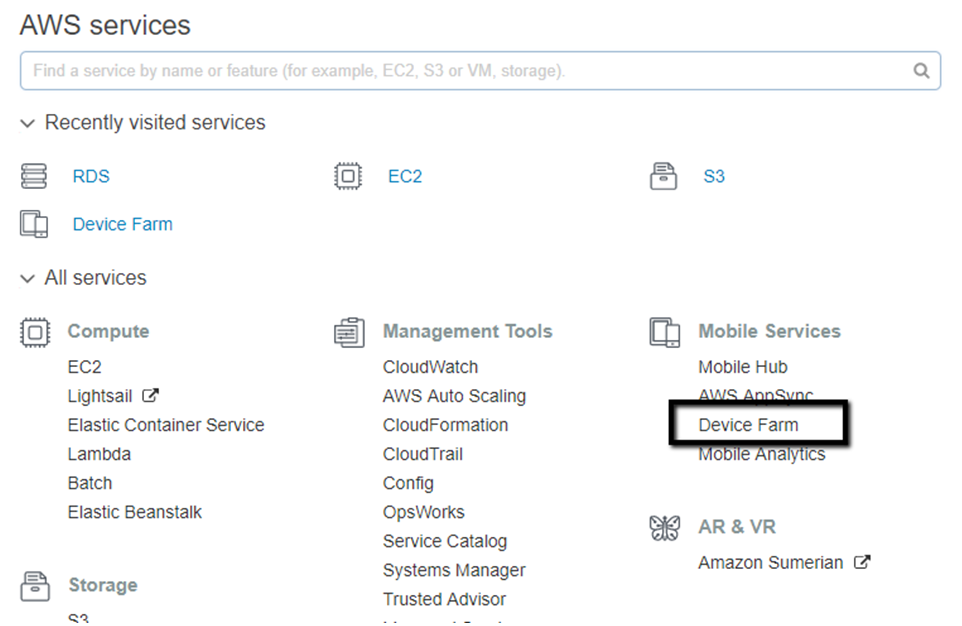
Click Device Farm
The user would be navigated to the Projects page as shown below
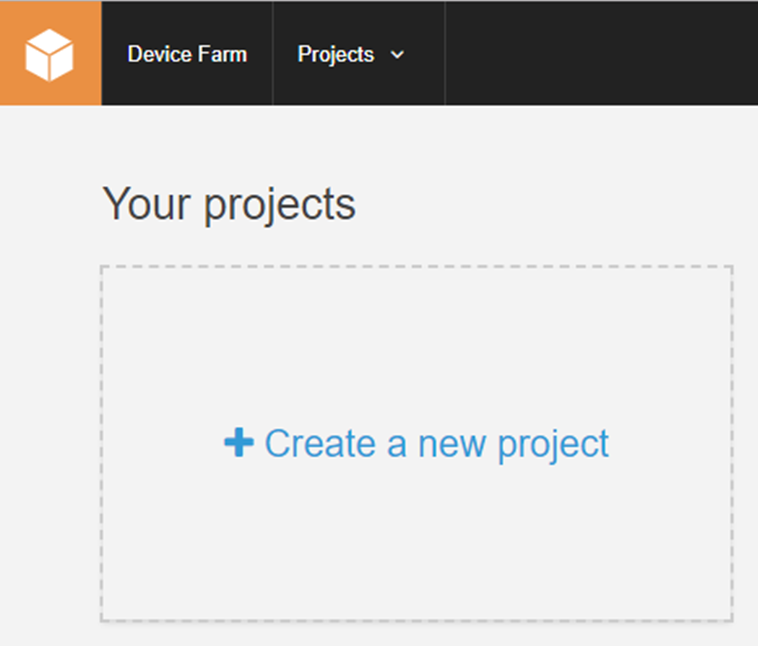
Click New Project
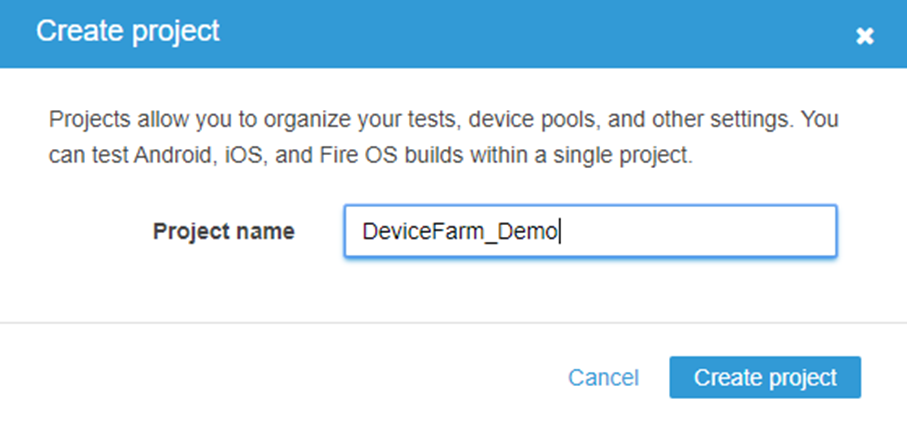
Enter the Project Name and click Create Project and the user will be navigated to the Run page
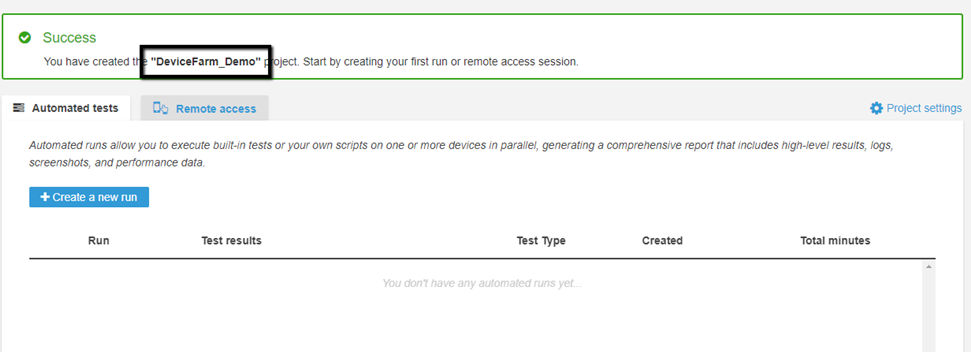
Now User has 2 options to choose from
Automated Tests
Remote access
Automated Tests
Step by step instructions on how to run automated tests in Device Farm
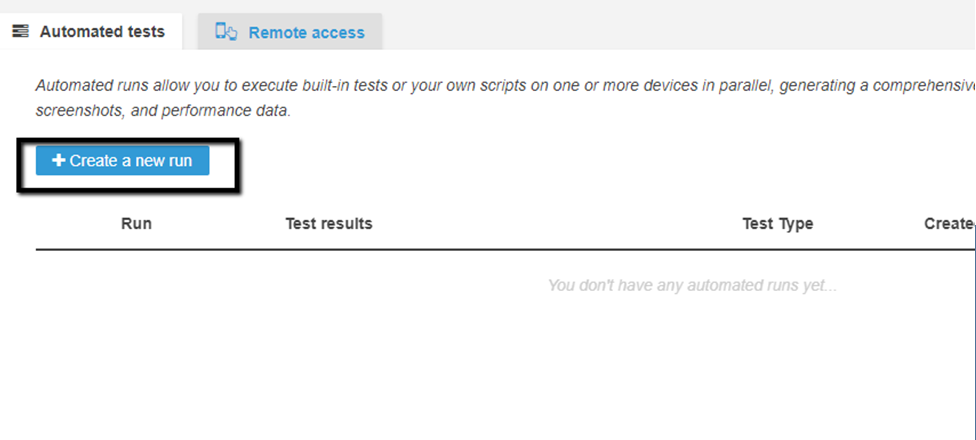
Click create a new run
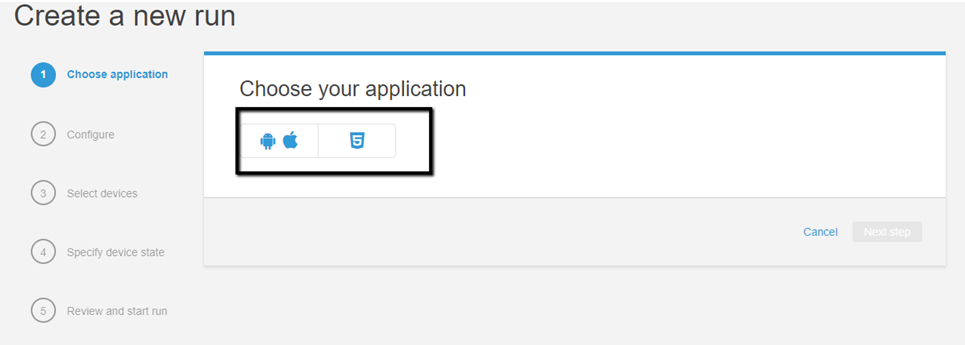
User will be directed to a page to select either Native application or Web Application
Select Native application and upload the APK or IPA file depending on the OS
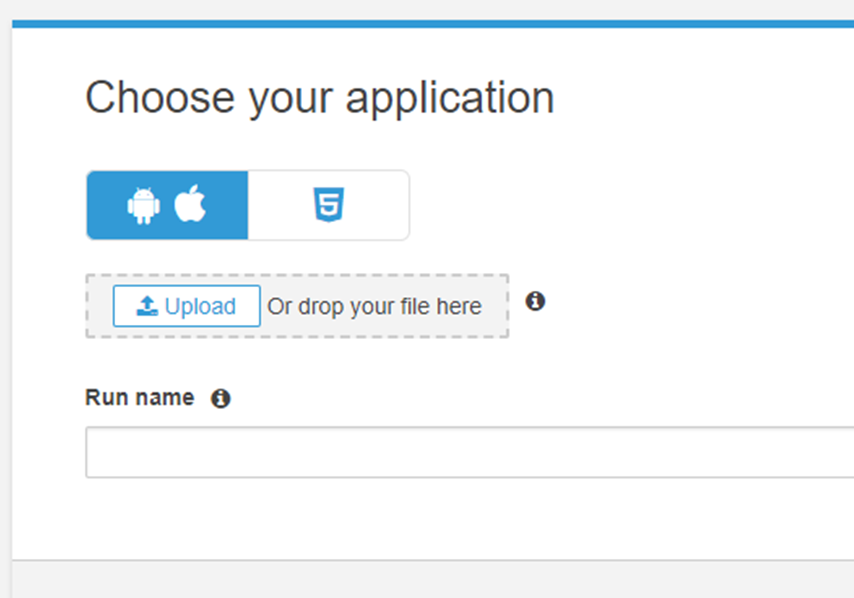
The user will upload the file
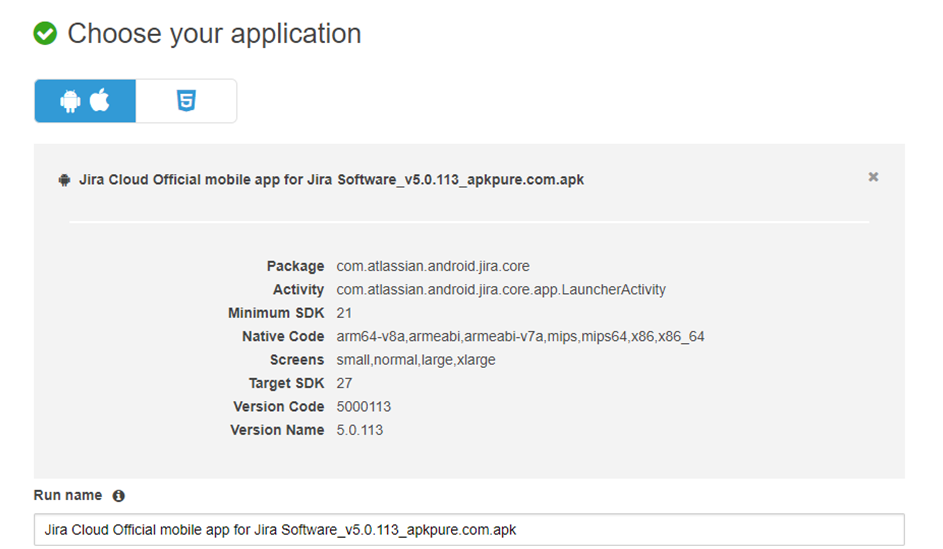
Device farm will give us details about the package and the activity name. It also gives information on the Target SDK, Version code, and Version name.
The user clicks on Next Step
The user will be presented with Configure page where the user has to select the test type
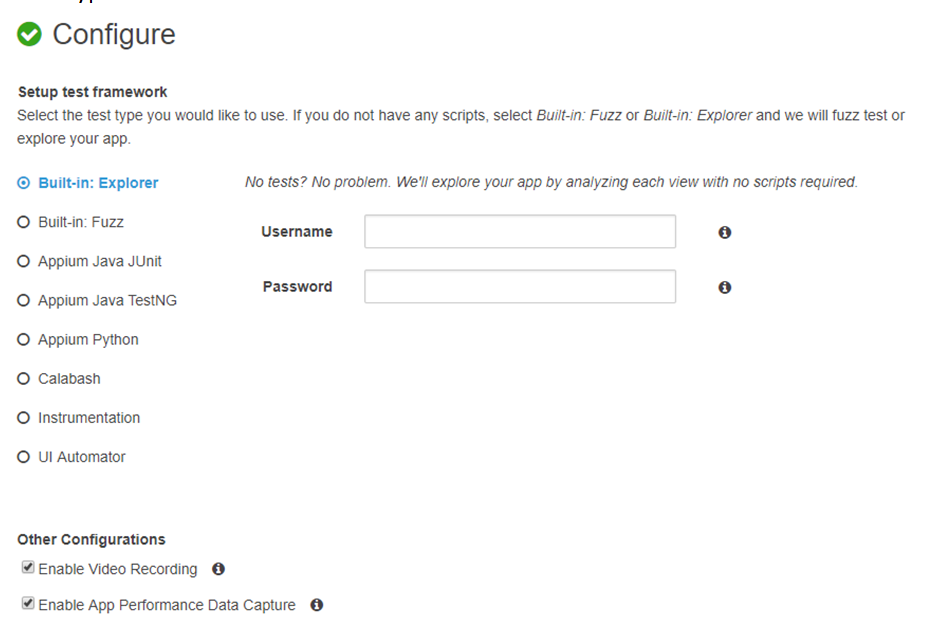
AWS provides 2 built-in options for testing i.e Explorer and Fuzz. Rest needs to be developed by the User.
I will be selecting the Explorer option to test the application. Once that is selected click the Next step
The user will be navigated to the Select Devices page
This page will inform the user of the device which is compatible with the apk file or ipa file. Users can also create their device pool using the “Create a new device Pool” option
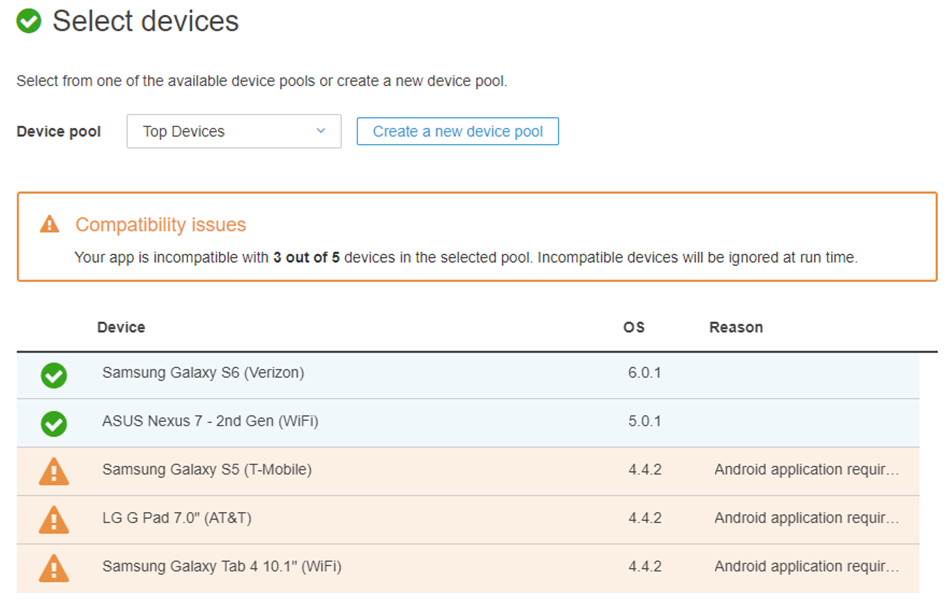
Click Next
The user now will be presented to the Device state page
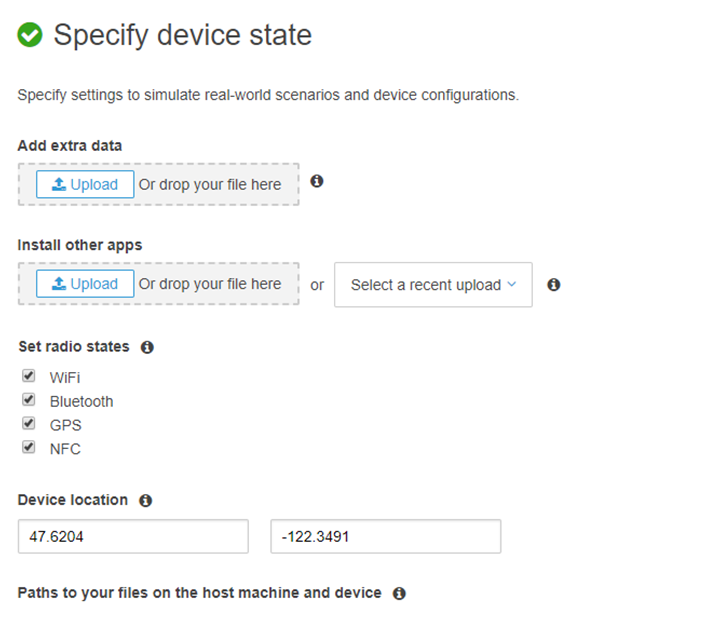
User can change settings like wifi, Blue-tooth, etc.
Click Next
Review and start the Run page
The user has to select the minutes carefully since if the time given by the user is less than the actual run then only partial results will be available to the user
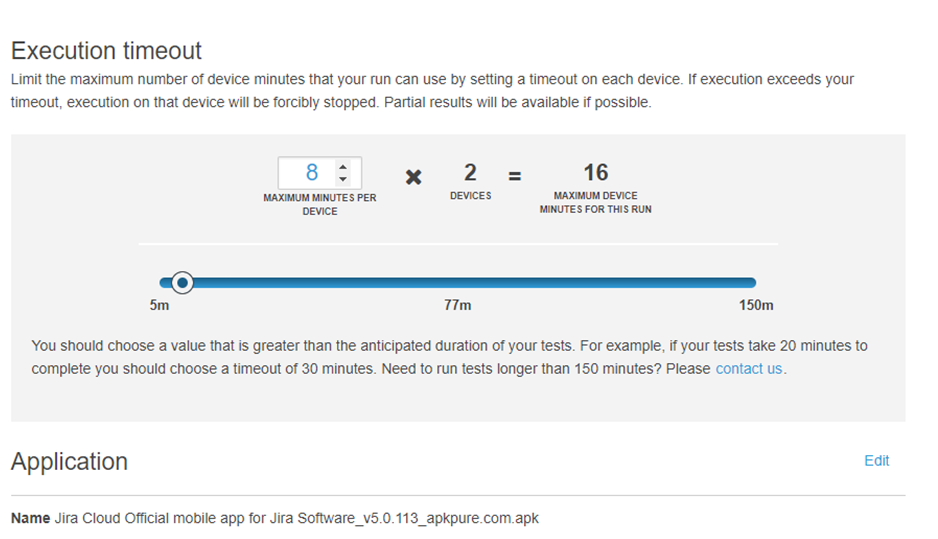
Once the above setting is done user clicks on confirm and runs the button
The user will be presented to the Run page with a scheduled test in Progress
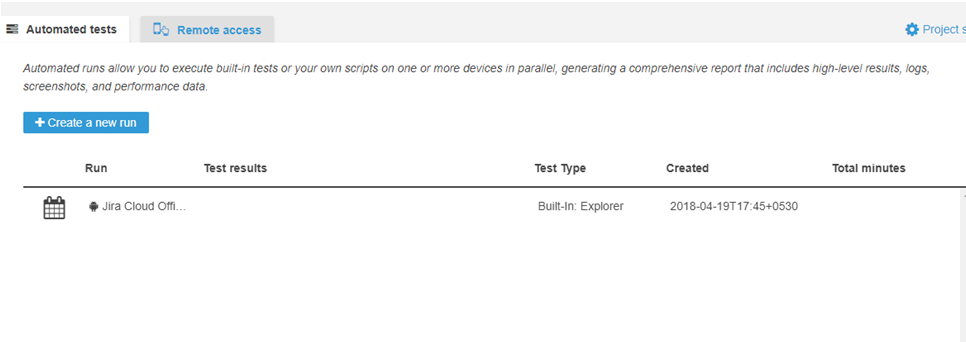
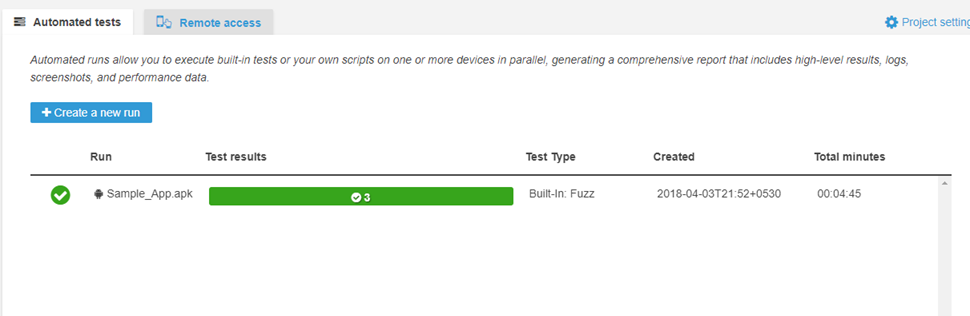
Once the user clicks on the completed test, it will be navigated to the results page

Where the user can check the video recording, Suites that were run, screenshots, and also the logs needed for debugging.
Remote Access
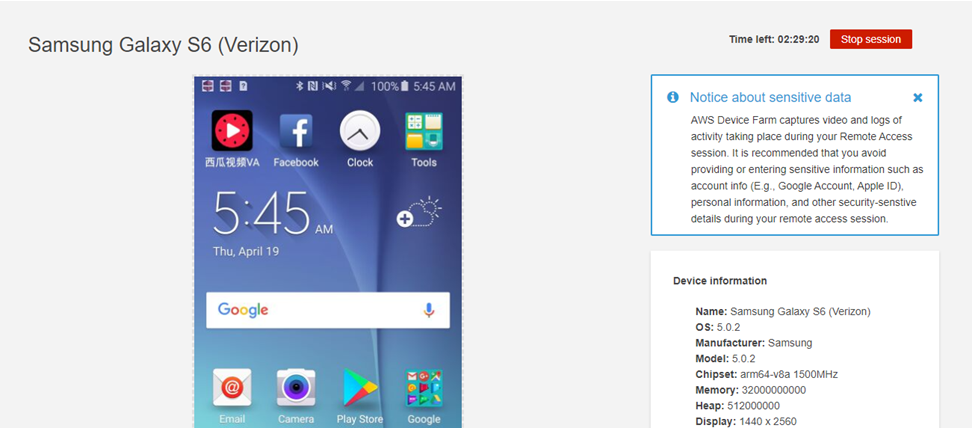
This feature allows the user to interact with the actual device which is launched in AWS
Steps to Start a new session are given below
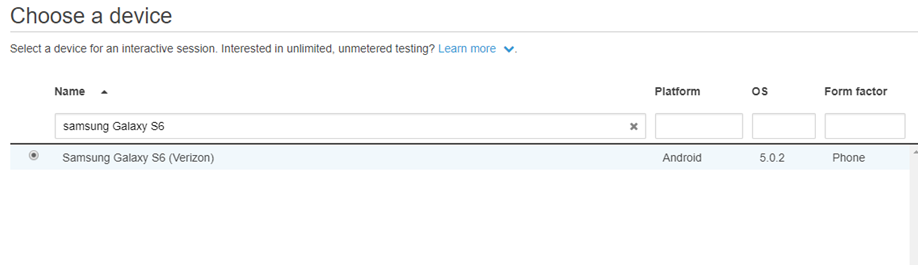
Click Start new session button on the Remote access page. Users will be presented with a page to select the device name, Platform, and OS
Select the device and click the “Confirm and Start Run” button
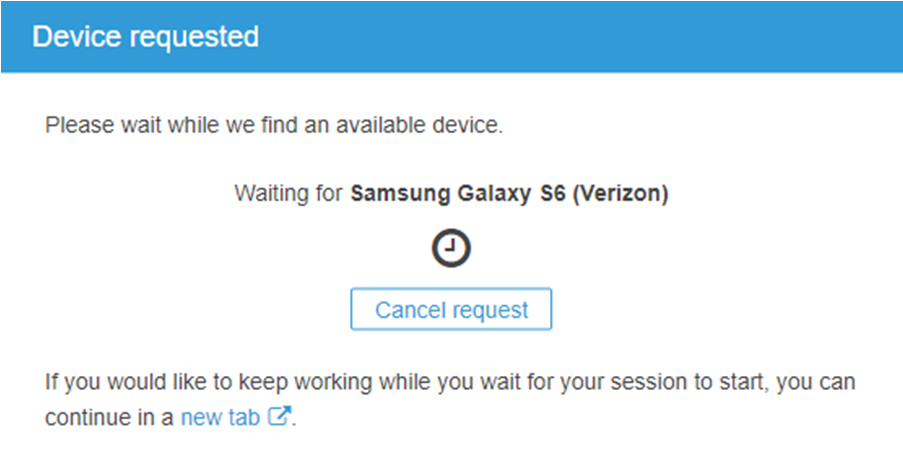
User will be presented with a page to indicate to the user that the device is being initialized in the back-end
Device will be launched and users can perform actions as they wouldrelying on a physicalsaved deviceconfiguration.
Last updated: FebruaryOctober 16,5, 20242026
If you have any feedback on this topic, please contact us at documentation@appvance.ai