
Mobile Designer New Interface - Legacy Overview
Legacy reference
AThis newpage Mobil Designer interface was added in the 5.2.0 release of AIQ. It aligns perfectly with modern editor capabilities offeringdescribes a more flexible and intuitive user experience that makes testing tasks easier and more efficient. The new Mobile Designer user interface is similar to the new Web Designer user interface that was introduced in AIQ release 5.0.0.
See an introductory video showing the new Mobile Designer interface inthat use.should be considered legacy unless a customer is still maintaining older assets. Current guidance should use AIQ mobile testing and Scenario Editor terminology.
To
Use accessthis thepage Mobilefor
- Migration context from
AIQ navigate toHome>Mobile Testing>Mobile Designer.
assets.This is an example of the newolder Mobile Designerinterface. - Understanding
historical
labels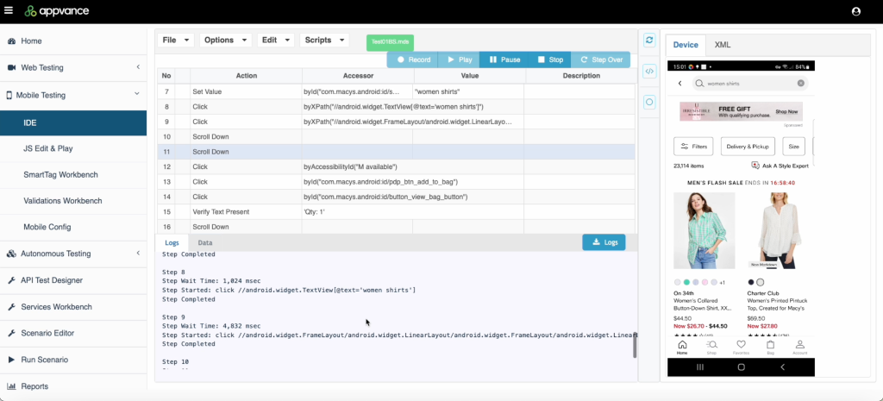
Overvieworofscreenshots. - Temporary support while consolidating mobile documentation.
Current recommendation
- Use active Mobile
Designer ControlsTesting andIconsScenarioEditor articles for new work.
- Move
Iconstill-useful/migrationControlnotesFunctioninto
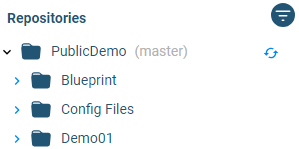
Repository pane. Displays the contents of your repository. You can sortlabels, and filterunsupported usinginstructions.

Repository / Quick Access toggle. Switches the File Manager pane between the repository and quick access views.

Filter. Allows you to filter the items displayed in the File Manager.

Sort by Name / Sort by Type. Sorts the contents of the File Manager pane by name or by type.

Refresh Repository. Refreshes the display of the File Manager pane.

Editing controls menu.
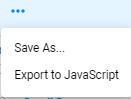
Additional save and export options menu. Lets you

File Manager toggle. Shows/hides the File Manager pane.

Console toggle. Shows/hides the Console

Mobile Device selection control. Controlled by the mobile configuration that you created for your test.
See Mobile Configuration for more information.

Test controls.

Open Test Options menu. See Mobile Designer Test Options Details for more information.

Menu bar for interacting with a Mobile Configuration file.

You can:
See Mobile Configuration for more information.
Last updated: SeptemberOctober 18,7, 20242026
If you have any feedback on this topic, please contact us at documentation@appvance.ai