
Zoom In and Zoom Out
UseYou thiscan articleperform when a mobile test needs to zoom in or zoom out using a pinch gesture in a supported mobile workflow.
What changed in this article
Renamed the page to describe pinch zoom gestures instead of a vague “Zoom In and ZoomOut”Outtitle.Addedfunctions.checksTheseforfunctiongesturemirrorscenteruserspoint,performingscaletheamount,pinchdevice orientation, appand zoomsupport,gestures.browserTheviewport,following example shows this function in Google Maps.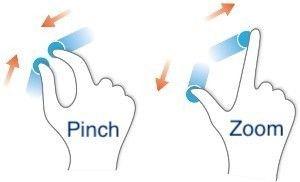
This was added in the AIQ 5.0.0 release.
Zoom In
-
In the Device tab, select a region.
Right click and visualselect verification.Zoom In.
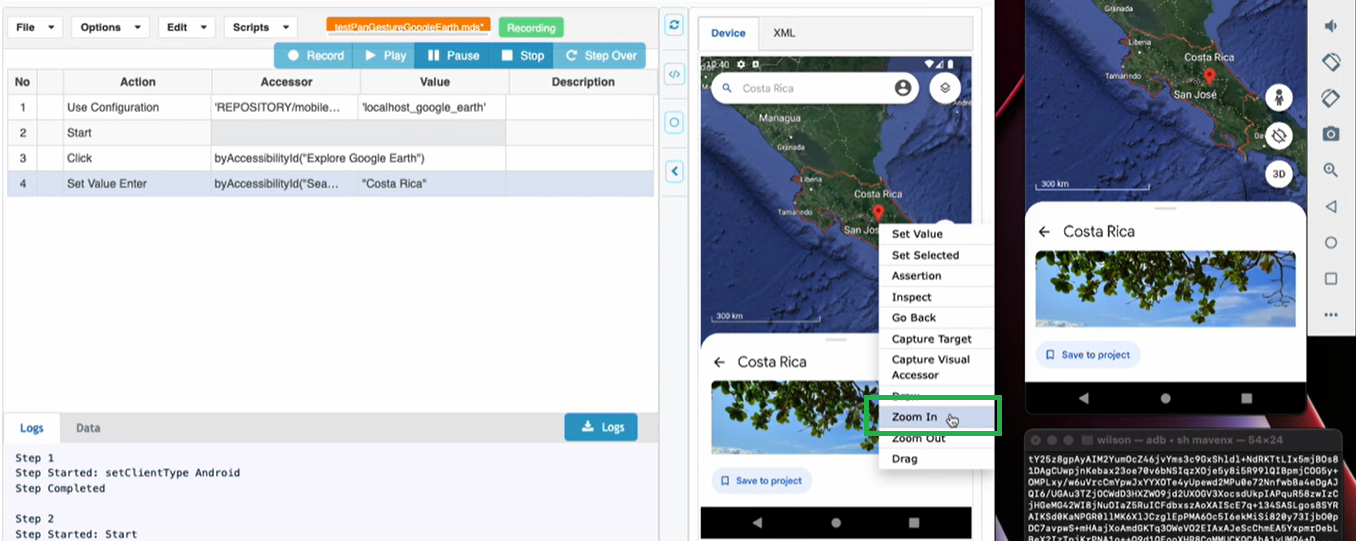
Adjust tothe avoidslider relyingas onneeded zoomand gesturesclick whenZoom In.
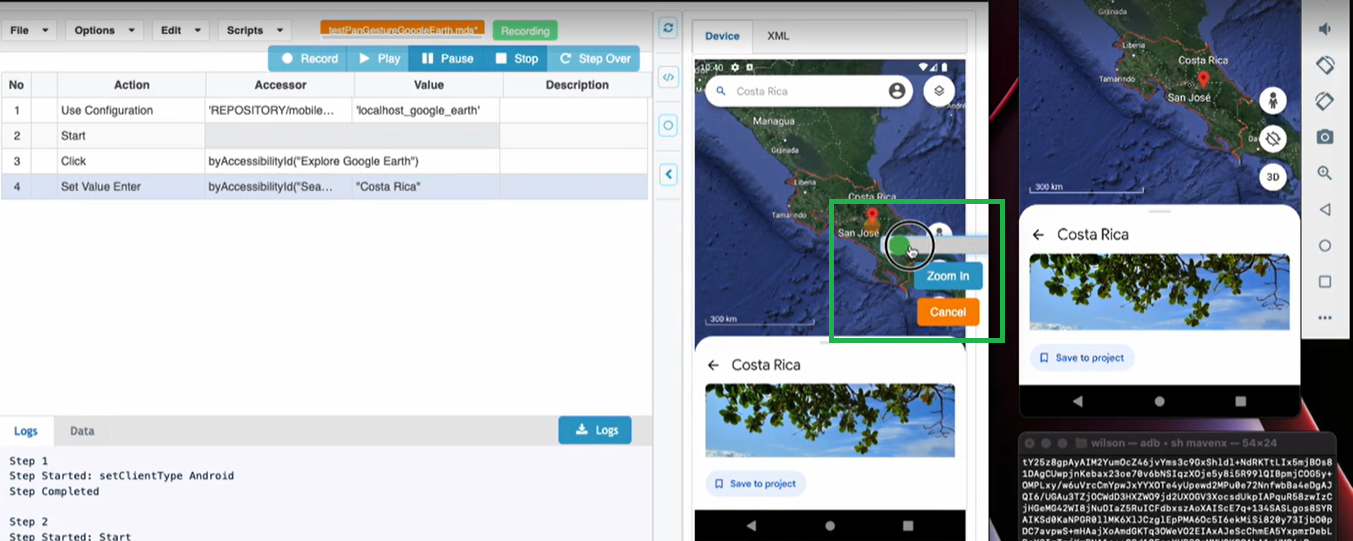
The Zoom In action is performed and recorded.
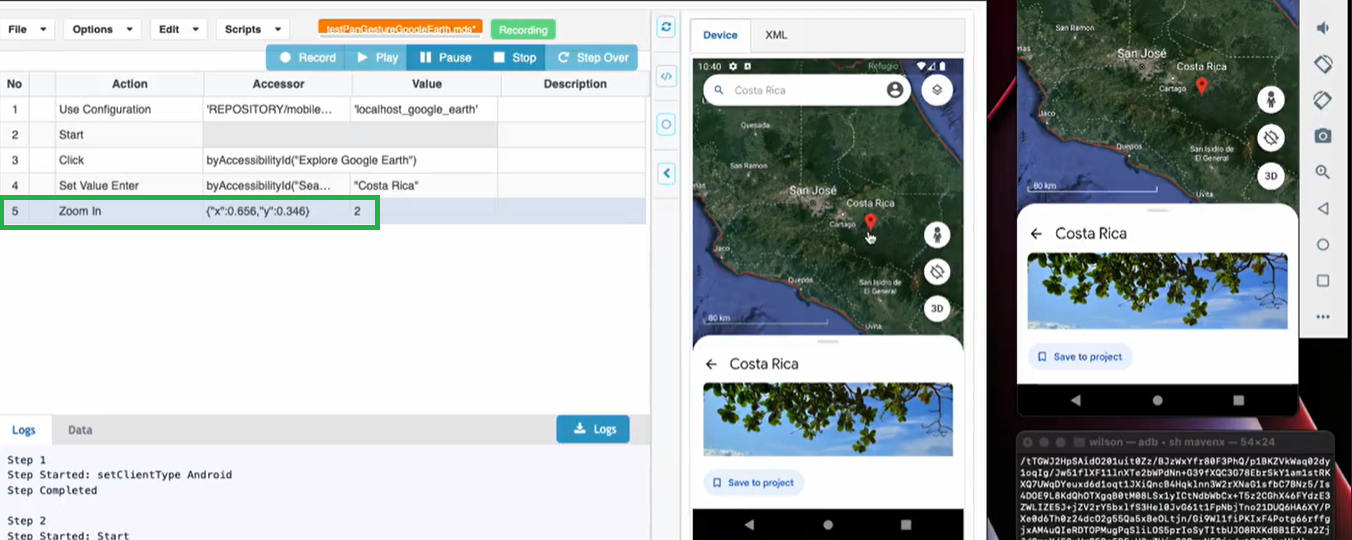
Zoom Out
In the Device tab, select a directregion.
Right controlclick and select Zoom Out.
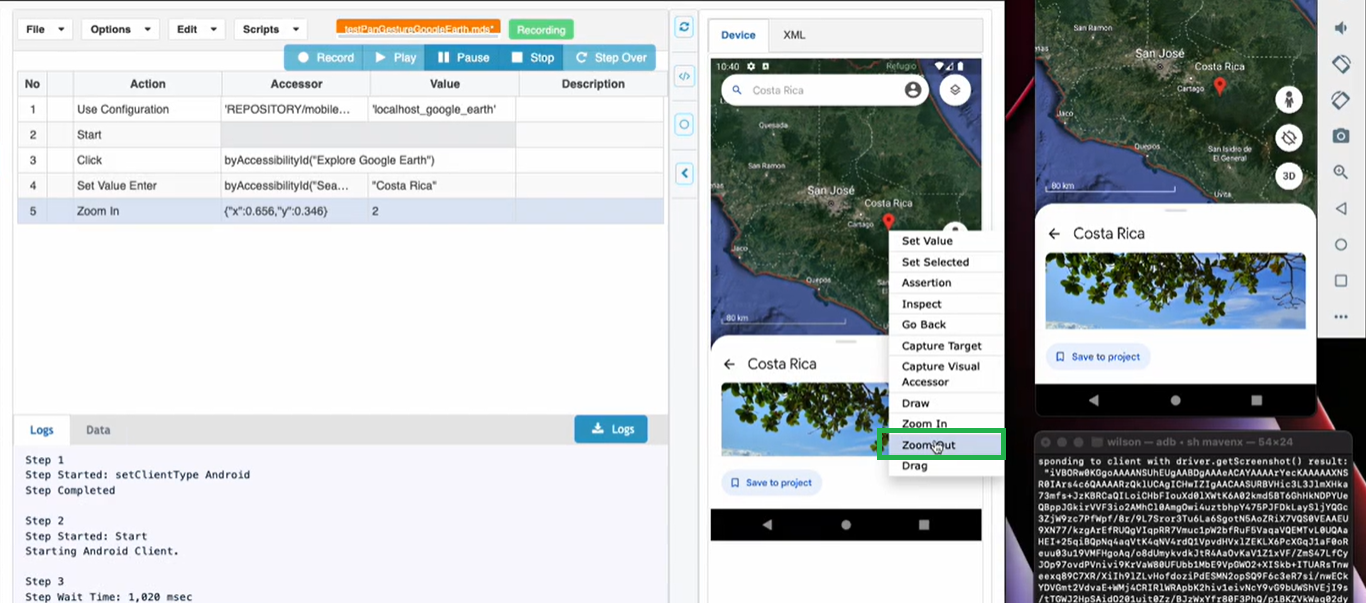
Adjust the slider as needed and click Zoom Out.
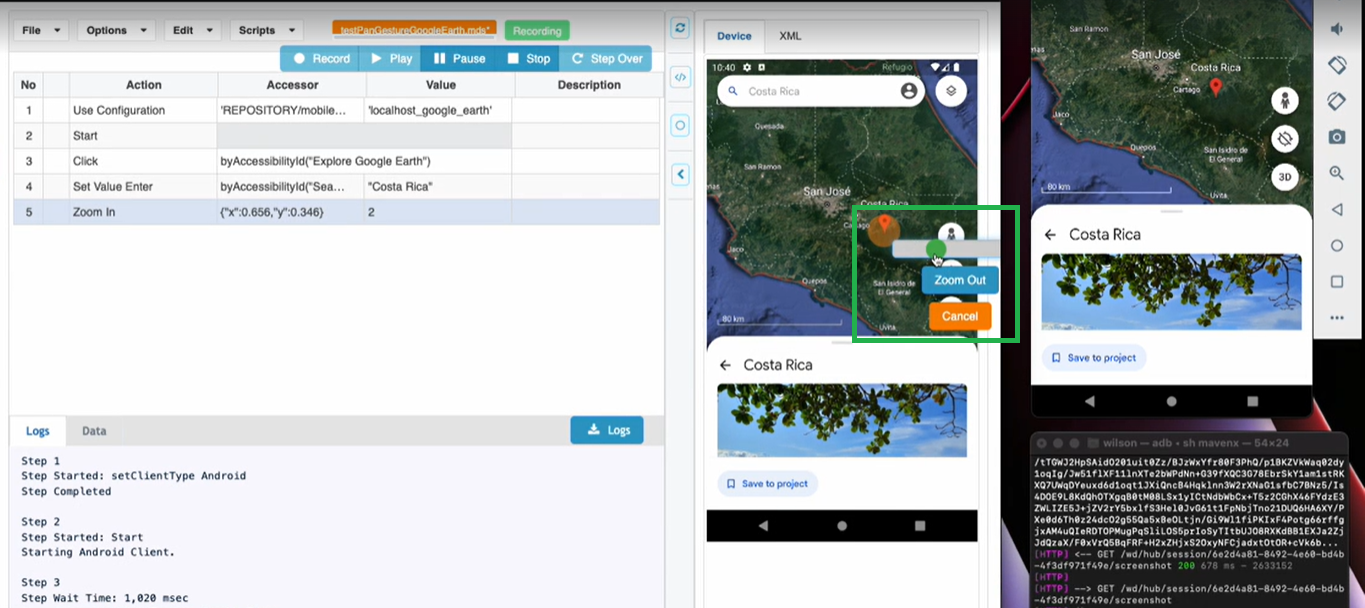
The Zoom Out action is more stable.
Validation workflow
Confirm the application supports pinch zoomperformed anddefinerecorded.theexpected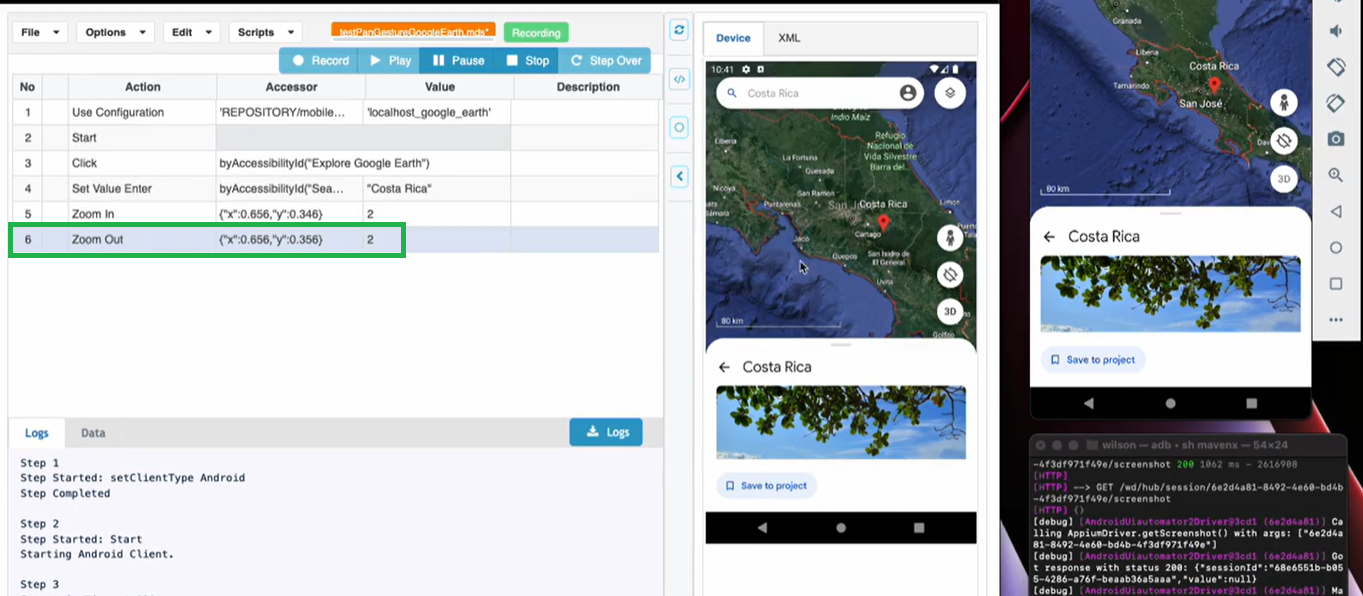
zoomresult.Runthe gesture on the target device profile and capture evidence before and after zooming.Validate that the next step uses stable locators or visual evidence that still works at the new zoom level.
Review note: This page now focuses on repeatable mobile zoom behavior.
Last updated: OctoberJanuary 5,30, 20262024
If you have any feedback on this topic, please contact us at documentation@appvance.ai.