
Kindle Desktop App Example - Legacy AIQ Desktop Test
Here is a basic example of creating a desktop test that interacts with the
Kindle desktopDesktop application.App Example - Legacy AIQ Desktop Test
This example willis show:
What this example demonstrates
- Starting
Launching thea desktop applicationbeingfromtesteda known state.
Example
Maintenance
guidanceIn AIQ navigate to Desktop Testing > Desktop Designer.
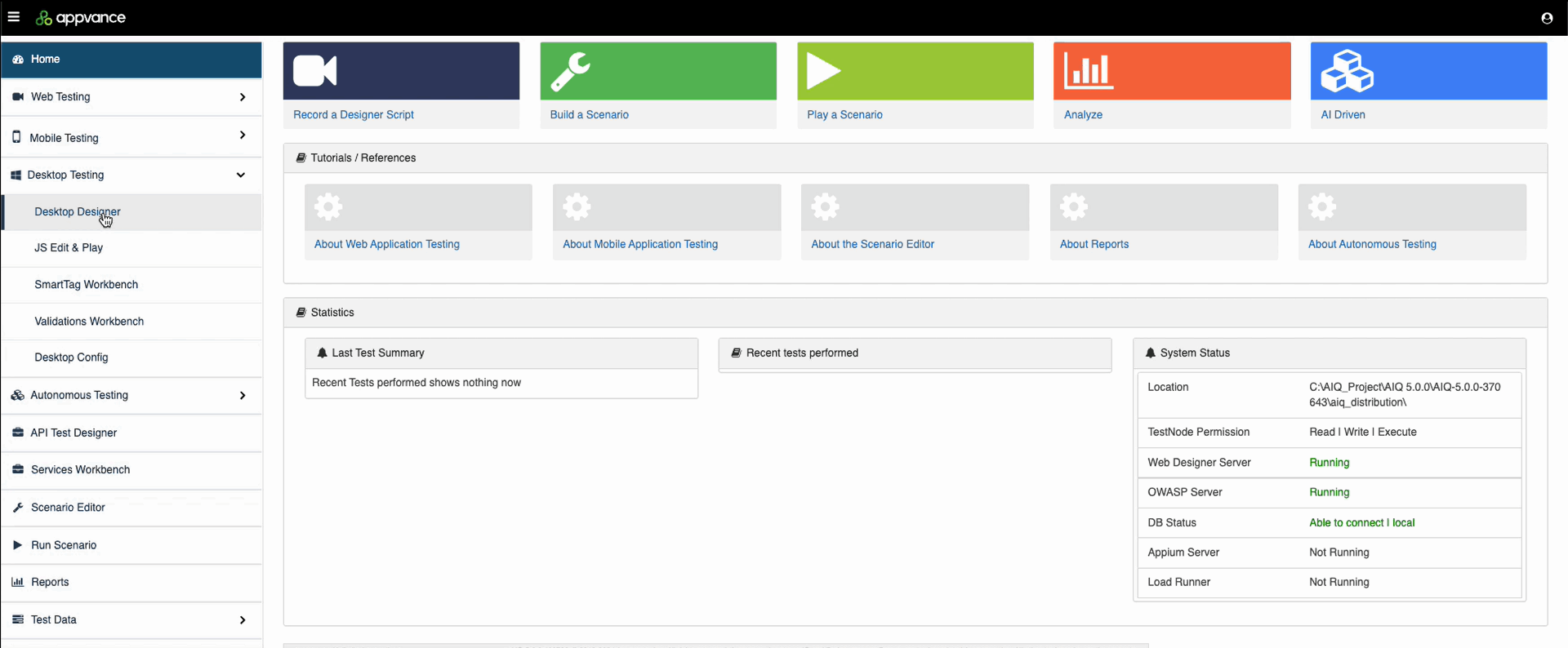
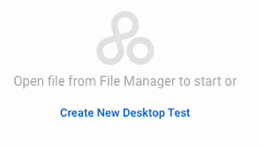
Click Create New Desktop Test.
Name and save your new test script. In this example the file is named KindleVideo.dds.
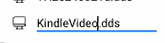
.dds is the file extension for all Desktop Designer test scripts.
Select a Desktop Configuration file. If you have not created a Desktop Configuration file, see Desktop Designer Configuration Files for more information.
Click Preview to see your Desktop Configuration file.
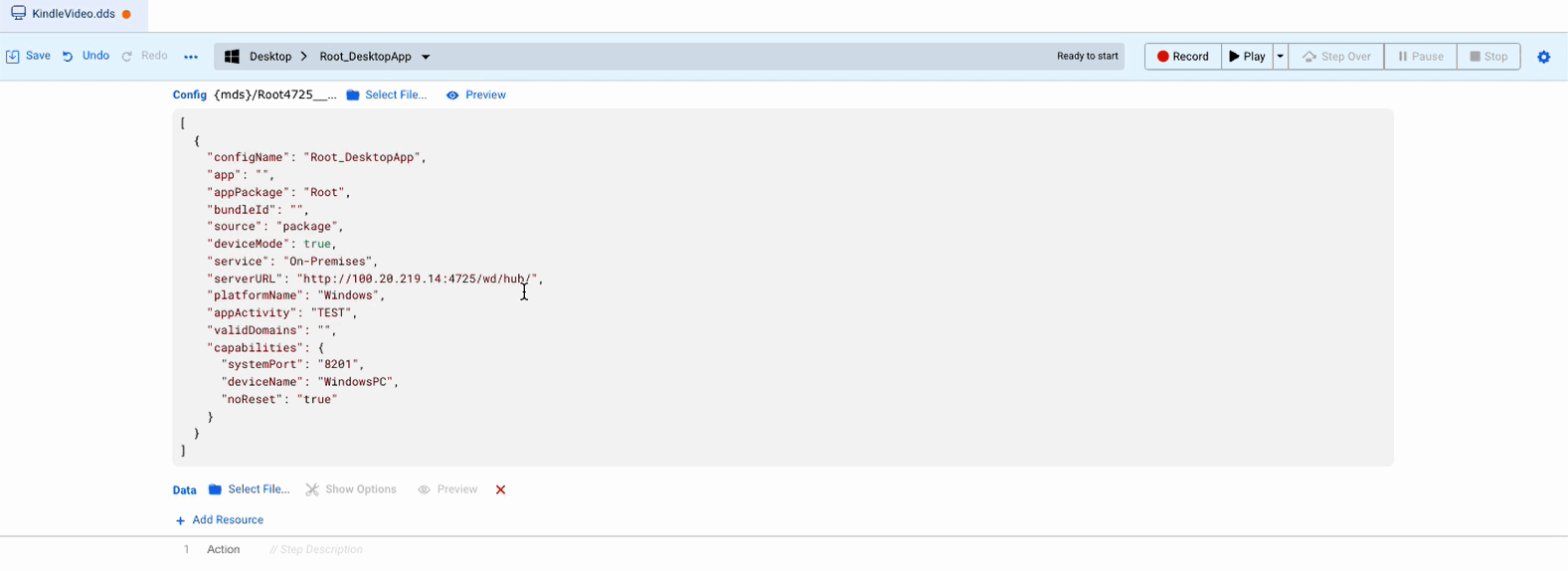
Click Record to begin recording your test script.

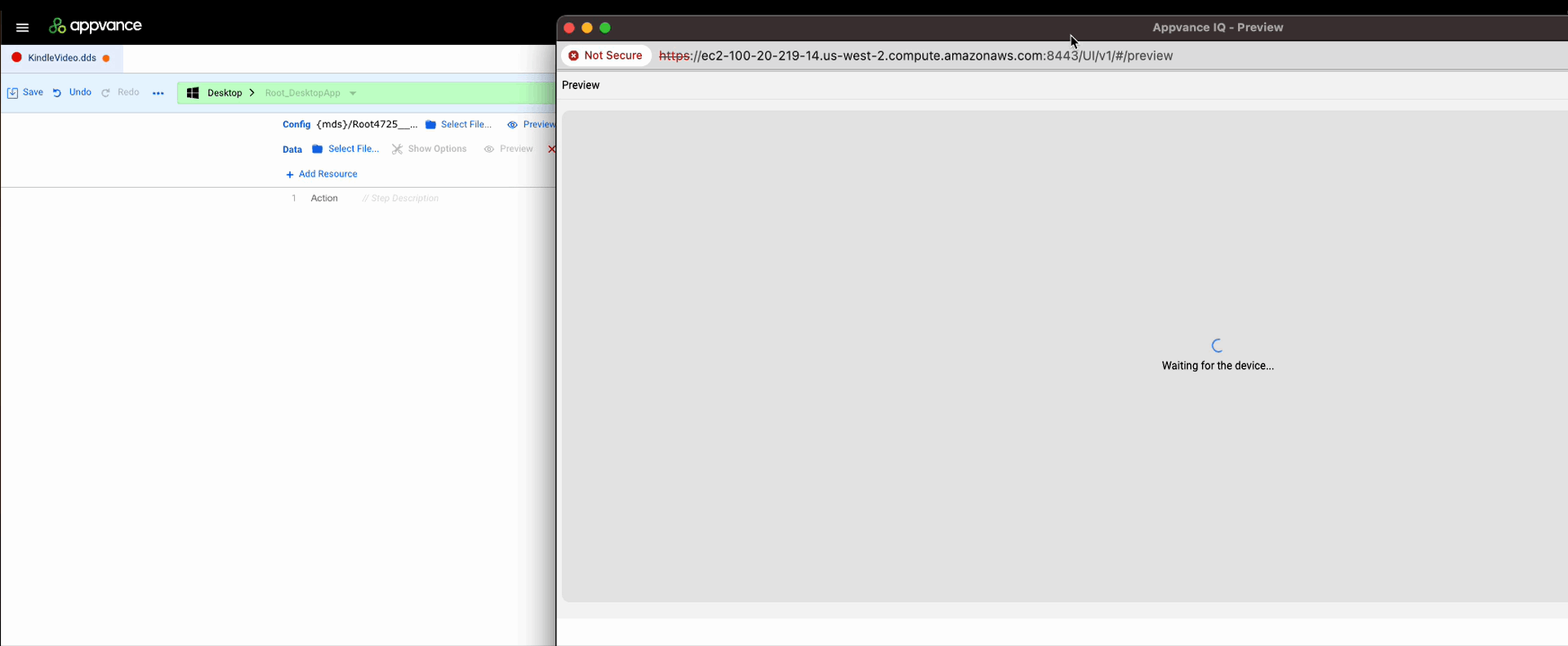
Wait for the device to load.
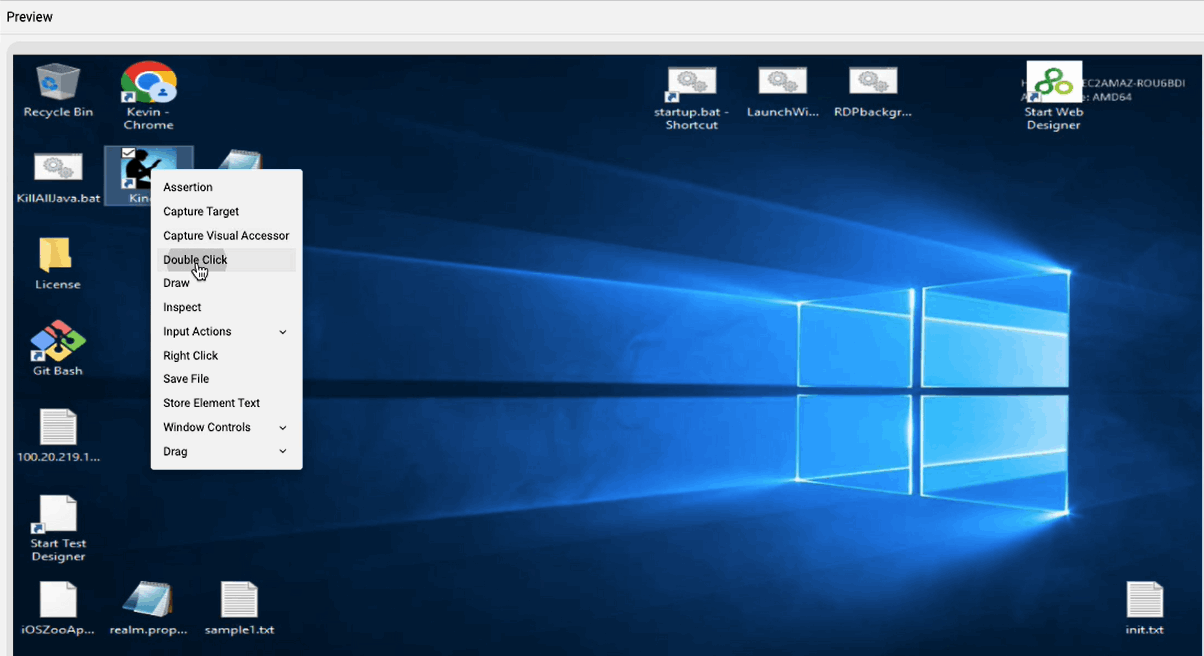
Right click the desktop icon forConfirm the Kindle appapplication version and selectthe DoubleWindows Click.environment before rerunning the sample.
Obsolete-content note: Keep this page only as a legacy example. New examples should use the current AIQ workflow and current terminology.
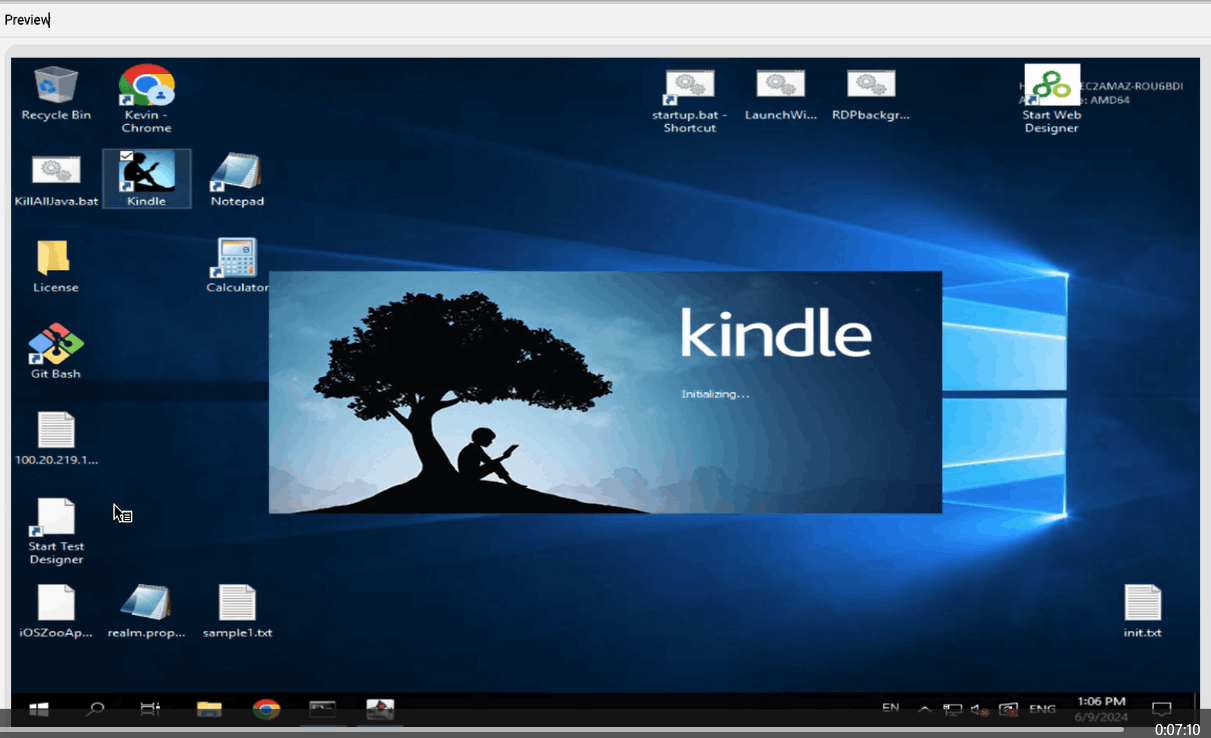
The Kindle desktop app starts.
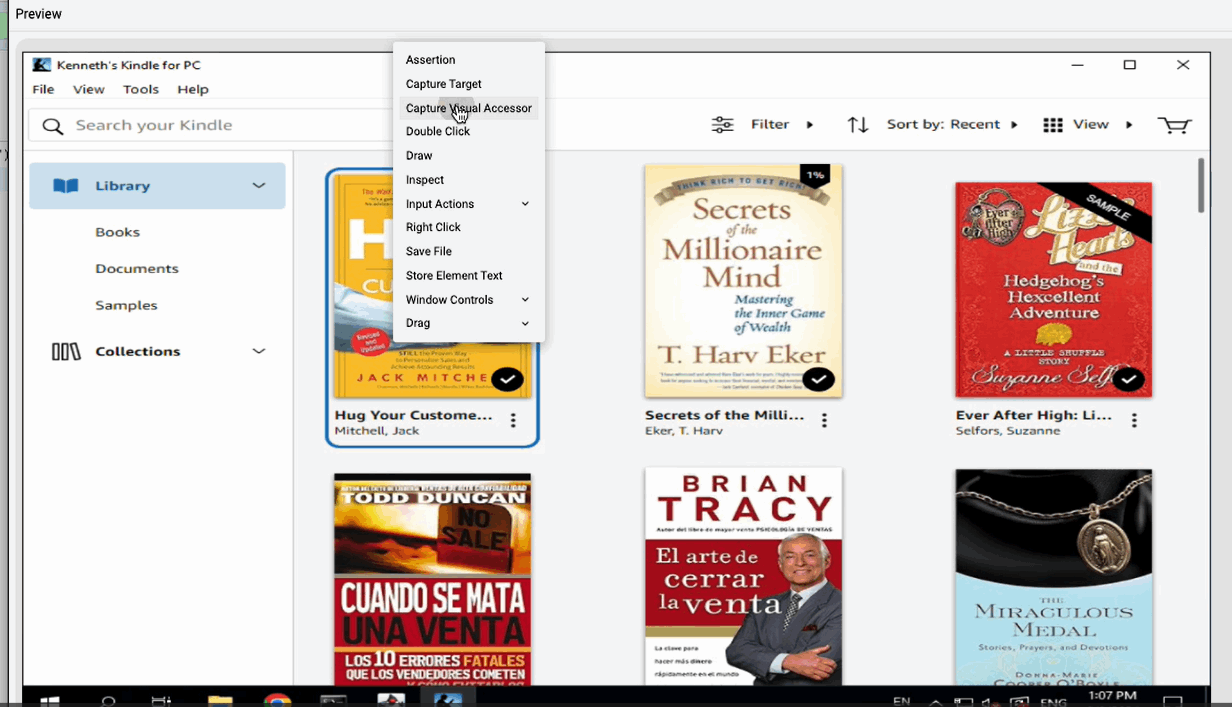
Hover over one of the book covers. Right click and select Capture Visual Accessor.
Select the boundaries of the Visual Accessor.
Click Save Target.
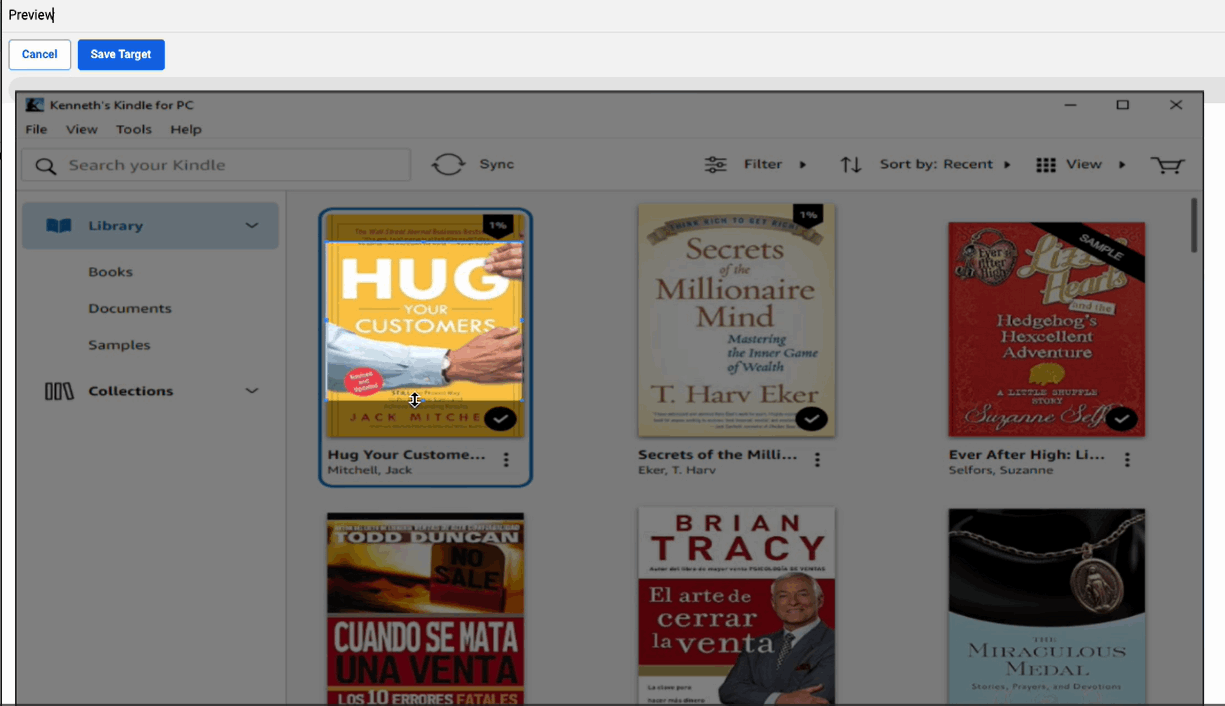
Click on the Visual Accessor.
Add Step with Double Click.
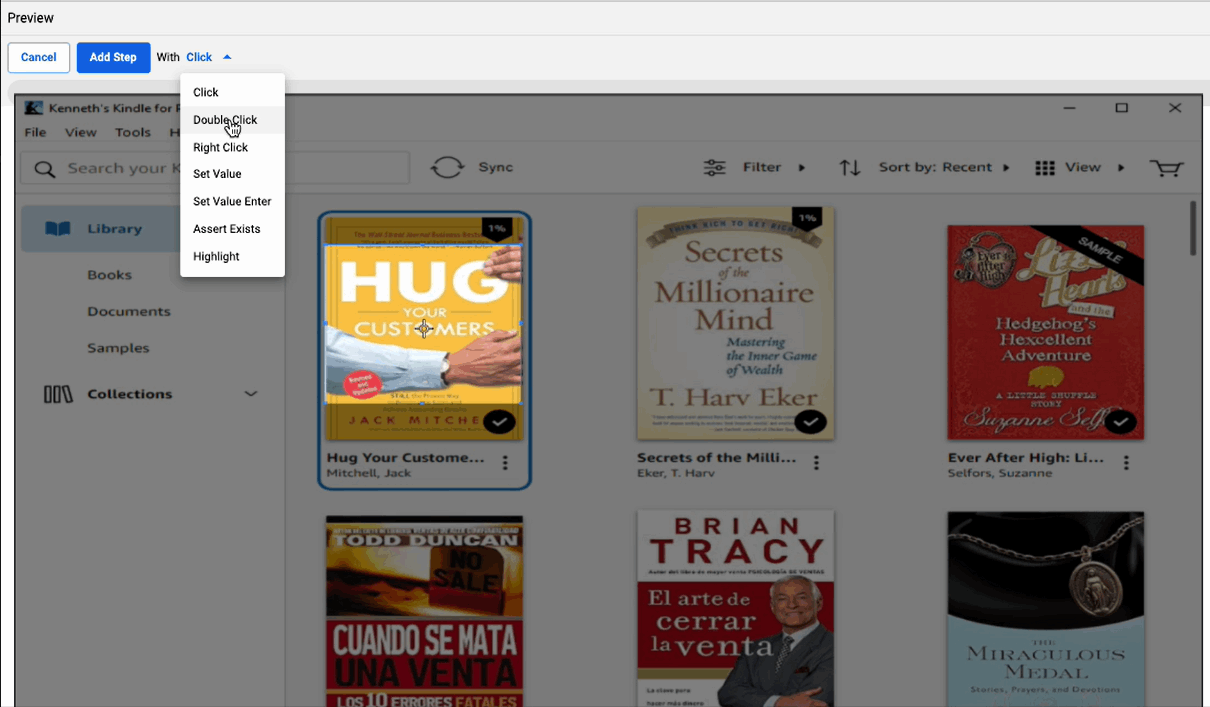
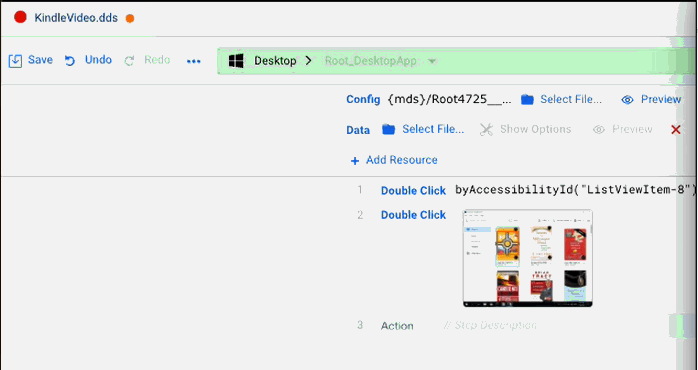
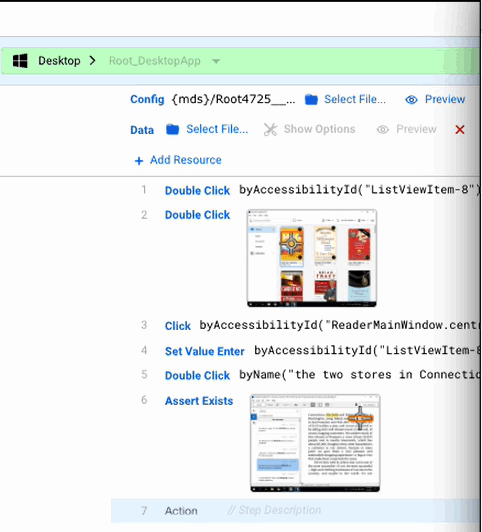
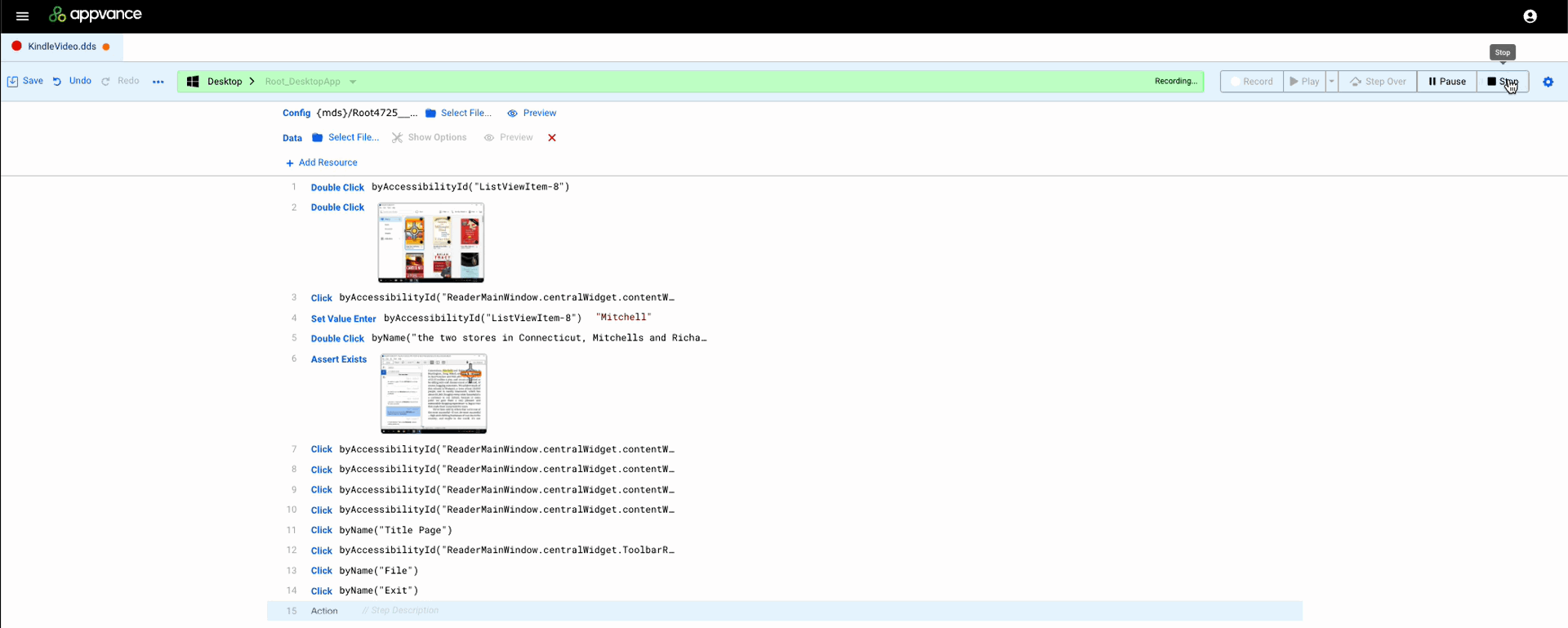
In the Desktop Designer window you can see that the step has been added to your test script.
Click in the Search bar and then right click.
Select Input Actions > Set Enter Value.
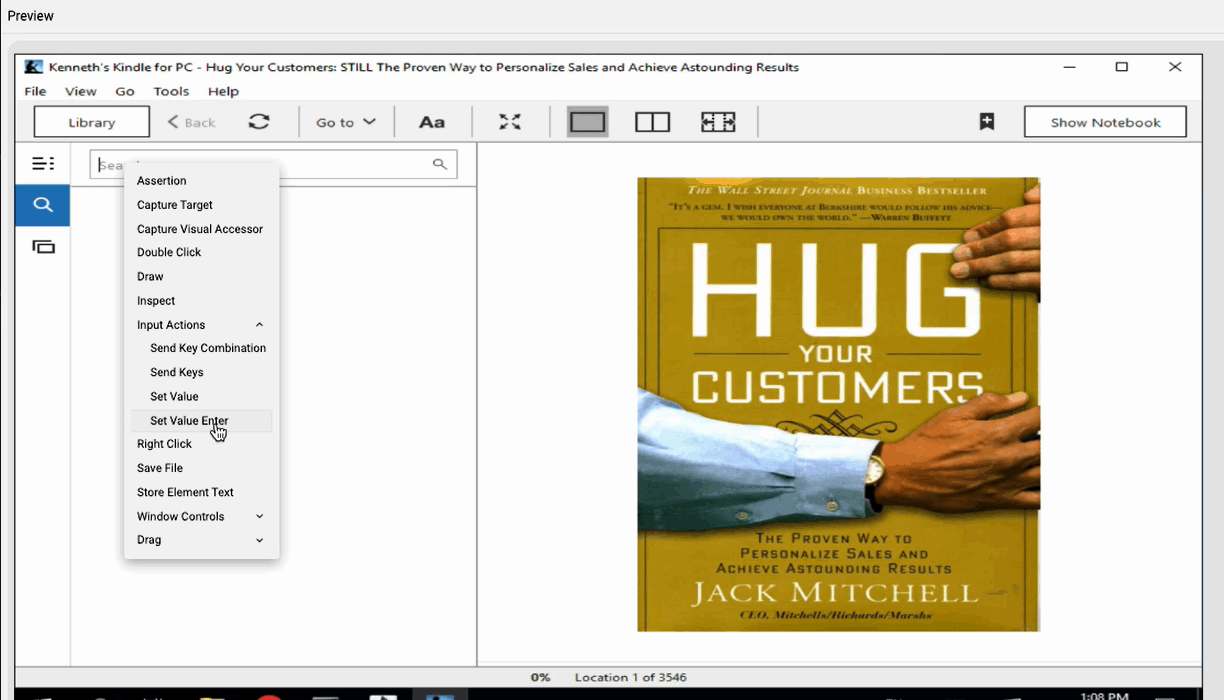
Enter a search string. In this example the search string will be "Mitchell".
Click Apply.
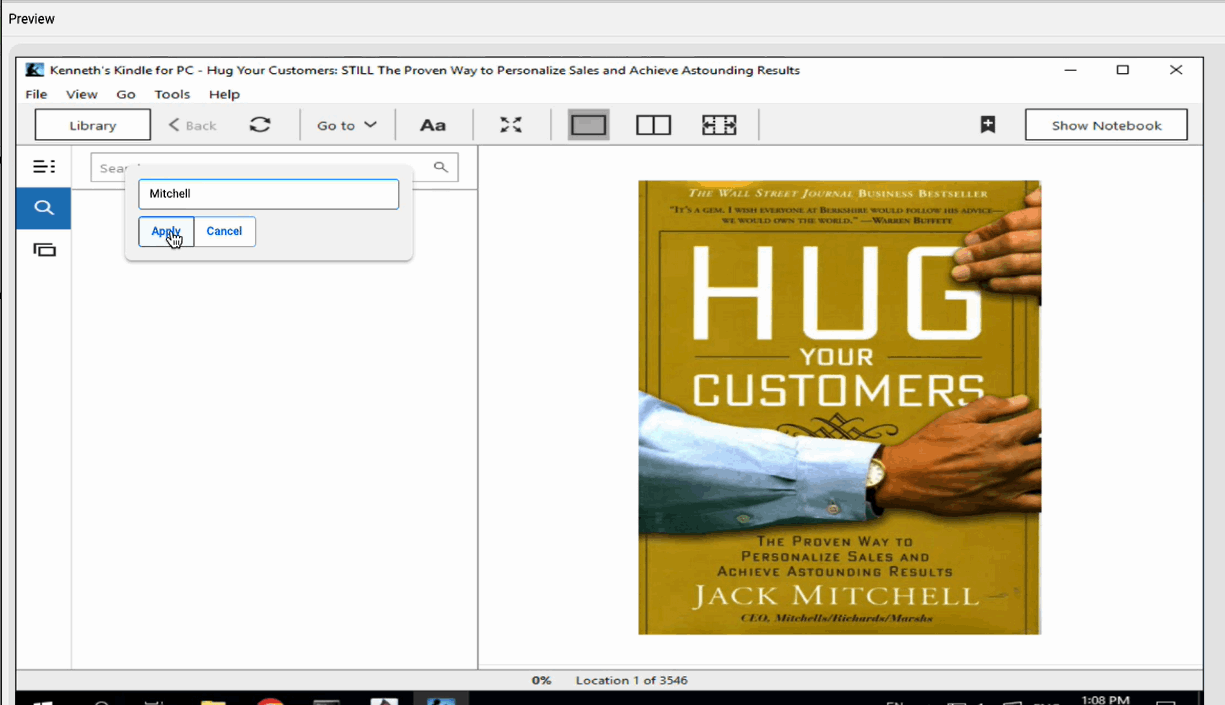
The search results load.
Select one of the search results and right click. Select the Double Click action.
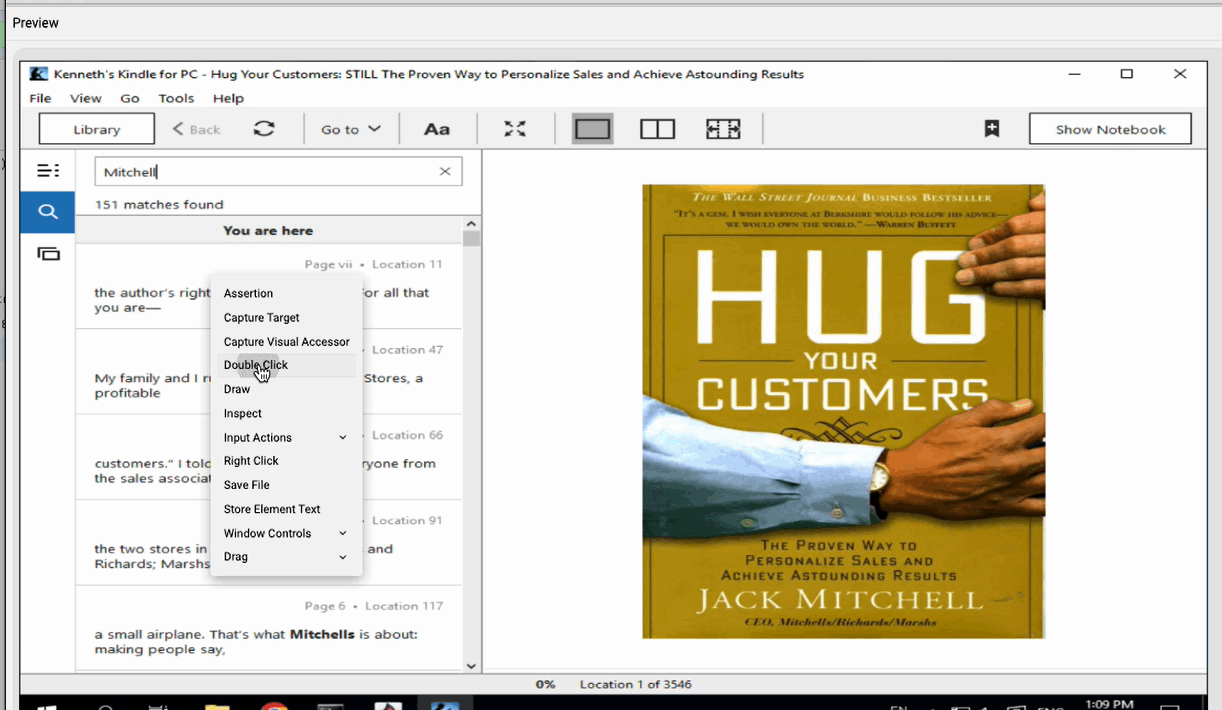
The page associated with the search result loads on the Kindle screen.
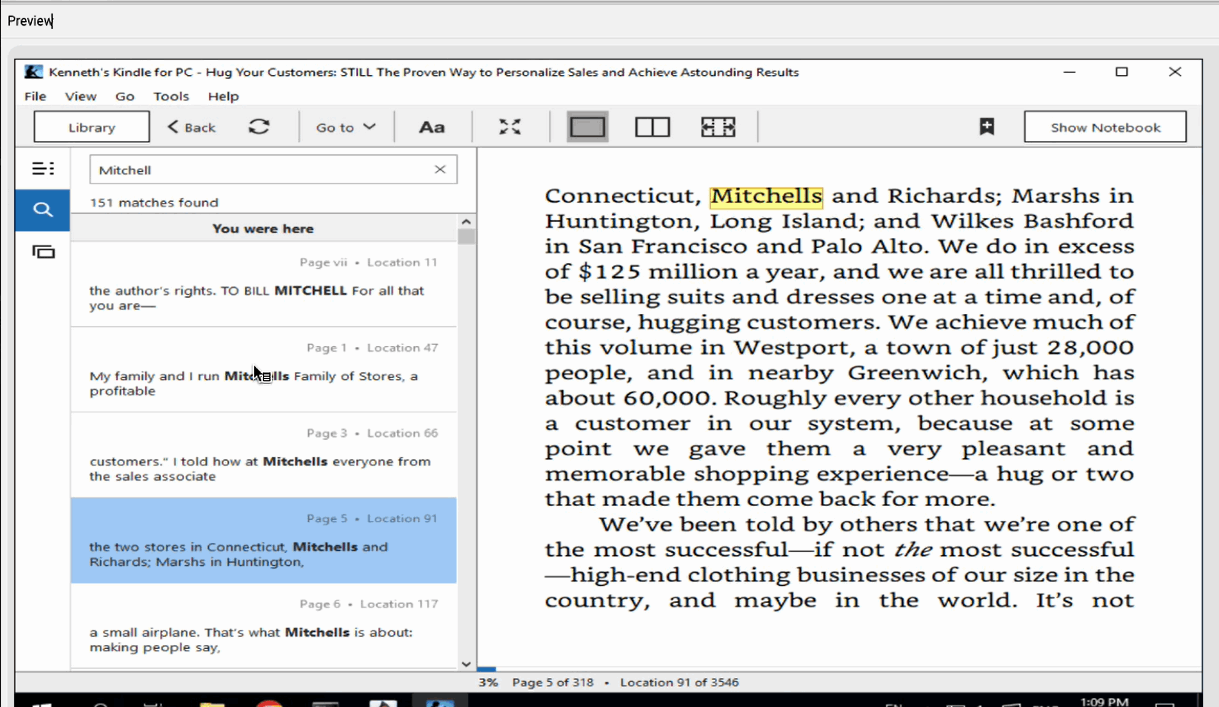
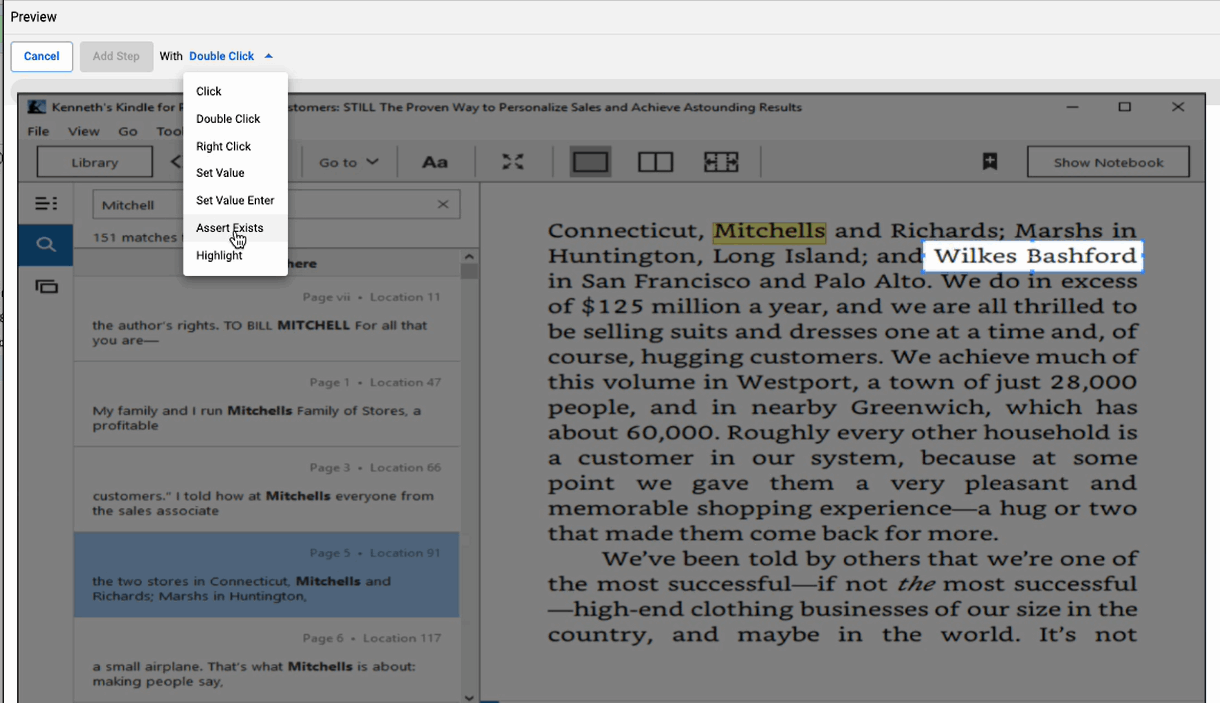
Hover over the page and right click. Select Capture Visual Accessor.
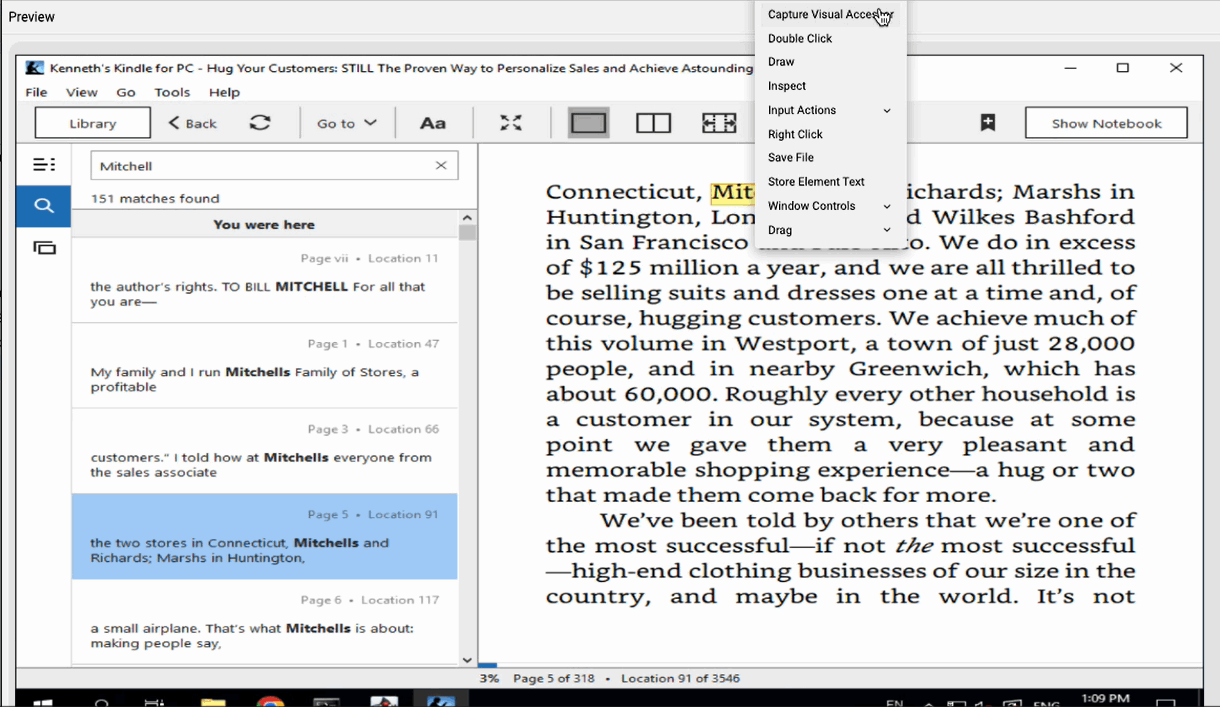
Adjust the Visual Accessor target. In this example it is the text "Wilkes Bashford" that is selected.
Click Save Target.
Add Step with Assert Exists.
The test script updates in the Desktop Designer window.
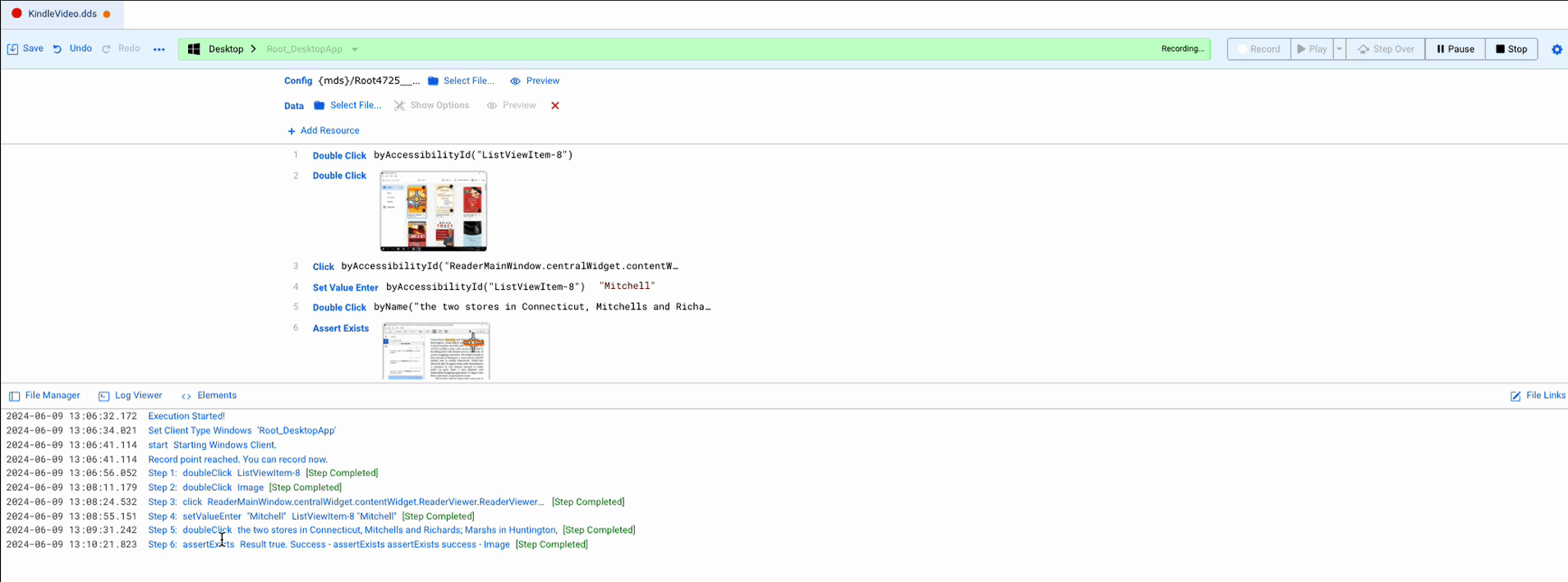
You can see more information in the Log Viewer tab.
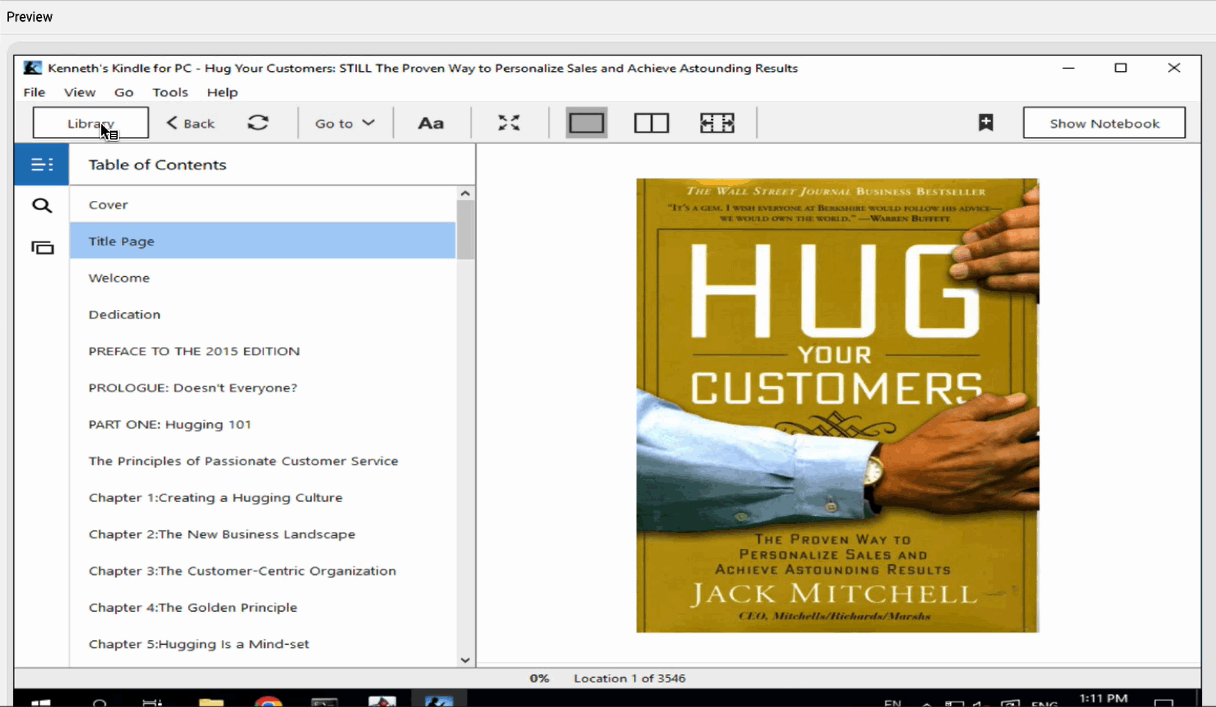
Click in the TOC and select Title Page.
The title page loads.
From the File menu select Exit.
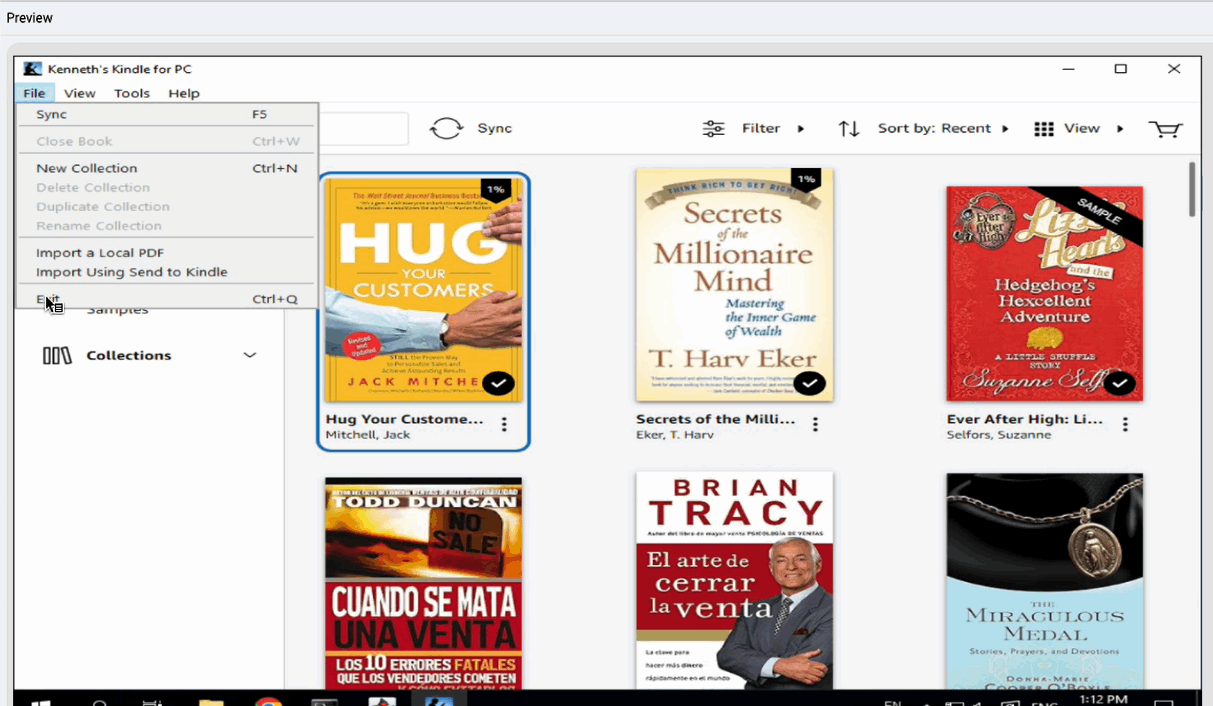
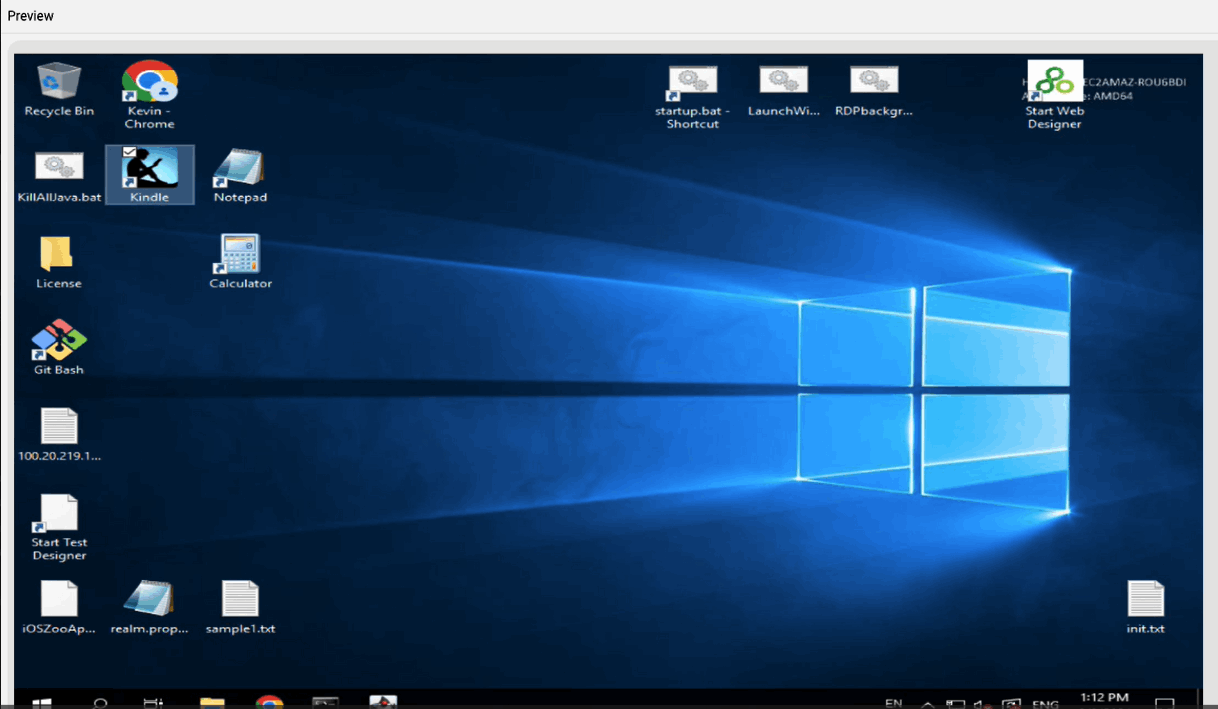
The Kindle desktop app closes.
Click Stop to stop the recording.
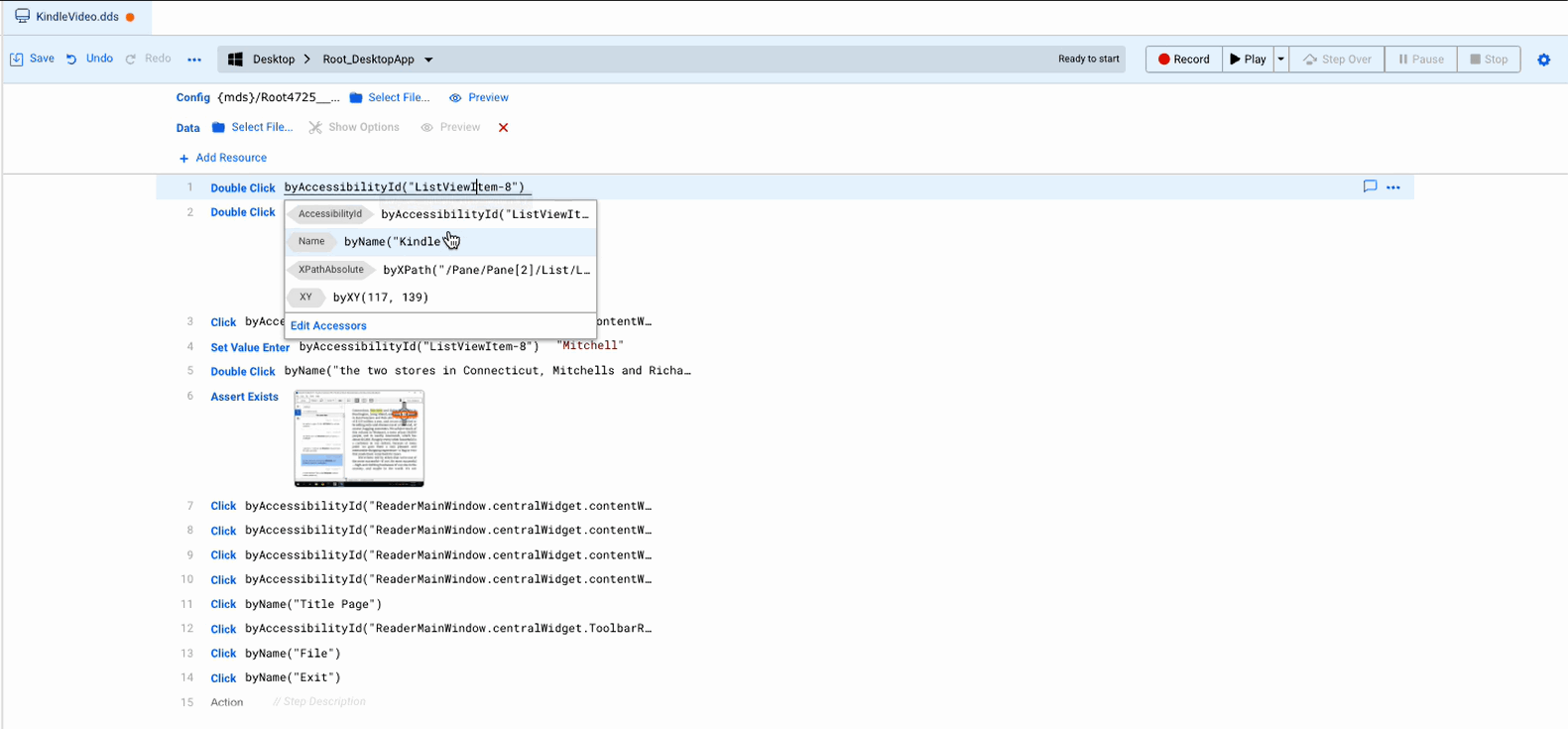
If needed you can edit your test script. For example, reordering an accessor.
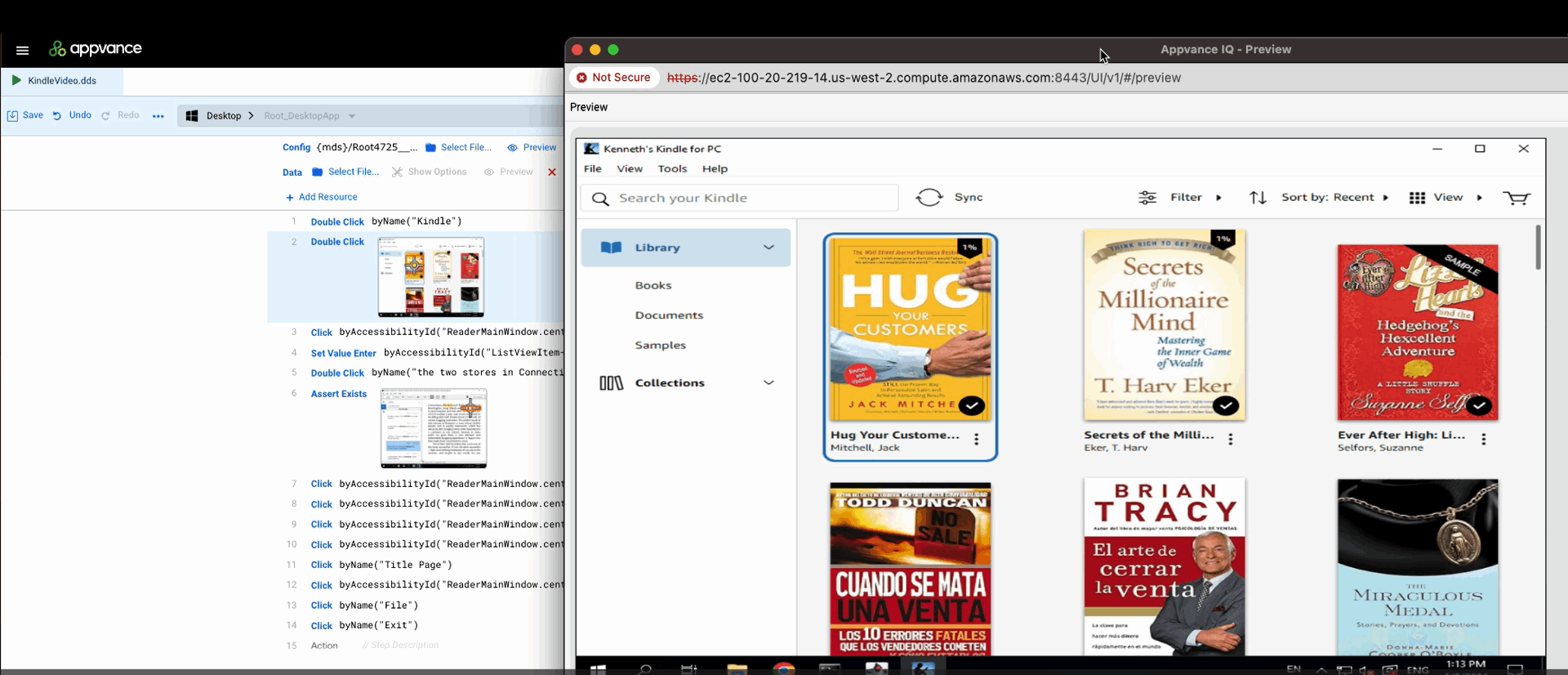
Click Play to play your test script.
The Preview window displays the playback while the corresponding steps are highlighted in the Desktop Designer window.
Last updated: SeptemberOctober 25,8, 20242026
If you have any feedback on this topic, please contact us at documentation@appvance.ai