
Desktop Designer Example - Kindle Desktop App
Here is a basic example of creating a desktop test that interacts with the Kindle Desktopdesktop App Example - Legacy AIQ Desktop Testapplication.
This example iswill retainedshow:
Example
In AIQ navigate to Desktop Testing > Desktop Designer.
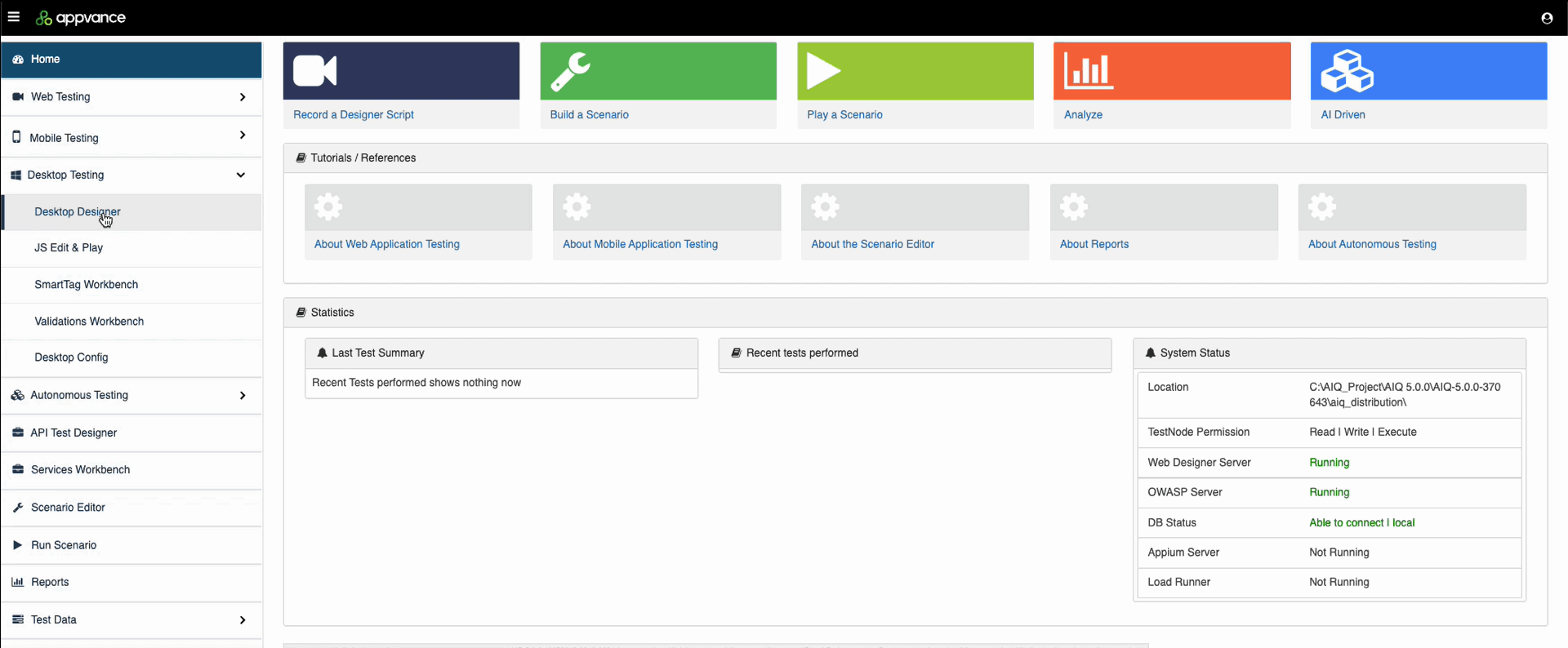
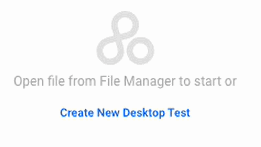
Click Create New Desktop Test.
Name and save your new AIQtest authoring.
WhatIn this example demonstrates
the KindleVideo.dds.
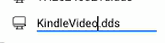
.dds is the file extension for all Desktop Designer test scripts.
Select a desktopDesktop applicationConfiguration fromfile. If you have not created a knownDesktop state.Configuration file, see Desktop Designer Configuration Files for more information.
Click applicationPreview windowsto andsee controlsyour thatDesktop mayConfiguration changefile.
versions.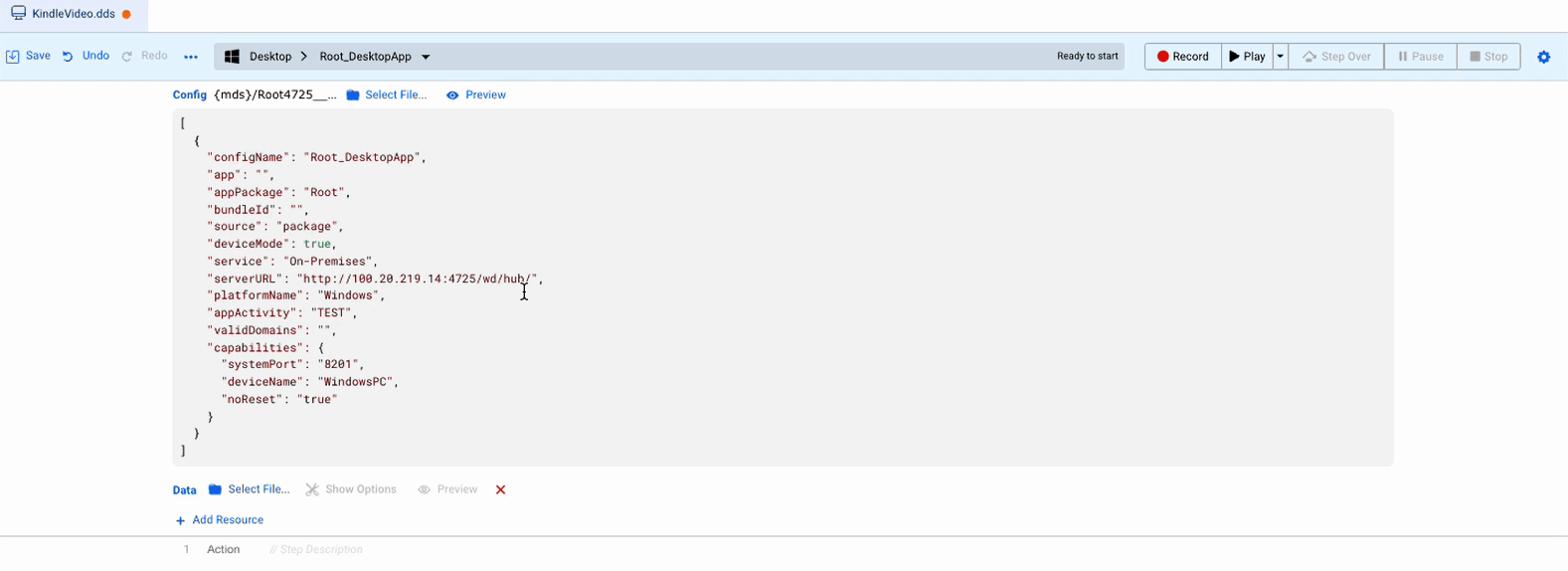
Click afterRecord navigationto orbegin content-loadingrecording steps.your test script.

Wait whenfor the app,device driver,to orload.
system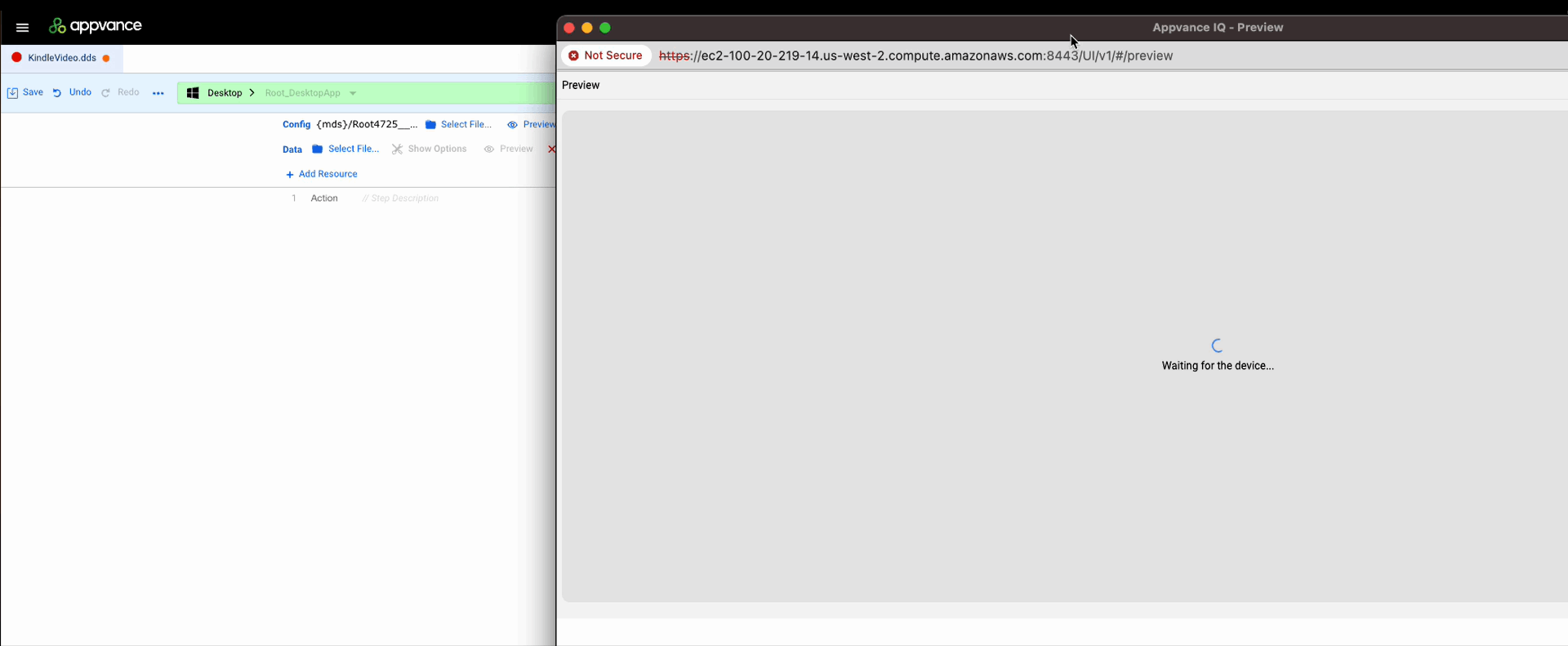
behavior
Maintenance
Right
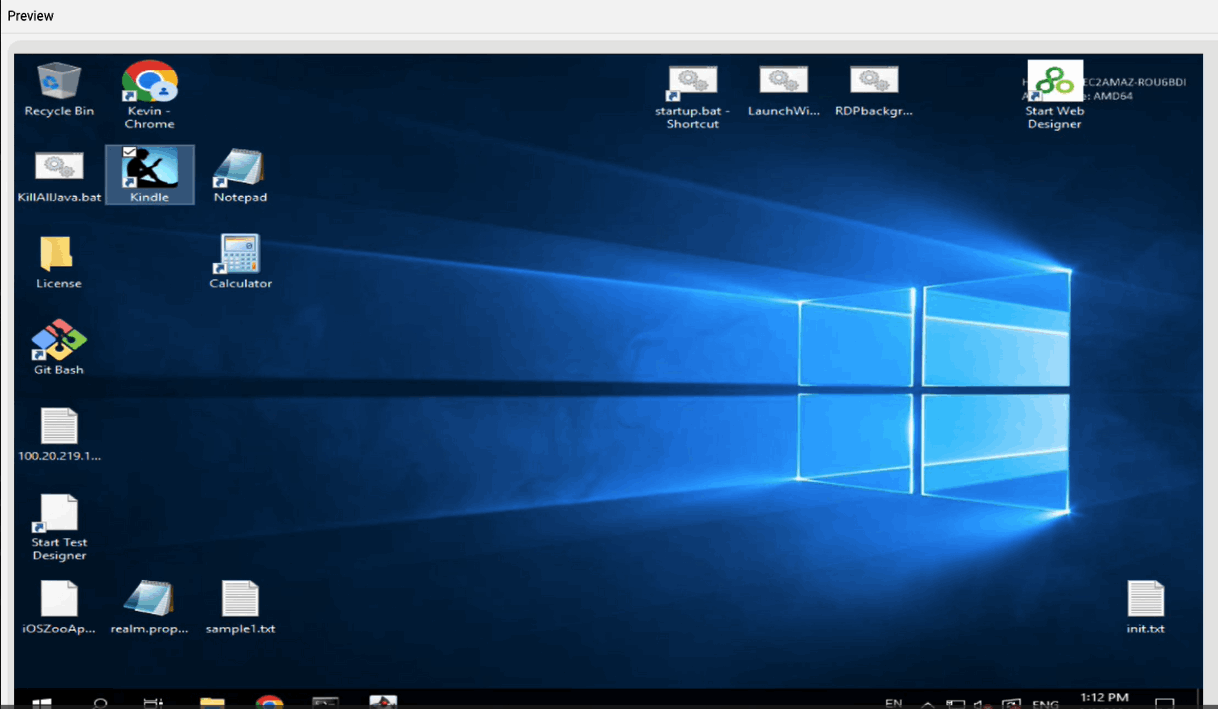
Confirmclick the desktop icon for the Kindleapplication versionapp andtheselectWindowsDoubleenvironmentClick.beforererunning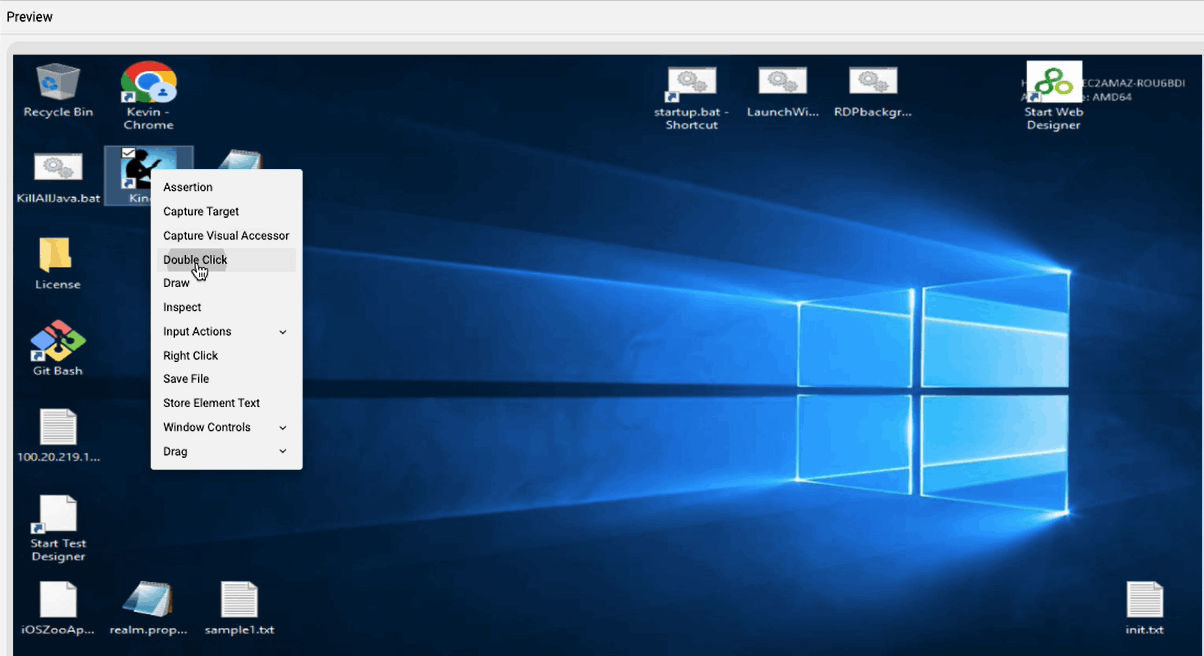
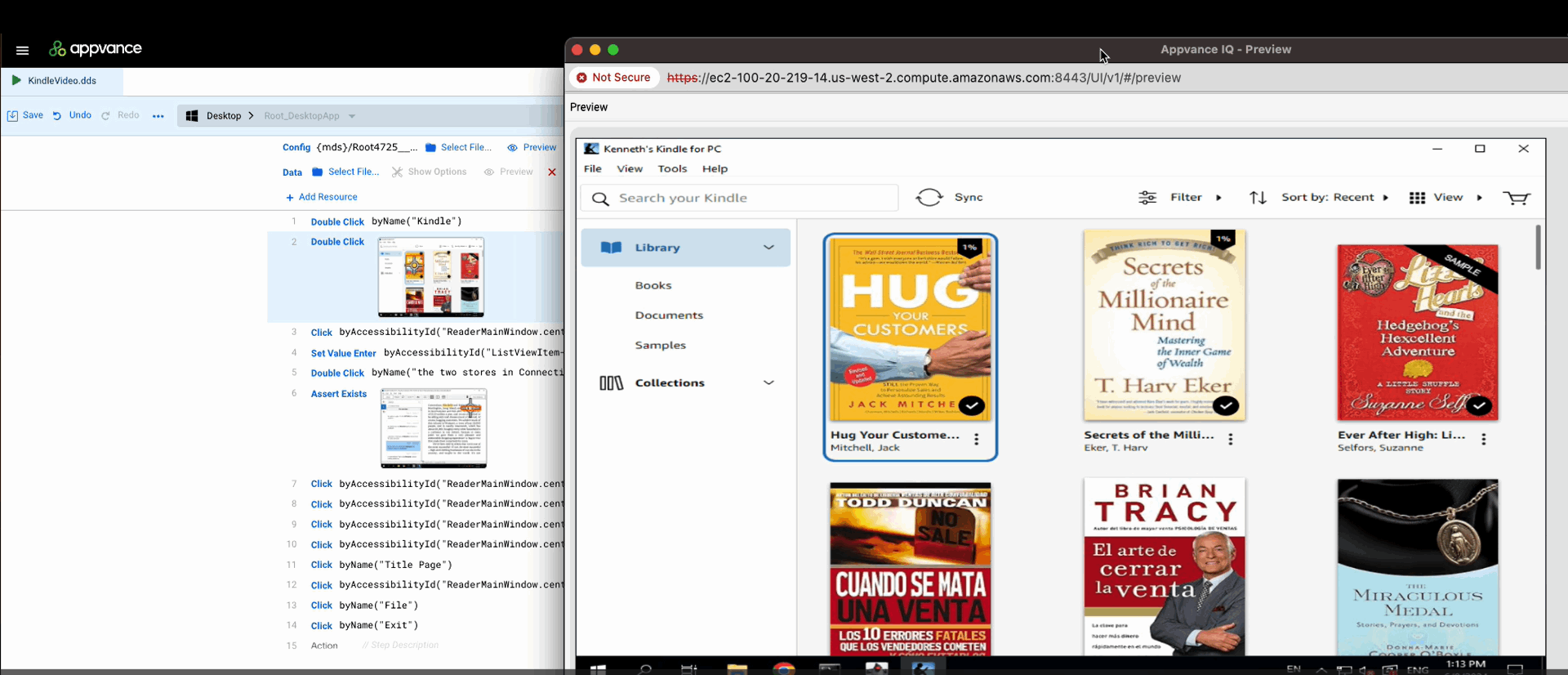
The Kindle desktop app starts.
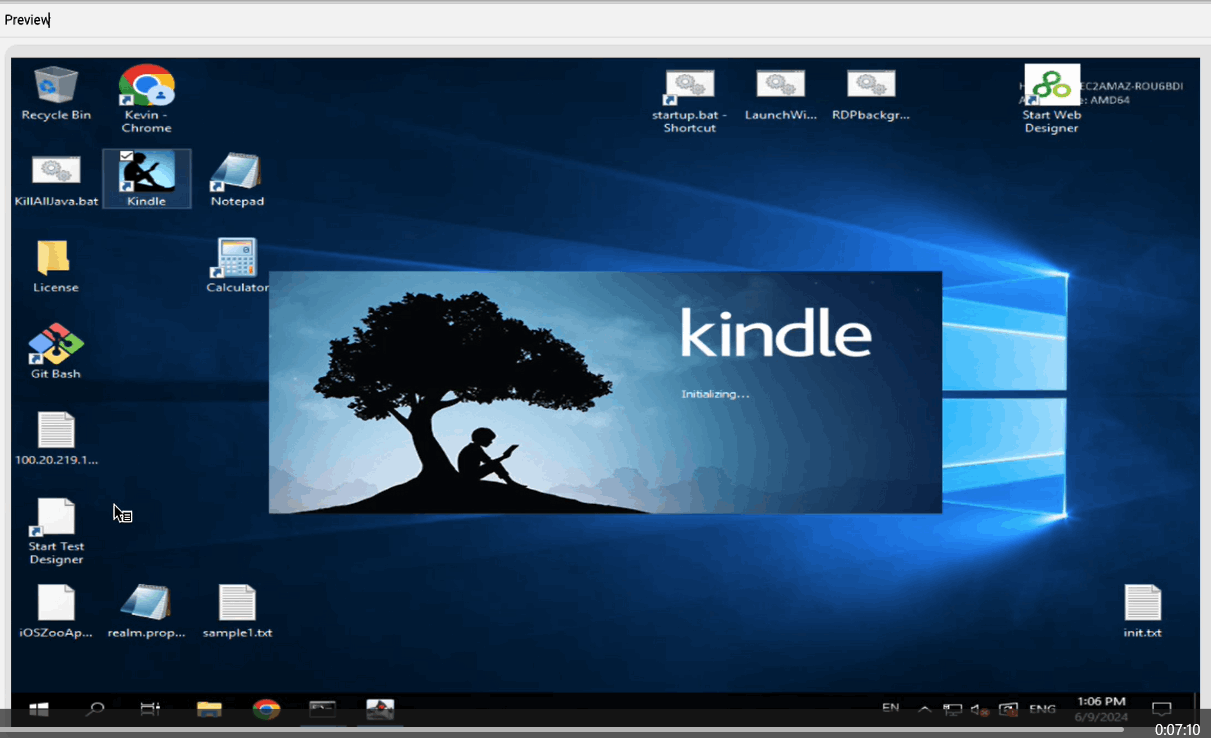
Hover over one of the sample.book covers. Right click and select Capture Visual Accessor.
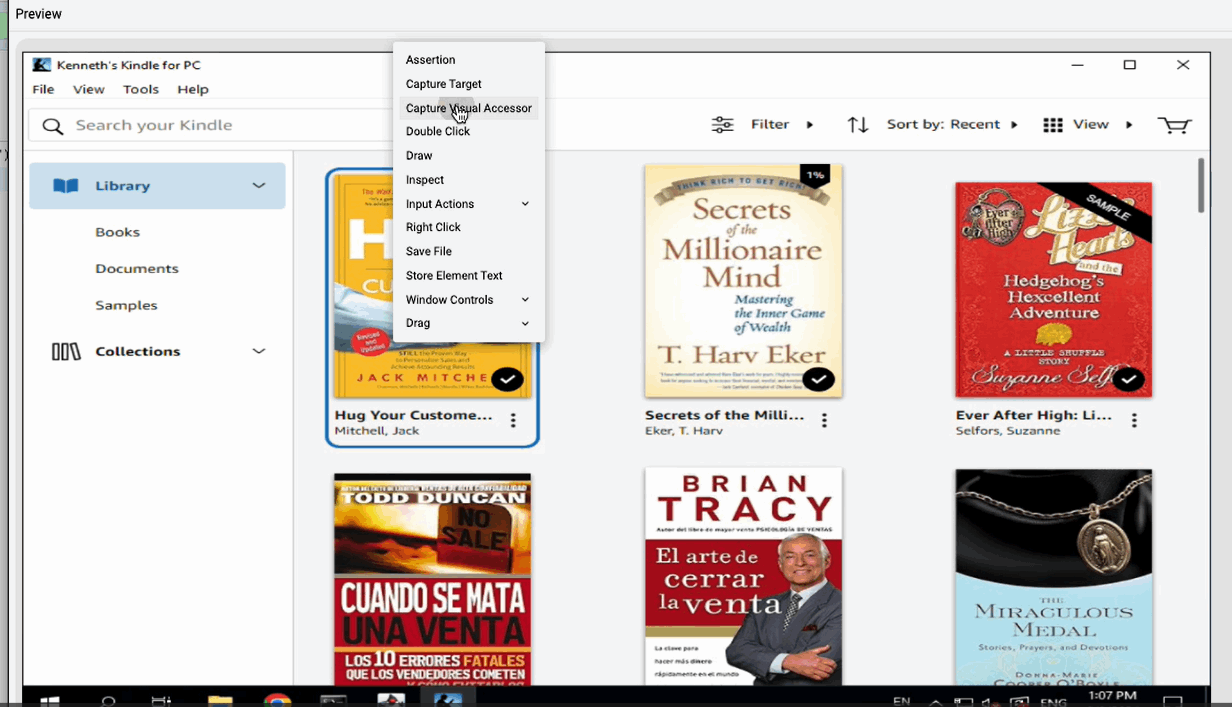
Select image-onlythe boundaries of the Visual Accessor.
Click Save Target.
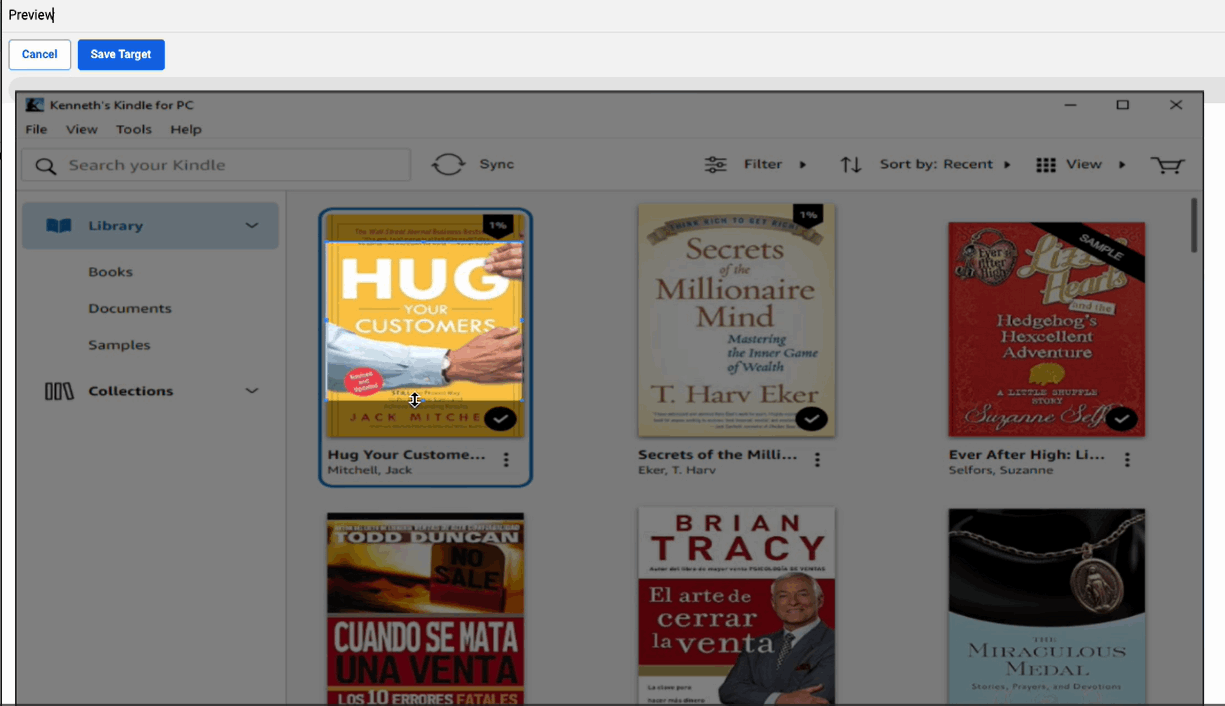
Click on the Visual Accessor.
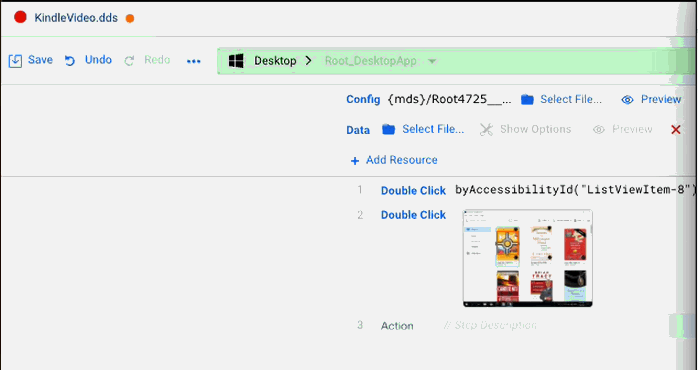
Add Step with Double Click.
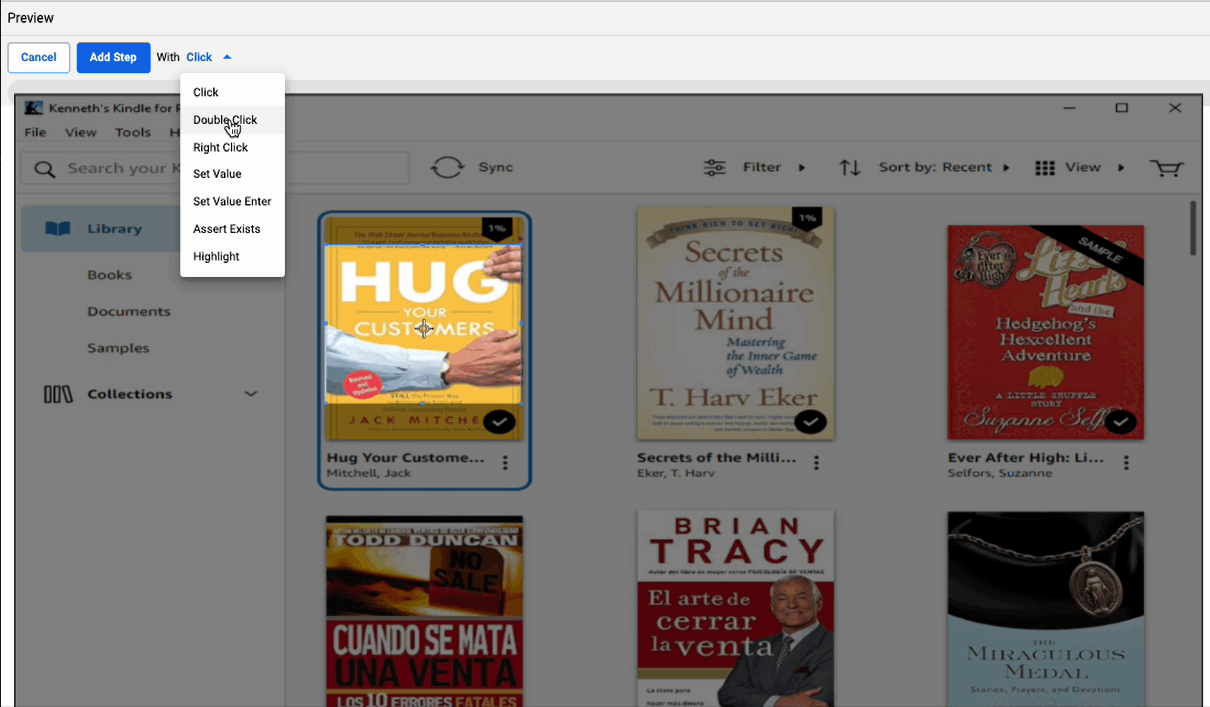
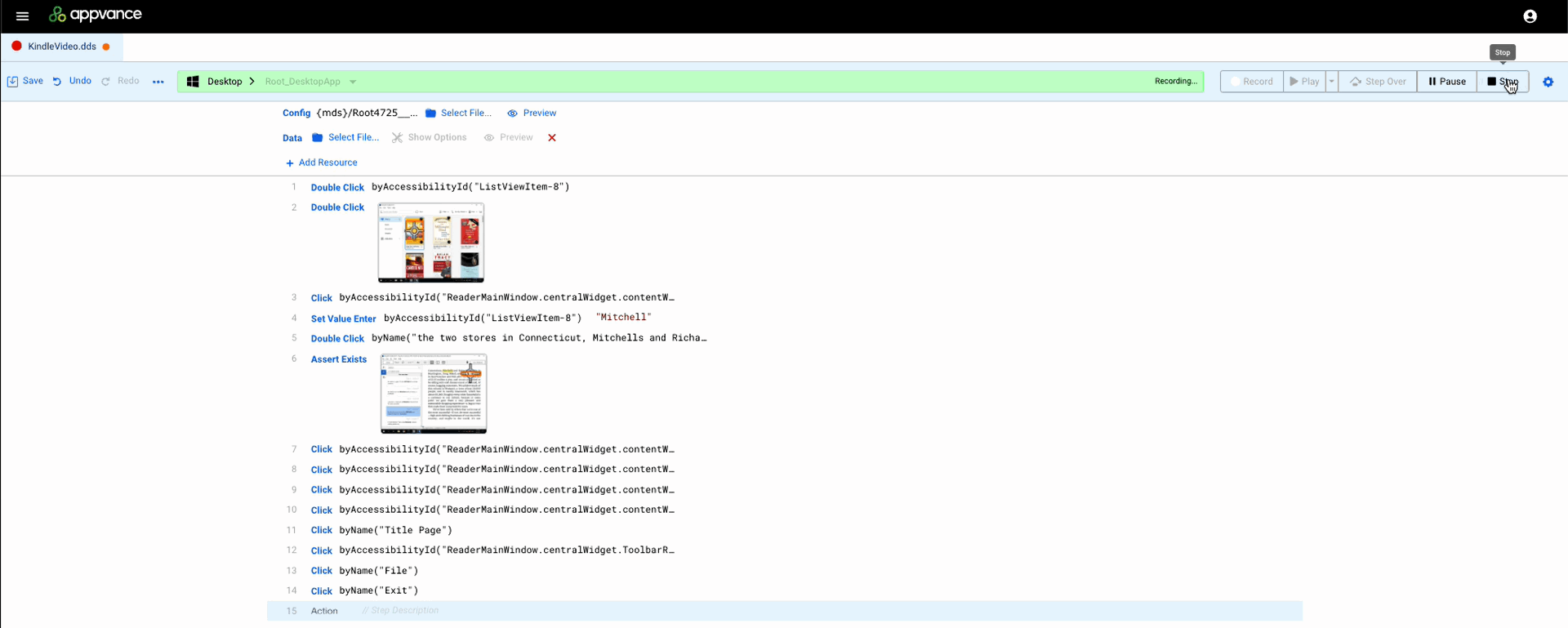
In the Desktop Designer window you can see that the step has been added to your test script.
Click in the Search bar and then right click.
Select Input Actions > Set Enter Value.
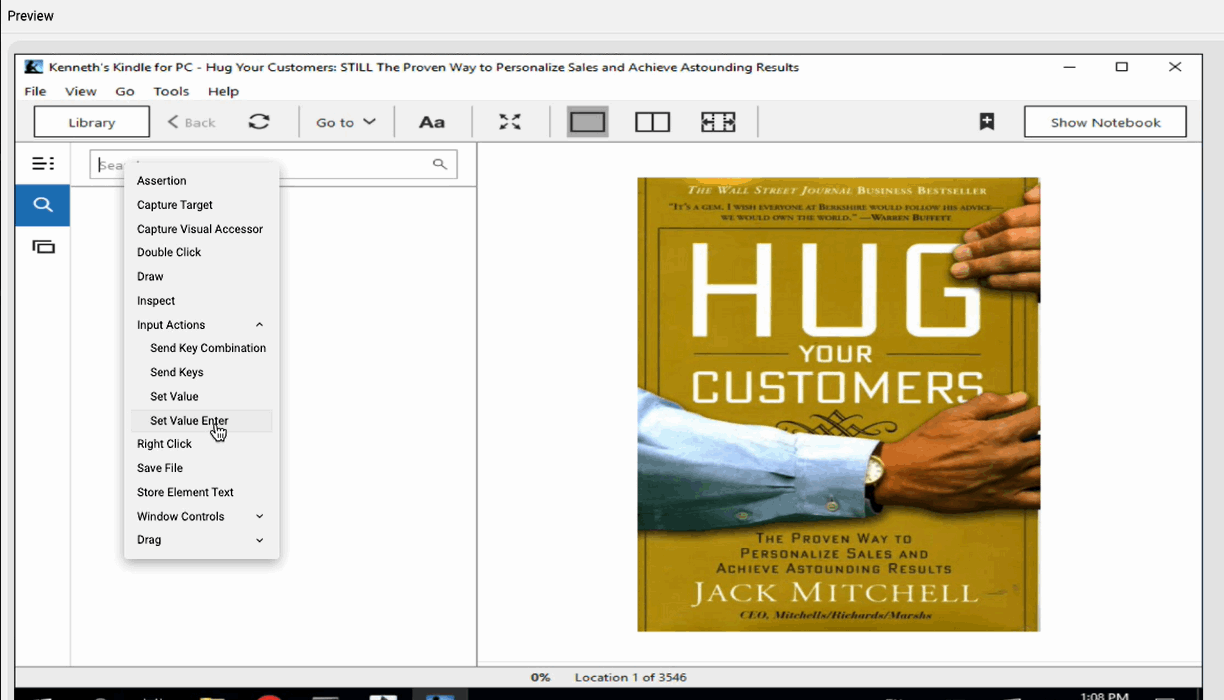
Enter a search string. In this example the search string will be "Mitchell".
Click Apply.
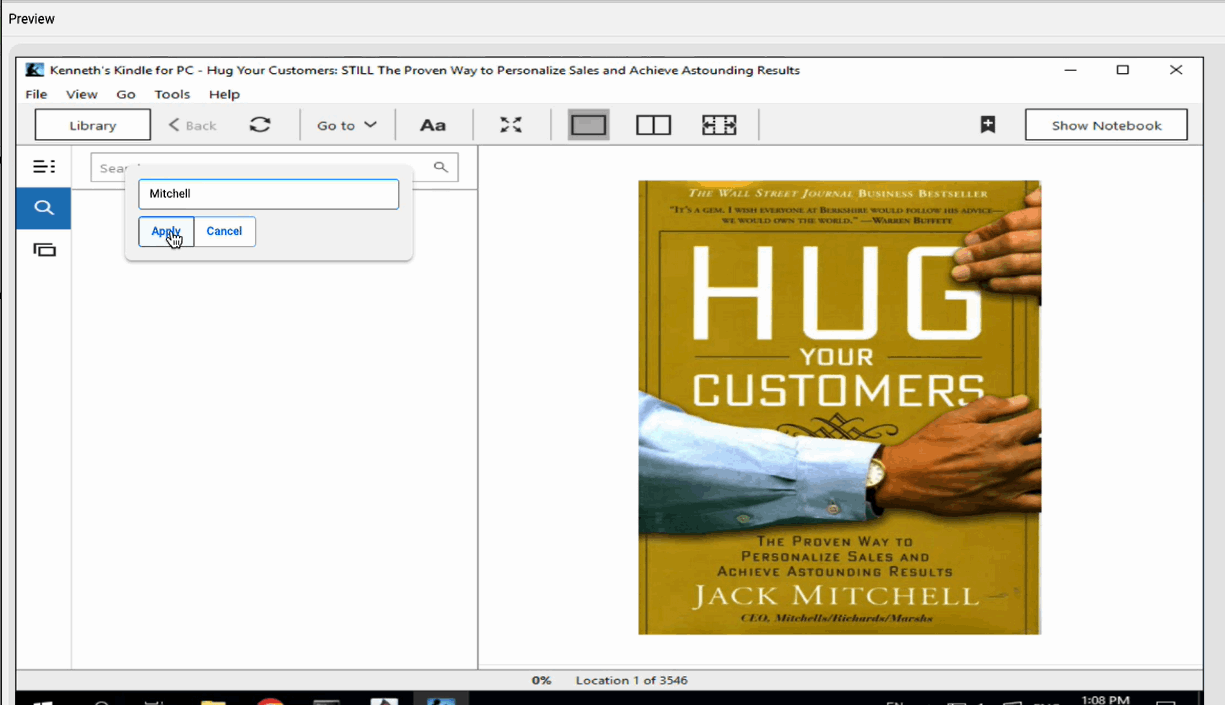
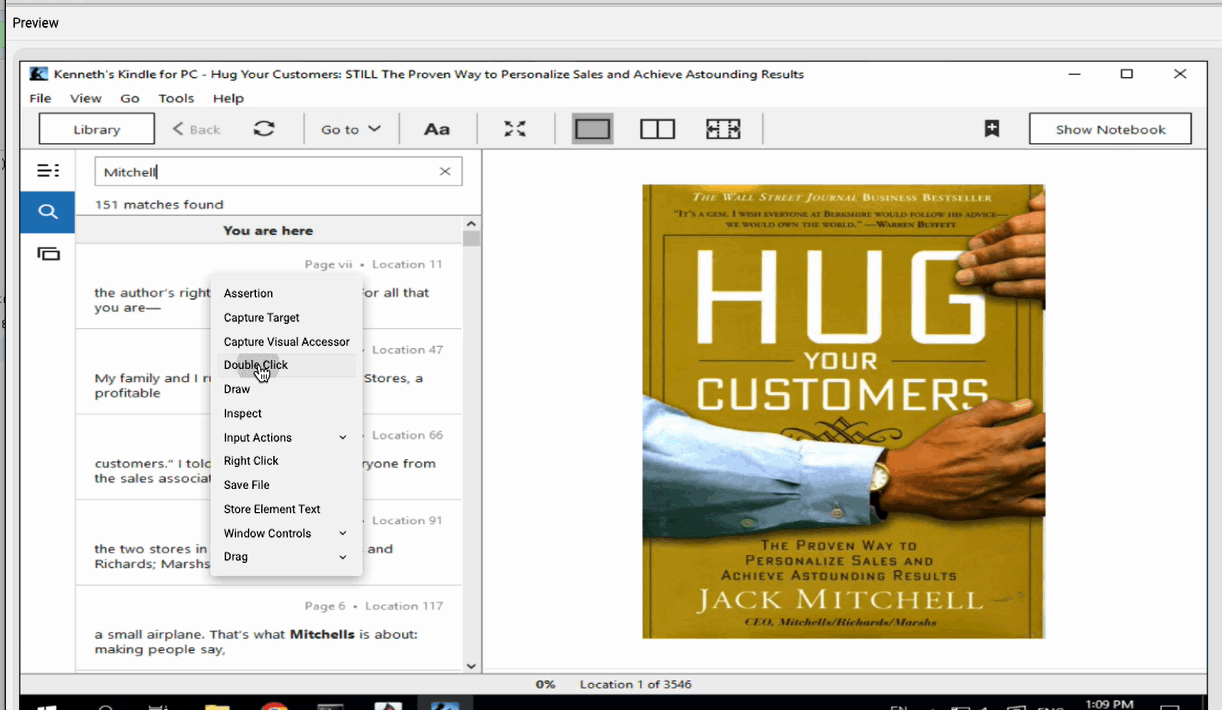
The search results load.
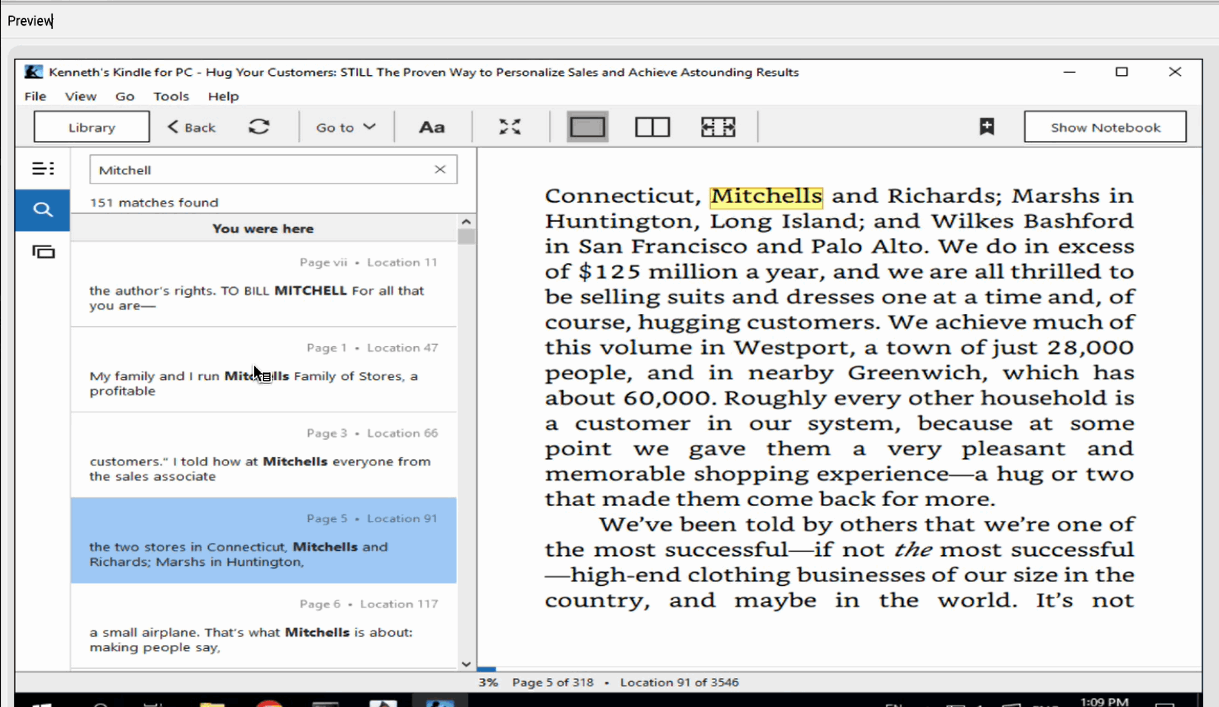
Select one of the search results and right click. Select the Double Click action.
The page associated with the search result loads on the Kindle screen.
Hover over the page and right click. Select Capture Visual Accessor.
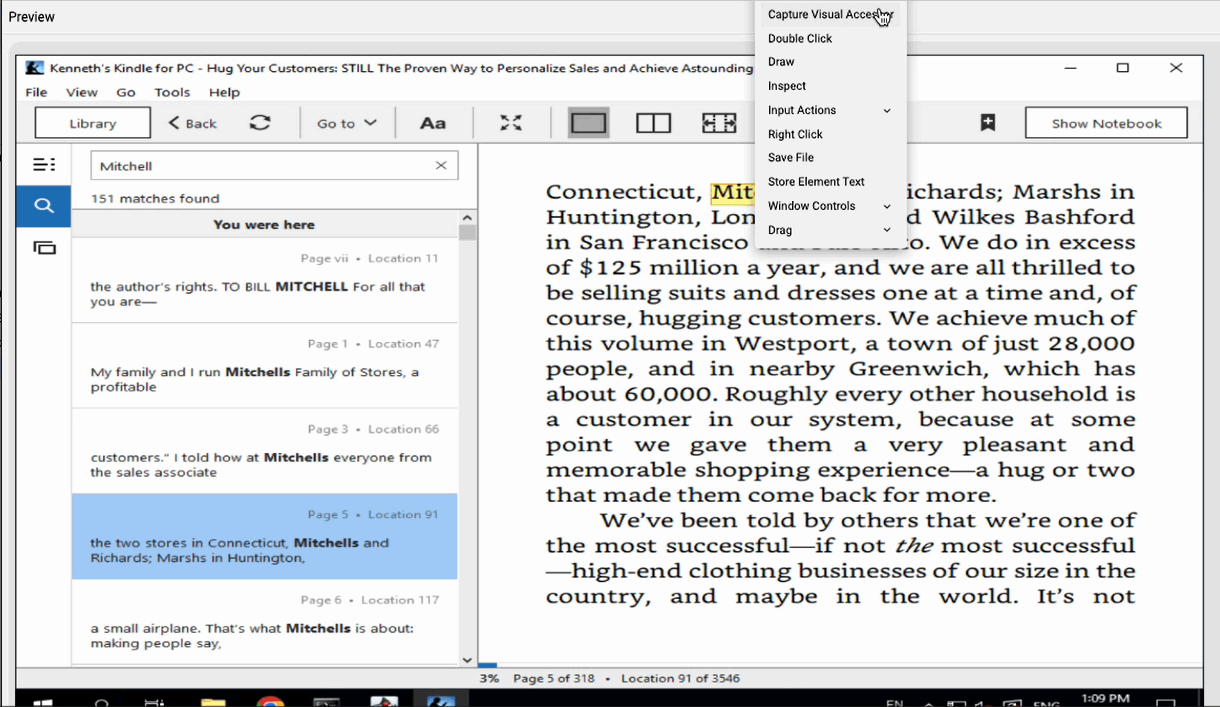
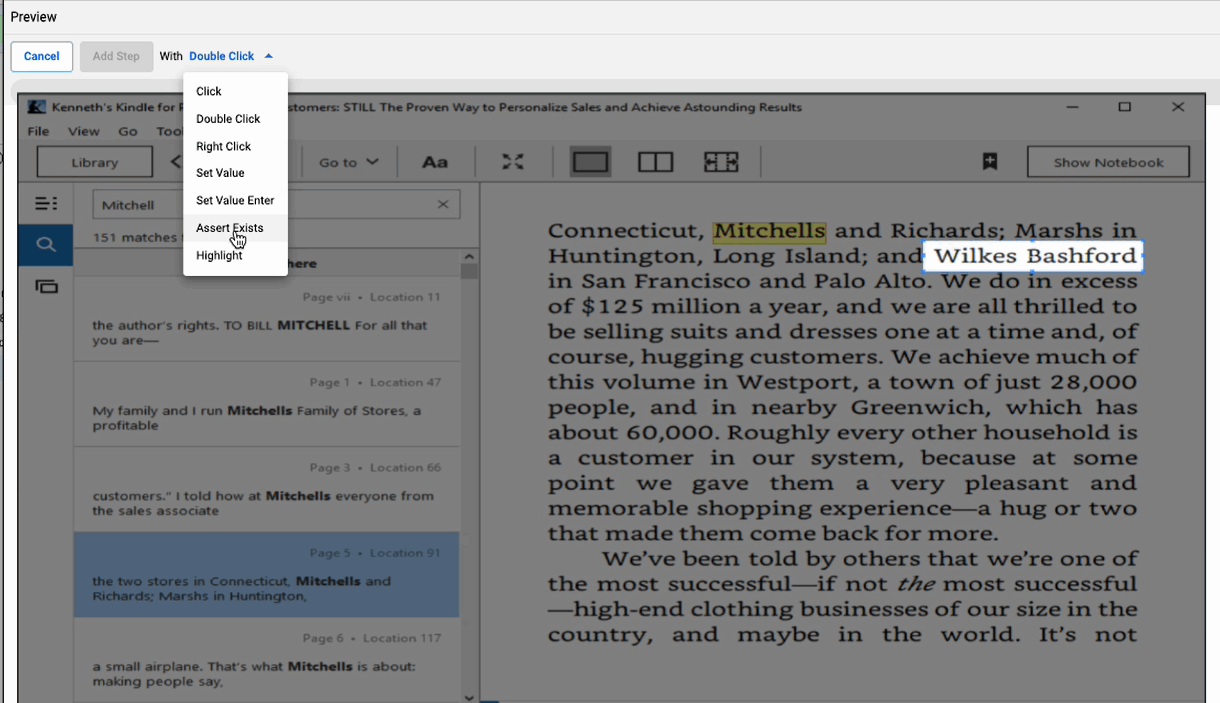
Adjust the Visual Accessor target. In this example it is the text "Wilkes Bashford" that is selected.
Click Save Target.
Add Step with Assert Exists.
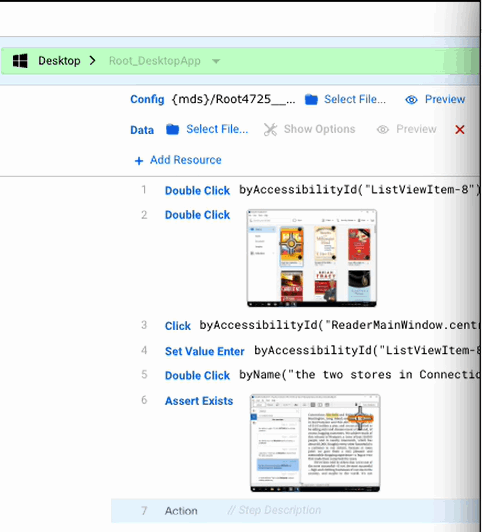
The test script updates in the Desktop Designer window.
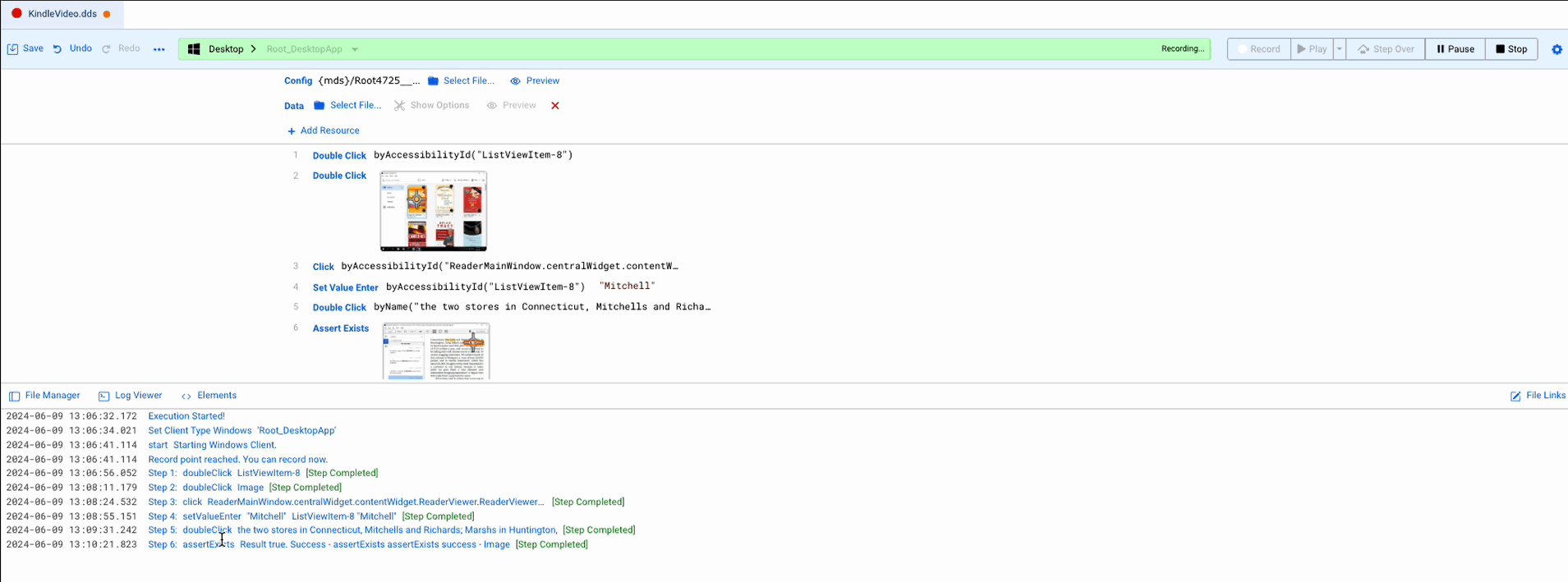
You can see more information in the Log Viewer tab.
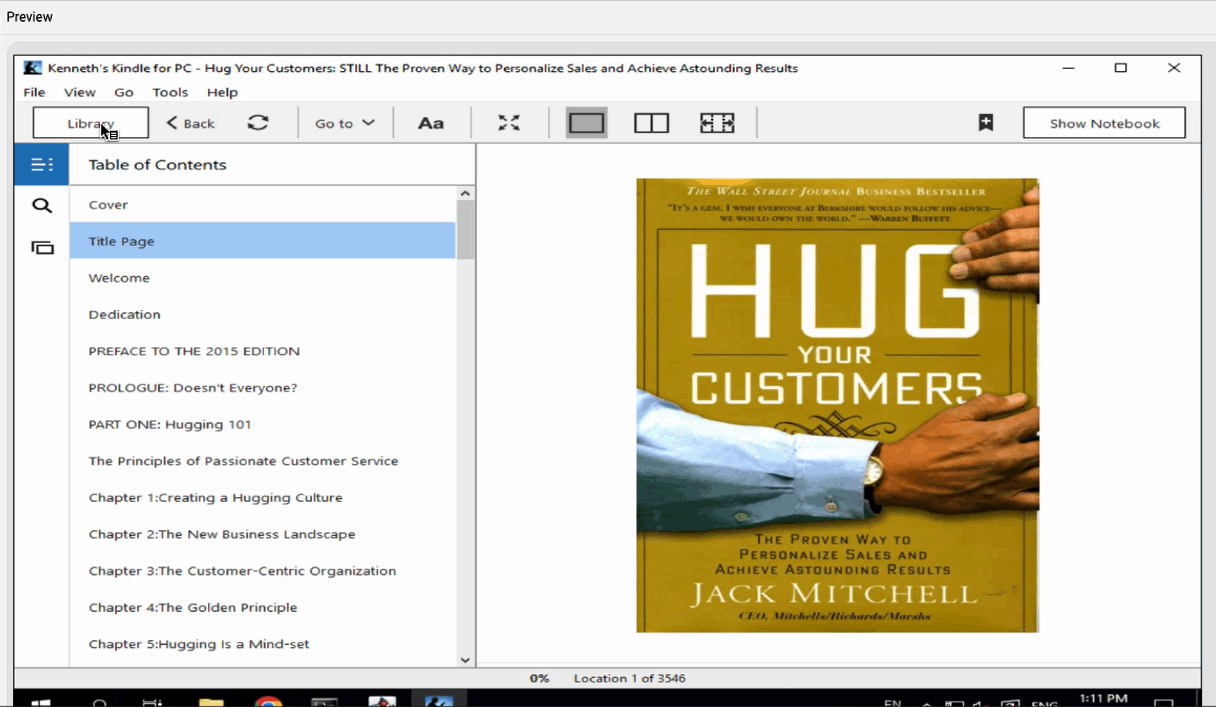
Click in the TOC and select Title Page.
The title page loads.
From the File menu select Exit.
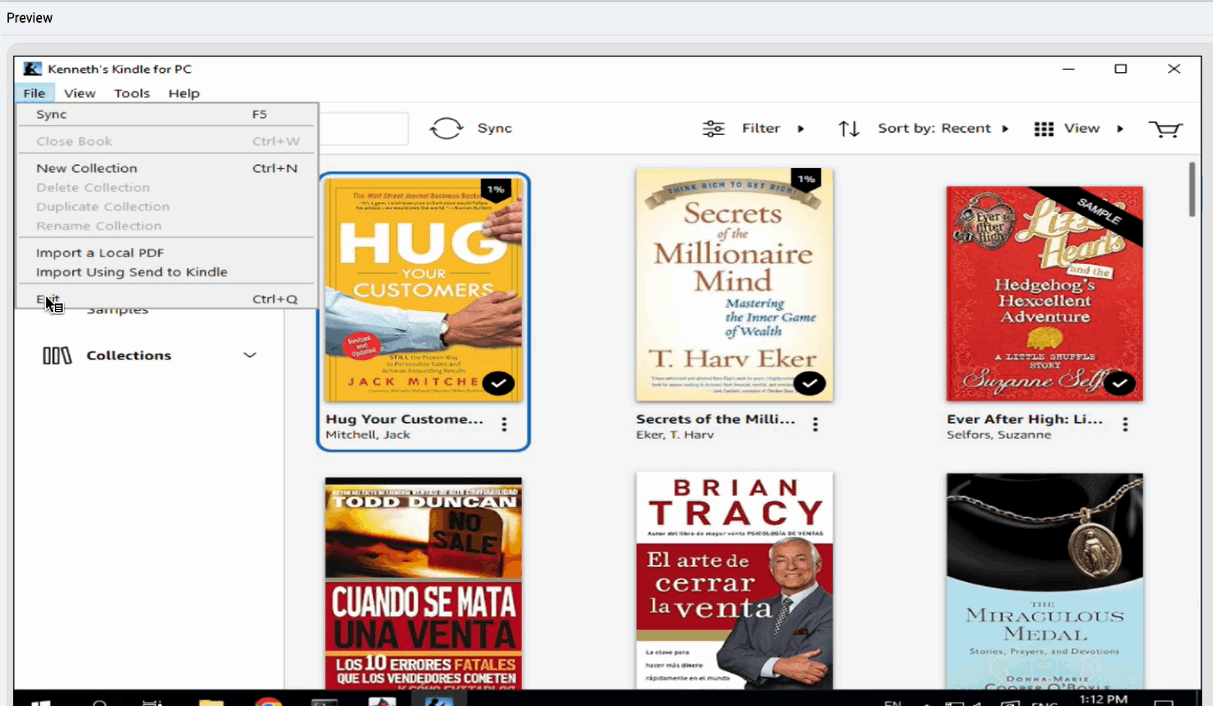
The Kindle desktop app closes.
Click Stop to stop the recording.
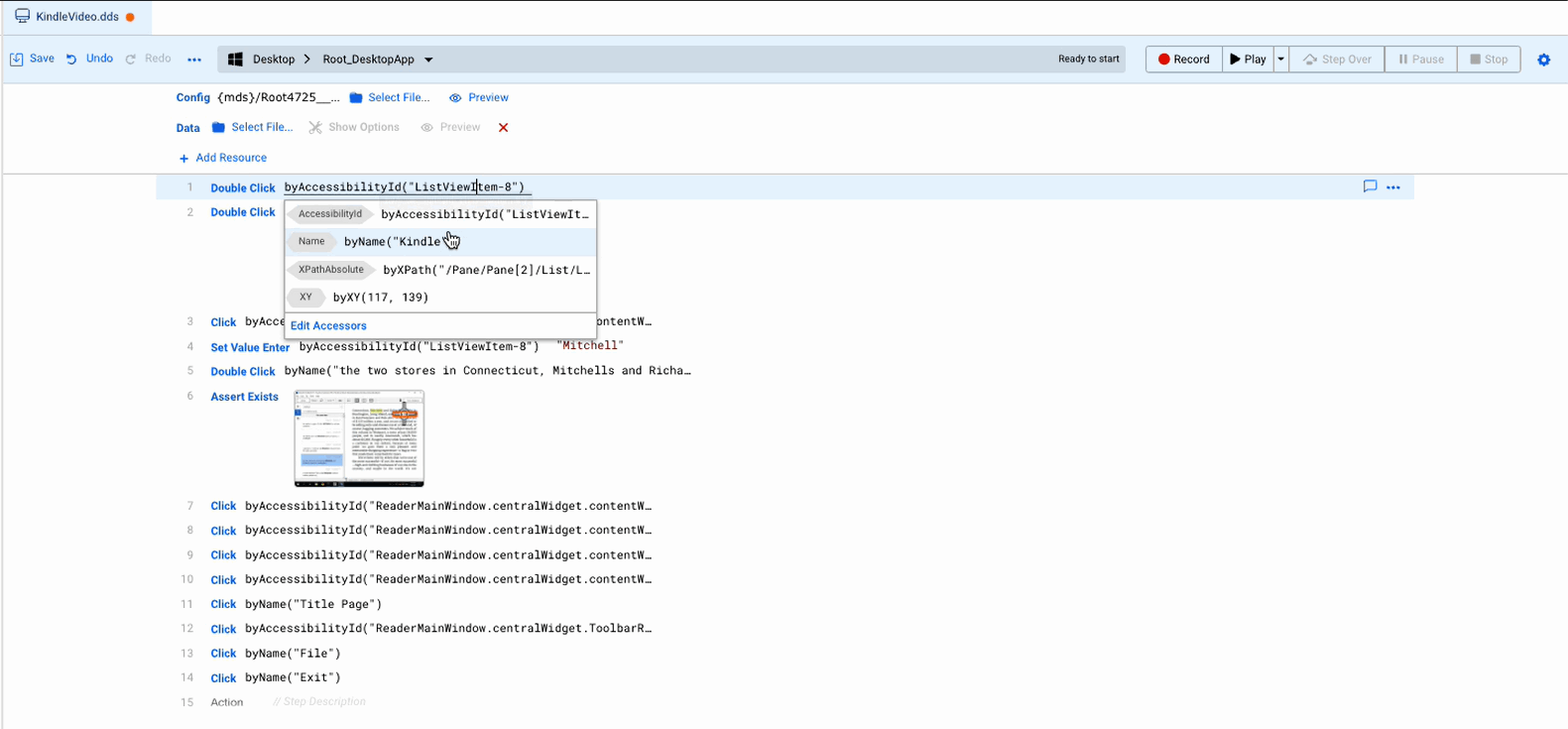
If needed you can edit your test script. For example, reordering an accessor.
Click Play to play your test script.
The Preview window displays the playback while the corresponding steps withare morehighlighted stable selectors or validations where possible.
Obsolete-content note: Keep this page only as a legacy example. New examples should use the current AIQ workflow and current terminology.window.
Last updated: OctoberSeptember 8,25, 20262024
If you have any feedback on this topic, please contact us at documentation@appvance.ai