
API Testing Examples in Service Suite
Recommended guidance
Here are someUse API testing examples.examples to teach repeatable Service Suite patterns: authentication, request construction, assertions, response extraction, data reuse, and error handling. Keep examples current and remove credentials or customer-specific values.
Basic Example with More Parameters
Basic Example
This is a simple
Recommended example coverage
- GET, POST, PUT/PATCH, and DELETE requests where appropriate.
- Headers, query parameters, request bodies, and content types.
- Authentication setup using
asafeRESTplaceholders. - Status-code,
Requestschema, field, and business-rule assertions. - Response extraction for downstream scenario or service steps.
Example hygiene
- Use placeholder URLs, tokens, and account IDs.
- Explain expected results and failure conditions.
- Keep examples short enough to
accesscopya URL and return a status. ClickCreate Newto create a new API test.
Name your test.
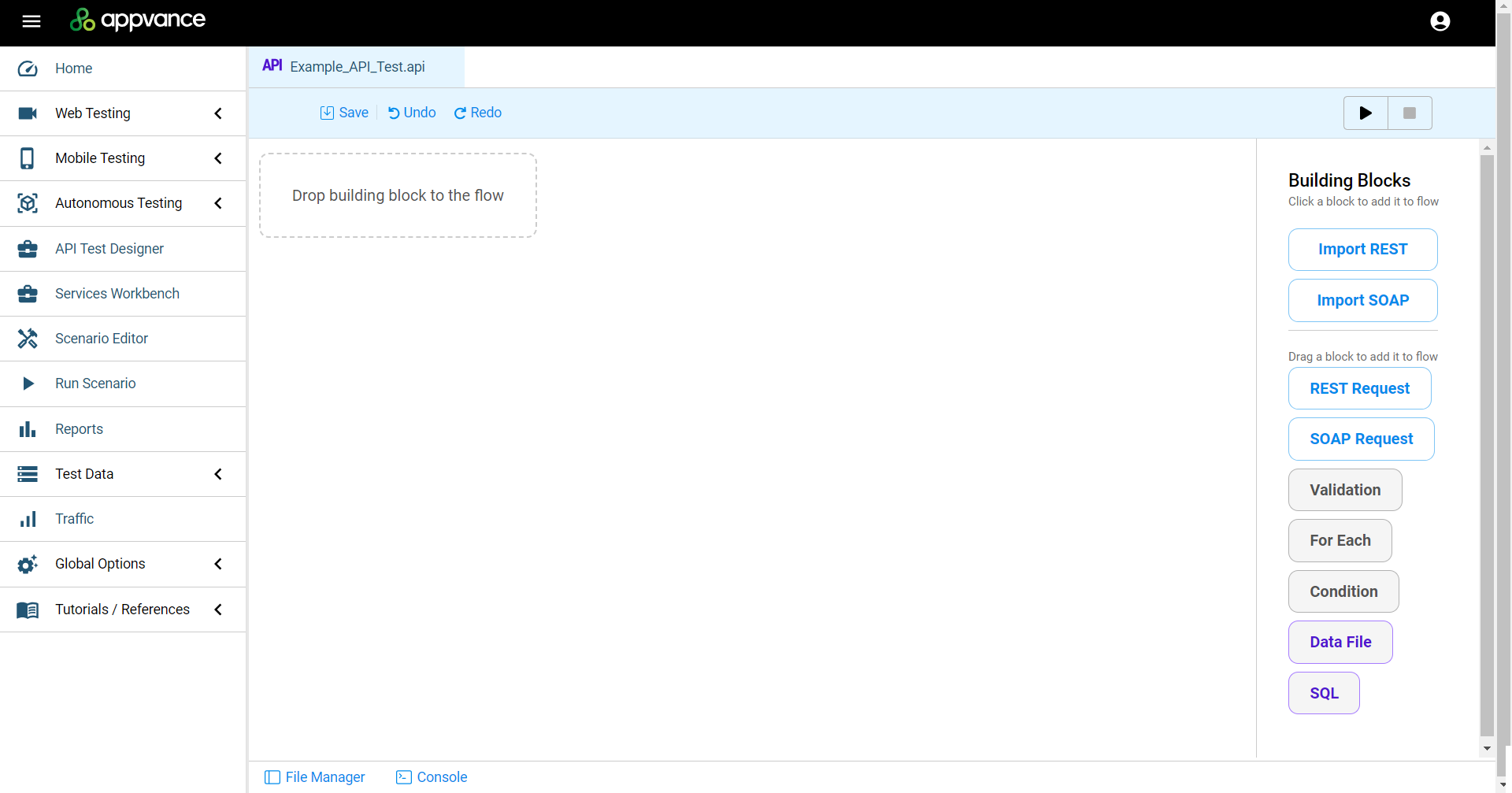
Drag the REST Request building block from the building blocks pane into the workspace.
Expand the block.
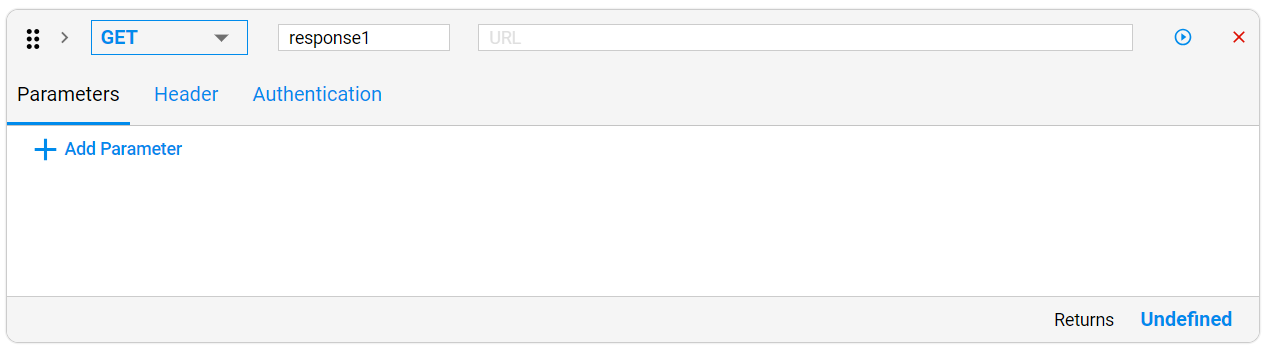
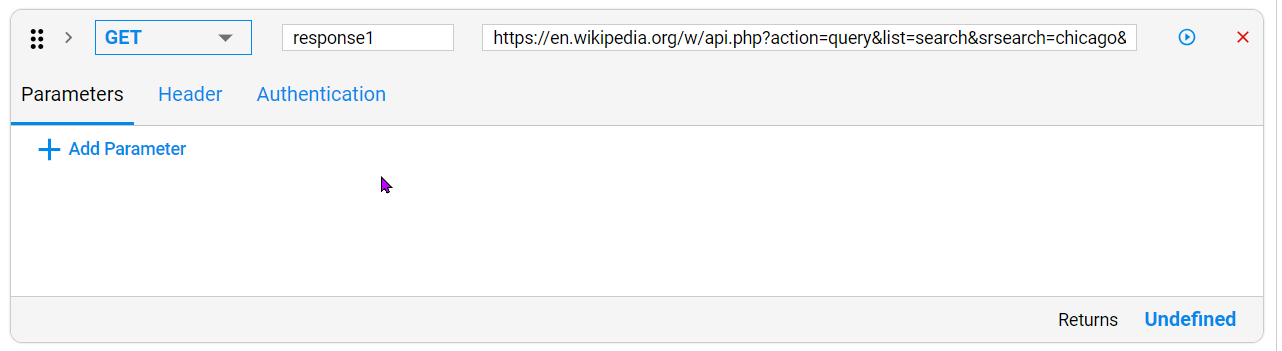
Enter a URL that can be accessed using a REST API. For this example a URL from Wikipedia will be used as an example. https://en.wikipedia.org/w/api.php?action=query&list=search&srsearch=chicago&format=json
This URL returns Wikipedia’s articles that contain the word “Chicago” in their titles, using JSON as format.
This is the outcome if you post the URLsafely into a browser:test
{"batchcomplete":"","continue":{"sroffset":10,"continue":"-||"},
"query":{"searchinfo":{"totalhits":298598},"search":[{"ns":0,"title":
"Chicago","pageid":6886,"size":257707,"wordcount":24058,"snippet":"
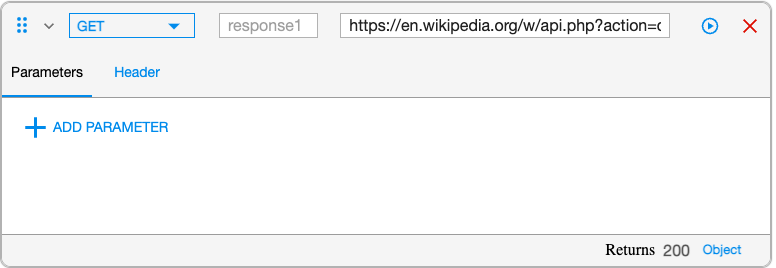
<spanproject.Validate class=\"searchmatch\">Click the Run icon( ). The result you see in the workspace should be Returns HTML Status Code 200 (Successful).
Basic Example with More Parameters
And, being already here, why not providing a few parameters?
In the URL rthe user should replace &search=Chicago to &search={name}( The curly brackets or braces are necessary)
The new URL should look like this: https://en.wikipedia.org/w/api.php?action=query&list=search&srsearch={name}&format=json
The user then will be able to see how the {name} parameter appears:
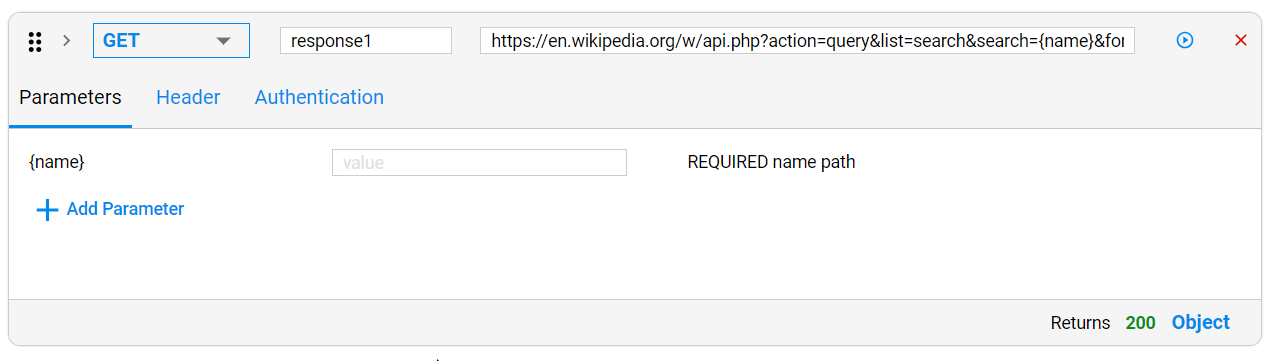
In the parameter value box, the name of an article or any word can be provided; for this example “Chicago” was used.
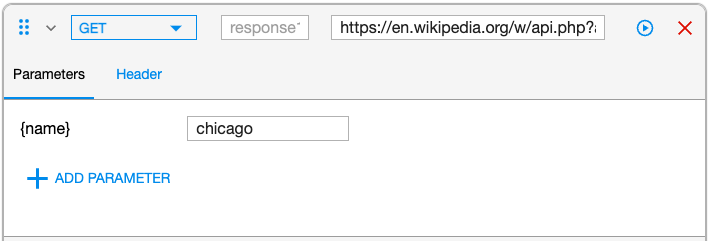
Now is the time to click the “RUN” Button (located in the top corner of the workspace) or the smaller one located at the right side of the URL.

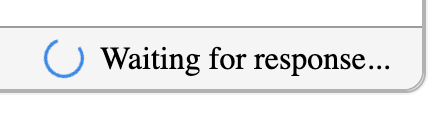
Once the button is clicked, the “Waiting for response” message in the lower part of the block appears.
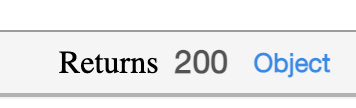
This message will change to:
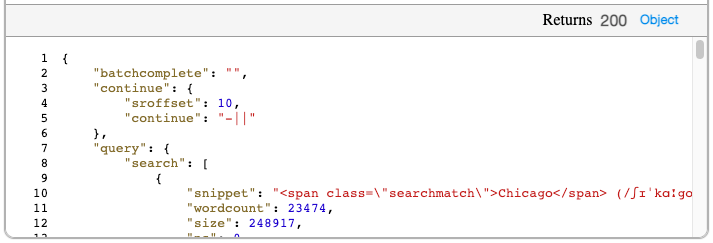
Click the “Object” link, the output of the request will be displayed (in a more neat format than the one shown by just clicking on the link)
Example of a Nested Query
And… What happens if we want to create the equivalent of a nested Query? or perform a second filter on the results of the first?
Minimize the “REST REQUEST” block with the Chevron located at the left side of the Block’s name (just to get more space to work) and add a “LOOP” Block.


Click the ”Select Object” box and confirm it is calling the “Response1.Query.Search” that you see in the first REST REQUEST.

NOTE: These values are being provided by the REST REQUEST
Expand it using the button with the Chevron “V” and add ANOTHER REST REQUEST. it is easier to close (minimize) the blocks before adding a new one
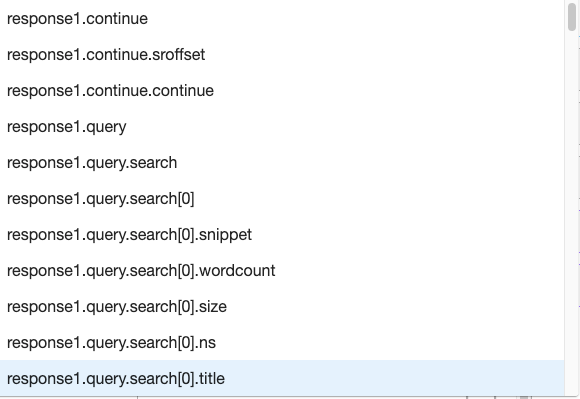
Use this URL:
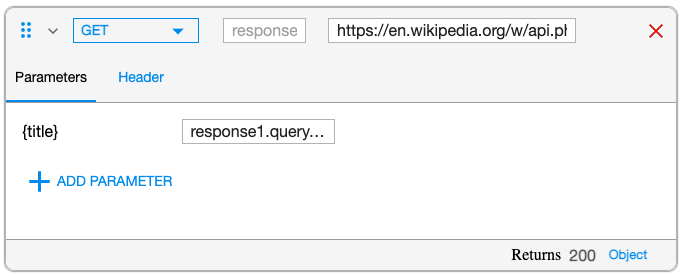
>https://en.wikipedia.org/w/api.php?action=query&titles={title}&prop=contributors&format=json
(This URL will receive the article title returned by the first request and return the collaborators and contributors for the specific article)
And the value: response1.query.search[0].title from the dropdown list
If needed, a VALIDATION Block can be added, this one checks that the output corresponds to what is expected, in this case no empty answers the source for this is: (response2.query.pages).

Once again, this can be RUN or Executed, and if there are no errors there are 2 parts that need to be checked.
The return from the second REST REQUEST block.
The Console.
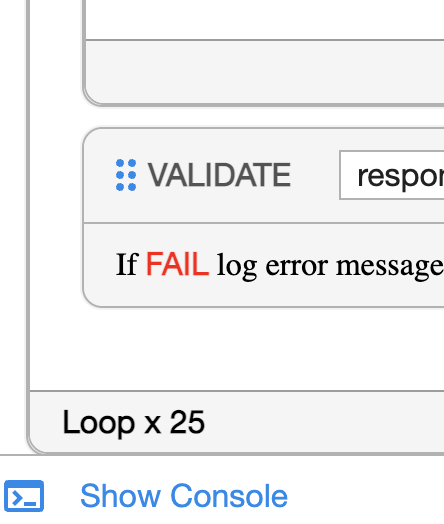
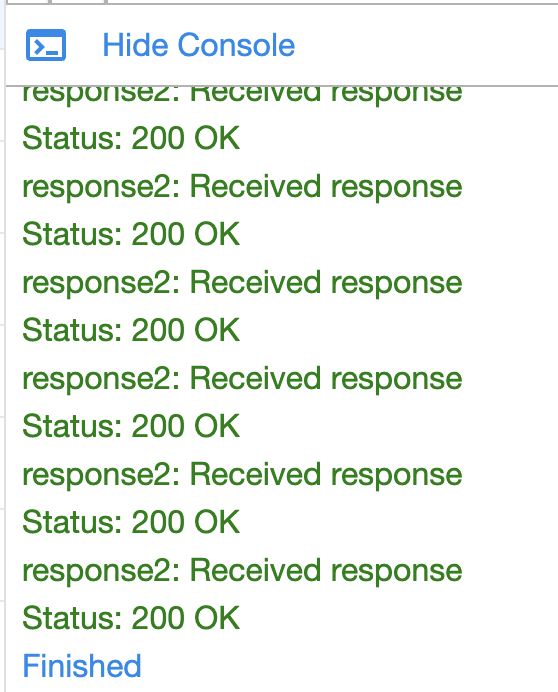
If the user clicks on the “Show Console” Link (and of course, all went well) this is what should be seen:
NOTE: In case the testing requires values to be read from SQL queries or DPL that also can be done with the DATA FILE BLOCK.

or SQL block.
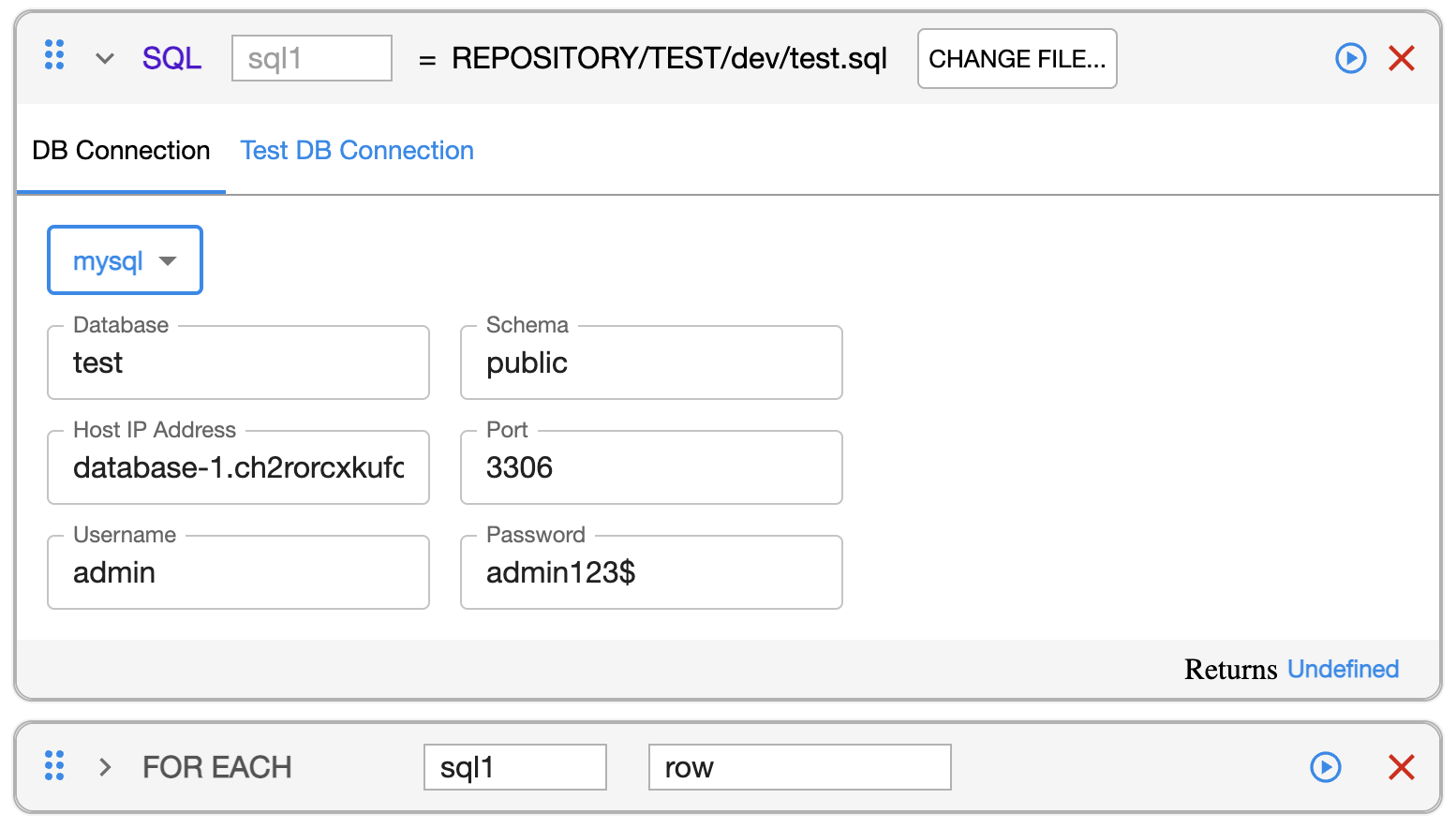
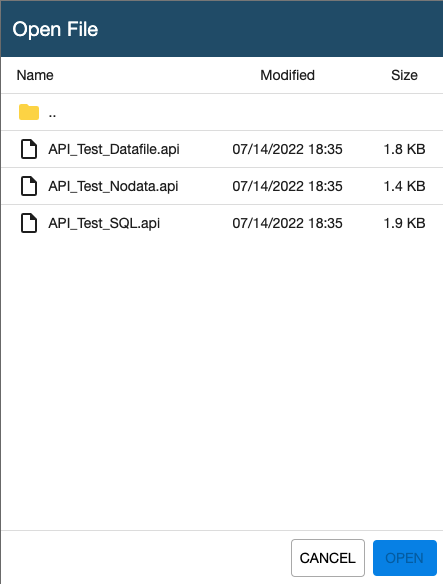
Verify that the access to the repository is working is as required. See Repository Configuration in Appvance IQ for more information.
Select the “OPEN” button.

If the user have the access, and the files, should be able to see the contents.
Last updated: AprilOctober 11,6, 20242026
If you have any feedback on this topic, please contact us at documentation@appvance.ai