
Review Live Reports During Execution
This section will provide you with live reports data depending on the two major test types: functional test and performance/load test. UI will change depending on these two major test types as follows:
A. Functional Test: Whenever you’re running a functional test, the
Review Live Reports tabDuring will display the functional tree report, meaning that you’ll be able to see the full transactions tree (test cases with their respective steps and requests). This way you can verify the functional execution transactions tree with information such as to request size metrics and steps timing.
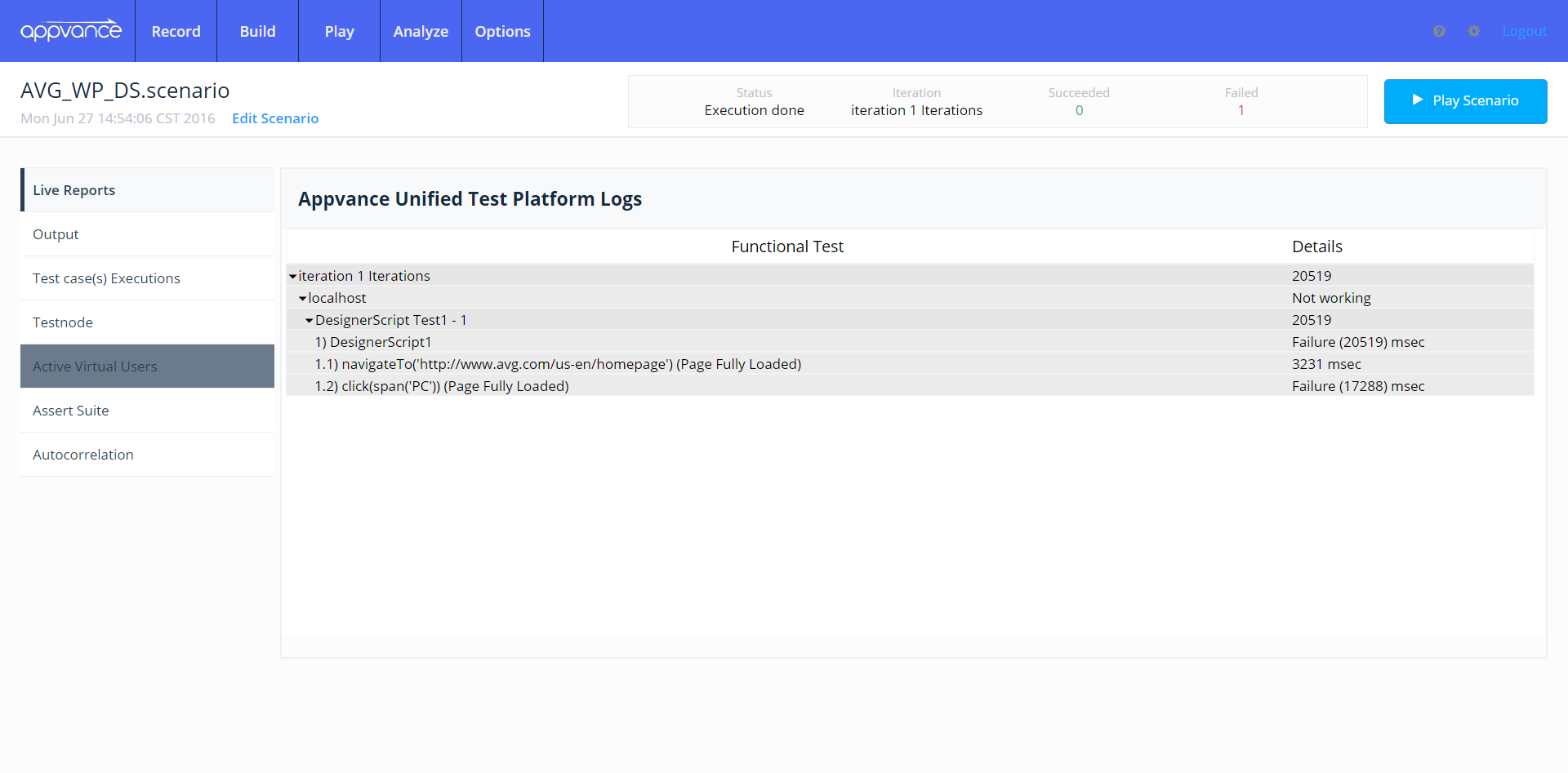
Execution
B. Performance/Load Test: Live Reports isprovide smarta enoughcurrent view of a running test. Use them to determinemonitor health during execution, but wait for the test typeto complete before making final performance conclusions.
Useful signals
- Active users and
displayramp behavior. - Throughput, response time, and error trends.
- Step or transaction failures that appear during the run.
- Test Node or environment symptoms that affect result quality.
How to use live chartingdata
- Confirm
wheneverthearun reaches the expected load pattern. - Watch for sudden error spikes or
performanceresponse-timetest is being executed. This charting data is displayed tochanges. - Stop the
userrunasifvisualcontinuinggraphswouldthatproduceprovideinvalidliveor unsafe results. - Use completed results
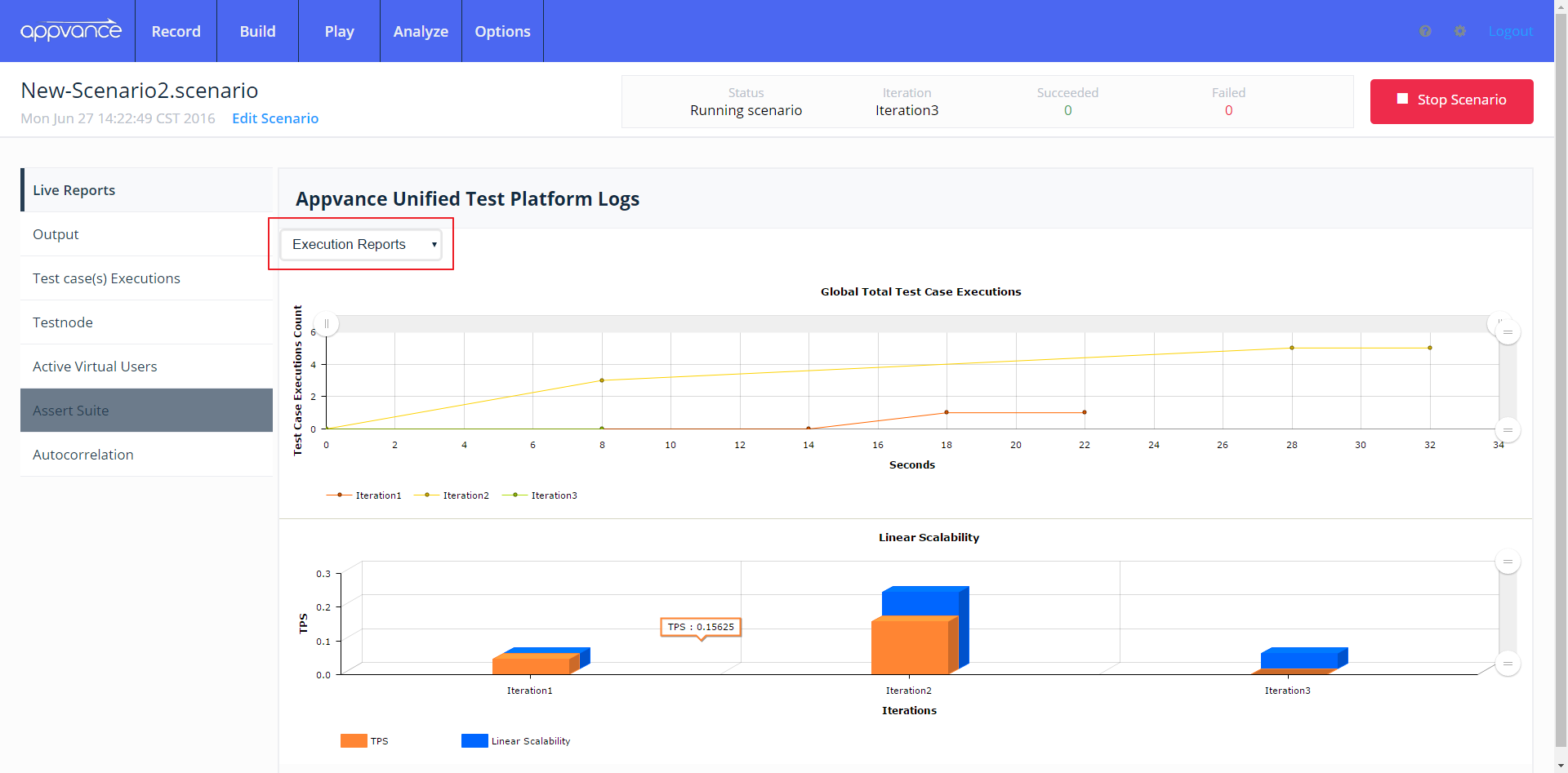
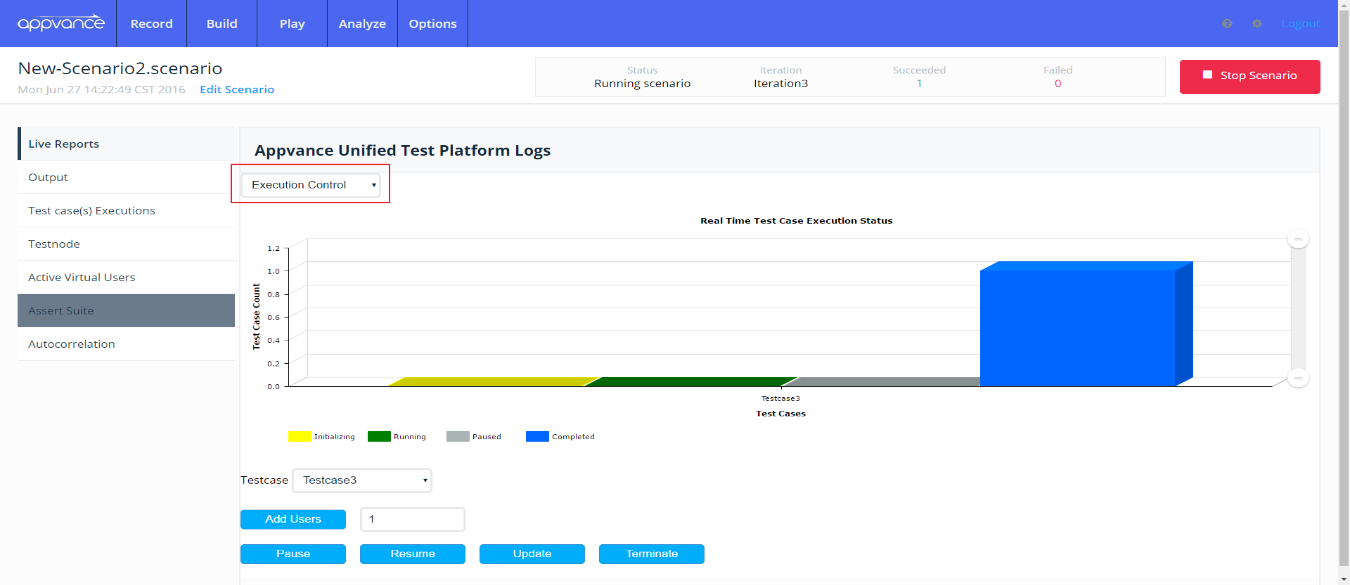
data with useful informationforthese test types such astheactivefinalusers count, test case executions count,report andaverage test case duration. When you’re running this kind of test, Live Report will provide you with three inner sections used to plot execution data and handle live execution control, this last section allows you to add more virtual users to the current transaction, and it also allows to pause/resume, terminate and update the current transaction. These inner sections are available from the drop-down menu located at the top-left of the “Live Reports” panel.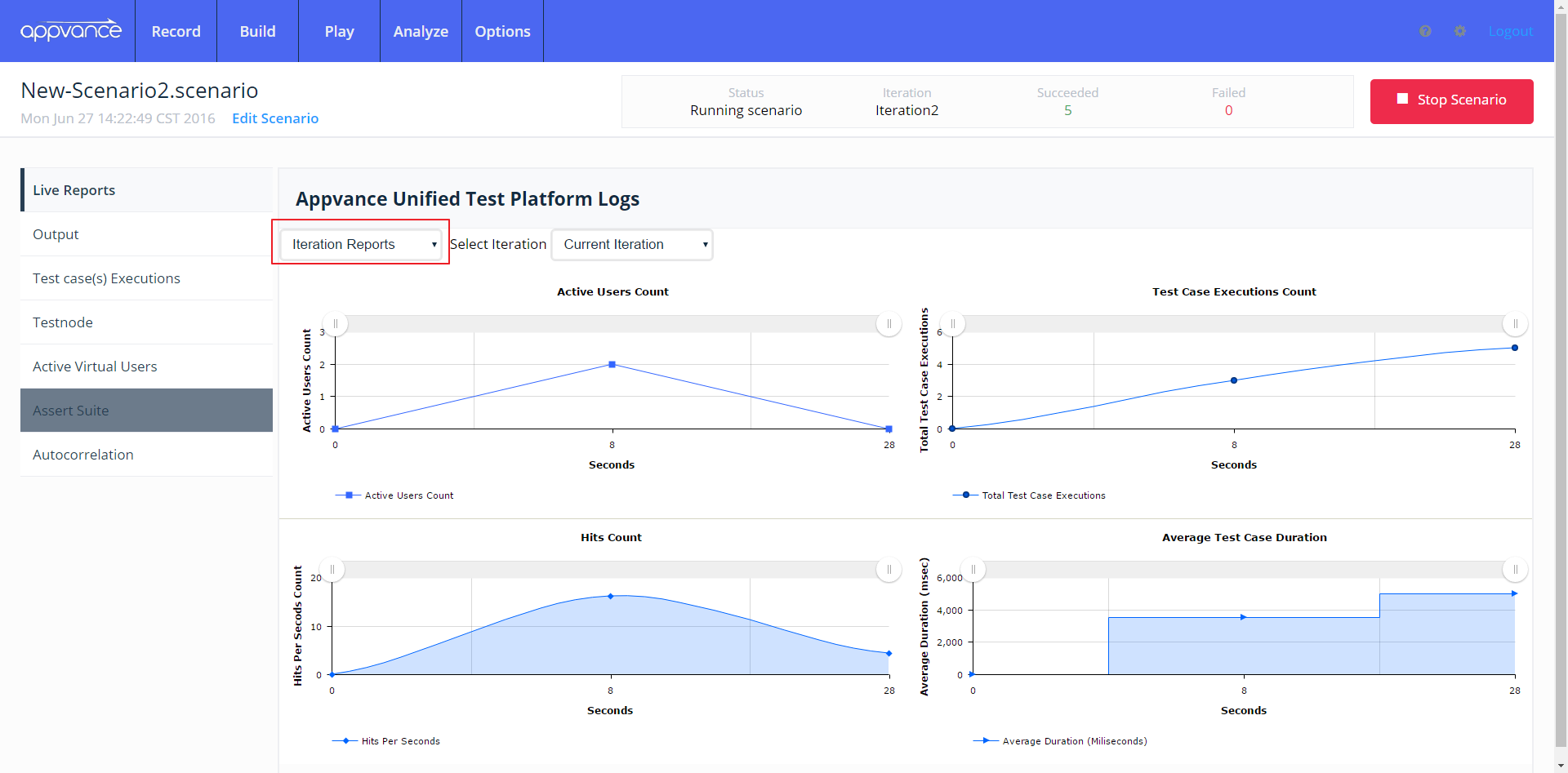
comparison.Last updated:
JuneSeptember26,18,20232026If you have any feedback on this topic, please contact us atdocumentation@appvance.ai